
What are Custom Object and Company-Based Automation Actions & Triggers?
Enrollio's automation system lets you create intelligent flows that understand the relationships between your records. Instead of only acting on the parent or family that triggered the automation, you can target related Companies, Custom Objects, and other families—and precisely find records using IDs or field criteria.
This means your childcare center can automate across enrollments, staff records, rooms, programs, and more—all based on how they're connected.
Key Benefits
- Deeper Automation: Build flows that act across families, companies, and custom objects without manual work
- Relationship Targeting: Filter by Association Label to reach exactly the related records you need
- Precision Lookup: Find records using Record ID, External ID, or field filters—including dynamic values from webhooks
- Branching Logic: Split automation paths based on Record Found vs Record Not Found, and handle multiple matches (Earliest, Latest, or All)
- Smart Control: Add or remove related records from other automations to start or stop communications at exactly the right moment
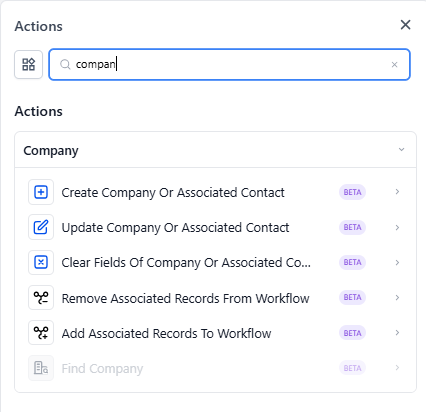
Add Associated Records to Automation
Use this action when you want the current record to trigger enrollment of related records into another automation. For example, when an enrollment status changes, you might want to notify all associated staff members or update related room records.
How It Works
- Select the associated Object Type (Parent/Family, Company, or a Custom Object like Room or Program)
- Filter by Association Label to target specific relationships (e.g., "Primary Contact," "Assigned Teacher," "Room Manager")
- Choose the target automation those associated records should be added to
Example: When a child's enrollment moves to "Active," automatically add all associated teachers to the "New Student Welcome" automation so they receive onboarding materials.
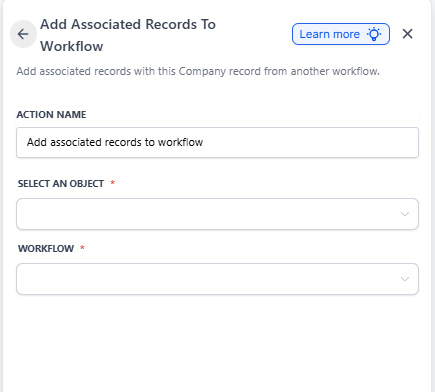
Pro Tip: Use precise Association Labels to avoid accidentally enrolling the wrong people. If you need to target multiple labels, add a separate action for each one.
Remove Associated Records from Automation
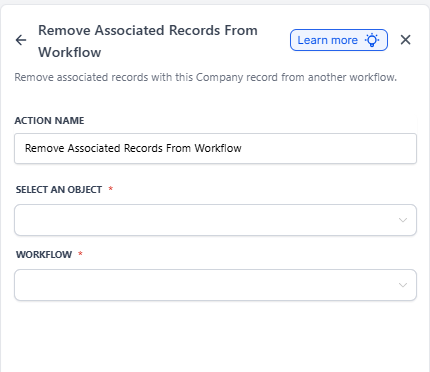
Use this action to automatically unenroll related records from an automation when conditions change. This keeps families and staff out of sequences they no longer need.
How It Works
- Target families, companies, or custom objects via their associations
- Filter by a specific Association Label to remove only the intended relationships
- Specify which automation to remove them from
Example: When a family's enrollment status changes to "Withdrawn," remove all associated family members from the "Weekly Parent Update" automation to stop unnecessary communications.
Find Object Record / Find Company
Use Find to locate an existing record using Record ID, External ID, or field filters. This is especially powerful when you're receiving data from webhooks and need to match it to records in your system.
How It Works
- Choose your matching method: Record ID, External ID, or Field-Based Filters
- Support dynamic values from inbound webhook triggers (e.g.,
{{inboundWebhookRequest.body.child_id}}) - Select how to handle multiple matches: Earliest, Latest, or All
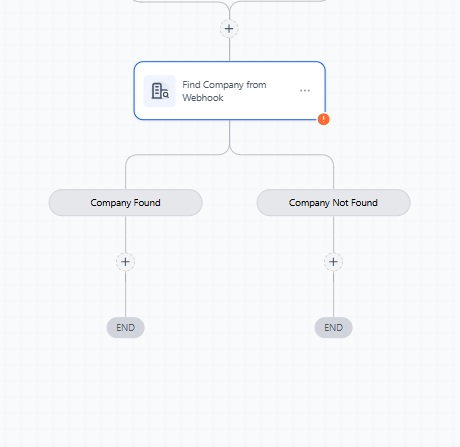
- Branch your automation based on Record Found vs Record Not Found
Example: When your payment processor sends a webhook with a family's email address, find the matching family record in Enrollio and update their payment status.
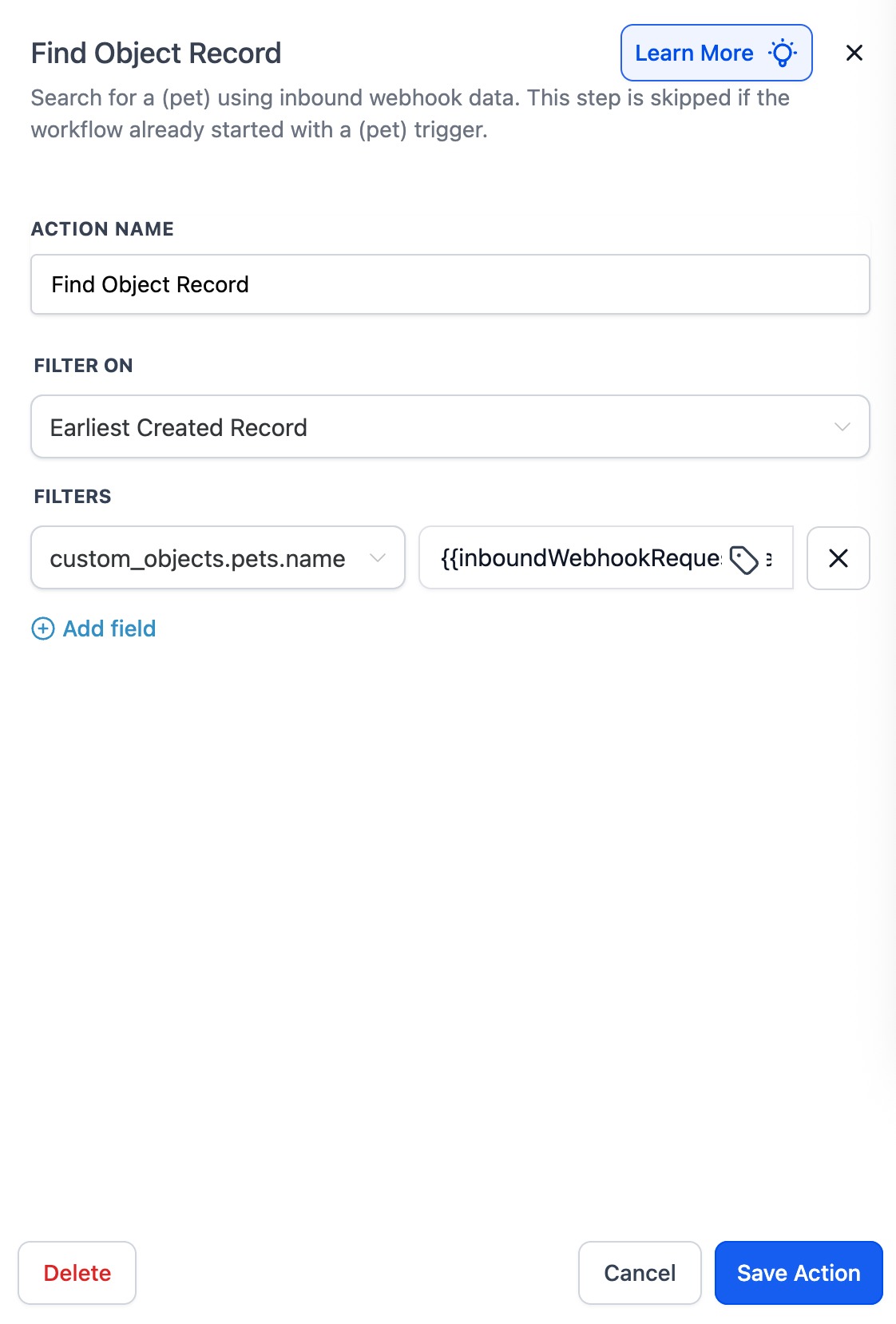
Pro Tip: When multiple records might match, choose "Earliest" or "Latest" to work with a single record, or "All" to apply the next steps to every matching record.
Branching on Results
Both Find actions automatically create two paths in your automation:
- Record Found: Continue with the matched record(s)
- Record Not Found: Handle cases where no match exists (create a new record, send an alert, etc.)
Frequently Asked Questions
What's the difference between "Add to Automation" and "Add Associated Records to Automation"?
"Add to Automation" enrolls the current record (the one that triggered the automation). "Add Associated Records to Automation" enrolls other records that are linked to the current record through associations, filtered by the label you select.
Can I target more than one Association Label at a time?
Use one label per action. If you need to target multiple labels, add another Add/Remove Associated Records action for each label.
How do Earliest / Latest / All affect the Find result?
Earliest or Latest give you a single best match and proceed with that one record. All applies your downstream automation steps to each matching record individually.
Can I use this with custom fields I've created?
Yes! The Field-Based Filters option in Find actions works with both standard Enrollio fields and any custom fields you've added to families, companies, or custom objects.