
Overview
The Number Formatter automation action helps you format and work with numeric data in your automations. You can convert text to numbers, format numbers with specific decimal places, standardize phone numbers, format currency values, and generate random numbers.
This is especially useful when processing enrollment forms, payment data, or contact information.
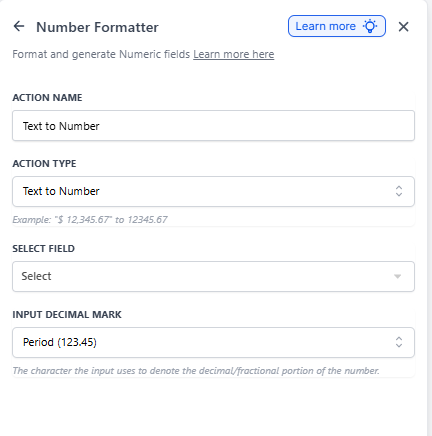
Text to Number
Converts text that looks like a number into actual numeric format. For example, "$12,345.67" becomes 12345.67.
This is helpful when parents submit forms with currency symbols or commas in numeric fields.
Configuration Fields
| Field | Description | Required |
|---|---|---|
| Action Name | Name your action something descriptive | Yes |
| Action Type | Set to Text to Number | Yes |
| Select Field | Choose the field containing the text number | Yes |
| Input Decimal Mark | Specify how decimals are marked (period or comma) | Yes |
Example Use Case
Trigger: Enrollment form submitted
Action: Convert text to number to process tuition payment data accurately
Format Number
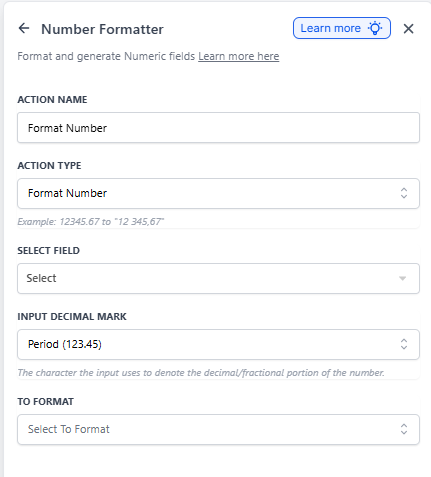
Formats a number with specific decimal places and thousands separators. Perfect for displaying enrollment statistics or financial reports.
Configuration Fields
| Field | Description | Required |
|---|---|---|
| Action Name | Name your action something descriptive | Yes |
| Action Type | Set to Format Number | Yes |
| Select Field | Choose the field containing the number | Yes |
| Input Decimal Mark | Current decimal mark in your number | Yes |
| To Format | Desired output format (e.g., period for decimals) | Yes |
Example Use Case
Trigger: Automation link clicked
Action: Format number for displaying waitlist statistics in follow-up messages
Format Phone Number
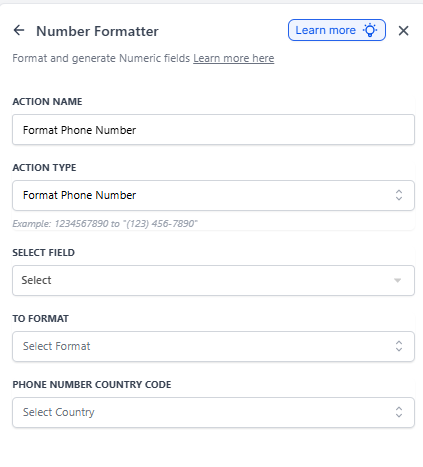
Standardizes phone numbers into a consistent format, making it easier to send text messages and make calls to families.
You can format numbers in E.164 format (required for texting) or other standard formats like (123) 456-7890.
Configuration Fields
| Field | Description | Required |
|---|---|---|
| Action Name | Name your action something descriptive | Yes |
| Action Type | Set to Format Phone Number | Yes |
| Select Field | Choose the field containing the phone number | Yes |
| To Format | Desired format (e.g., E.164 for texting) | Yes |
| Phone Number Country Code | Specify the country code | Yes |
Example Use Case
Trigger: Tour appointment booked
Action: Format the parent's phone number for sending confirmation texts
Format Currency
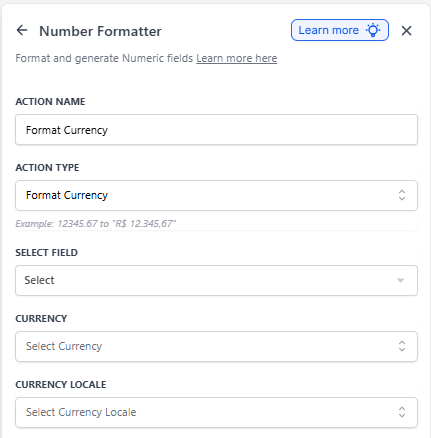
Formats numeric values as currency with proper symbols and decimal places based on your locale.
Use this when generating receipts, invoices, or payment confirmations for families.
Configuration Fields
| Field | Description | Required |
|---|---|---|
| Action Name | Name your action something descriptive | Yes |
| Action Type | Set to Format Currency | Yes |
| Select Field | Choose the field containing the numeric value | Yes |
| Currency | Currency type (e.g., USD, EUR, CAD) | Yes |
| Currency Locale | Locale format (e.g., en-US, en-CA) | Yes |
Example Use Case
Trigger: Payment received
Action: Format currency for generating accurate tuition receipts
Random Number
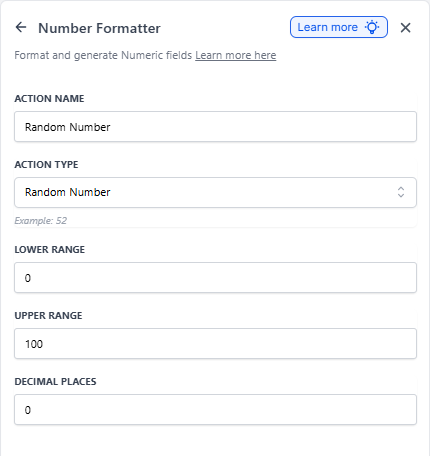
Generates a random number within a range you specify. This is useful for A/B testing different messages or creating unique identifiers.
Configuration Fields
| Field | Description | Required |
|---|---|---|
| Action Name | Name your action something descriptive | Yes |
| Action Type | Set to Random Number | Yes |
| Lower Range | Minimum value for the random number | Yes |
| Upper Range | Maximum value for the random number | Yes |
| Decimal Points | Number of decimal places (optional) | No |
Example Use Case
Trigger: Email opened
Action: Generate a random number to split families into test groups for different follow-up messages
How to Add a Number Formatter Action
- Open your automation in the Automation Builder
- Click the + button where you want to add the action
- Search for "Number Formatter"
- Select the specific formatter type you need
- Configure the required fields
- Save your automation