
Automation Action - Goal Event
The Goal Event action allows you to track specific milestones that families take — such as clicking a link in your email, submitting a tour request form, confirming an appointment, or making a tuition payment. When a parent meets your defined goal, Enrollio automatically adjusts their path in the automation, making your follow-ups more intelligent and responsive.
By using Goal Events, you can streamline complex automations, eliminate redundant triggers, and create more personalized experiences for prospective and current families.
What is the Goal Event Action?
Goal Events let you set specific objectives within your automation that automatically guide families toward desired outcomes. When a parent meets the goal condition (for example, clicking a tour booking link or submitting an enrollment form), Enrollio instantly moves them to the defined goal step, regardless of where they were in the automation.
Think of Goal Events as smart checkpoints in your automation. Instead of waiting for a family to move through every step, Enrollio detects when key engagement actions occur and reacts accordingly — saving you time and improving accuracy in how you handle prospective families.
Key Benefits of Goal Events
Goal Events make your automations more efficient by responding dynamically to real-time parent actions. This ensures each family receives contextually relevant communication and experiences a smooth, personalized journey.
- Automation Efficiency: Automatically skip steps or end automations when a goal is achieved
- Improved Engagement: React instantly when a parent clicks, opens, or performs a desired action
- Simplified Logic: Replace multiple triggers and "If/Else" branches with a single, smart event
- Enhanced Tracking: Monitor email events, link clicks, tags, appointments, payments, and more
- Customizable Actions: Define exactly what happens when the goal is met—or not met
Supported Goal Event Types
Each goal type reflects a specific parent behavior or milestone. Selecting the correct goal ensures your automation reacts to meaningful actions and aligns with your enrollment process.
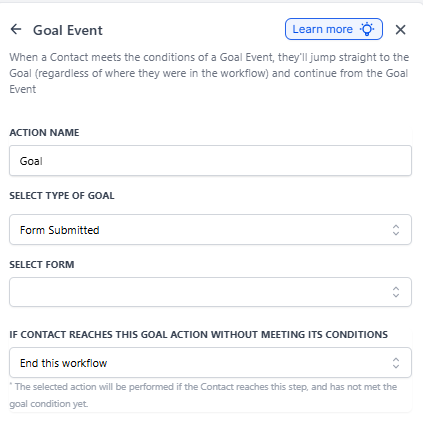
Form Submitted
Allows automations to react to one or more form submissions.
Highlights:
- Multi-select dropdown for multiple forms
- Goal achieved when a parent submits any selected form
Example Use Case: You want to send follow-ups when a parent fills out any tour request form on your website. The automation uses "Wait until Form Submitted" with selected forms to centralize all tour requests.
Payment Received
Triggers automation actions based on payment events.
Highlights:
- Available under "Select Type of Goal → Payment Received"
- Can filter by success or failure status and by product
Example Use Cases:
- Start onboarding after the first tuition payment
- Send a "Thank You" email for successful registration fee transactions
- Trigger reminders for failed or overdue payments
Document Status
Tracks lifecycle events on proposals and enrollment contracts such as Viewed, Signed, Declined, or Completed.
Example Use Cases:
- Send reminders if an enrollment agreement was viewed but not signed within 24 hours
- Initiate onboarding once a contract is marked "Completed"
- Trigger a follow-up when a document is declined
Email Events
Detects when a parent interacts with an email — such as opening, clicking, or unsubscribing.
Supported Events:
- Opened
- Clicked
- Unsubscribed (Mailgun only)
- Complained
- Marked as Spam
Example Use Cases:
- Trigger a follow-up automation when a parent opens or clicks a tour invitation email
- Move a family to a "Re-engagement" sequence after they unsubscribe
- Send targeted messages based on engagement level
Clicked a Trigger Link
Tracks when a parent clicks a specific tracked link within your messages.
Example Use Cases:
- Start a nurture sequence when a parent clicks a virtual tour or program details link
- Segment families by interests based on which content link they click (infant care vs. preschool)
- Initiate a follow-up email when a prospective family clicks an open house registration link
Tag Added or Removed
Reacts when specific tags are added to or removed from a family record.
Example Use Cases:
- Move families to a new stage when the tag "Enrollment Confirmed" is added
- Stop a nurture automation when "Current Family" tag is added
- Trigger retention campaigns when "At Risk" tag is removed
Appointment Status
Monitors when a parent's tour or meeting appointment changes to a specific status such as New, Confirmed, or Showed.
Example Use Cases:
- Continue onboarding after a tour appointment is confirmed
- Send post-tour surveys when the status updates to "Showed"
- Trigger reminders or rescheduling messages for "No-show" appointments
How to Set Up the Goal Event Action
Setting up a Goal Event ensures your automation automatically reacts to important parent actions. Correct setup guarantees your automations flow seamlessly without manual intervention.
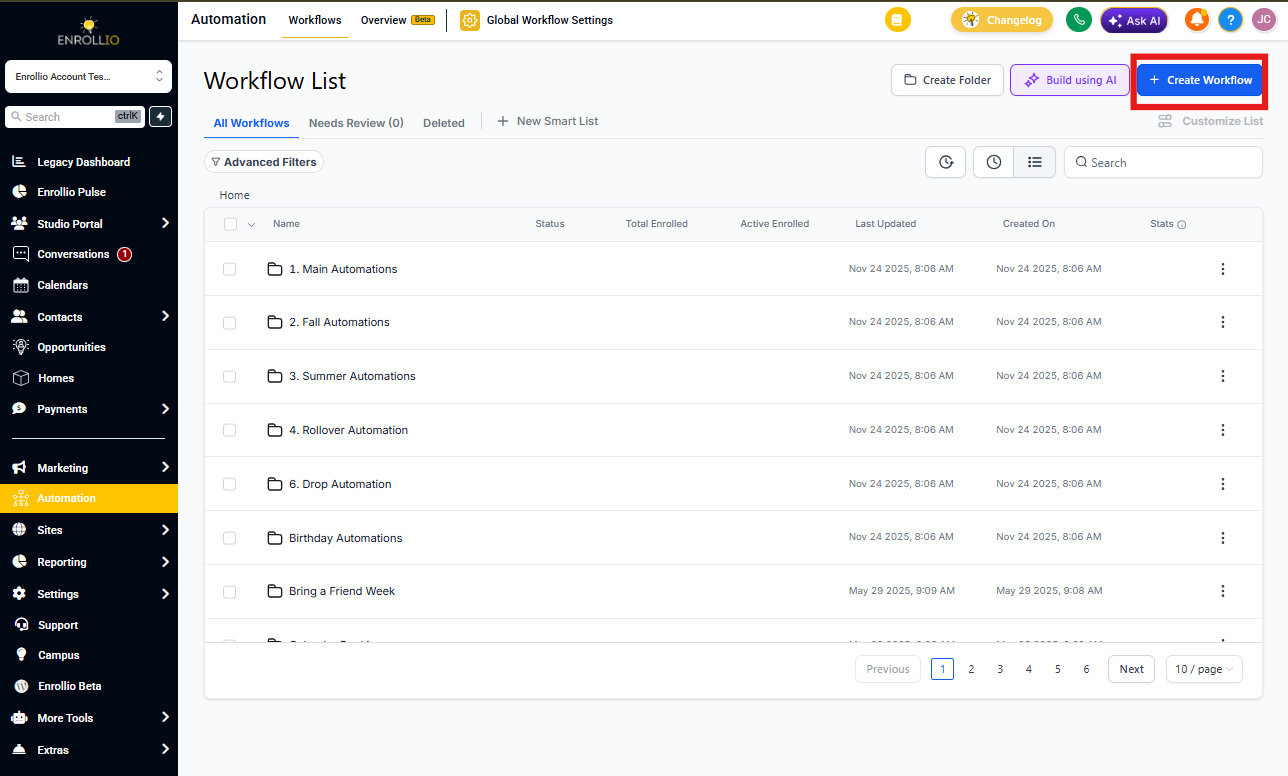
Step 1: Navigate to Automation Builder
- Go to Automation → Automations
- Click + Create Automation
- Choose Start from Scratch (or open an existing automation)
Step 2: Add the Goal Event Action
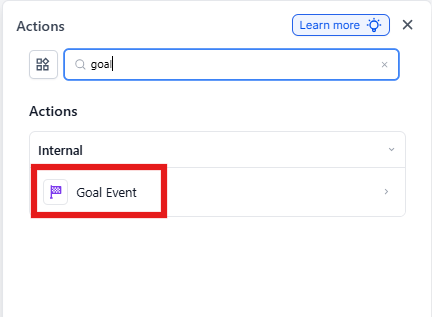
- Click the + button to add a new action
- Under Internal, select Goal Event
Step 3: Configure the Goal Event
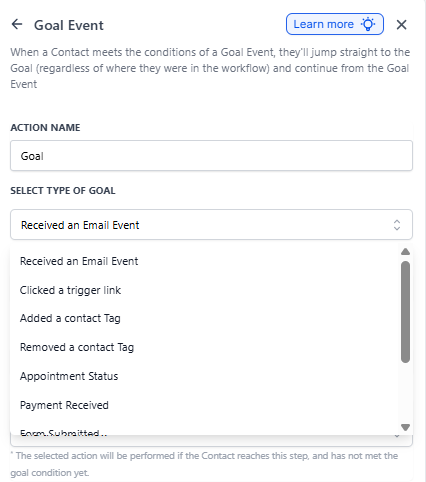
- Enter a descriptive Action Name (e.g., "Tour Booked Goal" or "Enrollment Form Submitted")
- From Select Type of Goal, choose one of the supported goal types (Email, Trigger Link, Tag, Appointment, etc.)
- Define the specific event criteria (e.g., clicked a specific trigger link, form submitted, or appointment confirmed)
Step 4: Choose Automation Behavior
Under If Parent Reaches This Goal Without Meeting Conditions, select one:
- End this automation - Stops the automation completely
- Continue anyway - Proceeds to next steps regardless
- Wait until the goal is met - Pauses until the condition is satisfied
Click Save Action to apply.
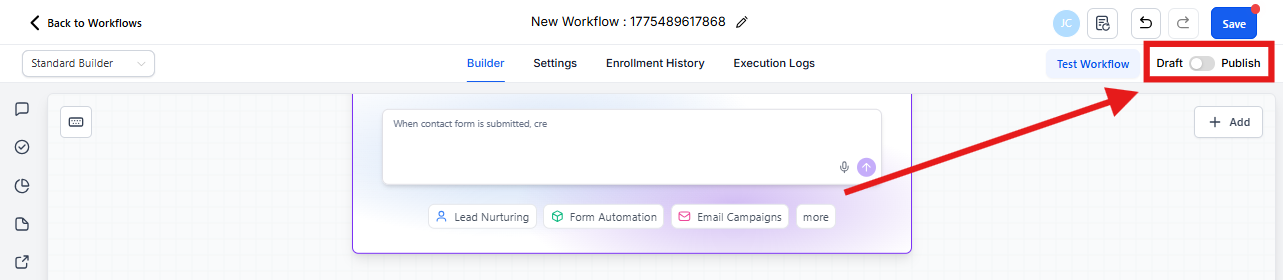
Step 5: Publish the Automation
- Click Publish in the upper right corner to activate the automation
- Enrollio will now automatically listen for families that meet your goal event criteria
💡 Pro Tip
Use Goal Events to create "fast lanes" in your automations. For example, if a parent books a tour while in your nurture sequence, the Goal Event can skip all remaining nurture emails and jump straight to tour confirmation.
Frequently Asked Questions
Can one email event meet multiple Goal Events?
Yes, a single event (like opening an email) can trigger multiple goals if the automations are configured that way.
Will the Goal Event trigger outside business hours?
Yes. Enrollio monitors events continuously, so families meeting the goal will trigger the event immediately, 24/7.
Can a parent meet the same goal event multiple times?
No, once a family meets a specific Goal Event, they won't be evaluated for it again within that automation.
What if an appointment is rescheduled after meeting a Goal Event?
The automation only reacts to the initial event. Later changes do not reverse progress in the automation.
Can I use multiple Goal Events in one automation?
Yes. Each Goal Event works independently and will trigger when its conditions are met. This is useful for creating complex enrollment journeys with multiple conversion points.