
Tour Status Automation Trigger
Managing tours efficiently is essential for childcare centers looking to convert prospective families into enrollments. The Tour Status automation trigger in Enrollio helps you automate follow-ups, reminders, and internal updates based on tour scheduling and status changes—so you can focus on providing great experiences instead of manual admin work.
This guide covers what this trigger does, why it matters for your center, and how to set it up step-by-step.
What is the Tour Status Automation Trigger?
The Tour Status automation trigger activates your automations whenever a tour is scheduled or its status changes. Whether a family books a tour, confirms their visit, cancels, or shows up, you can automatically send the right message or update your team.
This trigger is perfect for childcare centers that want to reduce no-shows, keep families engaged, and ensure your staff stays informed about tour schedules.
Why Use Tour Status Automation?
Reduce No-Shows: Automatically send reminders to families before their scheduled tour.
Faster Follow-Ups: Trigger immediate thank-you messages or next steps after a tour is completed.
Keep Your Team Informed: Notify staff when tours are booked, canceled, or rescheduled.
Re-Engage Canceled Tours: Automatically reach out to families who cancel to reschedule or answer questions.
How to Set Up Tour Status Automation
Step 1: Open the Automation Builder
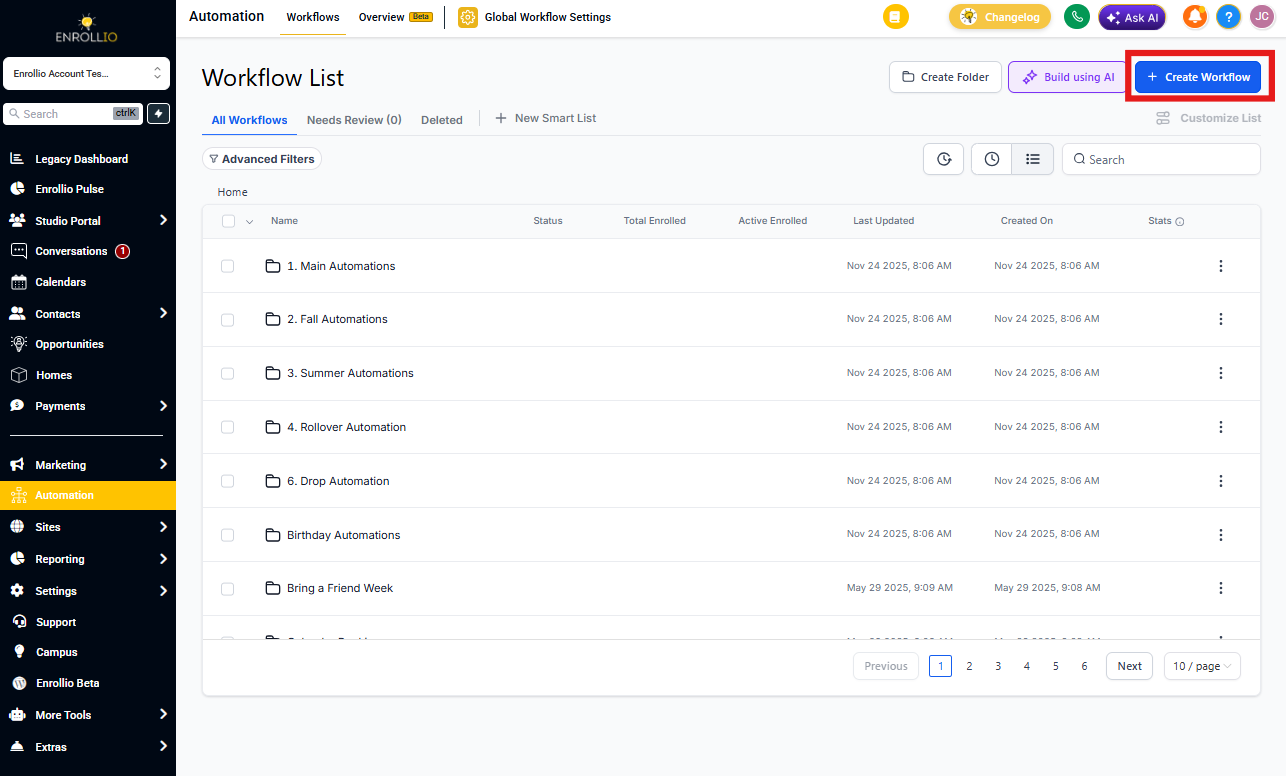
Navigate to Automations in your Enrollio dashboard. Click + Create Automation or open an existing automation to edit.
Step 2: Add the Tour Status Trigger
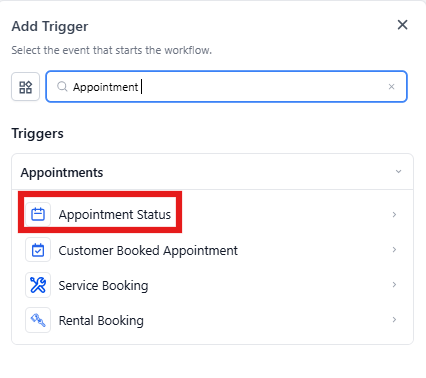
Click Add New Trigger, search for "Tour Status" or "Appointment Status," and select it from the list.
Step 3: Name Your Trigger
Give your trigger a clear, descriptive name based on what it does. For example:
- "Tour Confirmation Reminder"
- "Canceled Tour Follow-Up"
- "Staff Tour Alert"
A good name helps you stay organized, especially when managing multiple automations.
Step 4: Configure Your Filters
Filters let you control exactly when the automation runs. Use them to target specific tour types, statuses, or calendars.
Filter By Event Type
Choose which type of tour should trigger your automation:
- Any: All tour types
- Normal: One-time tours only
- Recurring: Repeating tour slots (if you offer group tours on a schedule)
Filter By Tour Status
Select the status change that should activate your automation:
- New: When a family books a tour
- Confirmed: When a tour is confirmed
- Cancelled: When a family cancels their tour
- Showed: When a family attends the tour
- No-show: When a family misses their scheduled tour
- Invalid: When a tour is marked invalid
Pro Tip: Create separate automations for "Showed" (to send enrollment next steps) and "No-show" (to offer a reschedule).
Filter By Tag
Trigger automations only for families with specific tags. For example, you might tag families as "Infant Care Interest" or "VIP Tour" and send customized follow-ups based on those tags.
When you select this filter, choose from your existing tags in the dropdown menu.
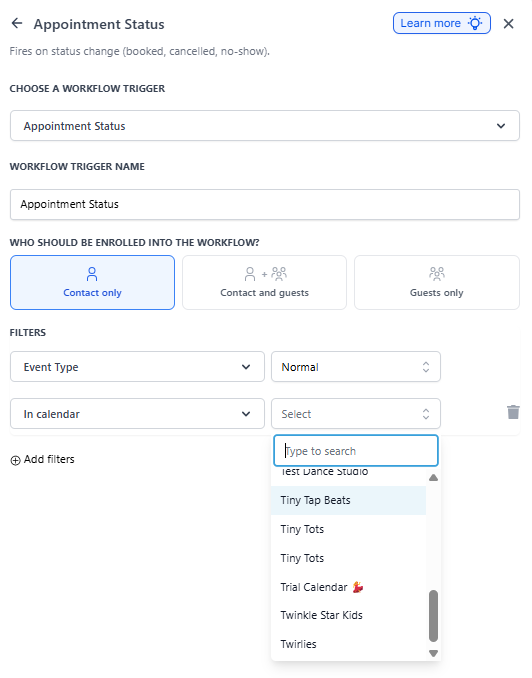
In Calendar Filter
Run your automation only for tours scheduled in a specific calendar. This is useful if you have separate calendars for different age groups or locations.
In Calendar Group Filter
Trigger automations for tours scheduled within a calendar group. If you manage multiple calendars under one group (like "All Tours" or "Location A Tours"), this filter ensures your automation applies to the entire group.
Only for Grouped Calendar
Decide whether your automation should run only for grouped calendars or for both individual and grouped calendars:
- Yes: Runs only for grouped calendars
- No: Runs for both individual and grouped calendars
Modified By
Control when the automation triggers based on who made the tour status change:
- API: When an external system updates the tour status
- Parent/Family: When a family makes the change (like booking or canceling online)
- User: When a staff member manually updates the status—you can even specify which staff member
- Automation: When another automation changes the tour status
Pro Tip: Use "Parent/Family" to trigger instant confirmations when families self-book tours online.
Step 5: Save and Activate
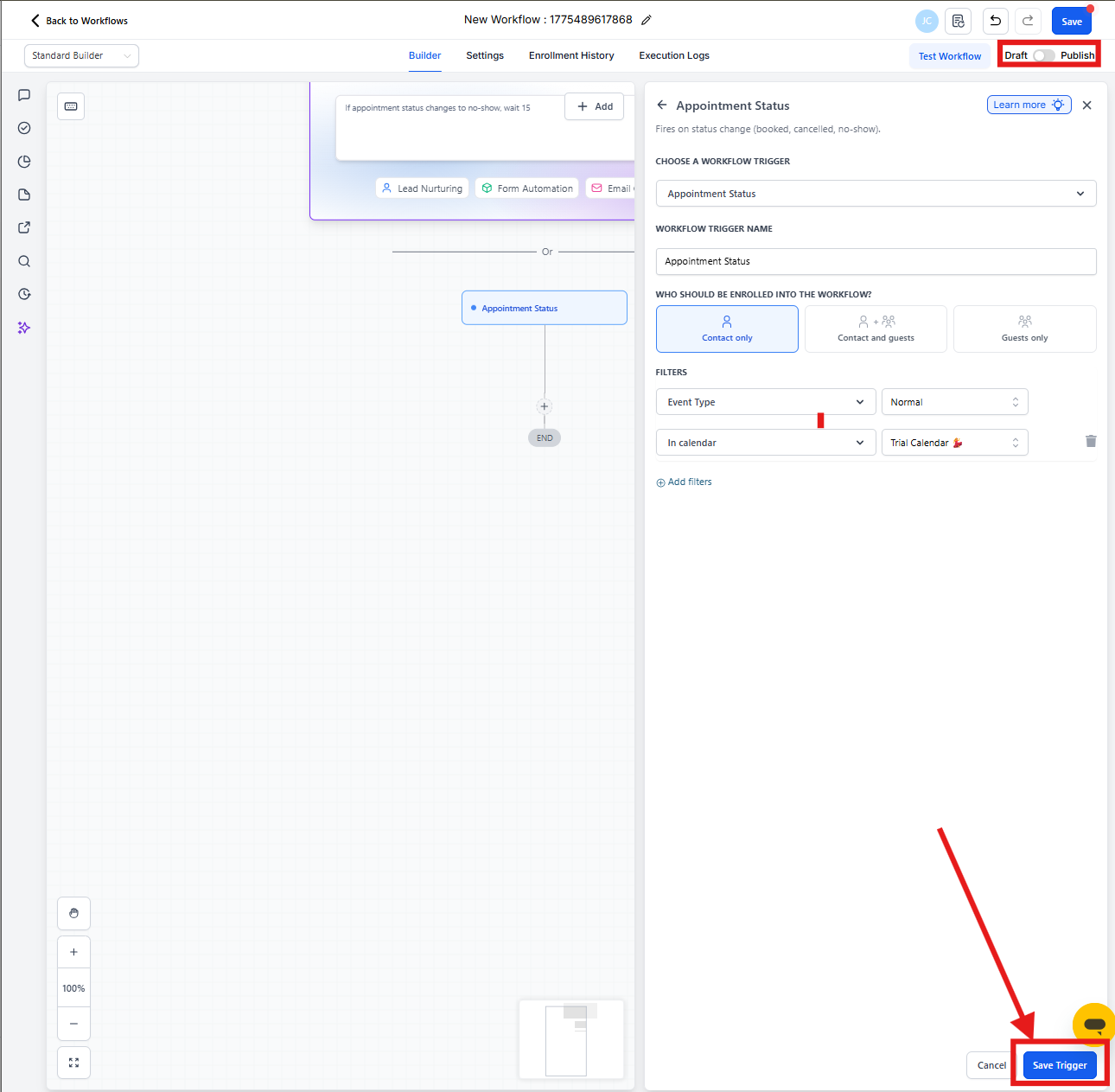
Once you've configured your filters, click Save. Then publish your automation to make it live.
Test it by booking a sample tour and checking that your automation runs as expected.
Frequently Asked Questions
Can I trigger an automation when a tour is canceled or rescheduled?
Yes. Select the "Tour Status" filter and choose "Cancelled" for canceled tours. When a family reschedules, Enrollio treats it as a new tour booking, so the family will re-enter your automation from the beginning.
How do I track who made changes to a tour?
Use the "Modified By" filter to track whether the change was made by a family, staff member, or another automation. You can even specify individual staff members.
What's the difference between "In Calendar" and "In Calendar Group"?
"In Calendar" applies to a single calendar, while "In Calendar Group" applies to all calendars within a group. Use calendar groups if you manage multiple tour calendars together.
Can I use multiple filters together?
Absolutely. Combine filters using AND/OR conditions to create precise automation rules. For example, trigger only for "Confirmed" tours in your "Infant Calendar" for families tagged "High Priority."
How do I create an automation for a specific staff member's tours?
Use the "Modified By" filter, select "User," and then choose the specific staff member. The automation will only run for tours they manage.