
Parent Reply Trigger — Auto-Respond to Families
The Parent Reply trigger lets you automatically respond when a parent or family member replies to your messages. Whether they're confirming a tour, asking a question, or showing interest in enrollment, you can set up instant follow-ups that save time and keep conversations moving.
This guide shows you how to set up the trigger, what it can do, and practical ways to use it in your childcare center.
What Is the Parent Reply Trigger?
This trigger starts an automation whenever a parent responds to one of your messages — whether that's a text, email, or other communication. You can set conditions for when it activates, like specific keywords or channels, and then automatically create tasks, send follow-ups, or update family records.
Why Use This Trigger?
Save time on repetitive responses: Automatically handle common replies like tour confirmations or enrollment questions.
Never miss a hot lead: Instantly follow up when a parent shows interest, even outside business hours.
Keep your team in the loop: Automatically notify staff when a family needs attention or is ready to enroll.
Match your process: Filter by keywords, channels, or parent tags to trigger the right automation for each situation.
Setting Up the Parent Reply Trigger
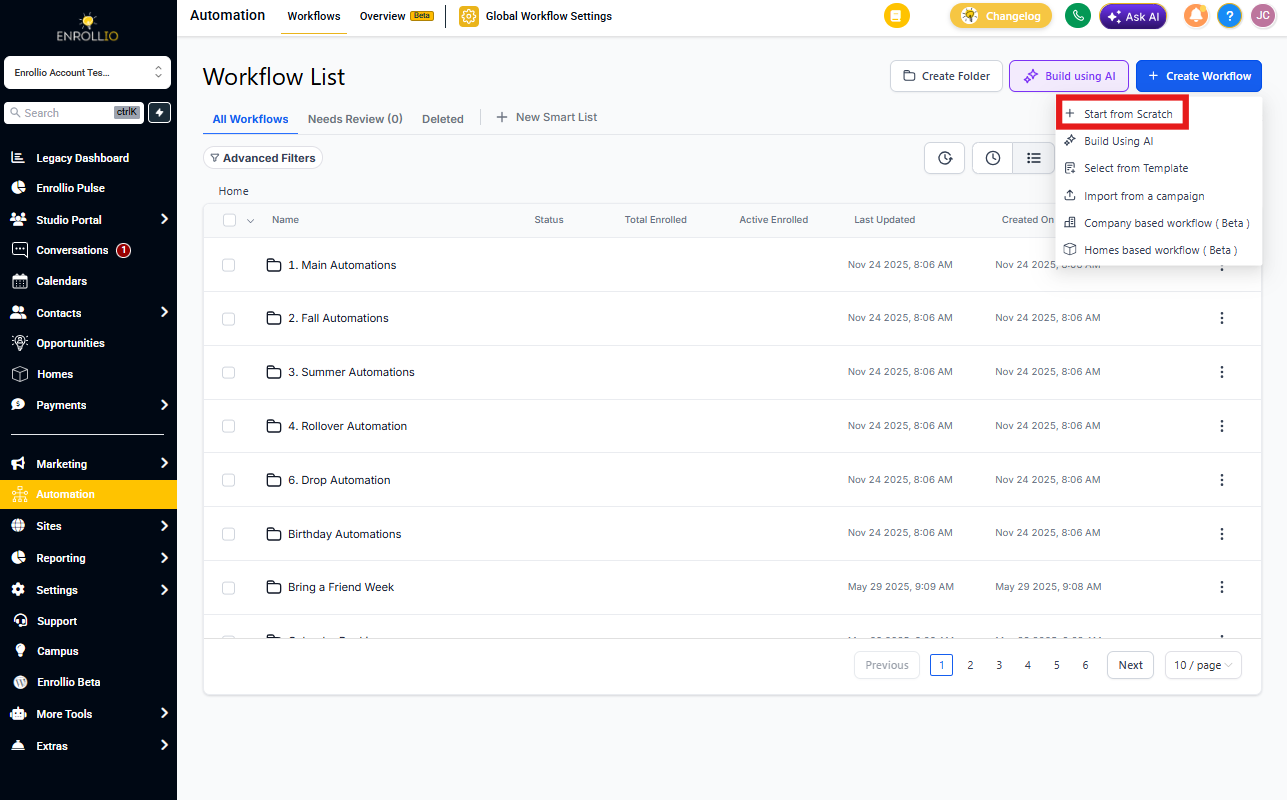
Step 1: Create Your Automation
- Go to Automations in your Enrollio dashboard
- Click + Create Automation
- Select Start from Scratch
Step 2: Add the Parent Reply Trigger
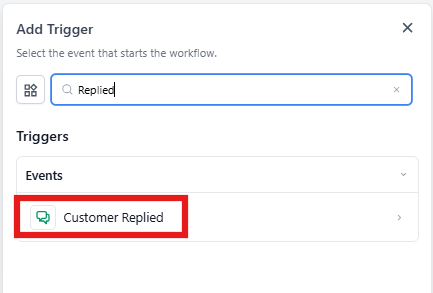
- In the automation editor, click Add New Trigger
- Scroll down and select Parent Replied
- Give your trigger a clear name like "Tour Confirmation Reply" or "Enrollment Interest Response"
Step 3: Add Filters (Optional but Powerful)
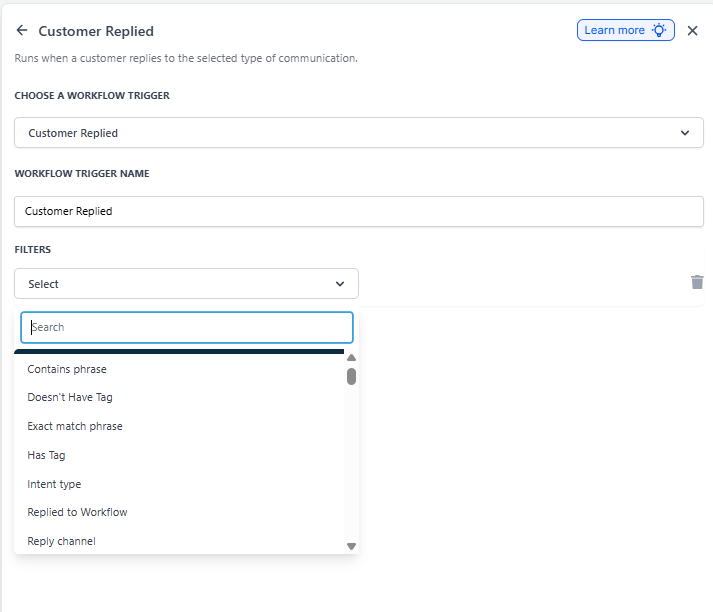
Filters let you control exactly when this automation runs. Click + Add Filters to see your options:
Contains Phrase: Only trigger when the reply includes specific words like "yes," "interested," or "schedule."
Exact Match Phrase: Trigger only when the reply exactly matches what you specify (great for simple yes/no responses).
Has Tag: Only run for families with certain tags, like "Waitlist" or "Toured."
Doesn't Have Tag: Exclude families with specific tags. For example, skip families already enrolled or outside your service area.
Reply Channel: Trigger only for specific channels — text message, email, or other communication types.
Intent Type: Enrollio analyzes the tone of the reply. Choose positive, negative, question, or complaint to trigger appropriate responses.
Replied to Automation: Only trigger for families who previously responded to a specific automation you select.
Step 4: Add Your Actions
Once your trigger is configured, add what happens next — send a message, create a task, notify your team, or update the family's record.
Step 5: Test and Publish
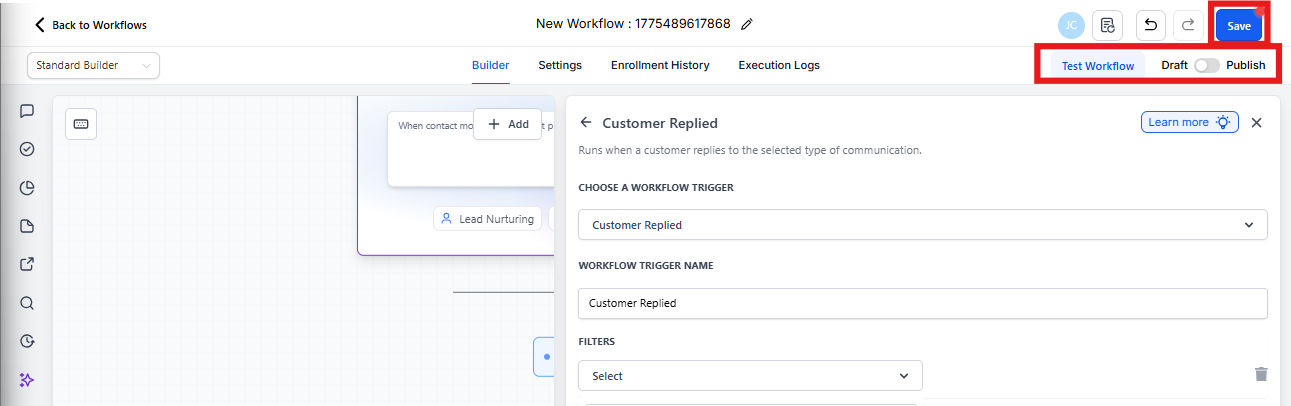
- Click Save after each step
- Use Test Automation to make sure everything works correctly
- When ready, toggle the automation to Published to make it live
Real-World Use Cases
Convert Hot Leads Instantly
Scenario: A parent replies "Yes, I'm interested" to your tour invitation text.
Setup:
- Trigger: Parent Replied
- Filter: Contains phrase "interested" or "yes"
- Actions:
- Create an enrollment opportunity in your pipeline
- Send the parent a tour scheduling link
- Notify your enrollment coordinator
- Add tag "Hot Lead"
Result: No interested parent falls through the cracks, even if they respond after hours.
Auto-Confirm Tour Appointments
Scenario: Parents reply to confirm their scheduled tour.
Setup:
- Trigger: Parent Replied
- Filter: Contains phrase "confirm" or exact match "yes" + Has tag "Tour Scheduled"
- Actions:
- Send confirmation details and what to bring
- Add calendar reminder for staff
- Update family record with "Tour Confirmed" tag
Result: Parents get immediate confirmation, staff stay organized, and no-shows decrease.
Handle Questions Automatically
Scenario: A parent replies with a question about your program.
Setup:
- Trigger: Parent Replied
- Filter: Intent Type "Question"
- Actions:
- Create a task for your team to follow up
- Send an immediate response: "Thanks for your question! Someone from our team will respond within 2 hours."
- Notify the appropriate staff member
Result: Parents know they've been heard, and your team can respond thoughtfully during business hours.
Route by Communication Channel
Scenario: You want different responses for text vs. email replies.
Setup:
- Automation 1: Reply channel "Text message" → Send quick text response + create task
- Automation 2: Reply channel "Email" → Send detailed email + add to weekly follow-up list
Result: Each channel gets communication that fits how parents prefer to interact.
Reengage Waitlist Families
Scenario: When a spot opens, you text your waitlist. Parents who reply "still interested" get priority.
Setup:
- Trigger: Parent Replied
- Filter: Replied to automation "Waitlist Spot Available" + Contains phrase "interested" or "yes"
- Actions:
- Create enrollment opportunity
- Send enrollment packet
- Schedule enrollment call
- Move to top of waitlist
Result: Fill spots fast with families who are ready to enroll now.
Frequently Asked Questions
Can I trigger different automations for specific families only?
Yes. Use the "Has Tag" or "Doesn't Have Tag" filters to target specific family segments, like families on your waitlist or those who've toured.
How does Intent Type work?
Enrollio's AI reads the reply and categorizes it — positive ("Yes, we'd love to!"), negative ("Not right now"), question ("What are your hours?"), or complaint. You can then create different automations for each intent.
Can I set up different automations for texts vs. emails?
Absolutely. Use the Reply Channel filter to create channel-specific automations. This lets you send a quick text response to text replies and a more detailed email to email replies.
What happens if a reply matches multiple automations?
All matching automations will run. Make your filters specific to avoid overlap, or use tags to ensure families only enter one path.
Can I see what replies triggered the automation?
Yes. Check the family's activity timeline to see which messages they replied to and which automations started as a result.