
What is the Form Submitted Automation Trigger
The Form Submitted trigger activates when a parent or prospective family submits a specified form on your enrollment site. This trigger launches a series of automated actions to help you respond quickly and keep your enrollment process running smoothly.
Use this trigger to automatically send confirmations, notify your team, update family records, and create follow-up tasks — all without lifting a finger.
Key Benefits
- Save Time: Automate routine responses and data entry when families submit forms.
- Faster Follow-Ups: Instantly notify your enrollment team when a tour request or application comes in.
- Accurate Records: Form data flows directly into family profiles, keeping everything up-to-date.
- Customizable: Target specific forms and submission criteria to tailor your automations.
- Scalable: Handle high volumes of form submissions during peak enrollment seasons effortlessly.
How to Set Up the Form Submitted Trigger
1. Access Your Automation Settings
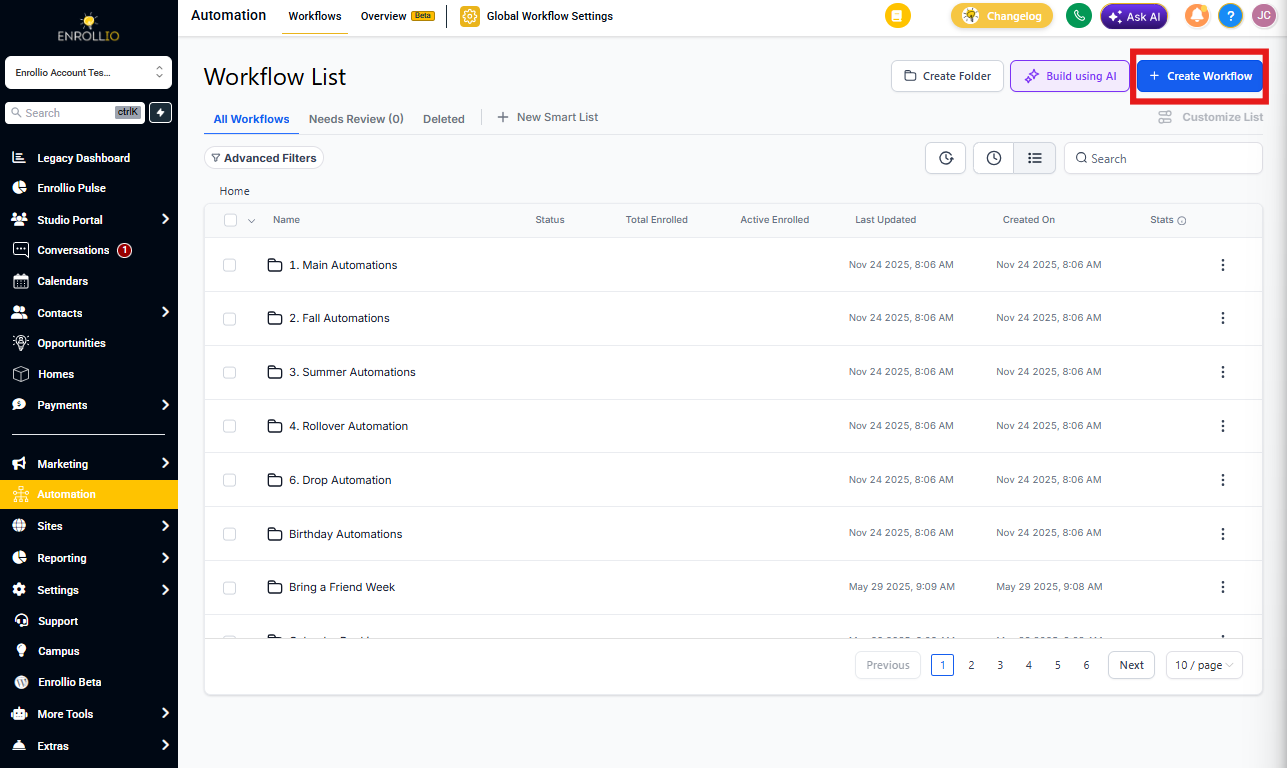
Navigate to Automations in your Enrollio dashboard. Create a new automation or open an existing one where you want to add this trigger.
2. Add the Trigger
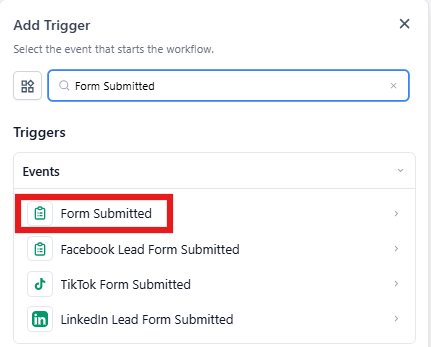
Click Add New Trigger and select Form Submitted from the dropdown menu.
3. Name Your Trigger
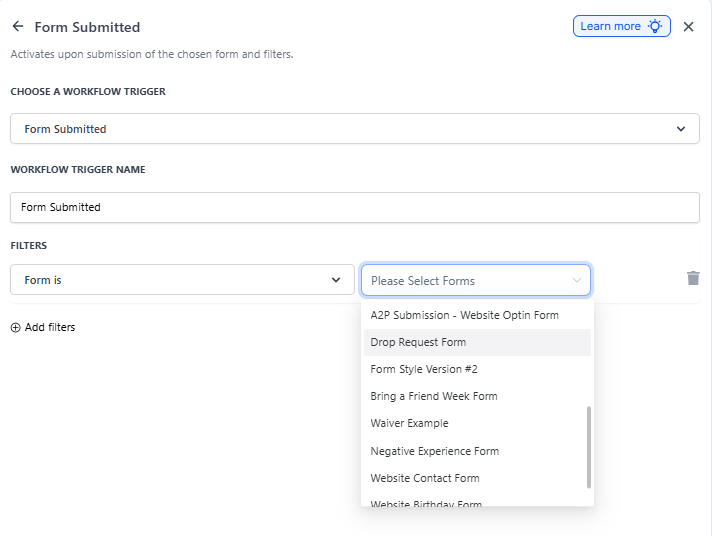
Give your trigger a clear, descriptive name like "Tour Request Form Submitted" or "Application Form Submitted." This helps you stay organized when managing multiple automations.
4. Set Your Filters
Choose which form will activate this automation:
- Form Is: Select the specific form from your list (for example, "Tour Request Form" or "Enrollment Application").
This ensures the automation only runs when the right form is submitted.
5. Save and Test
Click Save to confirm your trigger setup. Test the automation using sample data to make sure everything works correctly. Once verified, toggle Publish to activate it.
Real-World Use Cases
Tour Request Management
Scenario: You want to respond immediately when a family requests a tour.
Setup:
- Trigger: Form Submitted
- Filter: Form is "Tour Request Form"
Outcome: The automation sends a confirmation email to the parent, notifies your enrollment coordinator, and creates a task to schedule the tour.
Enrollment Application Processing
Scenario: Streamline how you handle incoming enrollment applications.
Setup:
- Trigger: Form Submitted
- Filter: Form is "Enrollment Application"
Outcome: Application data is saved to the family's profile, your director receives a notification, and a follow-up task is created to review the application within 24 hours.
Waitlist Registration
Scenario: Automatically manage families joining your waitlist.
Setup:
- Trigger: Form Submitted
- Filter: Form is "Waitlist Registration Form"
Outcome: The family receives a confirmation email, their information is added to your waitlist, and they're tagged appropriately in your system.
Parent Feedback Collection
Scenario: Gather and organize feedback from current families.
Setup:
- Trigger: Form Submitted
- Filter: Form is "Parent Feedback Form"
Outcome: The automation sends a thank-you message to the parent and adds their responses to your feedback database for review.
Event Registration
Scenario: Manage registrations for open houses, parent nights, or other events.
Setup:
- Trigger: Form Submitted
- Filter: Form is "Event Registration Form"
Outcome: A confirmation email is sent to the registrant, their details are added to your attendee list, and your event coordinator is notified.
Frequently Asked Questions
Can I use one automation for multiple forms?
Yes. You can configure the automation to activate for multiple forms by adding broader filter criteria or creating separate trigger branches within the same automation.
What if a parent submits the same form multiple times?
The trigger activates each time the form is submitted. To prevent duplicate actions, add conditions in your automation or use cooldown periods between triggers for the same family.
How do I include form data in confirmation emails?
Use merge tags in your email step to pull in submitted form data. For example, if your form collects Parent Name, Email, and Child's Name, insert fields like {{contact.name}}, {{contact.email}}, or custom fields linked to your form. These placeholders automatically populate with the actual submitted data.
What happens if a form is submitted with missing information?
Add conditions within your automation to validate required fields. You can send an alert to your team, request the missing information from the parent, or skip incomplete submissions entirely.
Can I use this trigger with forms from other platforms?
The Form Submitted trigger works with forms created in Enrollio. If you need to capture submissions from external forms, you may need to use webhooks or integrations to connect them to your automations.
How quickly does the automation run after a form is submitted?
Automations typically trigger within seconds of form submission, ensuring parents receive immediate confirmations and your team gets instant notifications.