
Automation Action: Math Operation
The Math Operation action lets you perform automated calculations on numbers and dates — perfect for managing enrollment deposits, calculating program fees, tracking waitlist priorities, and scheduling follow-ups with families.
What is the Math Operation Action?
Math Operation is an automation action that performs calculations on numeric and date fields automatically. Instead of manually updating fields, you can set up rules that calculate values based on your enrollment processes.
For example, if a family pays a deposit of $200 and you want to automatically calculate their remaining balance for a $1,500 tuition, the Math Operation action handles this instantly.
Common Uses in Childcare Centers
- Enrollment Deposit Tracking: Subtract deposits from total tuition to calculate remaining balances automatically
- Waitlist Priority Scoring: Add points each time a family completes a tour, fills out forms, or attends an event to prioritize your waitlist
- Tour Follow-up Scheduling: Add 2 days to a tour date to automatically schedule your follow-up call
- Program Start Dates: Add enrollment processing time (e.g., 14 days) to today's date to calculate when a child can start
- Age Verification: Subtract a child's birthdate from today to verify they meet age requirements for specific programs
- Sibling Discounts: Multiply tuition by your sibling discount percentage to calculate adjusted rates
- Late Payment Fees: Multiply daily late fee rate by days overdue to calculate penalties
- Registration Deadline Tracking: Subtract today's date from enrollment deadline to show families how many days remain
- Program Duration Calculations: Add program length to start date to determine graduation or transition dates
- Staff Performance Metrics: Calculate tour-to-enrollment ratios or average response times for staff evaluation
- Capacity Management: Subtract enrolled children from classroom capacity to track available spots
- Annual Rate Increases: Multiply current tuition by your annual increase percentage for renewal calculations
Key Benefits
Saves Time: Automate repetitive calculations so you can focus on families instead of spreadsheets.
Reduces Errors: Eliminate manual calculation mistakes that can lead to billing issues or missed follow-ups.
Customizable: Use any numeric or date field you've created — tuition amounts, waitlist scores, tour dates, enrollment deadlines.
Works with If/Else Conditions: Make decisions based on calculated values. For example, if a waitlist score reaches 50 points, automatically send a priority enrollment offer.
Handles Dates and Money: Calculate both financial values and time-based scheduling in a single action.
How to Set Up a Math Operation
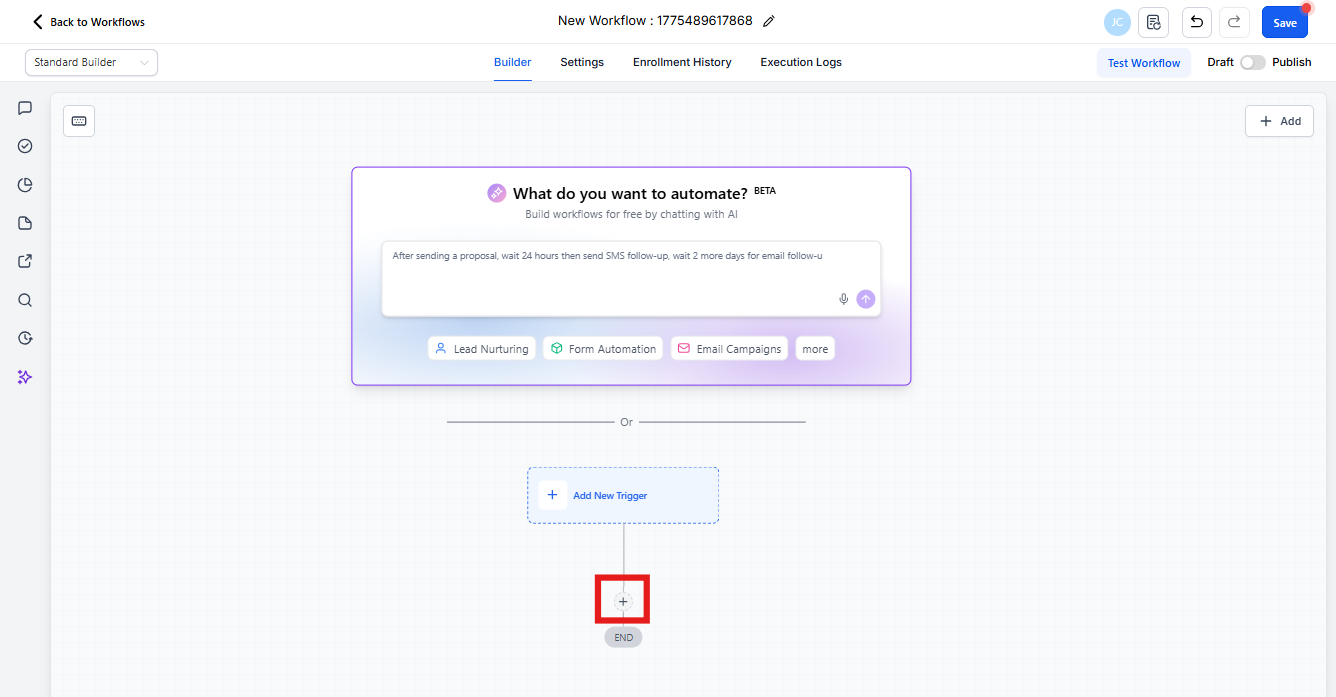
- Open or create an automation in your Enrollio Dashboard
- Click Add Action in your automation workflow
- Select Math Operation from the action list
- Choose which field to update with the calculation result
- Select your operation: Add, Subtract, Multiply, or Divide
- Enter the value or select a field to use in the calculation
- Save your action
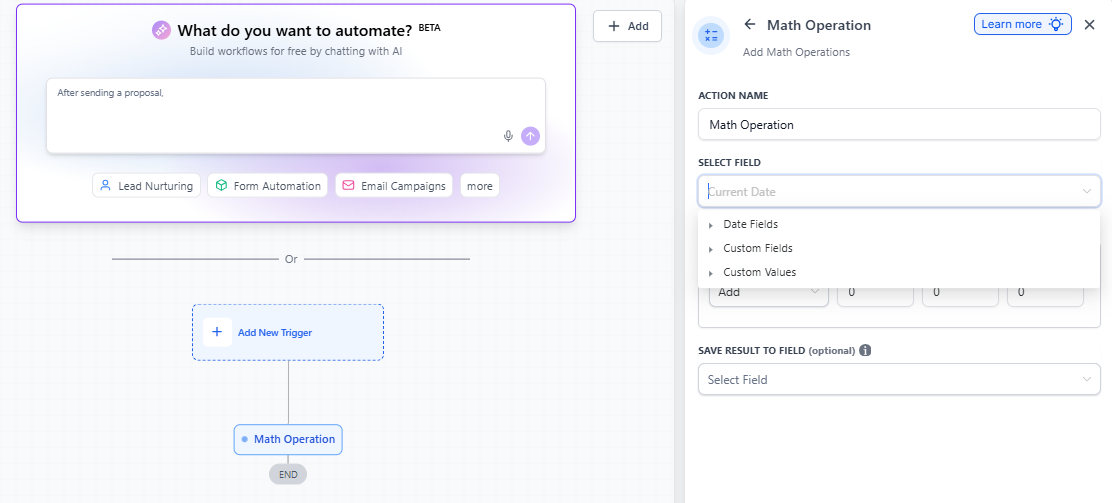
Field Types You Can Use
Numeric Fields
Use numeric fields for any countable values: enrollment scores, number of siblings, classroom capacity, waitlist position.
Example: Add 10 points to a family's waitlist score each time they complete a tour.
Monetary Fields
Use monetary fields for financial calculations: tuition, deposits, discounts, fees, balances.
Example: Subtract a $500 deposit from $2,000 monthly tuition to calculate the remaining balance.
Note: Monetary fields are automatically formatted as currency with two decimal places.
Date Fields
Use date fields for scheduling and time calculations: tour dates, start dates, enrollment deadlines, birthdays.
Example: Add 30 days to a tour date to set a follow-up deadline.
Current Date
Use "Current Date" to calculate based on today. This updates automatically each day.
Example: Subtract a child's birthdate from Current Date to calculate their current age in days.
Using Negative Values
You can apply negative values to reverse an operation. For example, adding -30 to a date is the same as subtracting 30 days.
This is useful when you want to use the same operation type but need to go backward instead of forward.
Combining Math Operations with If/Else Conditions
Math Operations become powerful when combined with If/Else conditions. Here are five practical examples:
1. Tiered Pricing Based on Siblings
Calculate total tuition based on number of enrolled siblings, applying automatic discounts.
- Use Math Operation to multiply base tuition by number of children
- Use If/Else: If number of siblings ≥ 2, apply additional discount calculation
- Update final tuition field with discounted amount
2. Priority Waitlist Management
Score families based on engagement, then route high-priority families differently.
- Use Math Operation to add points for each completed action (tour, form submission, event attendance)
- Use If/Else: If waitlist score ≥ 50, assign to priority enrollment pipeline
- Send personalized follow-up based on score tier
3. Age-Based Program Assignment
Calculate a child's age, then automatically recommend the appropriate program.
- Use Math Operation to subtract birthdate from Current Date
- Use If/Else: If age < 365 days, tag as "Infant Program"
- If age between 365-730 days, tag as "Toddler Program"
- Route to appropriate enrollment coordinator
4. Urgent Follow-up Routing
Calculate days since last contact, then escalate if too much time has passed.
- Use Math Operation to subtract last contact date from Current Date
- Use If/Else: If days since contact > 7, assign to director for urgent follow-up
- Send internal notification about at-risk enrollment
5. Capacity-Based Enrollment Decisions
Calculate available spots, then route families to waitlist or direct enrollment.
- Use Math Operation to subtract current enrollment from classroom capacity
- Use If/Else: If available spots > 0, send direct enrollment offer
- If available spots = 0, add to waitlist and send waitlist confirmation
Field Constraints
Monetary Fields
Monetary fields are limited to two decimal places and standard currency formatting. The platform automatically rounds to the nearest cent.
Numeric Fields
Numeric fields can handle whole numbers and decimals. Be mindful of very large numbers (over 1 million) which may require testing to ensure they display correctly.
Frequently Asked Questions
Can I perform multiple math operations in a single automation step?
No, each Math Operation action performs one calculation. However, you can chain multiple Math Operation actions together in the same automation to perform complex calculations sequentially.
How do I handle decimal precision when calculating tuition?
Use monetary fields for all tuition calculations. Enrollio automatically rounds to two decimal places (cents), ensuring accurate billing amounts.
Can I perform math operations on custom date fields?
Yes! You can use any custom date field you've created — enrollment deadlines, program start dates, re-enrollment dates, etc.
Are there limits on the values I can use in calculations?
Standard numeric limits apply (typically up to several million). For typical childcare calculations — tuition, deposits, scores, days — you won't encounter these limits.
Can I use calculation results in If/Else conditions?
Absolutely! This is one of the most powerful features. Calculate a value with Math Operation, then use If/Else to make decisions based on that calculated value.
Example: Calculate days until enrollment deadline, then if days < 3, send an urgent reminder to the family.
Can I use data from external sources in calculations?
If you're bringing data into Enrollio through API integrations or webhooks, you can use that data in Math Operations as long as it's stored in a numeric, monetary, or date field.
Can I combine Math Operations with other automation actions?
Yes! Math Operations work seamlessly with all other automation actions: sending emails, creating tasks, updating enrollment pipelines, assigning staff, adding tags, and more.