
Add custom fonts to your emails for better brand consistency
Using Google Fonts in your emails helps match your center's branding and gives you more design flexibility. Your enrollment announcements, parent newsletters, and tour confirmations can look just as polished as your website.
Before You Start: Email Compatibility
Google Fonts work great in most modern email clients, but some services don't support them. When a custom font isn't supported, your email will automatically fall back to a standard font like Arial or Times New Roman.
Where Google Fonts may not display:
- Gmail (web, iPhone, Android)
- Outlook (Mac, iPhone, Android, Outlook.com)
- Yahoo Mail
Pro tip: Choose a web-safe fallback font that's similar to your Google Font. This ensures your emails still look good even when the custom font doesn't load.
How to Add a Google Font
Step 1: Go to Marketing → Email.
Step 2: Open an existing email template or campaign, or create a new one.
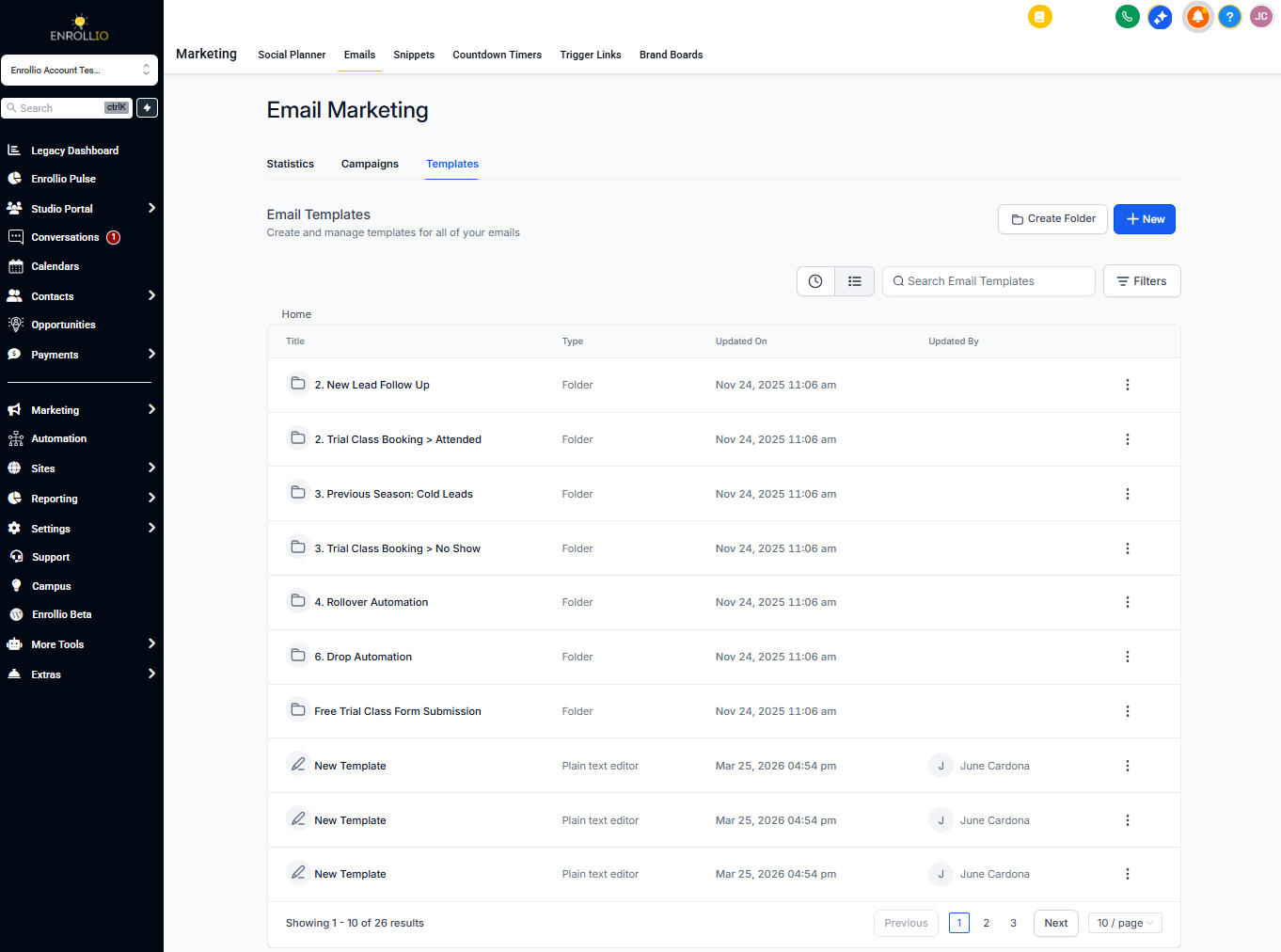
Step 3: Click on any text element in your email design.
Step 4: In the text formatting toolbar, click the font selector dropdown.
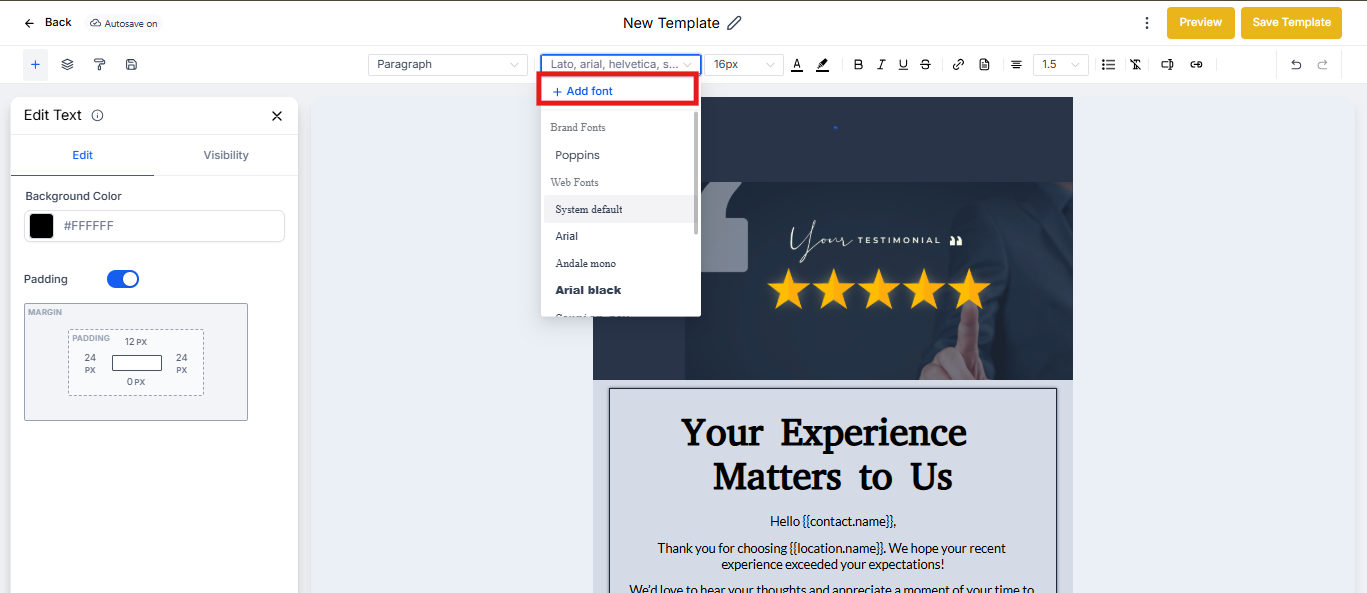
Step 5: Click "Add fonts" at the bottom of the font list.
Step 6: In the modal that appears, select your desired Google Font from the dropdown menu.
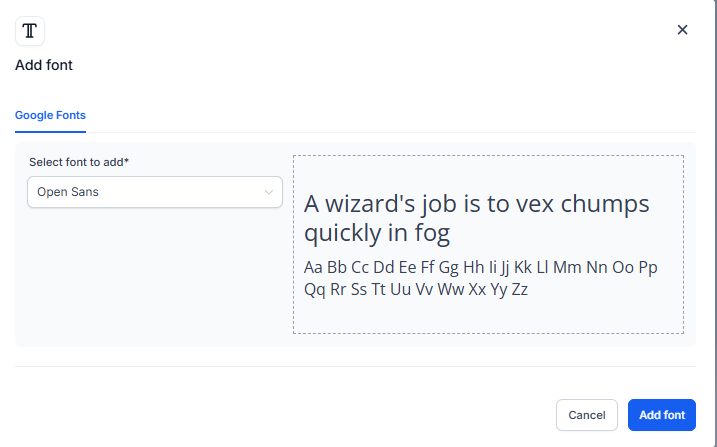
Step 7: Click "Add font" to save your selection.
Your new font is now available in the font selector across all email templates and campaigns.
Manage Your Fonts from Settings
Once you've added fonts, you can manage them from your email settings.
To access font settings:
- Go to Marketing → Email
- Click Settings in the top right
- Navigate to the Custom Fonts section
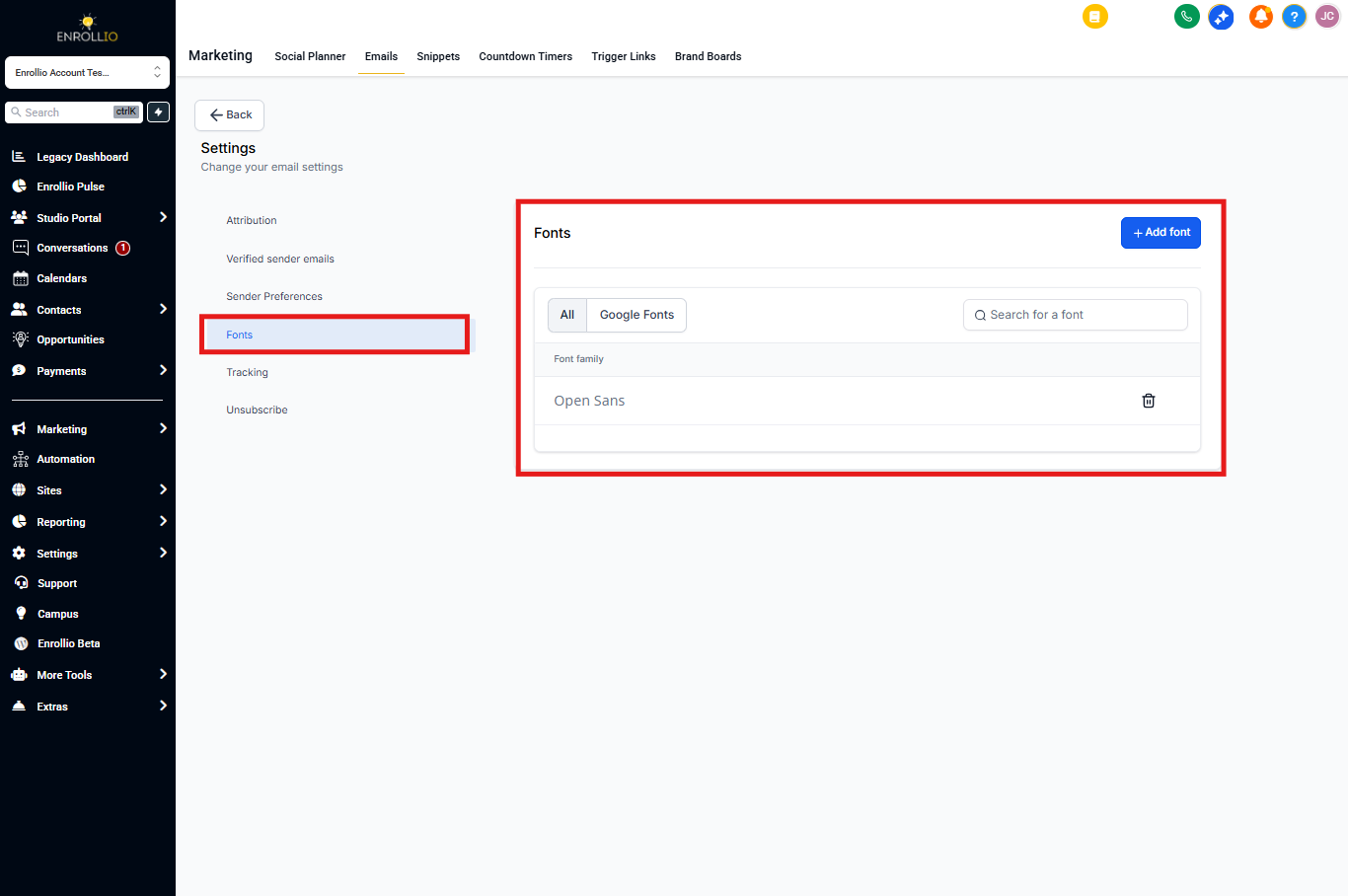
To delete a font: Click the "Delete" button next to any font in your list.
To add more fonts: Click "Add font" and follow the same process above.
Quick Tips for Using Custom Fonts
- Keep it simple: Stick to 1-2 custom fonts per email for better readability
- Test before sending: Always preview your email in different clients to see how it renders
- Choose readable fonts: Script and decorative fonts can be hard to read on mobile devices
- Use for headings: Custom fonts work best for headers while keeping body text in web-safe fonts
Pro tip: If you send a lot of parent communications, add your center's brand fonts once and they'll be available every time you create a new email.