
What is UTM Tracking?
UTM parameters are short codes added to the end of URLs in your emails. They help tools like Google Analytics track where your website traffic comes from. When you include UTM parameters in your Enrollio email campaigns, you can see exactly how your messages drive families to visit your enrollment site and convert.
How UTM Parameters Work in Enrollio
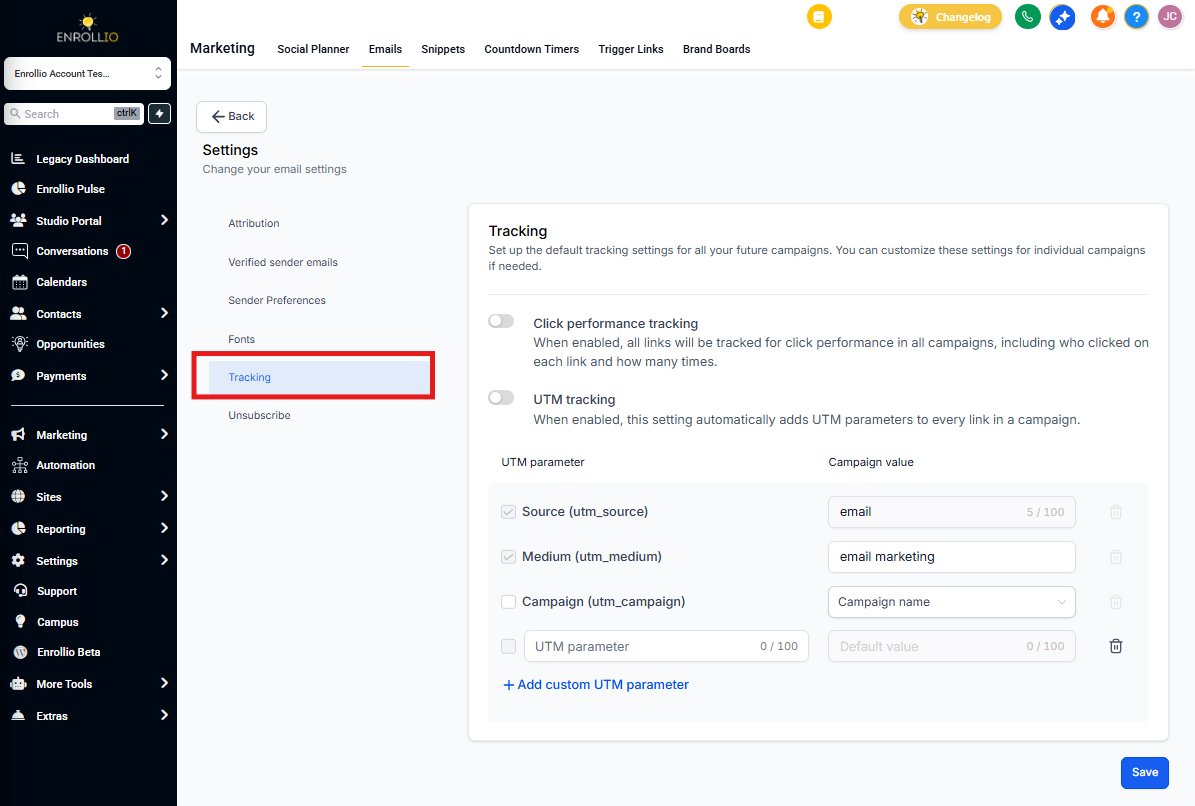
Enrollio supports three default UTM parameters for your email campaigns:
- utm_source = email — This is automatically included and cannot be changed. It tells analytics that traffic came from email.
- utm_medium = email marketing — This is required but you can customize the value. The default is "email marketing".
- utm_campaign = Campaign Name (Send Date) — This is optional and can be selected from a dropdown menu.
You can add up to five additional custom parameters by entering your own values.
Best Practices
Keep It Simple
Stick to the three core parameters (utm_source, utm_medium, utm_campaign) for clear tracking and analysis.
Never Include Personal Information
Don't use parent names, addresses, phone numbers, or other personally identifiable information in UTM parameters. Analytics platforms restrict this data.
Stay Consistent
UTM parameters are case sensitive. Pick a capitalization style and use it every time. For example, always use lowercase or always capitalize the first letter.
Use Underscores, Not Spaces
Replace spaces with underscores (_) to avoid encoding problems. Use "fall_enrollment" instead of "fall enrollment".
Where UTM Parameters Won't Work
Trigger Links
UTM parameters don't currently work on links used in automation triggers.
Incorrectly Formatted URLs
Make sure your links include https:// and are formatted correctly, especially if you entered them as custom values.
Test Emails
Send test campaigns to verify your UTM parameters are working before sending to your parent list.
How to Set Up UTM Parameters
- Go to Email Marketing in your Enrollio dashboard
- Click Settings under Email Campaign
- Click Tracking to view the default UTM parameters
- Toggle the enable switch to apply UTM parameters to all campaigns by default
- Edit the values for utm_medium or utm_campaign as needed
- Click Add Custom Parameter to add additional tracking parameters
- Check the boxes next to the parameters you want to include
- Click Save to apply your settings
Pro Tip: To disable UTM parameters for a specific campaign, turn off the tracking option on the Send or Schedule page when you're setting up that campaign.
Why This Matters for Your Childcare Business
With UTM tracking, you can see which email campaigns drive the most tour bookings, enrollment applications, and website visits. This helps you understand what messaging resonates with prospective families so you can refine your marketing and fill more spots.