
How to Send or Schedule an Email Campaign
Email campaigns let you send one-time broadcasts to your families—perfect for announcements, event invitations, or updates about your childcare program. This guide shows you how to send emails right away or schedule them for later.
What is an Email Campaign?
Email campaigns are one-time broadcast emails you create and send to selected parents and families from the Email Marketing area. They're ideal for time-sensitive announcements, like enrollment deadlines, upcoming events, or seasonal program changes—without needing to build an automation.
Why Use Email Campaigns?
Speed: Send updates to a group of families instantly without building automations.
Control: Choose the exact send time or pace delivery using Simple Schedule or Batch options.
Targeting: Use segments and smart lists to reach specific groups—like families on your waitlist or parents of toddlers.
Deliverability: Throttle large sends with Batch (Drip) mode to avoid overwhelming your email server.
Flexibility: Schedule based on your families' time zones for better open rates.
How to Send or Schedule an Email Campaign
Follow these steps to create, preview, and send your campaign.
Step 1: Create Your Campaign
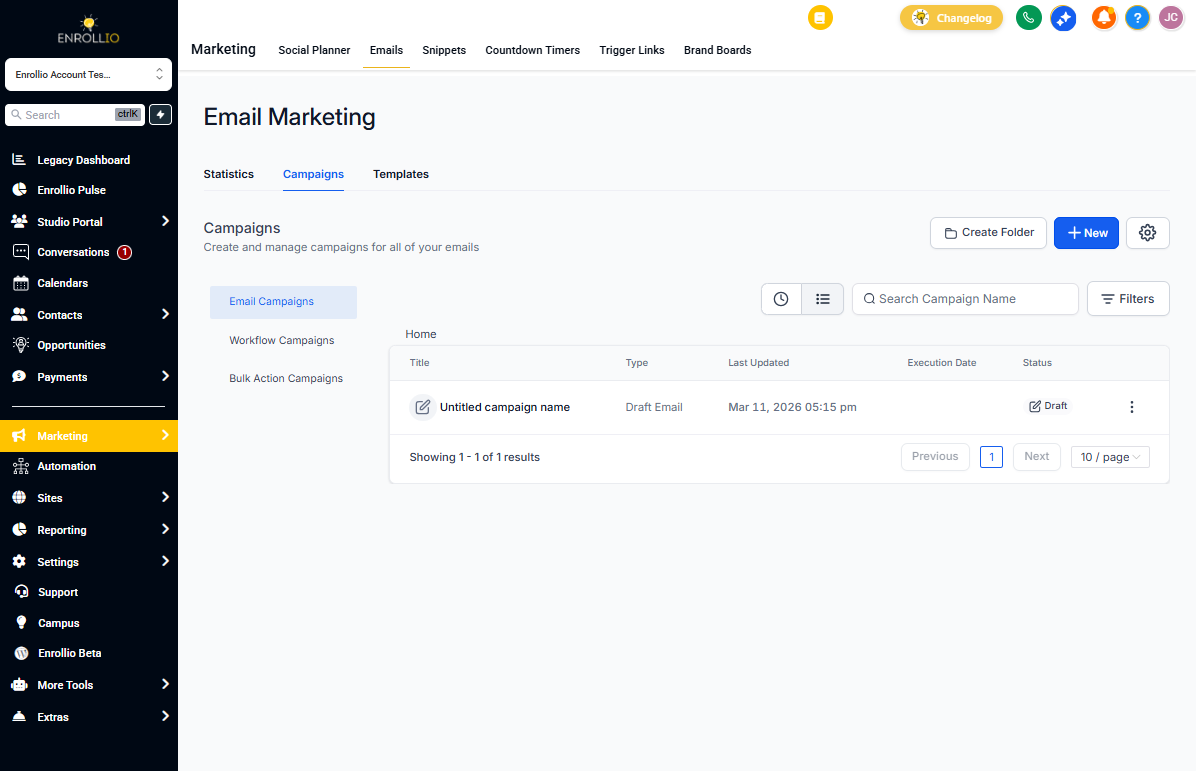
- Go to Marketing → Email → Campaigns.
- Click Create New Campaign or select an existing draft to edit.
Step 2: Design Your Email
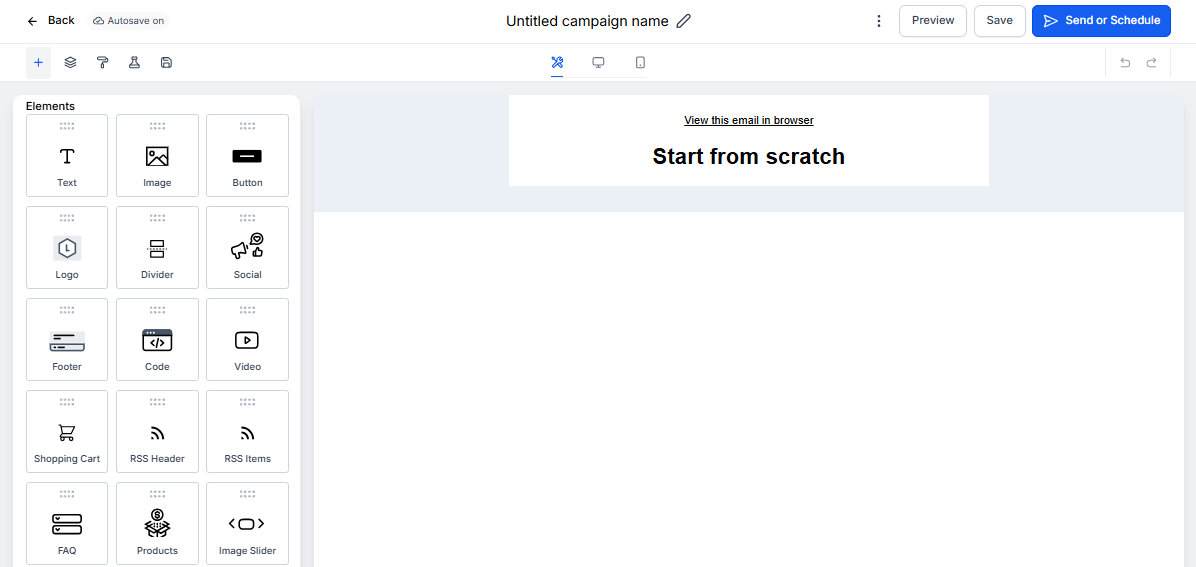
- Build your email using the drag-and-drop Email Builder or select a saved template.
- Add your content, images, links, and call-to-action buttons.
- Click Preview to see how your email looks on desktop and mobile.
- Use Test Email to send a preview to yourself before sending to families.
Step 3: Choose Your Delivery Option
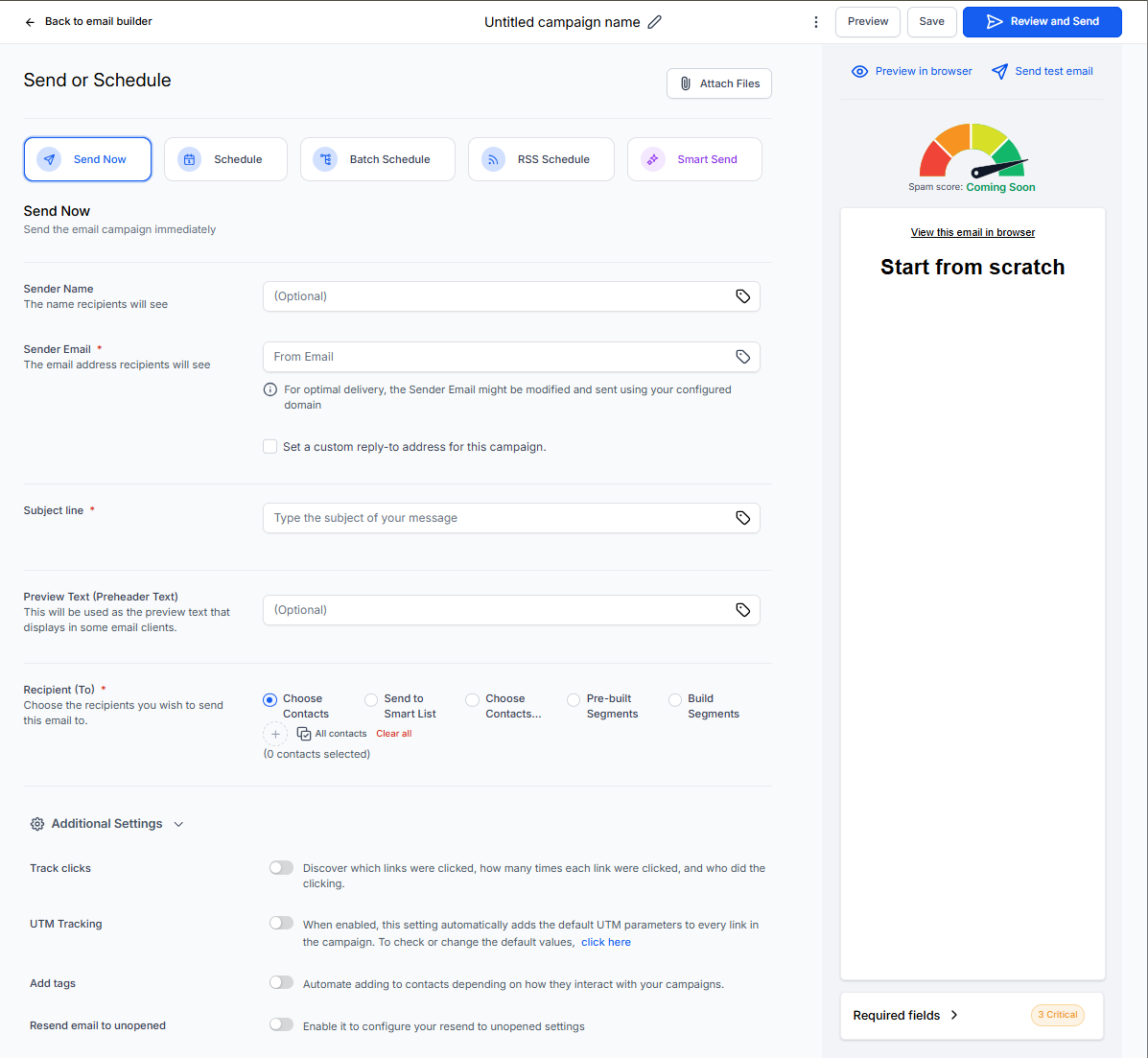
Once your email is ready, click Send or Schedule. You'll see two options:
Option A: Send Now (Immediate Delivery)
- Select Send Now.
- Add your Sender Name (e.g., "Happy Kids Childcare" or "Director Sarah").
- Review your Sender Domain—if it's not verified, you'll need to configure it in Settings.
- Add your Sender Email (e.g., director@happykidschildcare.com).
- Enter your Subject Line—make it clear and action-oriented.
- Select Recipients (all families, a segment, or a smart list).
- Configure Additional Settings:
- Link Tracking: See which links parents click.
- UTM Tracking: Track campaign performance in your analytics.
- Tags: Automatically tag families who receive this email.
- Click Send.
Option B: Schedule for Later
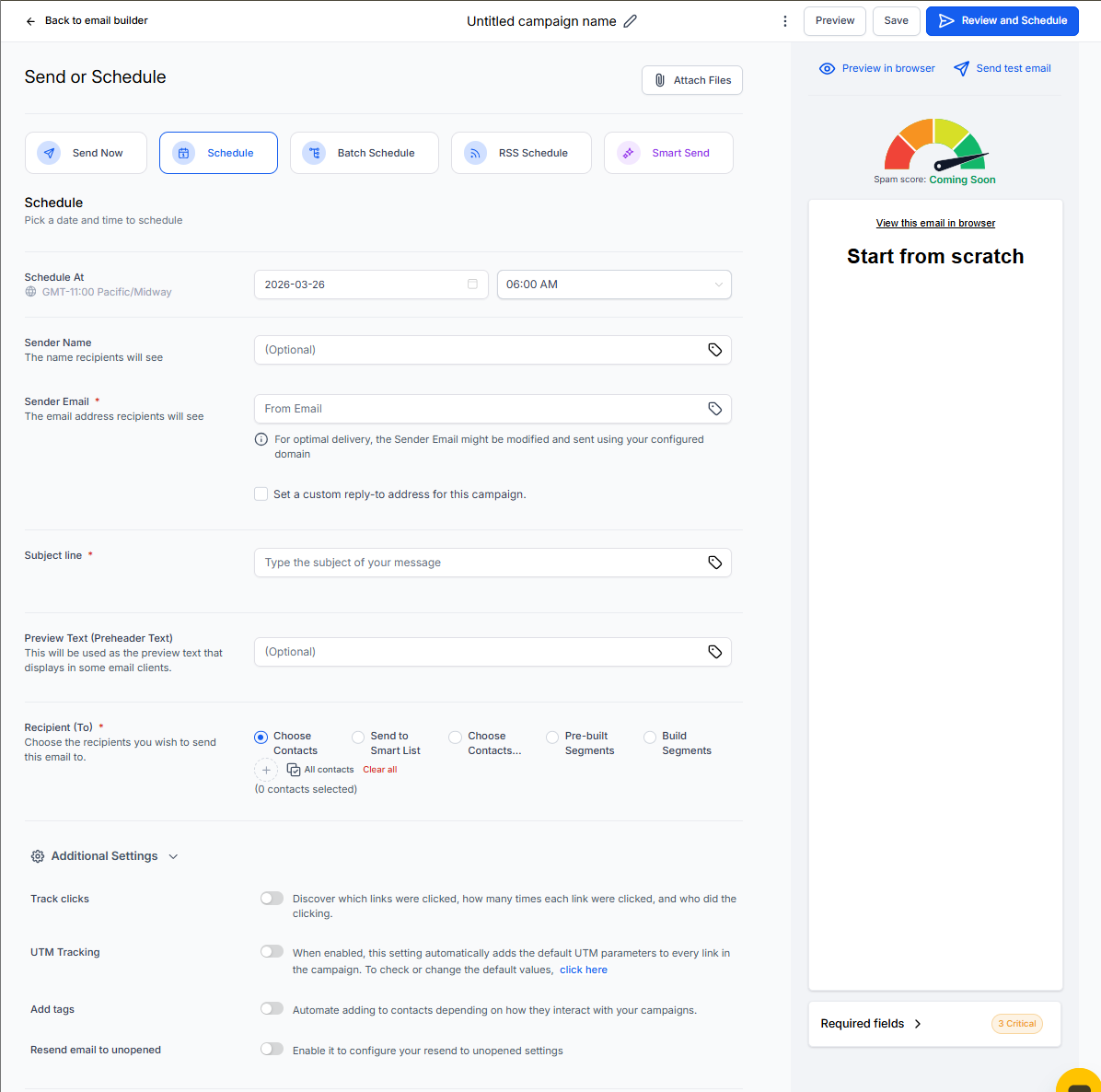
- Select Schedule.
- Set your Schedule Date and Time. The email will send according to your center's time zone (set in your Location settings).
- Add your Sender Name, Sender Email, and Subject Line.
- Select your Recipients.
- Configure Additional Settings (Link Tracking, UTM Tracking, Tags).
- Click Schedule.
Frequently Asked Questions
Can I reschedule an email campaign?
Yes. You can reschedule any campaign as long as it's more than one hour before the scheduled send time. Go to your Campaigns list, find the scheduled email, and click the three-dot menu to reschedule.
What's the difference between Campaigns and Automations for sending emails?
Campaigns are one-time broadcasts you send manually. Automations are multi-step sequences that trigger automatically based on family actions—like signing up for a tour or joining your waitlist.
Can I test my campaign before sending it to families?
Absolutely. Use the Preview button to see how your email looks, then click Test Email to send a copy to yourself. Always test on mobile and desktop before sending to your full list.
Can I see a preview of my campaign via URL?
Yes. After scheduling or sending, go to the campaign's Statistics page. You'll find a preview URL and can send test emails to review. Note: Test emails don't include an unsubscribe link.
I made a mistake—can I restore an older version of my email?
Yes. In the campaign editor, click the three-dot menu and select See Version History. You can restore any previous version of your email.
Related Articles
- How to Use the Email Builder and Inline Editor
- How to Build Recipient Segments in Email Campaigns
- How to Batch Schedule Email Campaigns
- How to Pause or Cancel a Scheduled Email Campaign
- Email Sending Methods: Send Now, Schedule, Batch, RSS