Introduction
When a parent is chatting with your Enrollio AI bot, you can automatically trigger automations based on their responses. For example, if a parent says they want to schedule a tour, the AI can instantly launch your tour booking automation — without you lifting a finger.
This feature helps you respond faster to families and reduces manual work on repetitive tasks.
How It Works
You set up trigger conditions that tell the AI bot when to launch specific automations. When a parent's conversation meets that condition, the automation runs automatically in the background.
For example: A parent asks about enrollment → AI recognizes the intent → Launches your "New Enrollment Inquiry" automation → Sends follow-up texts and assigns tasks to your team.
Setting Up Your Automation Trigger
Step 1: Open Your AI Bot Settings
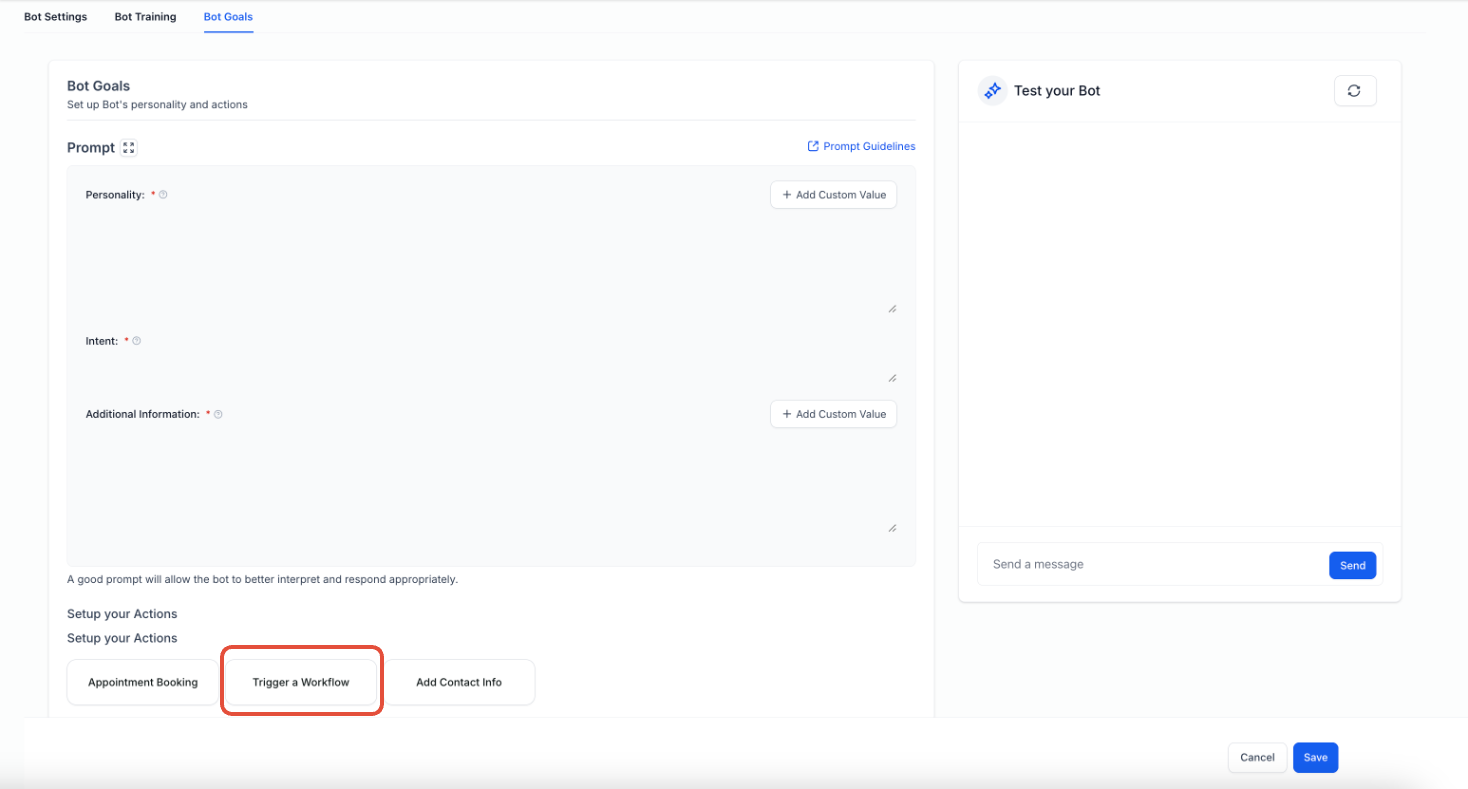
Navigate to your Enrollio AI bot settings and click on the Bot Goals tab.
Click the Trigger an automation button to begin setup.
Step 2: Configure Your Trigger
You'll need to fill in three key fields:
Action Name
Give this trigger a descriptive name so you can identify it later. For example: "Tour Request Automation" or "Waitlist Signup Flow".
Select a Published Automation
Choose which automation should run when this trigger activates. The dropdown shows only published automations.
Important: Make sure you've already created and published the automation you want to use.
When to Trigger
Describe the condition that should activate this automation. Write this as a clear, simple scenario the AI can recognize.
Good examples:
- "Parent wants to schedule a tour"
- "Parent asks to join the waitlist"
- "Parent requests enrollment information"
- "Parent wants to update their child's information"
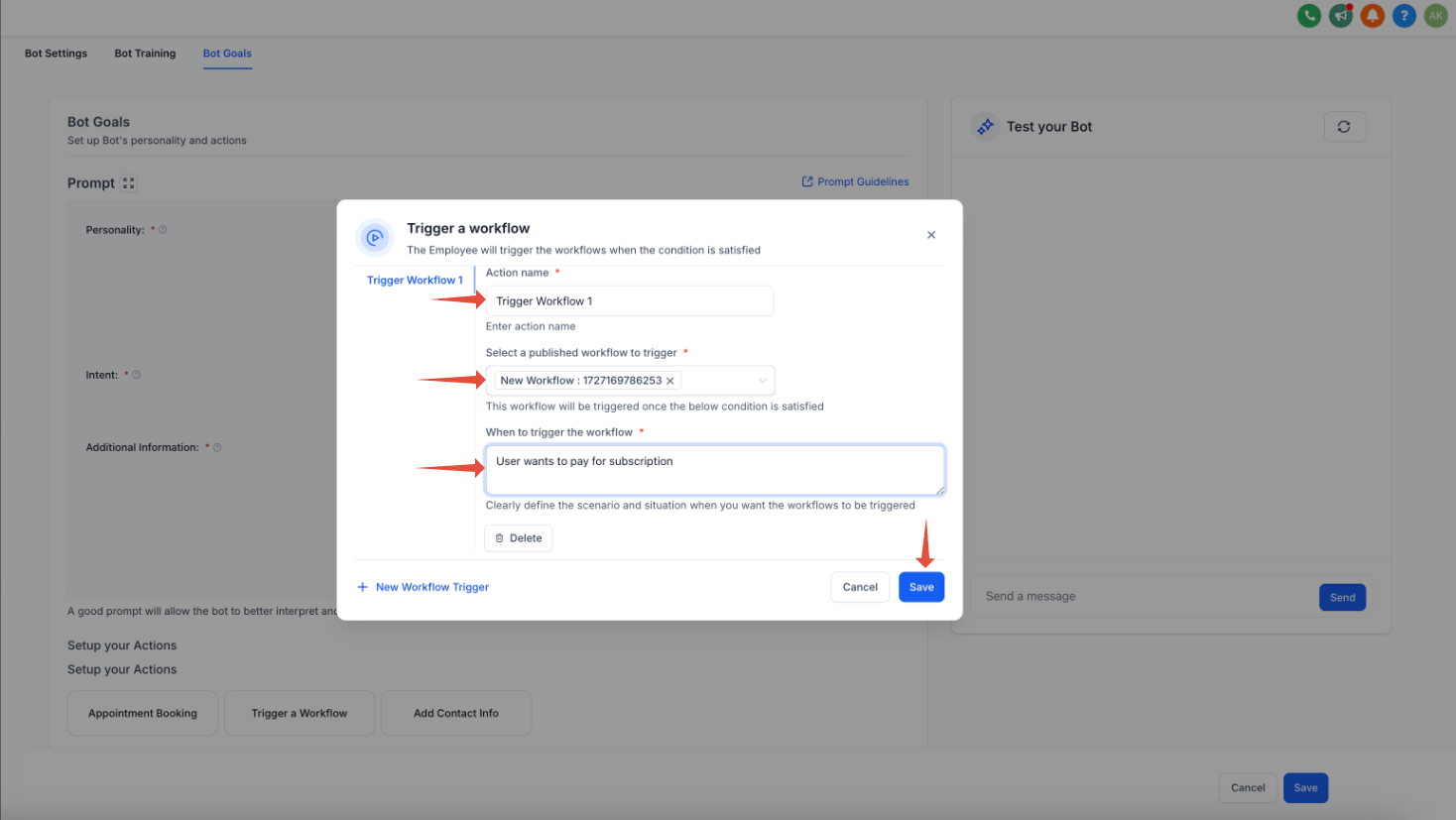
Click Save when you're done.
Best Practices
Write Prompts That Lead to Your Triggers
Make sure your AI bot's conversation prompts naturally guide parents toward the conditions you've set up.
For example, if your trigger is "Parent wants to schedule a tour", include a prompt where the bot asks: "Would you like to schedule a tour of our center?"
This makes it more likely the parent's response will match your trigger condition.
Avoid Duplicate Automations
Don't set up the same automation to trigger both from the AI bot and from your standard automation triggers. This will cause the automation to run twice.
Pick one method: either AI-triggered or standard automation triggers — not both.
Handle Overlapping Conditions Carefully
If you have multiple triggers that could activate from the same parent response, the AI will choose which one to run based on its best interpretation.
For clearer results, make your trigger conditions as specific as possible and avoid significant overlap.
💡 Pro Tip
Triggers work for both bot responses and parent responses. The automation can launch whether the bot suggests an action or the parent requests it first — giving you flexibility in how conversations flow.
Updating Parent Records from Triggered Automations
Yes, you can update parent and family information through automations triggered by the AI bot.
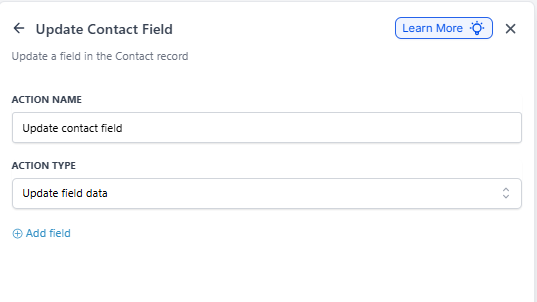
Just add an "Update Contact Field" action inside the automation you're triggering. This lets you automatically capture details like enrollment dates, child information, or preferences as part of the conversation flow.