
Using Custom Objects in Automation Actions and Triggers
Custom Objects are now live in automations! This powerful feature lets you create object-specific automations tailored to your childcare center's unique needs. You can trigger automations based on custom object events and define actions to streamline your operations.
What's New?
Custom Object Automations: Build automations specific to your custom objects (e.g., Classrooms, Vehicles, Equipment, Staff Certifications).
Trigger Automations with Custom Object Events: Set up powerful triggers that respond when your custom objects are created or changed.
Perform Targeted Actions: Define object-specific actions like creating, updating, or clearing custom object records, and integrate them with other features in Enrollio.
How It Works
- Go to the Automations page and click Create Automation.
- Select the Object-based Automation you want to configure.
- Customize your automation using the triggers and actions described below.
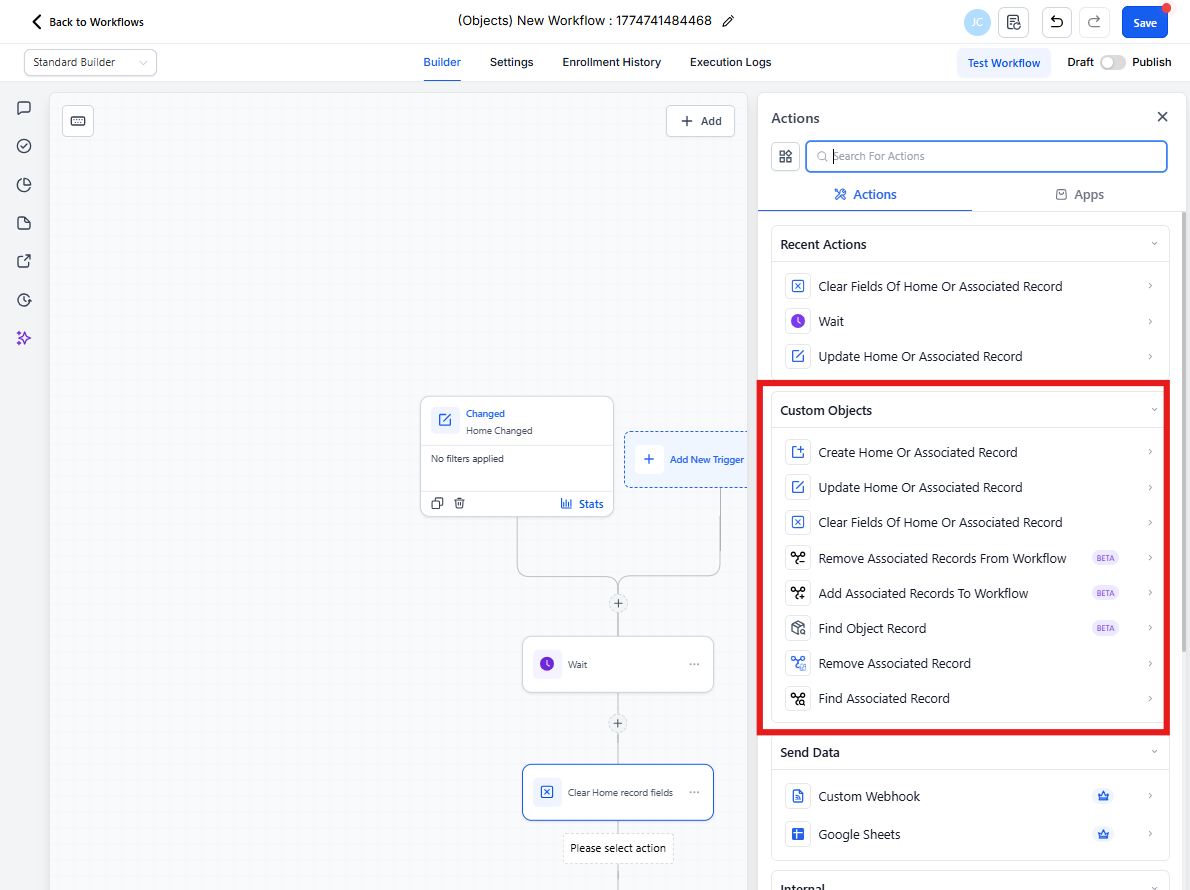
Available Triggers and Actions
Here's what you can use in your Custom Object automations:
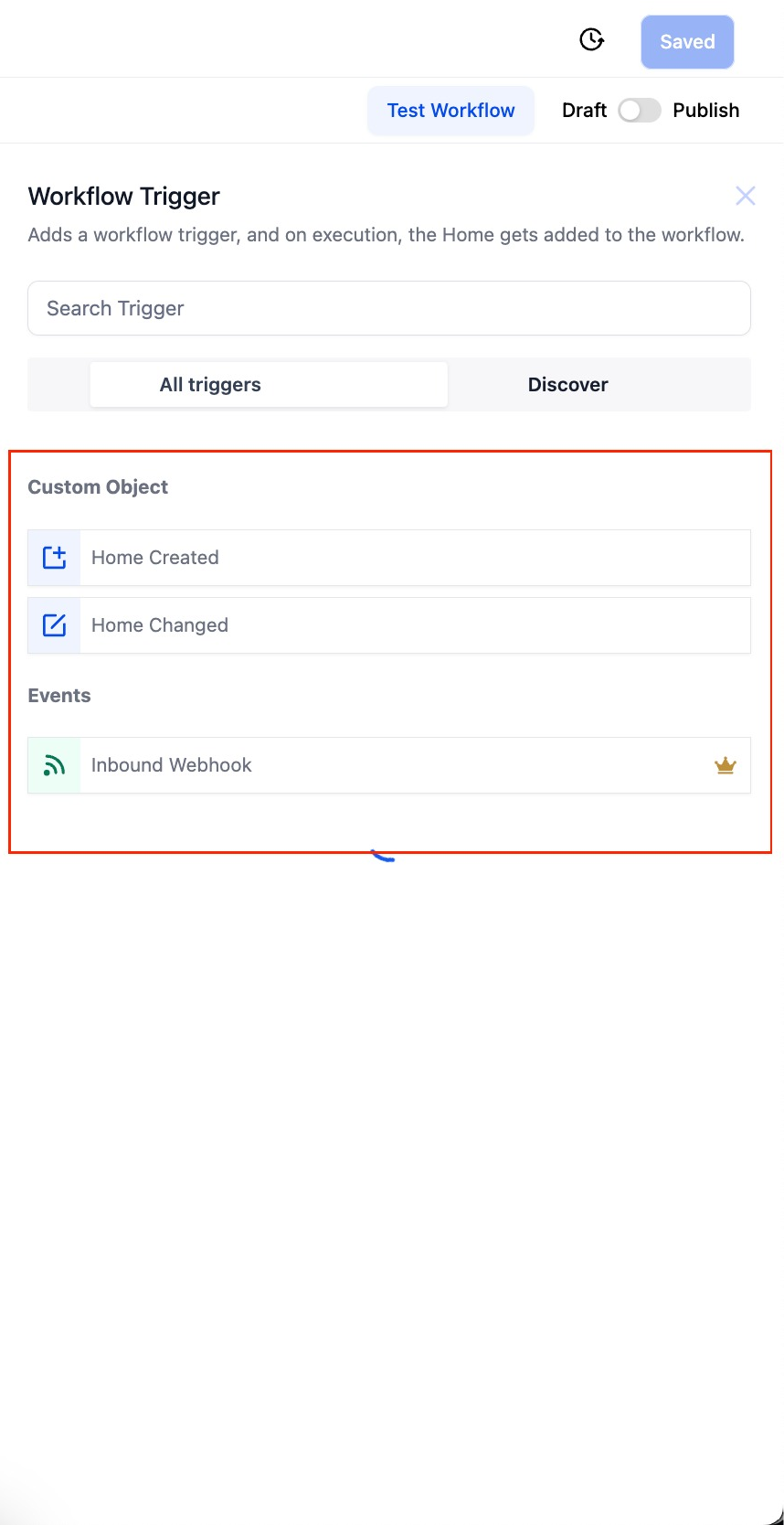
Triggers
Custom Object Events:
- Object Created (e.g., when a new Classroom record is added)
- Object Changed (e.g., when a Vehicle's maintenance status is updated)
Inbound Webhook: Trigger automations from external systems.
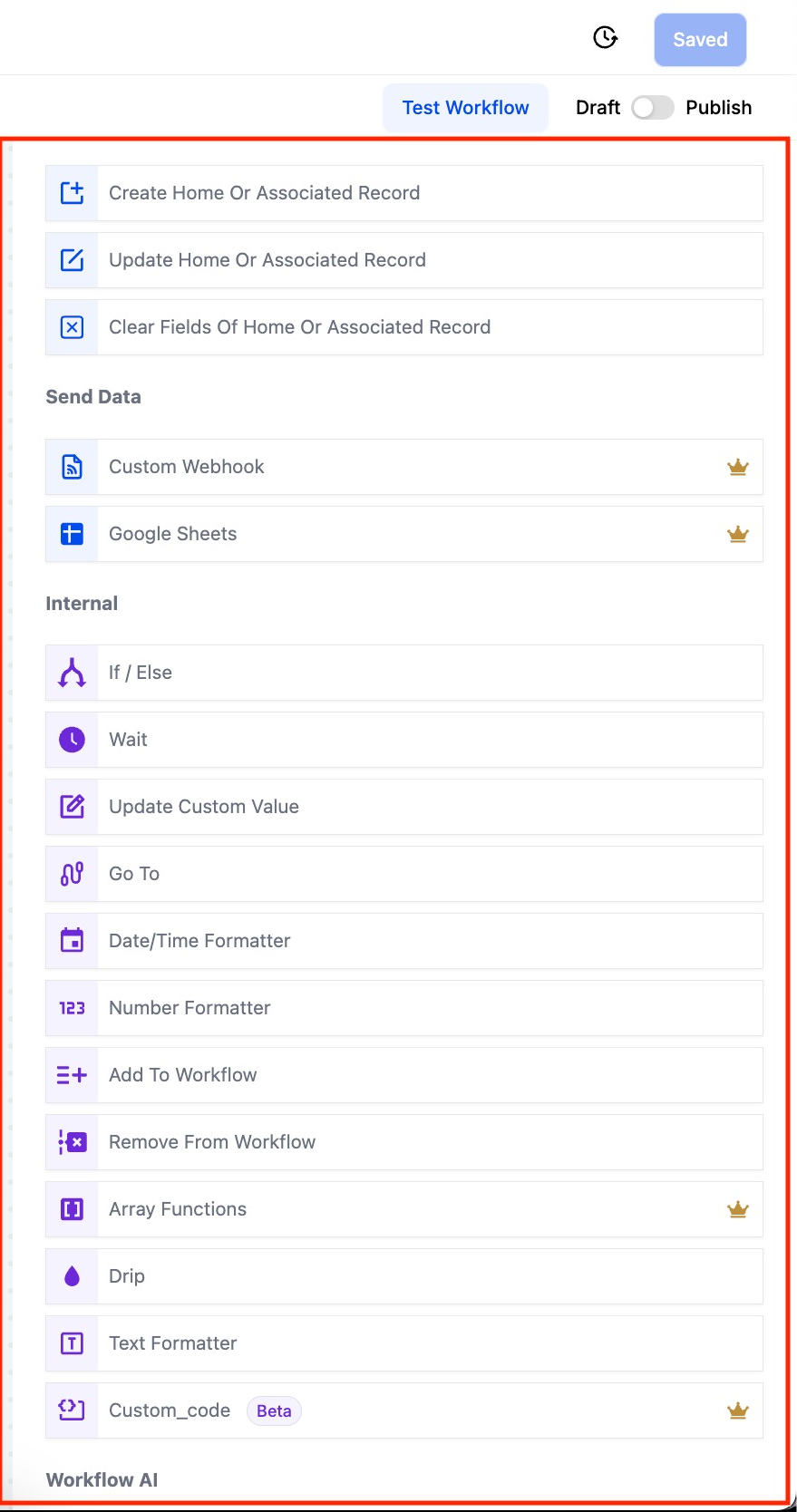
Actions
Custom Objects:
- Create Object or Associated Record
- Update Object or Associated Record
- Clear fields of Object or Associated Record
Send Data:
- Custom Webhook
- Google Sheets
Internal Actions:
- If/Else logic
- Wait
- Update Custom Value
- Go To
- Date/Time Formatter
- Number Formatter
- Add To Automation
- Remove From Automation
- Array Functions
- Drip
- Text Formatter
- Custom Code
Enrollio AI: GPT-powered actions for intelligent automation.
Use Case: Automating Classroom Transitions
A childcare center uses a custom object called "Classroom" to track room assignments and capacity. When the Status field is marked as "Ready for Transition," they want to automate the next steps.
Trigger: Object Changed — The automation starts when the Classroom Status field changes to "Ready for Transition."
Actions:
- Update Associated Object: Update the Staff Assignment object to notify teachers about the upcoming transition.
- Add a Row to Google Sheets: Log the transition details in a centralized tracking spreadsheet.
- Clear a Field: Clear temporary notes that were used during the planning phase.
Frequently Asked Questions
Can I use a Custom Object automation to send data to other platforms?
Yes. You can use actions like Webhooks to push data from Custom Object records to third-party tools. This is helpful for reporting, syncing with other systems, or triggering external services based on Custom Object events.
Do I need to create a Custom Object before using it in an automation?
Yes. You must create the Custom Object and define its fields before you can use it in any automation trigger or action.
Related Articles
- Getting Started with Custom Objects
- Creating and Updating Custom Object Records
- Associations for Custom Objects
- Creating and Editing Custom Objects