
How to Set Up Automation Triggers for Google and Facebook Reviews
This guide shows you how to create automated responses when families leave reviews on Google or Facebook. You can customize actions based on review ratings, source, and other details to manage your childcare center's online reputation efficiently.
What You'll Learn
- Setting up the Review Received trigger
- Adding filters to target specific reviews
- Creating automated actions based on review details
- Testing your automation
Overview
The "Review Received" trigger is contactless—reviews aren't linked to specific parent records in Enrollio. This trigger fires whenever a new review appears on your connected Google Business Profile or Facebook page, letting you respond automatically based on the review's details.
Step 1: Set Up the Review Received Trigger
- Navigate to Automations in your Enrollio dashboard
- Click Create New Automation or edit an existing one
- In the trigger section, select Review Received
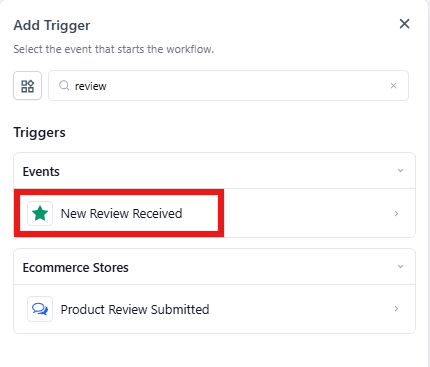
This trigger activates whenever a new review comes in from your connected Google or Facebook account.
Step 2: Add Filters for Reviews
Filters let you create specific actions for different types of reviews. Here are the key filters you can use:
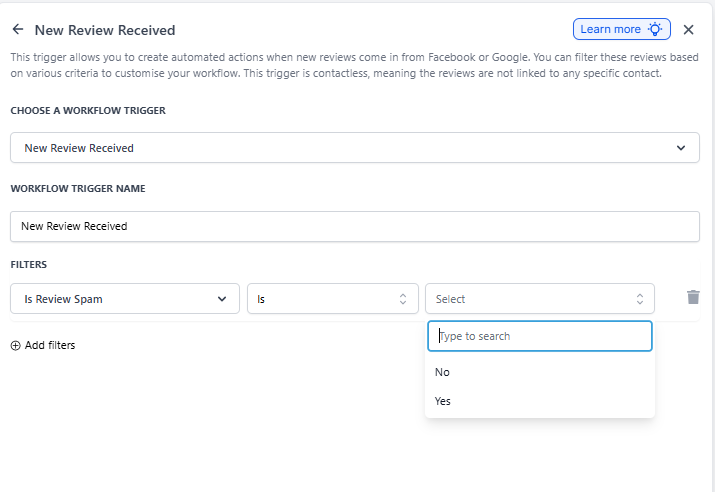
Review SPAM Filter
Select Yes or No to handle spam reviews automatically. This helps you separate legitimate parent feedback from suspicious or fake reviews.
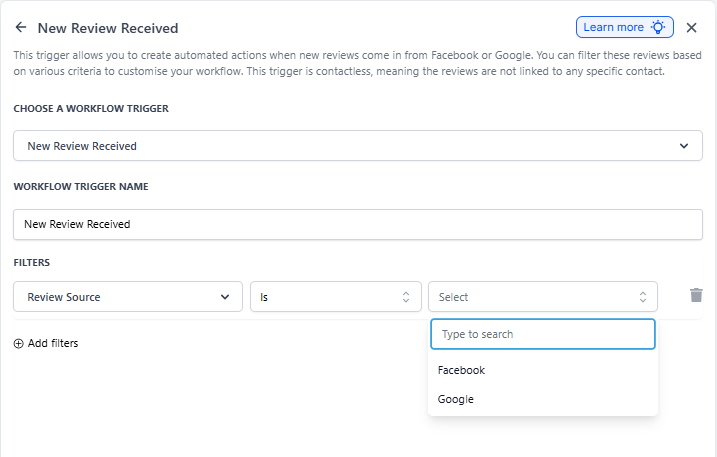
Review Source Filter
Choose between Google or Facebook to trigger different actions depending on which platform the review appeared on. This lets you customize your response based on where families are sharing feedback.
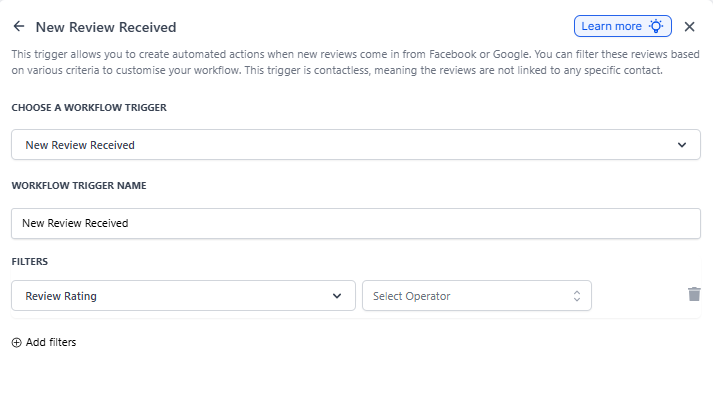
Review Rating Filter
Filter reviews by star rating (1 to 5 stars). This is especially useful for creating different responses:
- 5-star reviews: Send an automatic thank-you message
- 3-4 star reviews: Request a follow-up conversation
- 1-2 star reviews: Alert your director immediately
Step 3: Map Review Details to Automated Actions
Once you've set up your trigger and filters, you can map the review information to automated actions.
Review details you can use in your automation include:
- Review text/content
- Star rating
- Reviewer name
- Platform (Google or Facebook)
- Review date and time
Common automated actions:
- Send review data to your team via email or text message
- Post review details to a webhook or external system
- Create internal tasks for staff follow-up
- Log reviews in your reporting dashboard
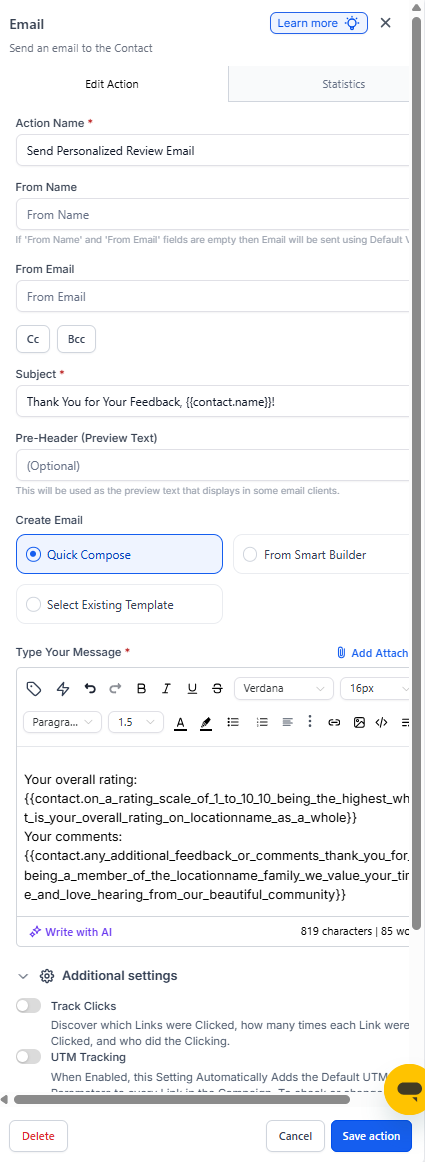
Step 4: Save and Test Your Automation
- Click Save to activate your automation
- Test the automation by leaving a test review (or ask a staff member to do so)
- Verify that your automated actions trigger correctly
- Adjust filters or actions as needed based on your test results
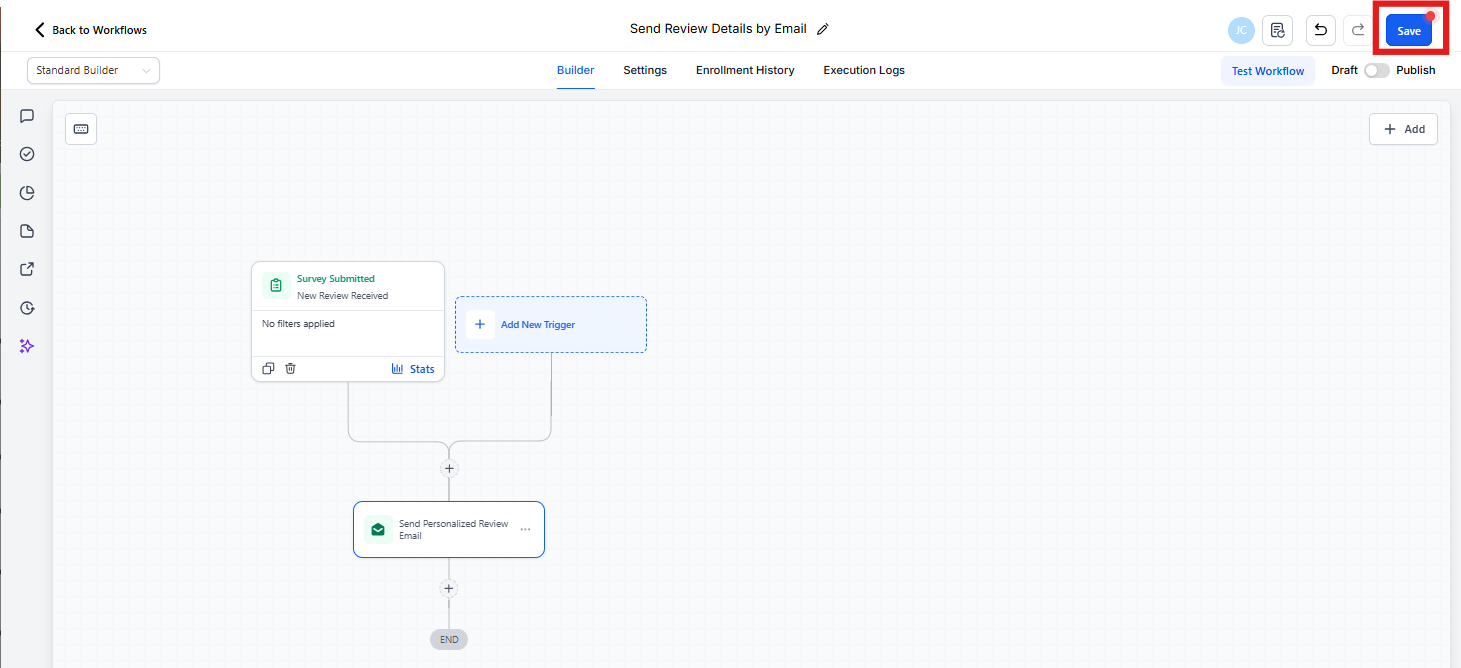
Make sure to test with different rating levels if you've set up multiple branches in your automation.
Wrapping Up
By automating responses to Google and Facebook reviews, you can:
- Respond faster to parent feedback
- Ensure no review goes unnoticed
- Save time on reputation management
- Maintain consistent engagement with families
This automated approach helps you build a stronger reputation while focusing on what matters most—caring for the children and families at your center.