
Using Enrollment Opportunity Data in Document Templates
You can automatically populate your document and contract templates with enrollment opportunity details using merge fields. This means family names, child information, program selections, and custom enrollment data flow directly into your contracts and agreements.
What Are Enrollment Opportunity Custom Values?
Documents and contracts in Enrollio work like email templates, but they produce professional documents that families can review and sign. Templates are reusable files with "fill in the blanks" sections that automatically populate with family and enrollment data.
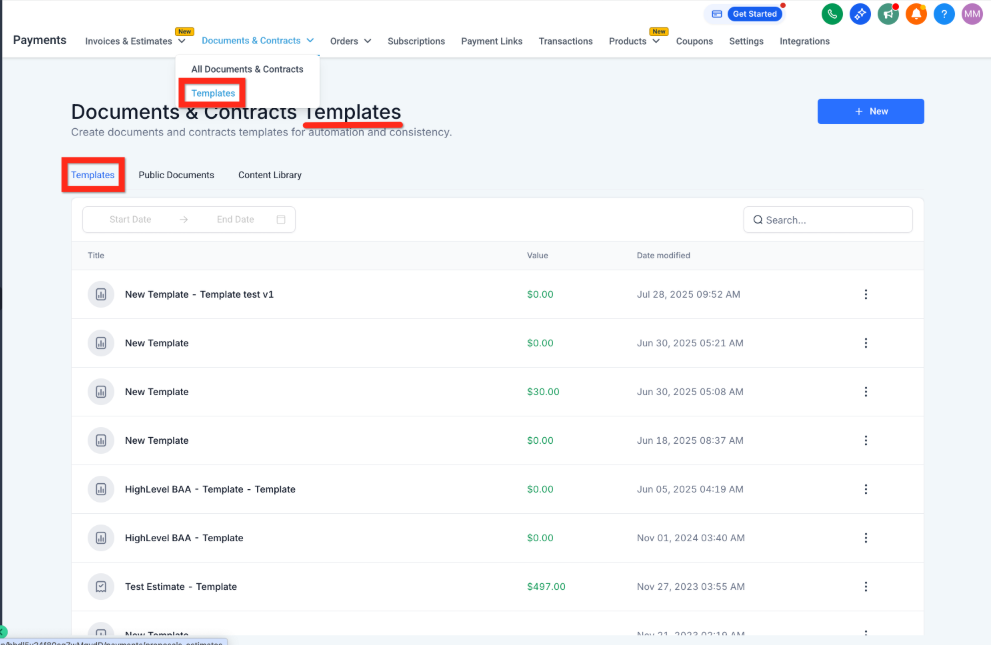
Important: This article covers templates, not individual documents. To access templates, go to Payments → Documents & Contracts and select the Templates tab.
How to Add Enrollment Data to Your Templates
Follow these steps to insert enrollment opportunity information into your document templates:
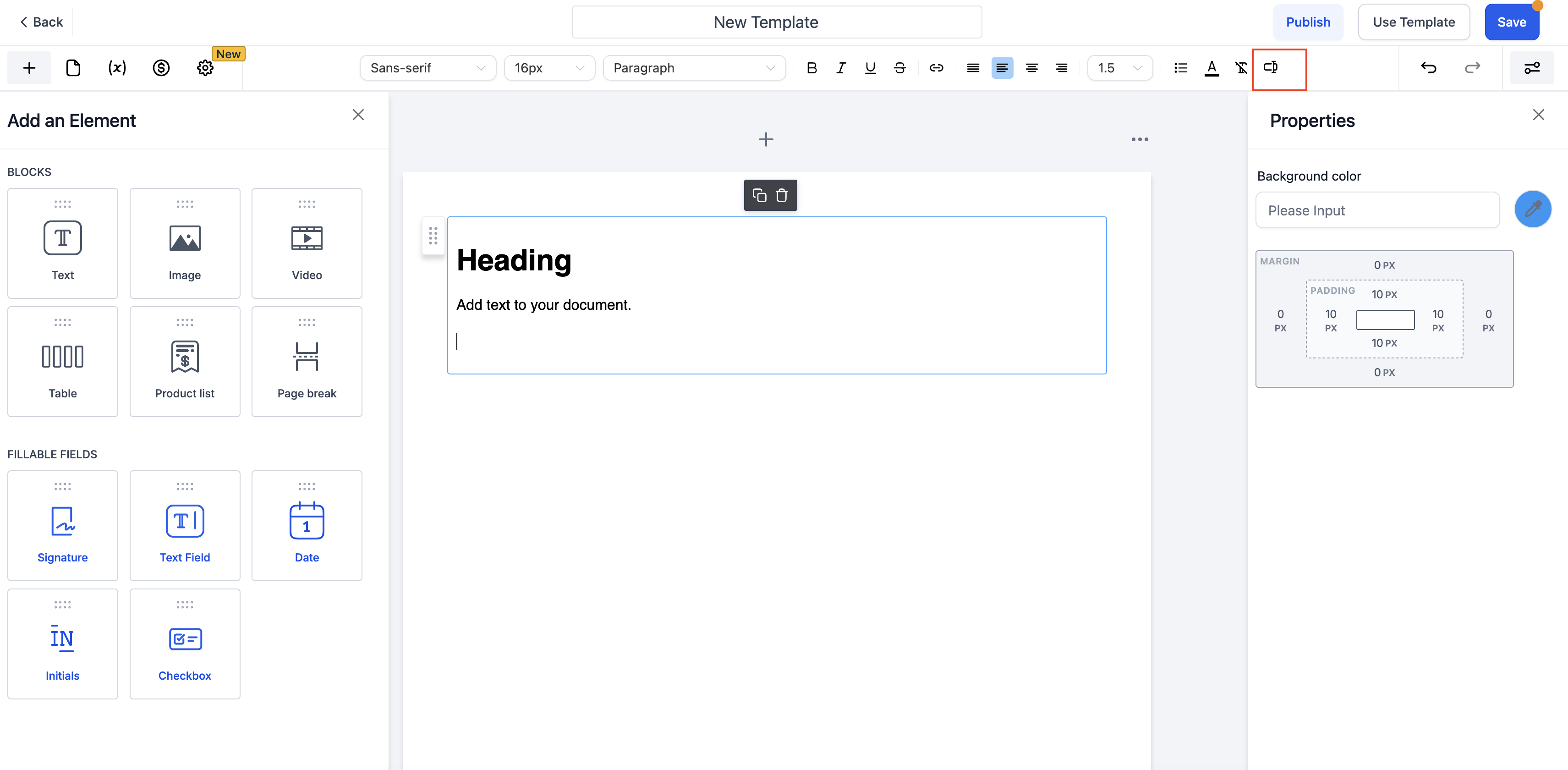
- Navigate to Payments → Documents & Contracts → Templates → New Template
- Drag a text box or table to where you want enrollment data to appear
- Add your merge field using either method:
-
Type directly: Enter the merge field like
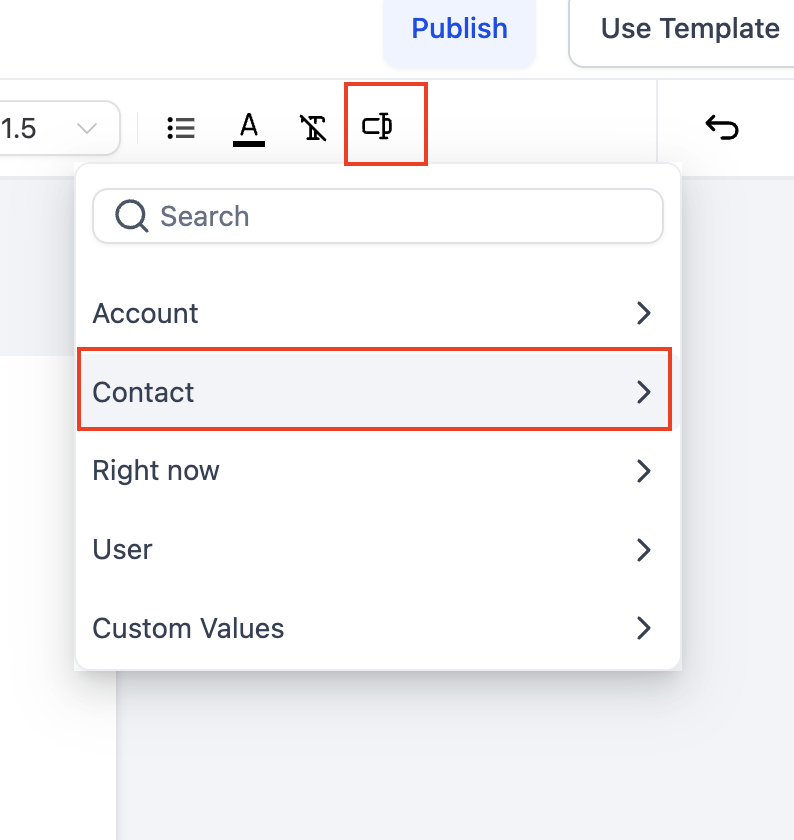
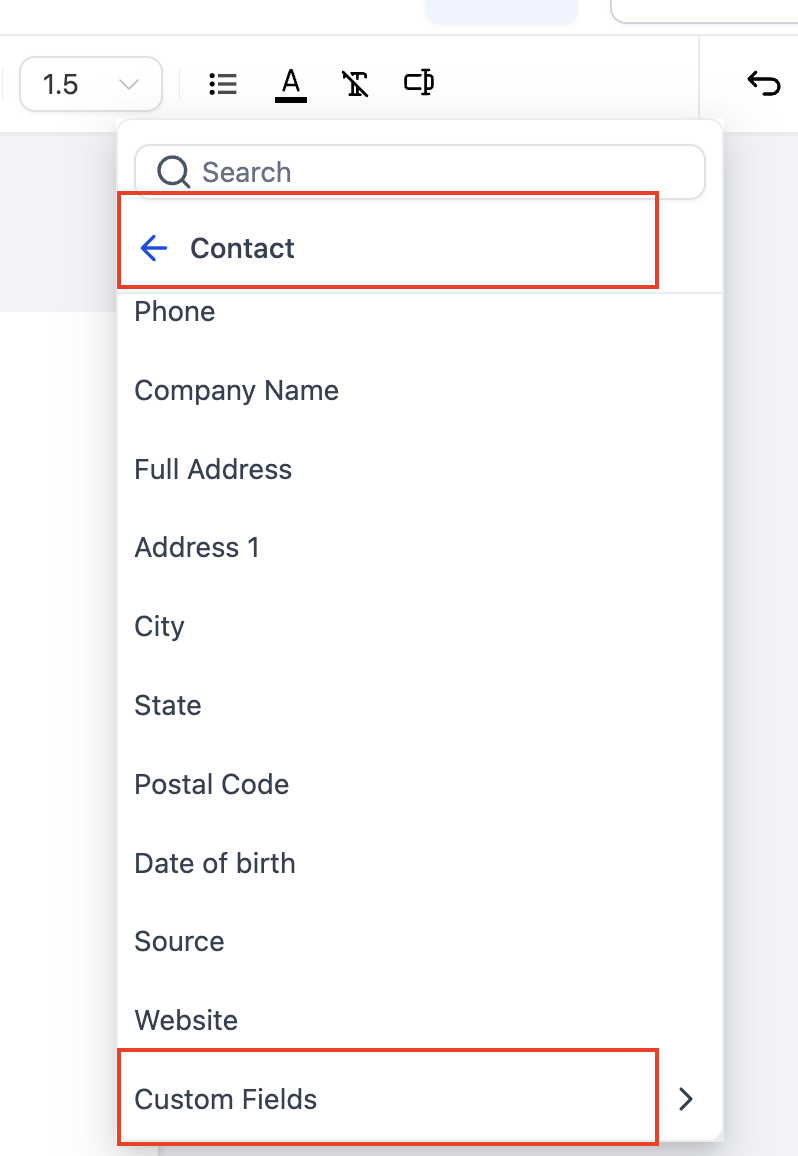
{{opportunity.xyz}} - Use the menu: Click the merge fields button, then go to Family → Custom Fields → Enrollment Opportunity Details and select your field
-
Type directly: Enter the merge field like
- Review the merge field placement in your document
- Click Save
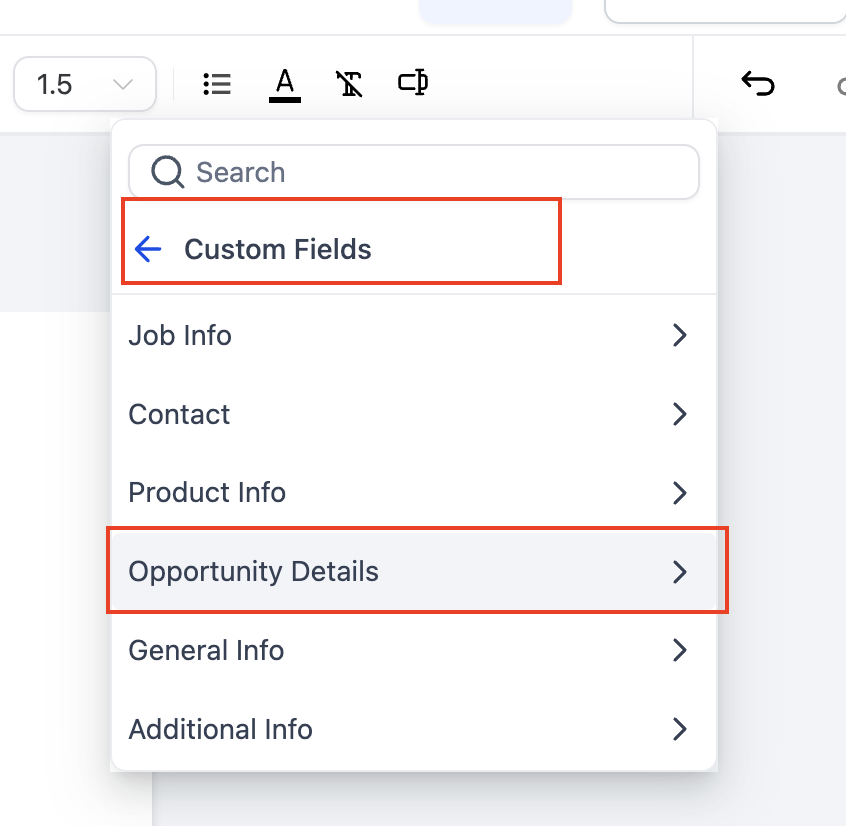
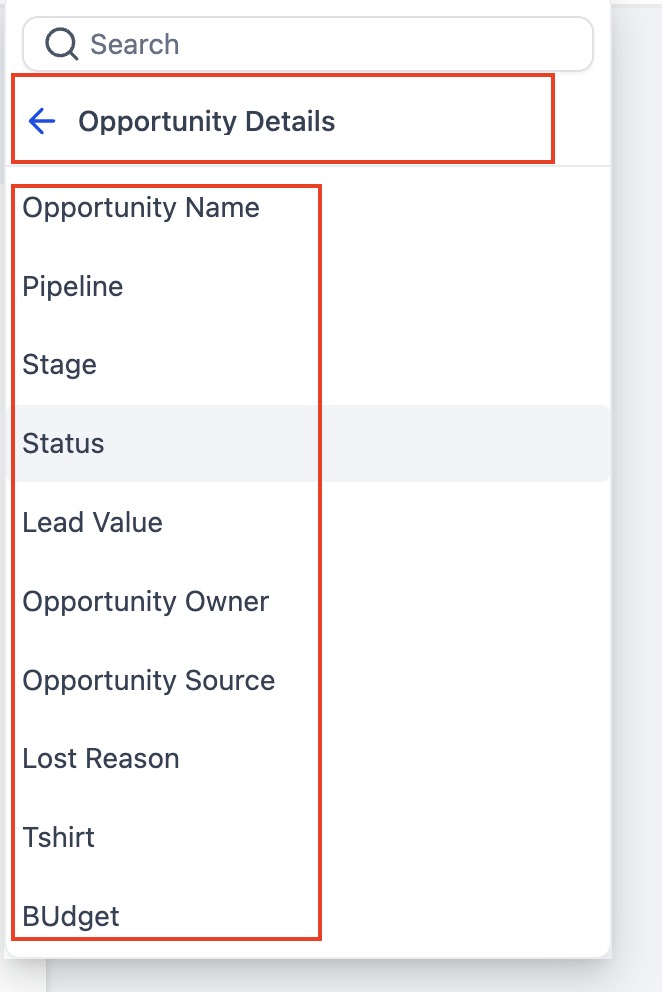
When the template is used, merge fields automatically replace with actual family and enrollment data.
Send Templates Automatically with Automations
You can trigger document sending based on enrollment pipeline activity:
- Go to Automations → Create New (or edit an existing automation)
- Add the Send Documents & Contracts action
- Select your template from the dropdown
- Choose whether to save as draft or send immediately
- Click Save
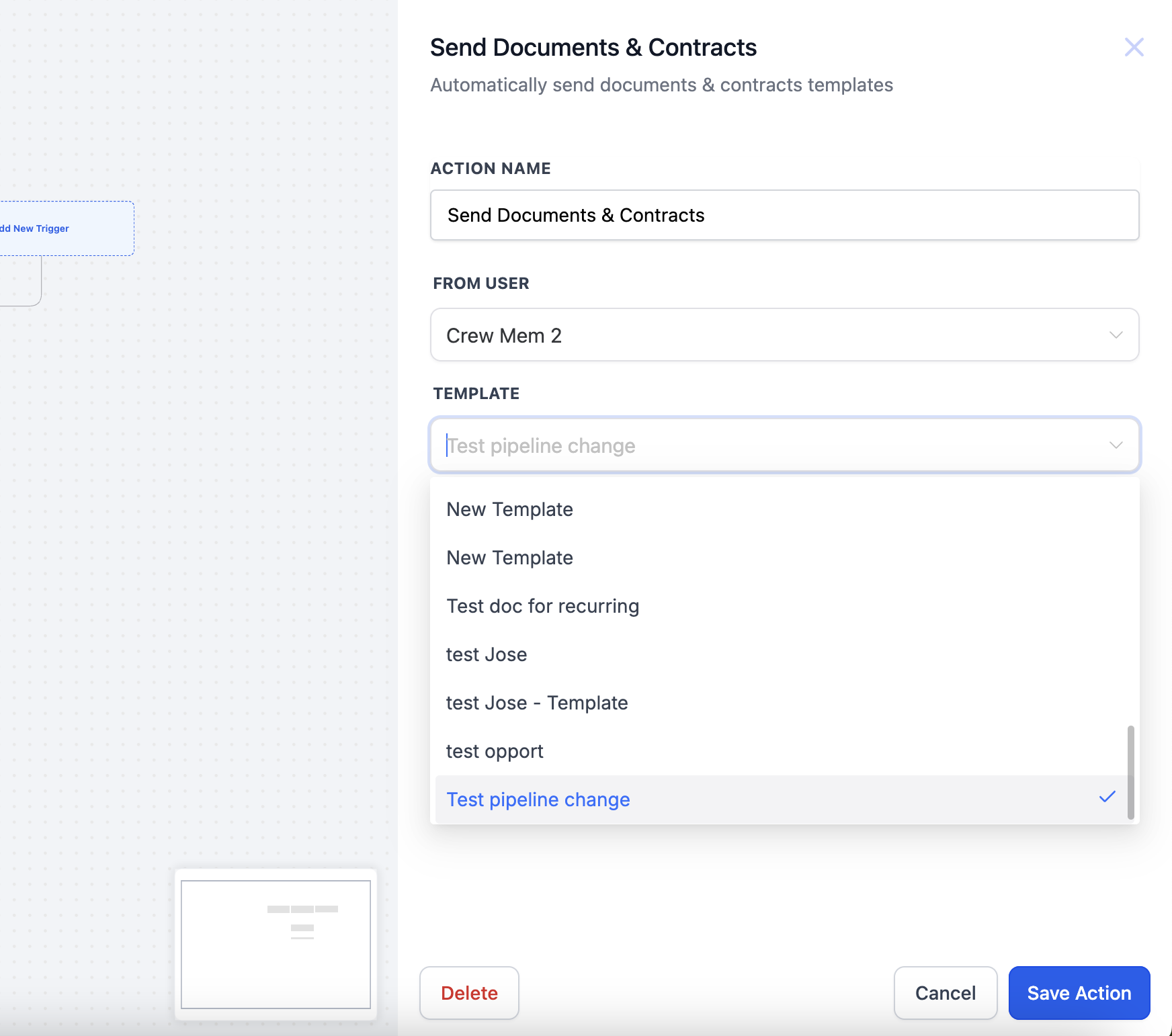
Automate Document Sending by Pipeline Stage
Want to automatically send enrollment agreements when families reach a certain stage? Here's how:
Step 1: Create Your Automation
Navigate to Automations → Create New
Step 2: Add Your Trigger
Choose one of these enrollment-based triggers:
- Pipeline Stage Changed: Triggers when a family moves to a specific stage
- Enrollment Opportunity Status Changed: Triggers when opportunity status updates
Set the trigger filters to match your enrollment pipeline and the specific stage where you want documents sent.
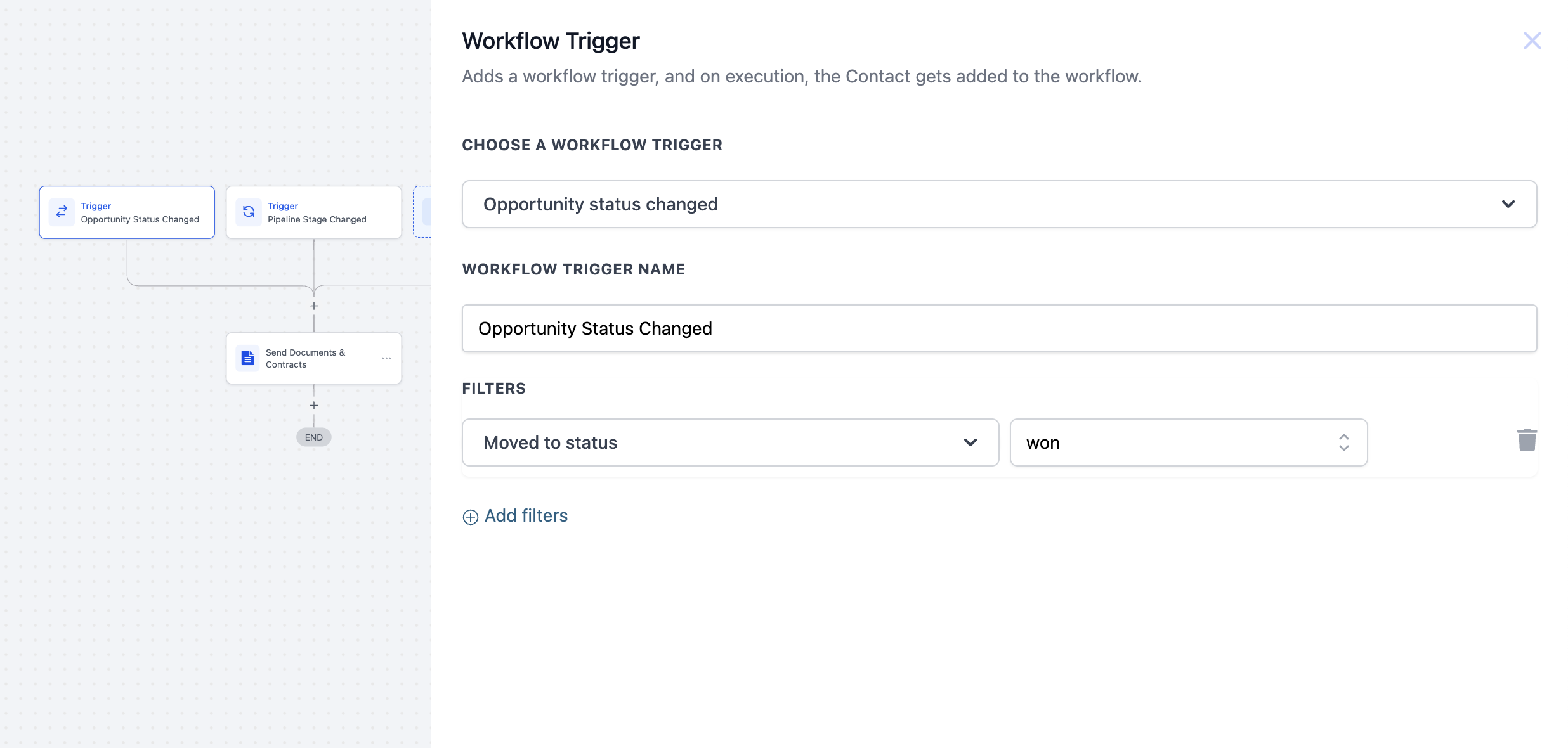
Step 3: Add the Send Action
Add the Send Documents & Contracts action and select your template. The merge fields will automatically pull enrollment opportunity data before sending.
Click Save to activate your automation.
Examples of Enrollment Data You Can Use
Here are common enrollment opportunity fields you might include in templates:
- Child name and date of birth
- Program type (infant, toddler, preschool, etc.)
- Start date preferences
- Schedule selections (full-time, part-time, specific days)
- Tuition amount and payment terms
- Any custom enrollment questions you've created
All these fields populate automatically when the document is generated, saving you time and reducing errors.