
How to Set Up Tour Reminder Automation with Zoom Integration
If you're using Zoom for virtual tours, you'll need to add a brief wait step in your automation to ensure the Zoom meeting link processes correctly before sending reminders to families.
Step 1: Create Your Tour Reminder Automation
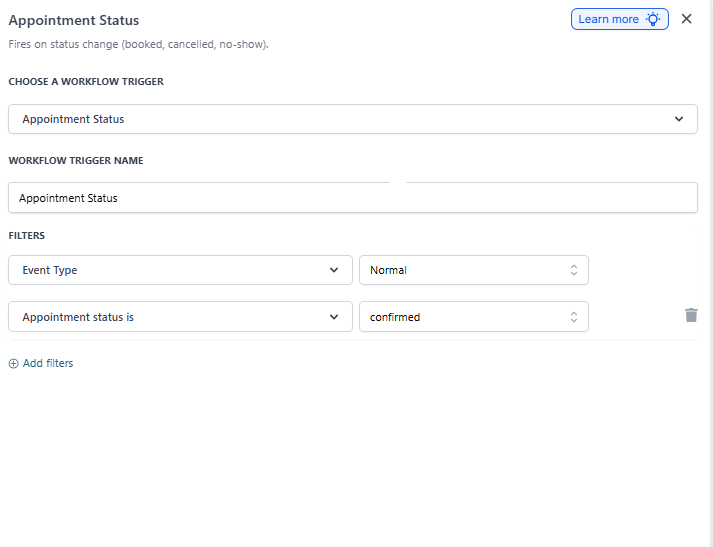
First, set up the trigger that starts your automation when a family books a tour.
- Click Add New Automation
- Click Trigger
- Click Select
- Choose Appointment...
- Click Add filters
- Click Select
- Choose Appointment status is
- Click Select
- Choose confirmed
- Click Save Trigger
Step 2: Add the Initial Wait Step (Critical for Zoom)
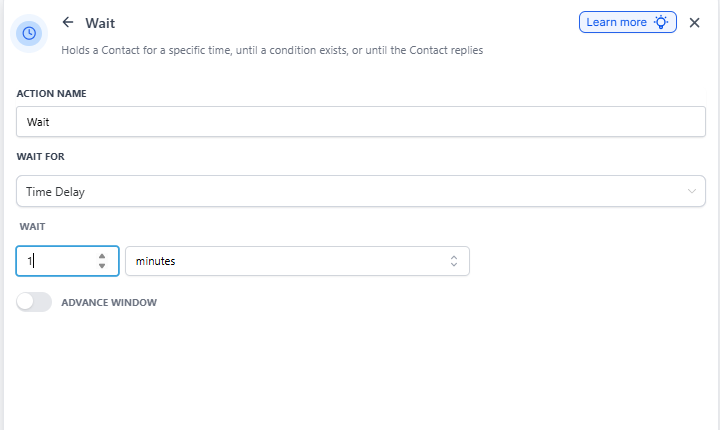
This 1-minute wait ensures the Zoom meeting link is fully generated before you send any messages.
- Click the + button to add an action
- Scroll down and click Wait
- Set Wait Delay to 1 minute
- Click Save Action
Step 3: Send the Tour Confirmation
Now you can send the initial confirmation with the Zoom link included.
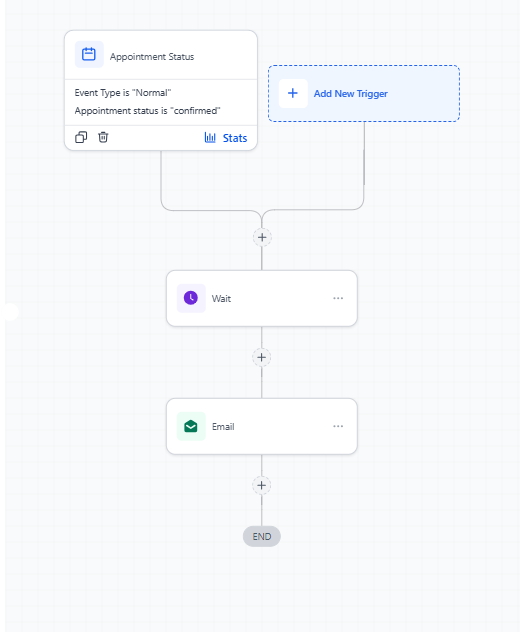
- Click the + button after the wait step
- Choose to send an Email or Text Message
- Compose your confirmation message including tour details and the Zoom link
- Click Save Action
You can use custom fields in your message to automatically include appointment details like date, time, and the Zoom meeting link.
Step 4: Set Up the Reminder Wait Period
Next, configure when you want to send the reminder before the tour starts.
- Click the + button to add another action
- Scroll down and click Wait
- Click Time Delay
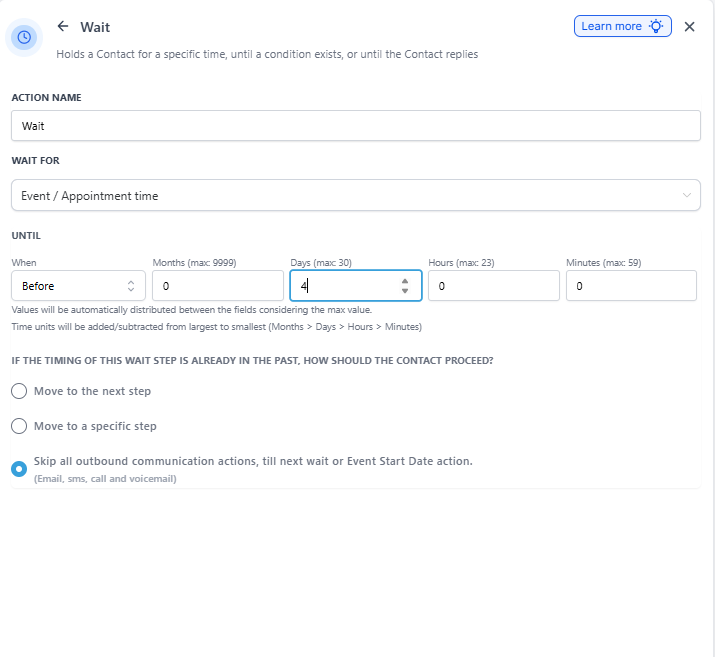
- Click Event / Appointment time
- If you want to send a reminder 4 days before the tour:
- Type 4 in the number field
- Switch the dropdown from minutes to days
- Select Skip all outbound communication actions, till next wait or Event Start Date action
- Click Save Action
Pro Tip: Common reminder timing for childcare tours:
- 4 days before: "Looking forward to meeting you!"
- 1 day before: "Your tour is tomorrow"
- 1 hour before: "Your virtual tour starts soon"
Step 5: Send the Tour Reminder
After the wait period, send your reminder message.
- Click the + button after the wait step
- Choose to send an Email or Text Message
- Write your reminder message (the Zoom link will automatically be included)
- Click Save Action
Step 6: Add Additional Reminders (Optional)
You can repeat steps 4 and 5 to add more reminder messages at different intervals. Many childcare centers send:
- A confirmation immediately after booking
- A friendly reminder 3-4 days before
- A final reminder 1 day or 1 hour before the tour
Just add another wait step followed by another email or text message action.
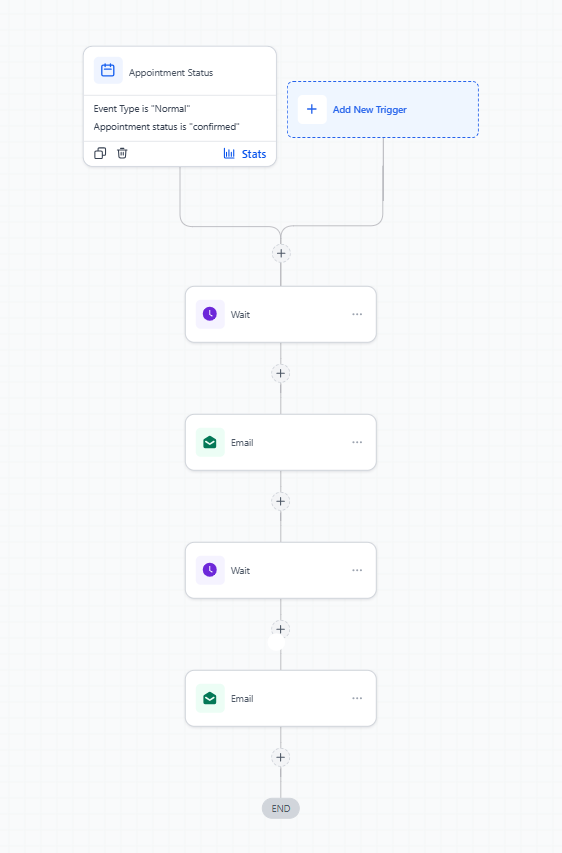
What Happens Next
Once your automation is active, every family who books a confirmed virtual tour will automatically receive your confirmation and reminder messages with their unique Zoom meeting link — no manual work required.