
What is the Documents & Contracts Automation Trigger?
The Documents & Contracts automation trigger in Enrollio lets you automatically respond when a document changes status—like when it's sent, viewed, signed, or completed. This connects your document activity directly to your automations, so you can take action instantly based on how families interact with your forms and agreements.
It's perfect for streamlining enrollment paperwork, registration forms, and signed contracts. When a parent signs your enrollment agreement or views your policies document, Enrollio can automatically send confirmations, update records, or notify your staff—no manual follow-up needed.
Why Use This Trigger?
This automation trigger helps you stay on top of enrollment paperwork without the administrative burden. Here's what makes it valuable:
Instant Follow-Up Based on Document Activity
Send personalized messages when a document is sent, viewed, signed, or completed. Remind parents who haven't signed yet, welcome families who just completed enrollment, or thank them for reviewing your policies—all automatically.
Keep Your Records Current
Automatically update family records, tag contacts, or log activities when documents are signed. No more manual data entry or wondering which families have completed their paperwork.
Target Specific Documents
Use filters like Template Name, Status, and Recipient Type to trigger automations only for specific documents. Run different automations for enrollment agreements versus tour waivers versus tuition contracts—all from one trigger type.
Keep Your Team in the Loop
Send instant notifications to staff when key documents are signed. Your director can get alerted when a high-value enrollment is completed, or your front desk can be notified when a new family finishes registration.
Personalized Family Experience
Use information from the family record or document to personalize your follow-up. Welcome emails can reference the child's name, start date, or program—making every interaction feel thoughtful and professional.
How to Set Up a Documents & Contracts Trigger
Step 1: Open Automations
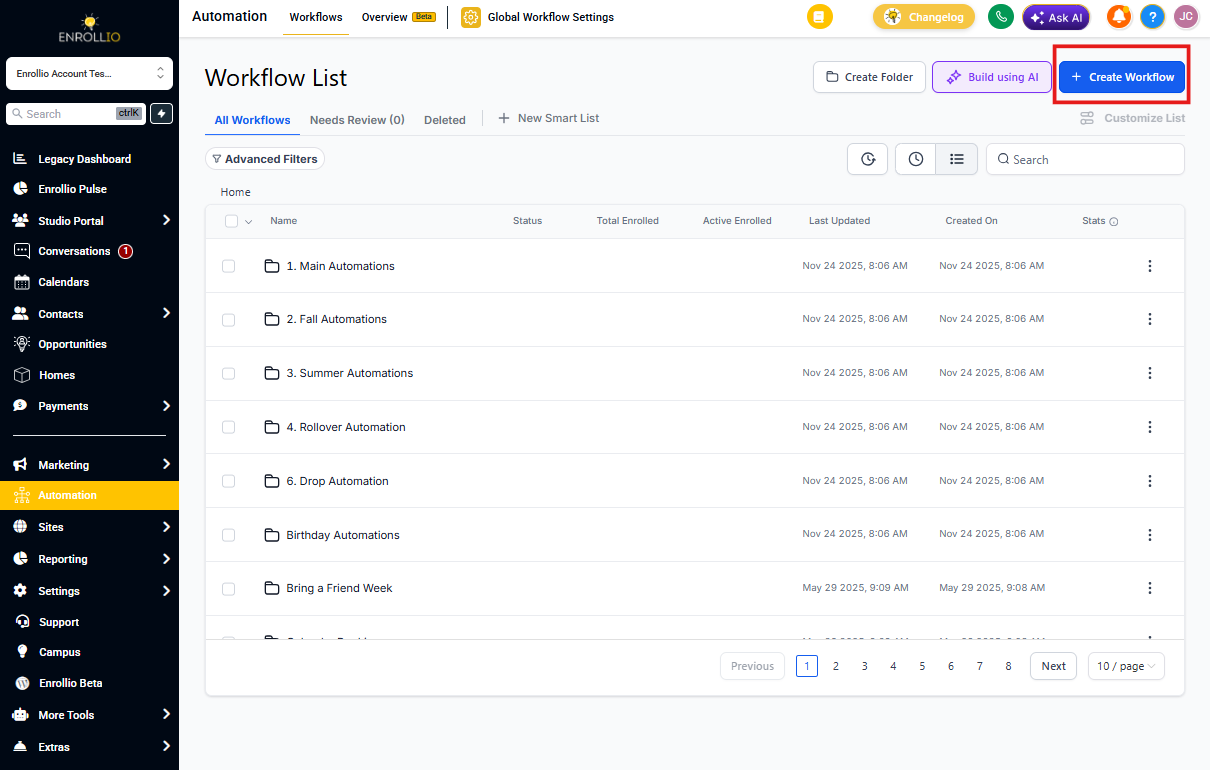
From the left navigation panel, click Automations, then click the blue + Create Automation button in the top-right corner. Choose Start from Scratch to build your automation.
Step 2: Add Your Trigger
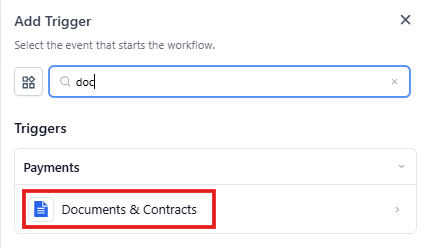
Inside the automation builder, click + Add New Trigger. Scroll to the Payments section and select Documents & Contracts. This tells Enrollio to start the automation when something happens with a document.
Step 3: Name Your Trigger
Give your trigger a clear name in the Automation Trigger Name field—something like "Enrollment Agreement Signed" or "Tour Waiver Viewed." This helps you stay organized as you build more automations.
Step 4: Add Filters
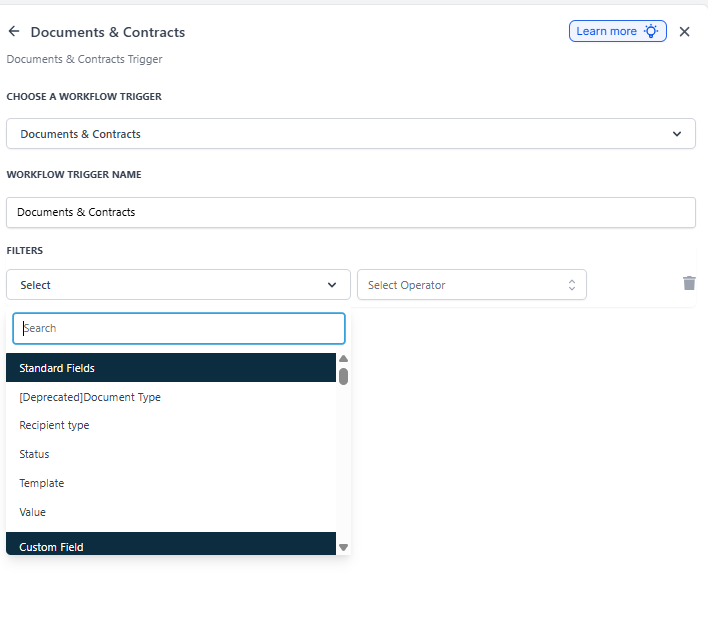
Click Add Filters to specify exactly when this automation should run. You can choose from these filter options:
- Recipient Type: Parent/Family or Staff Member
- Status: Viewed, Signed/Accepted, Completed, or Sent
- Template: Specific document template (like "Enrollment Agreement" or "Tour Waiver")
- Value: Document value (useful for filtering by tuition amount or enrollment fees)
Recipient Type Filter
Use this filter to specify who the document was sent to—either a Staff Member (your team) or a Parent/Family (external). This ensures your automation only runs based on actions taken by the right person.
For example, you might send a welcome sequence when a parent signs an enrollment agreement, but trigger an internal notification when a staff member signs off on a policy review.
Status Filter
The Status filter lets you trigger automations based on where the document is in its lifecycle:
- Sent: When you send the document to a family
- Viewed: When someone opens and views it
- Signed/Accepted: When they sign or accept it
- Completed: When all signatures are collected and the document is finalized
This lets you tailor your response to each stage. Send a reminder if viewed but not signed, or trigger onboarding steps immediately upon completion.
Template Filter
Use this filter to specify which document template should trigger the automation. This is essential when you want different automations for different document types.
For instance, you might send enrollment instructions when families complete your "Enrollment Agreement" template, but send tour follow-up when they sign your "Tour Waiver" template.
Value Filter
The Value filter lets you trigger automations based on the monetary amount in a document. You can use operators like "Greater than" or "Equals to" to run automations only when documents meet specific value conditions.
This is perfect for treating high-value enrollments differently—like sending a personal welcome call request to your director when a family enrolls in multiple programs or commits to annual tuition over a certain amount.
Step 5: Save Your Trigger
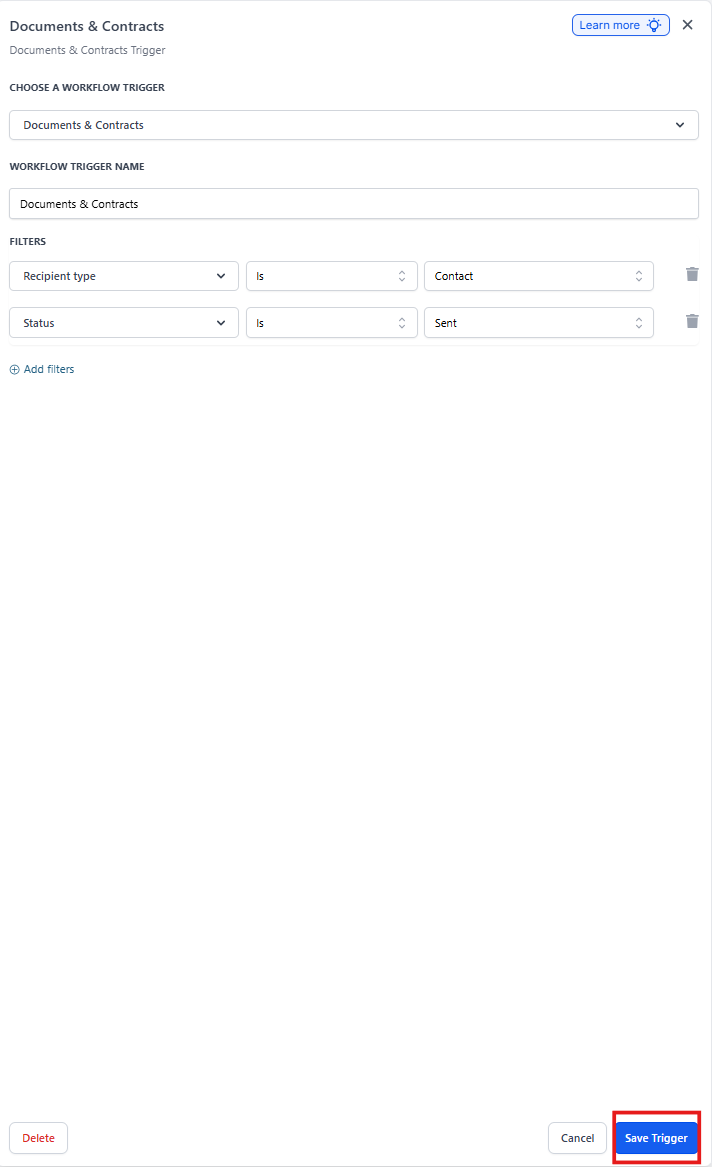
Once you've configured your filters, click Save Trigger. Your automation will now activate automatically whenever document activity matches your criteria.
Common Questions
Can I run different automations for parents versus staff signing documents?
Yes. Use the Recipient Type filter to choose whether the trigger applies to Parents/Families or Staff Members. This lets you run completely separate automations for external versus internal document activity.
For example, send a parent welcome email when a family signs an enrollment agreement, but trigger a Slack notification to your team when a staff member approves an internal form.
If a family views then signs a document, will my automation run twice?
Yes—each status change is a separate event. If you've set up triggers for both "Viewed" and "Signed," the automation could run twice.
To prevent duplicate messages, add a tag when the first action runs, then use a filter in your automation to check for that tag before sending messages or taking additional actions.
Can I trigger different automations based on enrollment value?
Absolutely. The Value filter lets you set thresholds using operators like "Greater than" or "Equals to." You can configure your trigger to only run when the contract value exceeds a specific amount.
This is great for giving VIP treatment to high-value enrollments—like having your director personally welcome families enrolling multiple children or committing to annual tuition.
How do I make sure automations only run for specific document types?
Use the Template filter to select which document template should activate the automation. This ensures you're running the right automation for the right document.
For example, send enrollment onboarding steps only when families complete your "Enrollment Agreement" template, but send tour follow-up resources when they sign your "Tour Waiver" template. Each document type can have its own automation path.