
Automation Action - Update Custom Values
The Update Custom Value action in Enrollio lets you dynamically change stored custom values as families move through your automations. Use this to personalize your communications, keep family data accurate, and automate administrative tasks—like updating a family's waitlist priority, adjusting discount rates, or tracking tour attendance.
Table of Contents
- What is the Update Custom Value Action?
- Key Use Cases for Childcare Centers
- How to Set Up the Update Custom Value Action
- Field Descriptions
- Advanced Use Cases
- Suggested Triggers
- FAQs
What is the Update Custom Value Action?
The Update Custom Value action lets you modify stored custom values based on what happens in your automations. Think of custom values as little data containers you create to track anything important to your center—discount codes, tour attendance counts, sibling enrollment status, or waitlist priority levels.
This action helps you:
- Update family data automatically based on real-time actions
- Use variables to set dynamic values that change based on each family
- Keep your enrollment data accurate without manual updates
Key Use Cases for Childcare Centers
Dynamic Family Personalization
Automatically update a family's discount tier after they refer another family or complete a milestone payment.
Waitlist Management
Adjust waitlist priority automatically when families complete required forms or attend an information session.
Tour Tracking
Update a custom value to track how many tours a family has attended, triggering follow-up messages accordingly.
Sibling Enrollment Status
Change a family's sibling discount status when a second child enrolls.
Real-World Example: VIP Discount Update
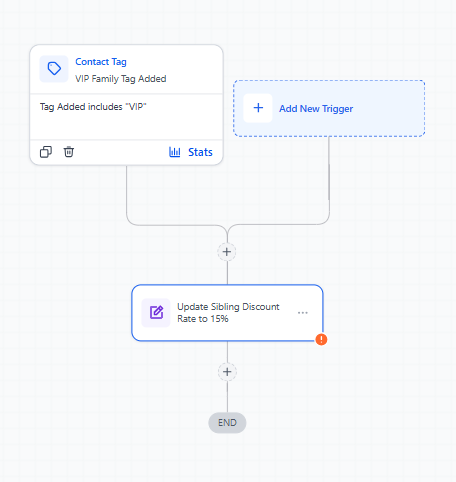
When a family is tagged as "VIP" (perhaps they've referred three families), you can automatically increase their sibling discount from 10% to 15%.
Trigger: Family Tag Added, condition is tag "VIP" added
Action: Update Custom Value
Custom Value: Sibling Discount Rate (created previously)
Current Value: 10%
New Value: 15%
How to Set Up the Update Custom Value Action
Follow these steps to add an Update Custom Value action to your automation:
Step 1: Open Your Automation
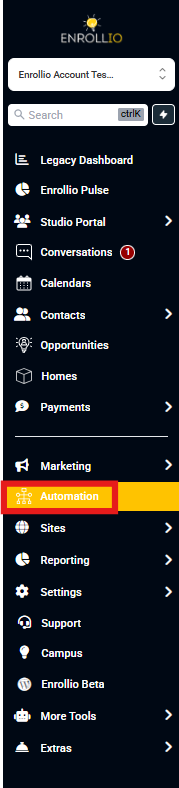
Navigate to Automations in your Enrollio dashboard. Create a new automation or edit an existing one.
Step 2: Add the Action
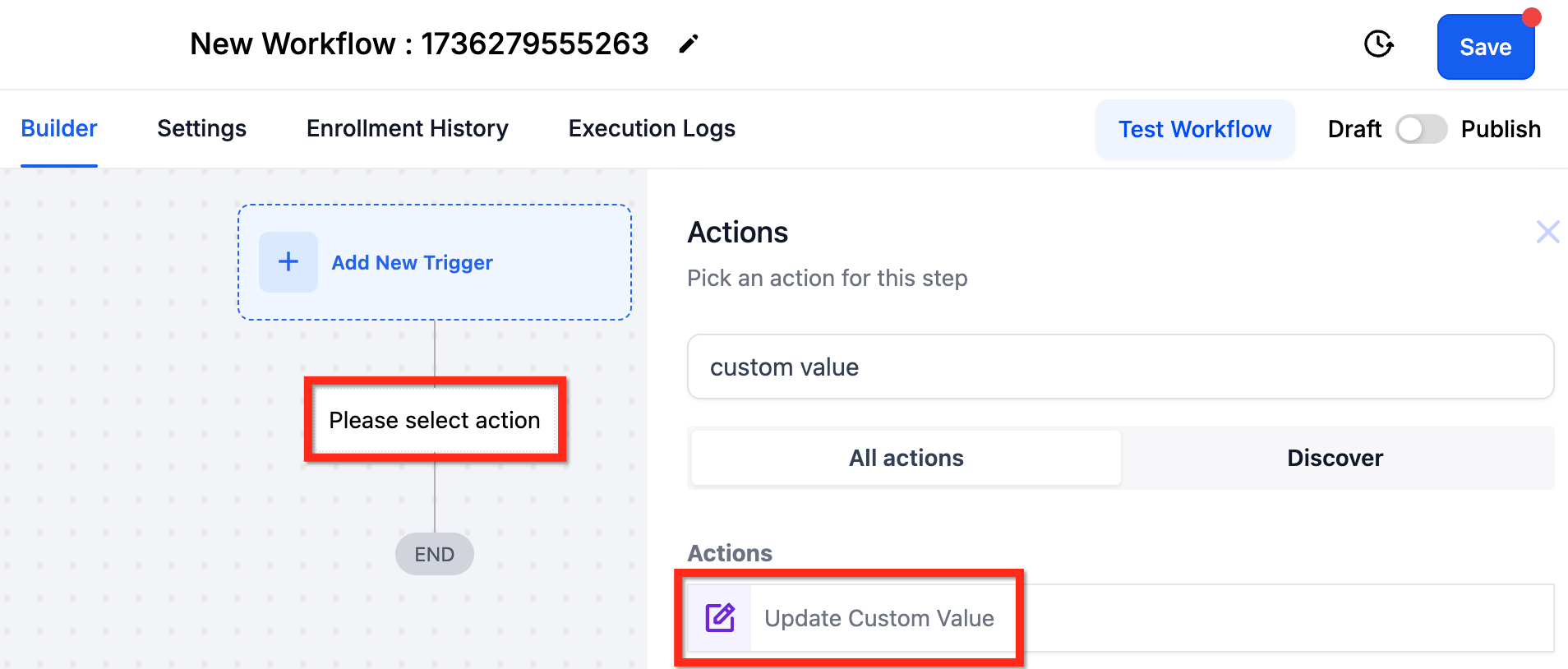
Click the "+" button in your automation where you want to add the action. Search for "update custom value" in the action menu.
Step 3: Configure the Fields
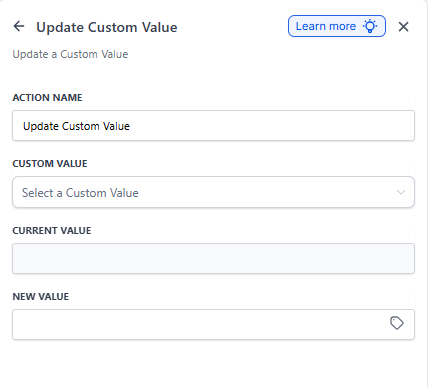
Select which custom value you want to update and enter the new value. For example, if you have a custom value storing your waitlist calendar link, you can change it to a different calendar link.
Step 4: Save and Test
Save your automation and test it with a sample family to ensure the custom value updates correctly.
Field Descriptions
| Field | Description | Example |
|---|---|---|
| Action Name | A descriptive name for this action displayed in your automation | Update Waitlist Priority |
| Custom Value | Select which custom value you want to update | Tour Attendance Count |
| Current Value | Shows the current value stored (if available) | 1 |
| New Value | Set a static value or use a dynamic variable | 2 |
Advanced Use Cases
Using Conditional Logic (If/Else Action)
Update a custom value only when specific conditions are met. For example, update a family's discount tier only if their current tier is "Standard."
Math Operations Integration
Use math operations to calculate and update numeric custom values dynamically. For example, add 1 to a family's tour attendance count each time they complete a tour.
API Integration
Update custom values automatically using data from external systems—like updating a "Last Payment Date" field from your accounting software.
Dynamic Enrollment Incentives
Change enrollment incentive codes in real-time. When a family refers their third new family in a month, automatically update their incentive code to "Free Registration Fee."
Suggested Triggers
Family Tag Added
When a tag like "Tour Completed" or "Sibling Family" is added, update related custom values to reflect their current status.
Example: When "VIP Family" tag is added, update the Discount Rate custom value to 15%.
Family Updated
Trigger when specific family fields change. If a parent's email preferences update to "Weekly Newsletter," update their Email Frequency custom value.
Form Submitted
After families submit enrollment forms or applications, update custom values based on their responses.
Example: When a tour request form is submitted, update Tour Interest custom value to the specific program they're interested in.
Tour Booked
When a family books a tour, update custom values to track their engagement level or tour preferences.
Example: When a family books their second tour, update Tour Attendance to "Multiple" for special follow-up messaging.
Enrollment Opportunity Status Changed
When an opportunity moves through your enrollment pipeline (e.g., from "Interested" to "Enrolled"), update custom values accordingly.
Example: When enrollment status changes to "Enrolled," update Family Status to "Active Parent."
Survey Submitted
After families complete surveys, use their responses to update custom values for future personalization.
Example: When a satisfaction survey shows high scores, update Family Satisfaction Level to "Highly Satisfied."
Link Clicked
When families click specific links in your emails or texts, update custom values to track their interests.
Example: When a parent clicks a link about your infant program, update Program Interest to "Infant Care."
Frequently Asked Questions
Can I use variables in the Update Custom Value action?
Yes, you can use variables like {{family.custom_field}} or {{parent.first_name}} to set dynamic values.
Can this action trigger other automations?
Yes, updating a custom value can serve as a trigger for additional automations if you set them up that way.
Is there a limit to how many Update Custom Value actions I can use in one automation?
No, add as many as you need. Each action can update one custom value once.
What happens if the current value doesn't match my condition?
If you've set a condition (like "only update if current value is X"), the update won't happen unless that condition is met.
Can I use this action with If/Else logic?
Yes, combine it with If/Else actions for more sophisticated automations based on multiple conditions.
Can I update multiple custom values at once?
One Update Custom Value action updates one custom value one time. Add multiple actions to update several custom values in the same automation.
Can I update a custom value in a different client account?
No, the custom value must exist in the same client account as the automation that's running.
Can I undo an update after it happens?
No, there's no automatic undo function. You'd need to manually change the value or create another automation to revert it.
Related Resources
- How to Create and Use Custom Values
- Using Custom Values in Math Operations
- Custom Values in If/Else Actions
- Using Custom Objects in Automations