
Automation Action - Facebook Interactive Messenger
The Facebook Interactive Messenger action lets you automatically reply to families through Facebook Messenger with interactive buttons and quick replies.
What is Facebook Interactive Messenger?
This automation action lets you respond to parent inquiries on Facebook Messenger and guide conversations with interactive elements like buttons and quick replies. Use this when families comment on your posts or send direct messages about enrollment, tours, or general questions.
Combine this action with Facebook comment or message triggers to create seamless parent communication flows.
Where To Find Facebook Interactive Messenger
Navigate to Automations → Automation Builder → Actions → Communication → Facebook Interactive Messenger.
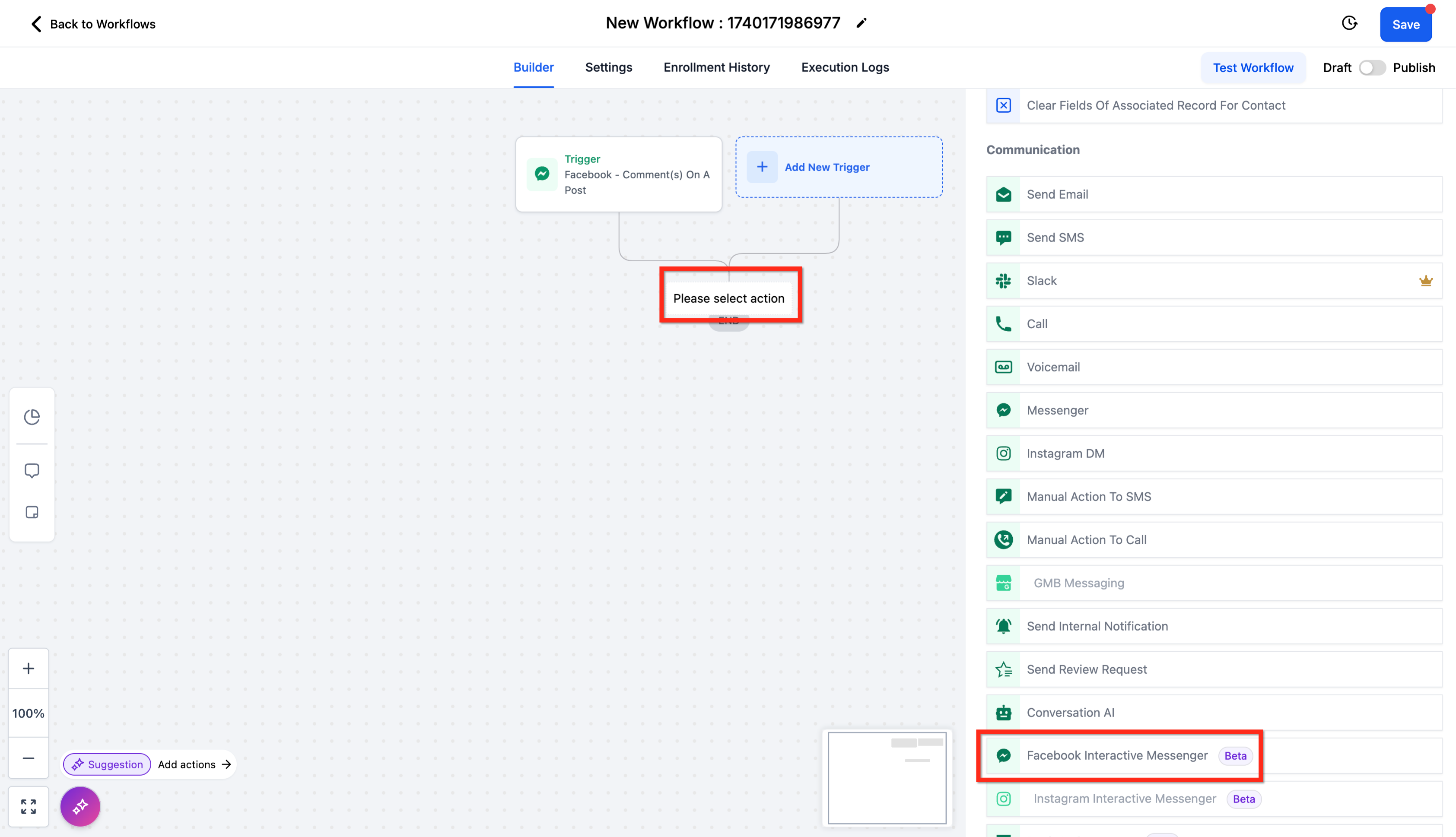
Components
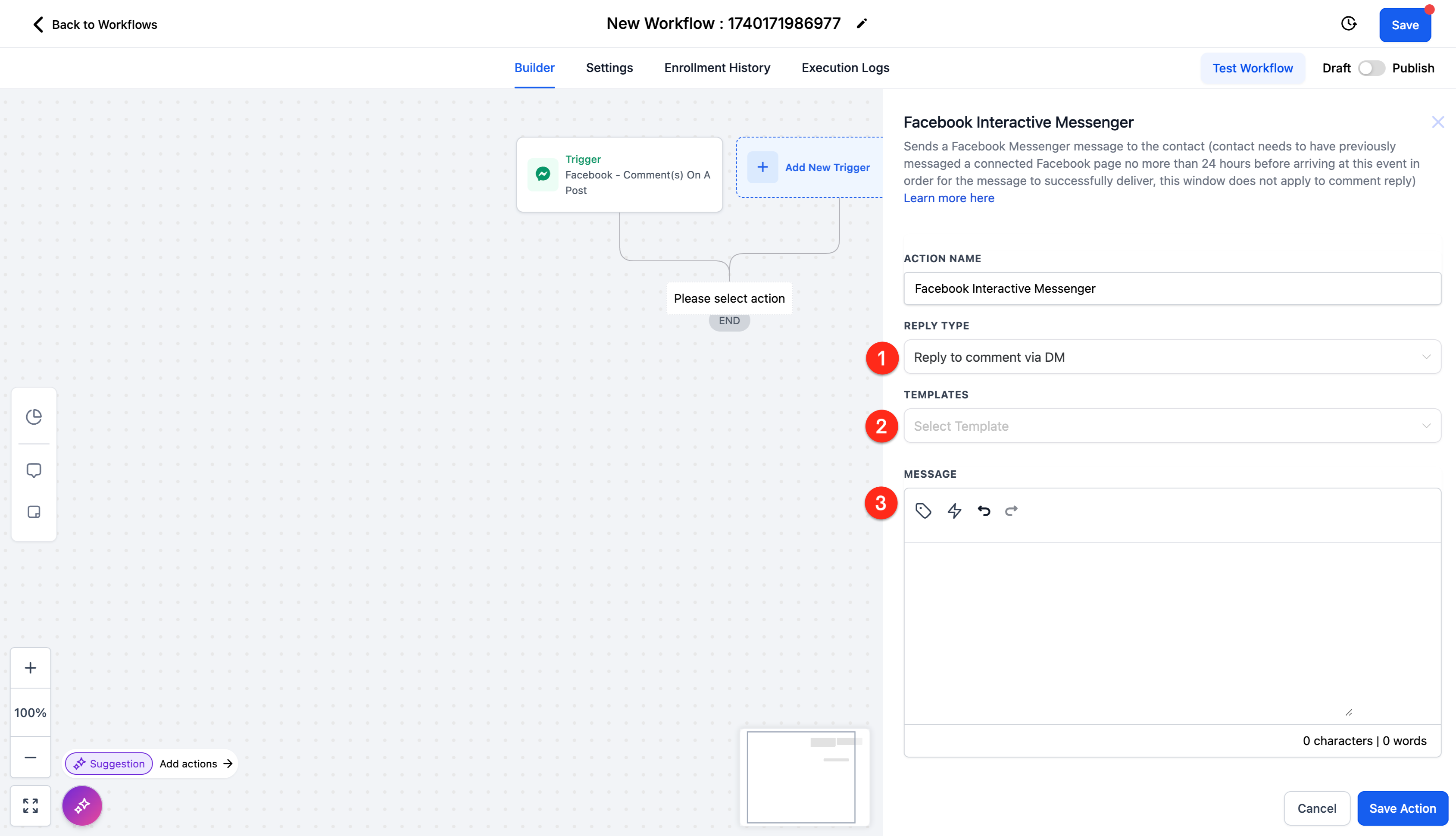
Here's what you can configure in the Facebook Interactive Messenger action:
Reply Type
- Reply to Comment via DM: Use this when a parent comments on your post and you want to start a direct message conversation with them
- Reply to DM: Use this when responding to an existing direct message
Templates
Select from Snippets you've created in Marketing → Snippets. This saves time by reusing common responses about tours, enrollment, pricing, or program information.
Message
- Body: Compose your message to families
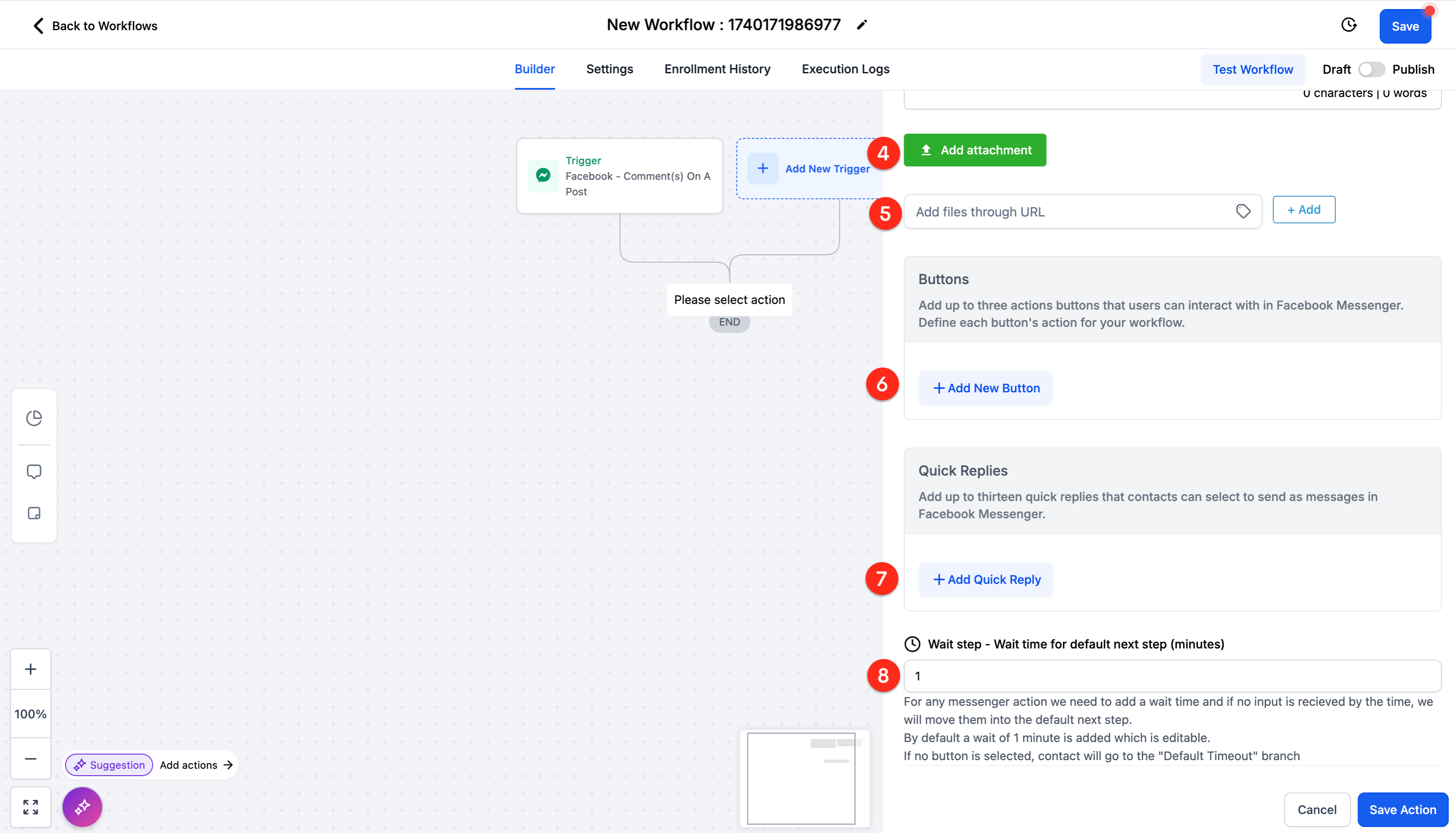
- Custom Values: Insert personalized information created in Settings → Custom Values
- Trigger Links: Add tracking links created in Marketing → Trigger Links
- Add Attachment: Upload files from your computer (like enrollment forms, program schedules, or parent handbooks)
- Add file through URL: Link to files hosted online
- Add New Button: Create interactive buttons to guide the conversation
- Add Quick Reply: Give families one-tap response options
Wait Step
Set how long to wait after sending the message before moving to the next step in your automation. This creates natural conversation pacing.
Buttons vs. Quick Replies
Both buttons and quick replies create conversation branches in your automation, but they work differently:
Buttons
Buttons stay visible even after a parent clicks them. They're perfect for persistent actions like:
- Directing families to your enrollment page
- Opening your phone dialer to call your center
- Triggering specific automation paths
You can add up to 3 buttons per message.
Quick Replies
Quick replies disappear after someone selects one, keeping the conversation clean and focused. They're ideal for guiding parents through a series of questions or options.
You can add up to 13 quick replies per message.
Button Configuration
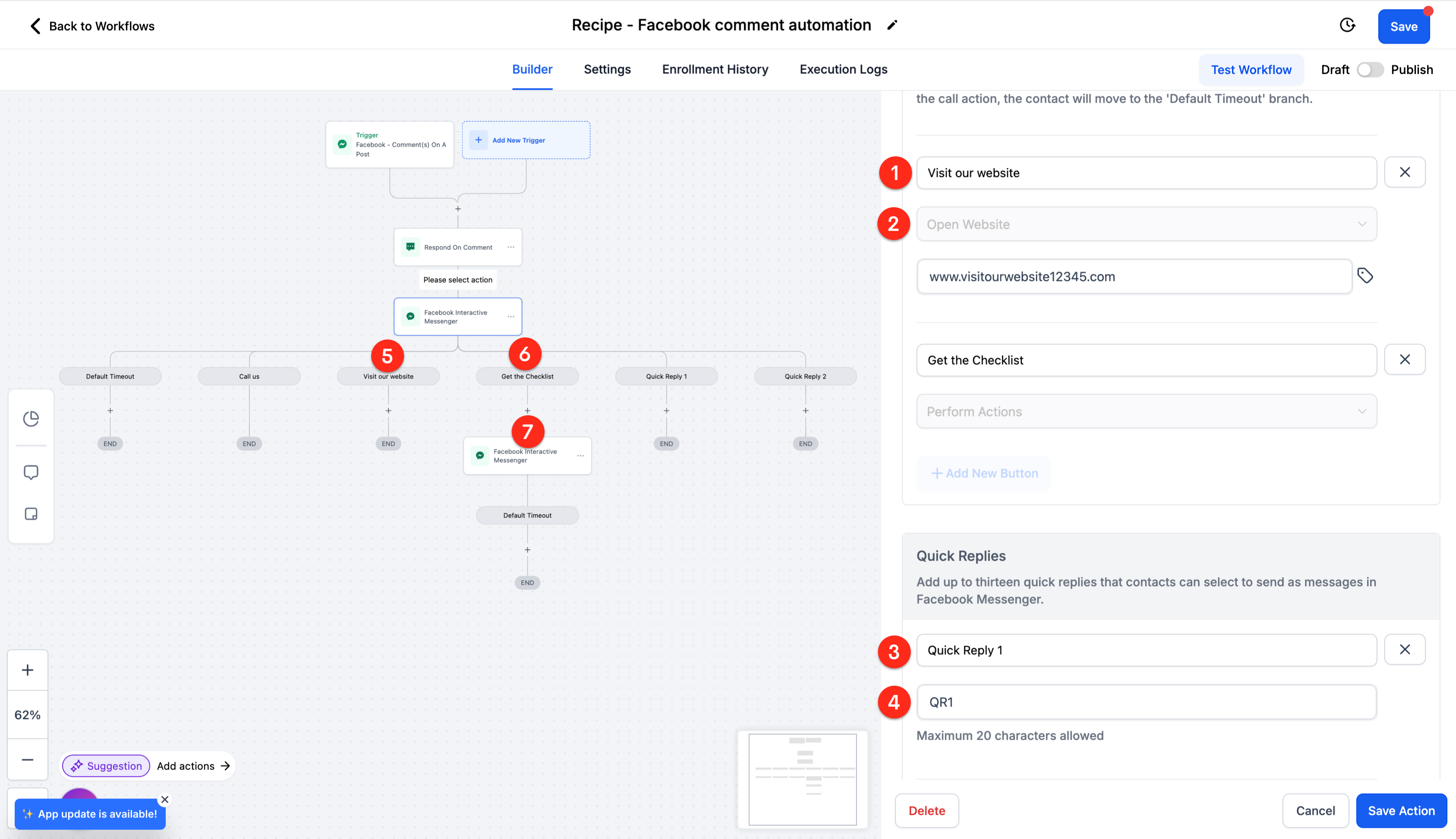
When you add a button, you'll configure:
- Button Text: What parents see in the conversation (e.g., "Schedule a Tour", "View Our Programs", "Call Us Now")
-
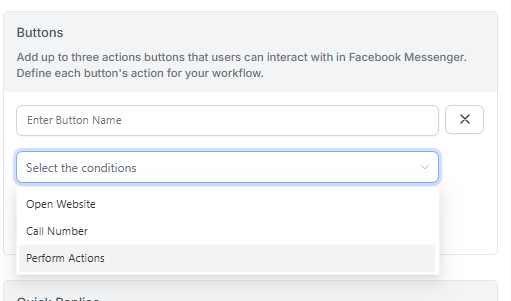
Button Action: What happens when clicked
- Open Website: Add a URL to your enrollment page, virtual tour, or website. Opens in a new tab without interrupting the conversation
- Call Number: Opens the dialer with your center's phone number pre-filled
- Perform Action: Creates a new automation branch and continues to the next action in that path
Quick Reply Configuration
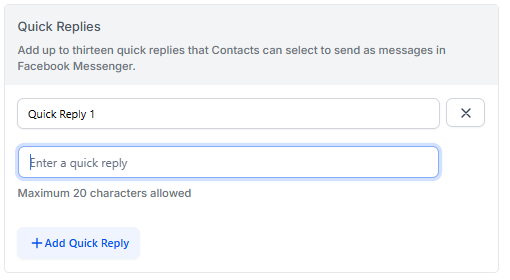
When you add a quick reply, you'll set:
- Quick Reply Text: What parents see in the conversation (e.g., "Infant Care", "Toddler Program", "After School")
- Label: How the reply appears in your automation builder
Each quick reply creates its own branch in your automation, letting you tailor responses based on what families are interested in.
Example: Tour Inquiry Automation
Here's how you might use Facebook Interactive Messenger when a parent asks about tours:
- Initial Message: "Hi! Thanks for your interest in [Center Name]. We'd love to show you around! When would work best for you?"
-
Quick Replies:
- "This Week"
- "Next Week"
- "Just Browsing"
-
Branch Actions: Each quick reply triggers a different response
- "This Week" → sends calendar link and available times
- "Next Week" → adds to follow-up list
- "Just Browsing" → sends program overview and pricing
Example: Program Information Flow
Another Interactive Messenger action can deliver specific information based on parent selections:
Trigger: Parent clicks "Learn About Infant Program" button
Response Message: "Our infant program includes: • 4:1 child-to-teacher ratio • Daily parent updates with photos • Developmental milestones tracking • Organic meal options Would you like to schedule a tour?"
Buttons:
- "Schedule Tour" → Opens enrollment page
- "Call Us" → Opens dialer
- "More Questions" → Creates support conversation