
Overview
The Manual Text Message action creates a task for your team to send a personalized text to a parent or family. This is perfect when you want a human touch—like following up after a tour or welcoming a new enrollment.
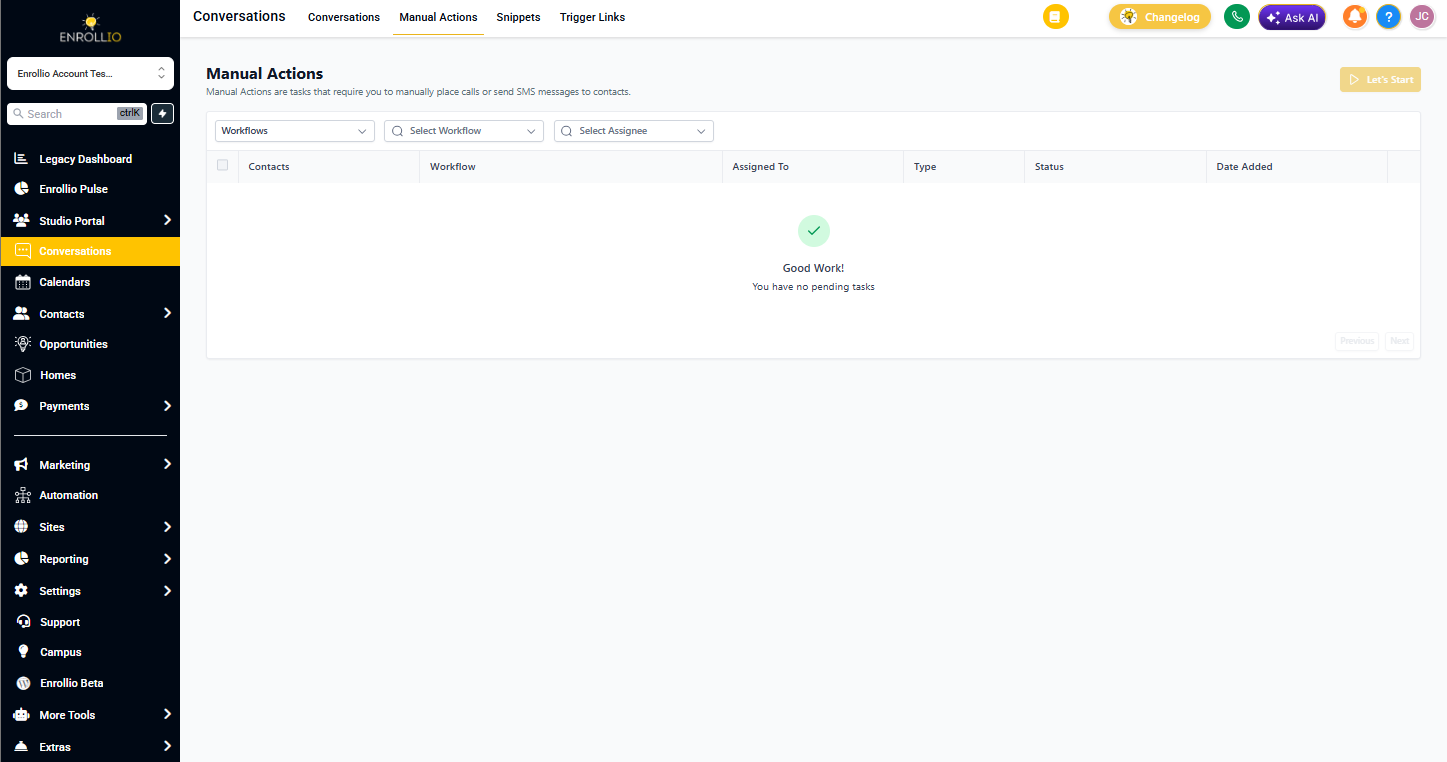
The task appears in Conversations > Manual Actions, where your staff can review, personalize, and send the message.
When to Use This
Use Manual Text Message when you want automation to remind your team to reach out, but the message needs a personal touch:
- Following up after a tour with specific observations about the child
- Welcoming new families with customized enrollment details
- Checking in on waitlisted families with personalized updates
- Responding to time-sensitive questions that need your expertise
How It Works
When your automation reaches this action, Enrollio creates a task assigned to a staff member. That person can then:
- Review the pre-written message template
- Add personal touches or specific details
- Preview how the text will look
- Send it with one click
Setting Up the Action
1. Action Name
Give this action a clear name so you can identify it in your automation. Example: "Follow-up text after tour"
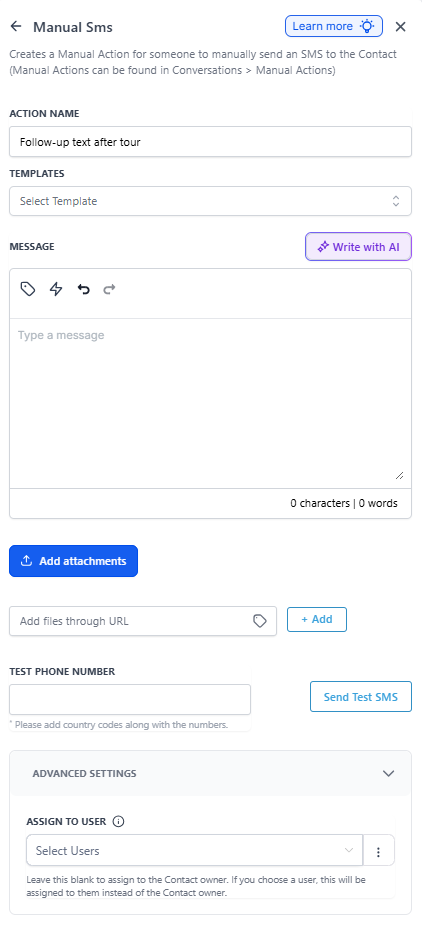
2. Select a Template (Optional)
Choose from your saved text templates to pre-populate the message. You can always edit it before sending.
Pro tip: Create templates for common scenarios like tour follow-ups, enrollment confirmations, and waitlist updates.
3. Write Your Message
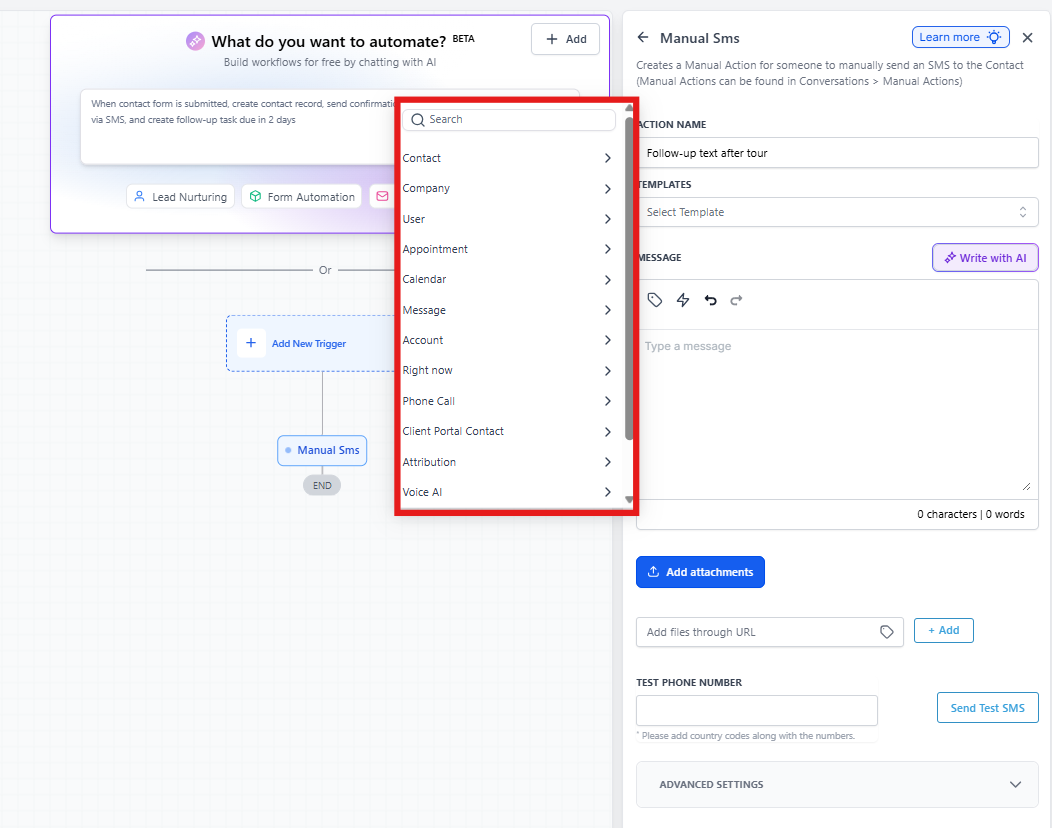
This is the text your team will see when the task appears. Use personalization tags to automatically insert information like parent names, child names, or tour times.
Click the Custom Values dropdown to add dynamic information:
- {{Parent First Name}} - Parent's first name
- {{Child Name}} - Child's name
- {{Tour Date}} - Scheduled tour date
- And many more...
4. Add Links (Optional)
Include clickable links in your message to help families take action:
- Book a tour link
- Complete enrollment forms
- View your enrollment site
Your team can add these when reviewing the task, or you can include them in the template.
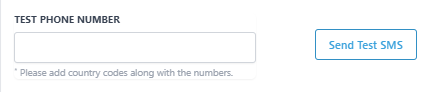
5. Test Your Message
Before going live, send yourself a test. Enter your phone number (include country code, like +1) and click Send Test to see exactly how it will appear on a phone.
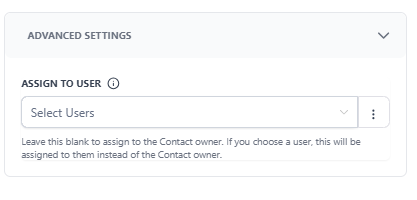
6. Assign the Task
By default, tasks go to whoever owns the family in Enrollio. But you can assign specific tasks to specific team members.
In Advanced Settings, use Assign To to choose a staff member. This is useful when:
- Your enrollment coordinator handles all follow-ups
- Specific staff members handle specific programs (infant, toddler, preschool)
- Your director wants to personally welcome new families
How assignment works:
- If you select a user who has access to the family, they get the task
- If they don't have access, it goes to the family owner
- If no one is assigned or available, it's marked "Unassigned" for anyone to claim
Example: Tour Follow-Up Automation
Here's how a childcare center uses Manual Text Message to follow up after tours:
Trigger: When a family completes a tour (tour status changes to "Completed")
Action: Create Manual Text Message task
Message:
"Hi {{Parent First Name}}, it was wonderful meeting you and {{Child Name}} today! I wanted to follow up personally to answer any questions about our program. Click here to start your enrollment: [Enrollment Link]"
Assigned To: Enrollment Coordinator
When the automation runs, the enrollment coordinator sees a task in Manual Actions with this pre-written message. They can add personal touches like "{{Child Name}} loved the block area!" before sending.
Finding and Completing Manual Tasks
Your team finds manual text tasks in two places:
- Conversations > Manual Actions - See all pending manual tasks
- Individual family record - Tasks appear in the family's conversation thread
Click any task to review the message, make edits, and send.
Pro Tips
Keep messages conversational. Parents want to hear from a real person, not a robot. Use the manual action for messages where tone matters.
Set clear task names. "Send tour follow-up text" is better than "Manual SMS" when your team is working through a busy day.
Use templates strategically. Create templates for common scenarios, but leave room for personalization. The best follow-ups reference specific moments from the tour or conversation.