
What is the Send Email Action?
The Send Email action lets you automatically send personalized emails to families at exactly the right moment. Use it to confirm tour bookings, welcome new enrollments, send waitlist updates, or follow up with prospective families—all without lifting a finger.
Why Use Automated Emails?
- Never miss a follow-up: Emails send automatically when families take action, like booking a tour or submitting an enrollment form.
- Personalize at scale: Include each family's name, tour time, child's name, or enrollment details to make every message feel personal.
- Save time: Set up your email once, and it sends consistently every time—no copy-pasting or manual sending.
- Improve parent experience: Instant confirmations and timely updates keep families informed and reassured.
- Stay flexible: Attach PDFs, use your own templates, and customize content for different situations.
How to Set Up a Send Email Action
1. Add the Action to Your Automation
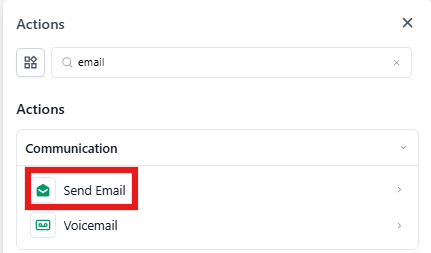
Open your automation editor and drag the Send Email action to the right spot in your flow—typically right after a trigger like "Tour Booked" or "Form Submitted."
2. Name Your Action
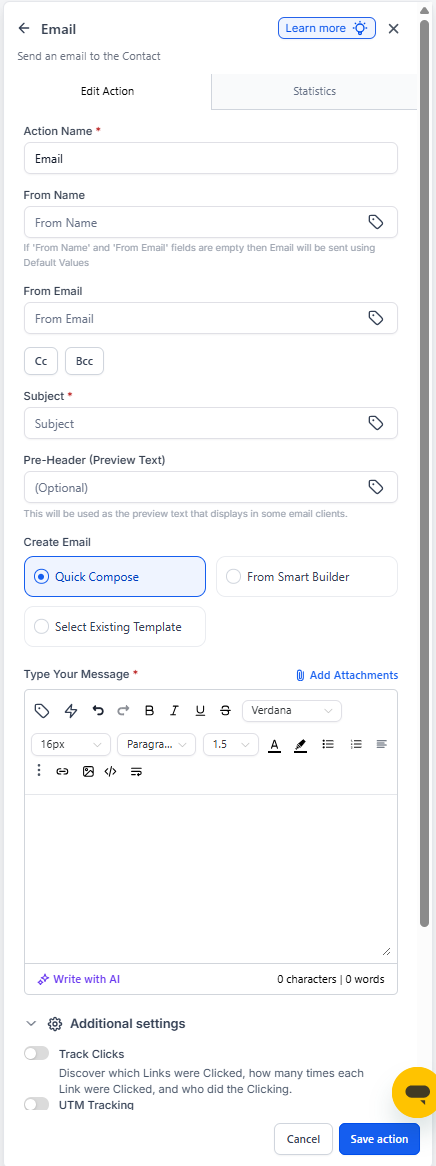
Give it a clear name so you can identify it later, like "Tour Confirmation Email" or "Welcome New Family."
3. Set Up Sender Details
From Name: Enter your center's name (e.g., "Sunny Days Childcare").
From Email: Use your center's email address (e.g., "hello@sunnydayschildcare.com").
4. Write Your Subject Line
Keep it short and specific. Examples:
- "Your Tour is Confirmed!"
- "Welcome to [Your Center Name]"
- "Next Steps for Enrollment"
5. Create Your Email Body
You have two options:
- Use a template: Select an existing email template from the dropdown.
- Write custom content: Type directly in the Email Body field.
Personalize your message with merge fields like:
-
{{contact.first_name}}— Parent's first name -
{{appointment.start_time}}— Tour time -
{{appointment.only_start_date}}— Tour date -
{{contact.child_name}}— Child's name (if you've captured it)
6. Add Attachments (Optional)
Attach PDFs like enrollment packets, parent handbooks, or tour information. Add attachments using URLs.
7. Test Your Email
Always send a test first. Enter your email in the Test Emails field and click Send Test Mail. Check that everything looks right, links work, and merge fields populate correctly.
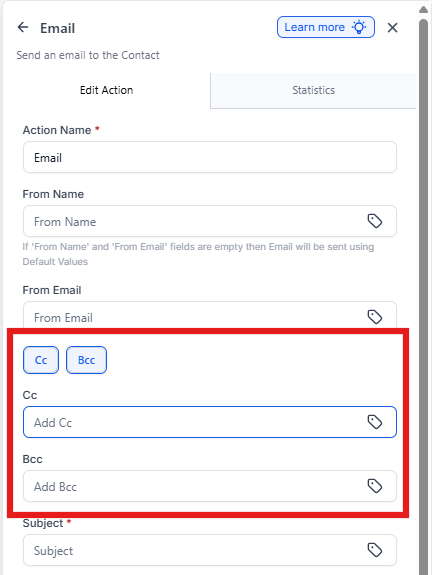
8. Add CC or BCC (Optional)
Click the CC/BCC buttons to add additional recipients—like your enrollment coordinator or center director. Separate multiple emails with commas.
9. Save and Activate
Click Save Action. Your email will now send automatically whenever a family reaches this step in your automation.
Example: Tour Confirmation Email
Goal: Send a confirmation email when a parent books a tour.
Setup:
- Trigger: Tour Booked
- Action: Send Email
- Action Name: Tour Confirmation Email
- From Name: Sunny Days Childcare
- From Email: hello@sunnydayschildcare.com
- Subject: Your Tour is Confirmed!
- Body:
Hi {{contact.first_name}},

Thank you for scheduling a tour with us! We're excited to meet you and show you around.

Your tour is scheduled for:
{{appointment.start_time}} on {{appointment.only_start_date}}

If you need to reschedule or have any questions, just reply to this email.

We look forward to meeting you!

The Sunny Days Team- Optional: Attach a PDF with directions and parking information
- Send a test email to yourself
- Save the action
Troubleshooting Common Issues
Email Didn't Send
Check that the parent has a valid email address in their contact record. Verify your sender email and domain are set up correctly in Settings.
Merge Fields Show Up Blank
This happens when the data doesn't exist yet. For example, {{appointment.start_time}} only works if the automation is triggered by a tour booking. Make sure your trigger provides the data your merge fields need.
Email Looks Weird or Broken
Always send a test email and check it on mobile and desktop. Test links and make sure spacing looks right.
Email Landed in Spam
Proper email configuration is critical. Check your domain settings and sender authentication in Settings. Test with different email providers (Gmail, Outlook, etc.).
Tips and Best Practices
- Keep subject lines short: Aim for 6-8 words. Parents often read email on their phones.
- Use templates for consistency: Create templates for common emails like tour confirmations, enrollment next steps, and waitlist updates.
- Don't over-personalize: Only use merge fields you're confident will have data. A blank field looks unprofessional.
- Double-check CC/BCC: When adding multiple emails, separate them with commas and test to make sure they receive the message.
- Think like a parent: Make emails warm, clear, and action-oriented. What do they need to know or do next?
Related Actions
- Send Text Message: Follow up with a quick text reminder before tours
- Internal Notification: Alert your team when a family books a tour or submits an enrollment
- AI Email Generation: Use AI to help write email content
Frequently Asked Questions
Can I use templates with this action?
Yes. Select an existing template from the dropdown, or write custom content directly in the email body.
Can I personalize emails?
Absolutely. Use merge fields like {{contact.first_name}} to personalize the subject line and body.
Do CC/BCC recipients show up in email stats?
No. Email stats only track the primary recipient (the parent). CC/BCC recipients won't appear in reporting.
Does "Send Test Mail" validate CC/BCC delivery?
No. Test emails only validate formatting and content. They don't confirm CC/BCC recipients received the message.
What happens if a CC/BCC email is invalid?
Invalid CC/BCC addresses are skipped. Valid recipients and the primary contact will still receive the email.
Can I add attachments?
Yes. Add attachments using URLs. This works great for enrollment packets, handbooks, or tour information PDFs.
Why are merge fields blank in my email?
Merge fields appear blank when the data doesn't exist. For example, tour-related fields only work if the automation is triggered by a tour booking. Also check that the parent's contact record has the information you're trying to pull.
Why did my email go to spam or not deliver?
Email deliverability depends on proper domain configuration and sender authentication. Verify your settings and test with multiple email providers (Gmail, Yahoo, Outlook).