
Email Event Triggers for Automations
Email event triggers let you automate follow-ups based on how parents interact with your emails. Whether a family opens your tour invitation, clicks your enrollment link, or unsubscribes, you can set up automatic responses that save time and keep families engaged.
This guide shows you how to set up email event triggers, explains their benefits, and walks through real examples for childcare centers.
What Are Email Event Triggers?
An email event trigger starts an automation whenever someone interacts with your email in a specific way. You can trigger actions when a parent opens an email, clicks a link, unsubscribes, or when an email bounces.
These triggers help you respond to families in real-time without manual work, keeping your enrollment pipeline moving and maintaining strong parent relationships.
Why Use Email Event Triggers?
Here's how email event triggers improve your parent communication:
- Instant Follow-Ups: Automatically respond when parents click your tour booking link or open your welcome email, catching them while they're engaged.
- Protect Your Email Reputation: Automatically remove families who unsubscribe or mark emails as spam, keeping your sender score healthy.
- Less Manual Work: Track important email interactions across all your automations without checking reports or manually following up.
- Better Parent Experience: Create personalized journeys by responding immediately to parent actions.
Setting Up Email Event Triggers
Follow these steps to configure an email event trigger:
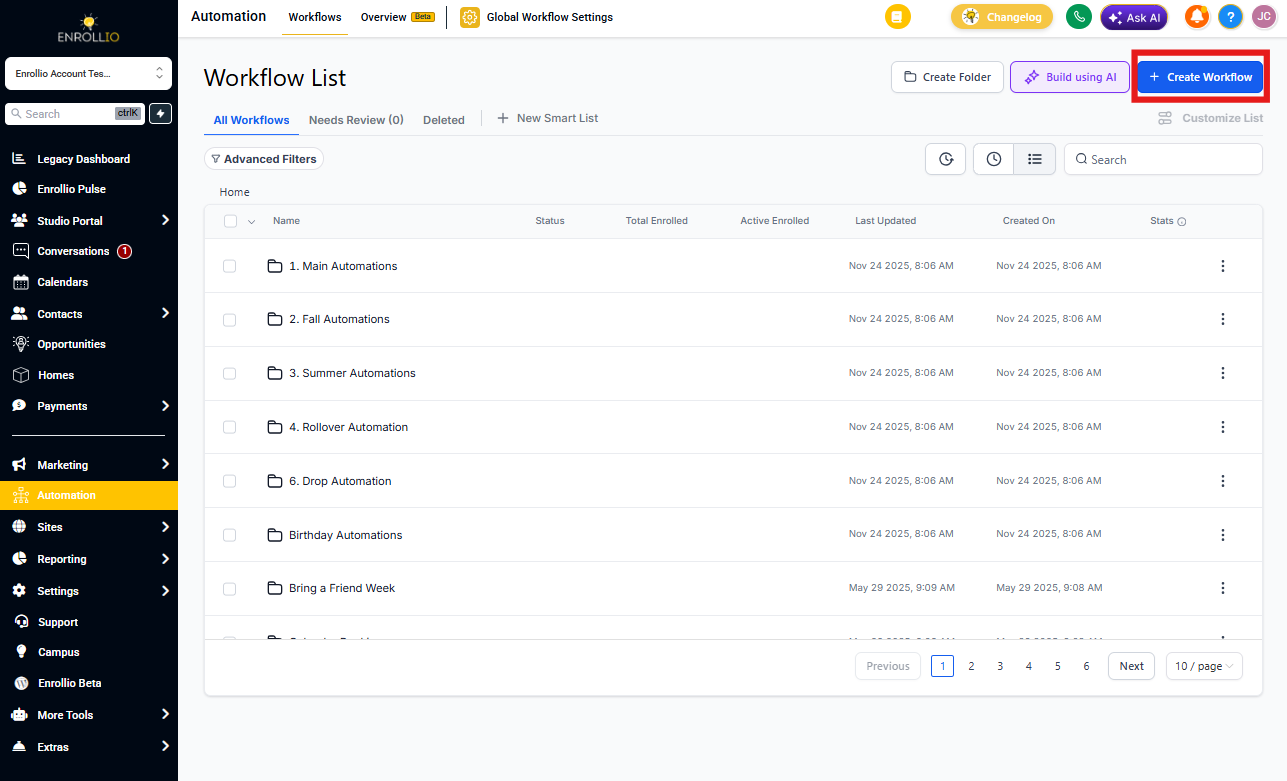
1. Access Your Automations
- Click Automations in your navigation menu.
- Either create a new automation or open an existing one where you want to add this trigger.
2. Add the Trigger
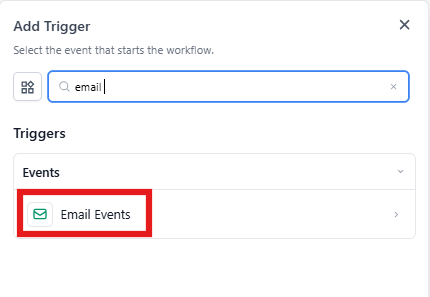
- Click + Add New Trigger.
- Select Email Events from the trigger list.
3. Name Your Trigger
Give your trigger a clear name that describes what it does. Use names like "Tour Email Opened" or "Enrollment Link Clicked" so anyone on your team immediately understands its purpose.
4. Configure Event Filters
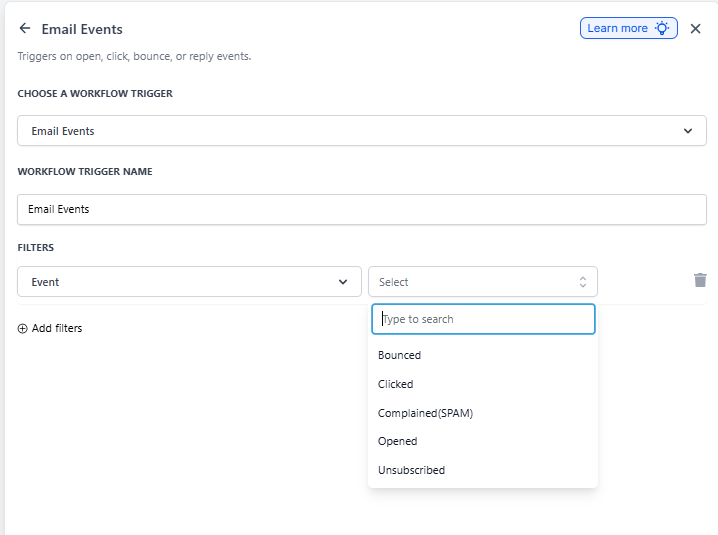
Filters control exactly when your trigger activates. The two main filters—Event and In Automation—let you target specific email interactions.
Event Filter
Choose which email interactions will activate your trigger. You can select one or multiple events:
- Clicked: Triggers when a parent clicks any link in your email (like a tour booking link or enrollment form).
- Opened: Triggers when a parent opens your email.
- Bounced: Triggers when an email can't be delivered to the recipient's inbox.
- Unsubscribed: Triggers when someone opts out of your email list.
- Complained (Spam): Triggers when a recipient marks your email as spam. This is critical to track because too many spam complaints hurt your email deliverability and can get your emails blocked by email providers.
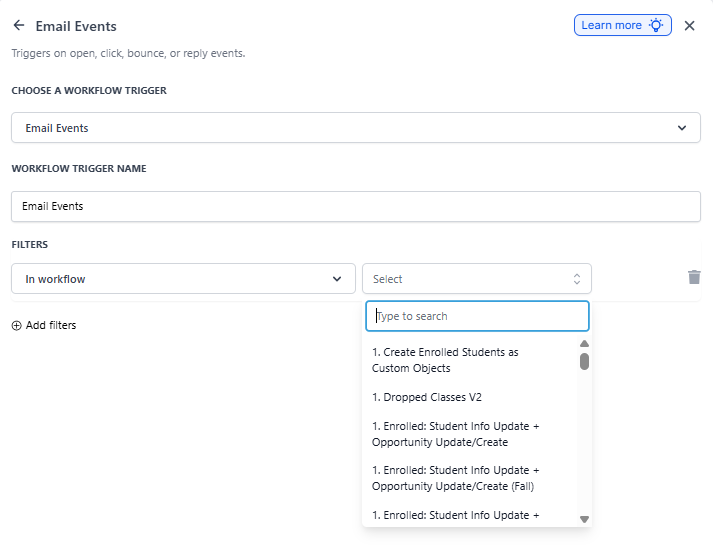
In Automation Filter
This filter restricts the trigger to specific automations. It only activates when the email event happens within the automation you specify, giving you more precise control.
For example, you might only want to track clicks on your "New Family Tour Invitation" emails, not every email you send.
5. Save and Publish
Click Save, then click Publish to activate your automation.
Real Examples for Childcare Centers
Example 1: Follow Up When Parents Click Your Tour Link
Scenario: You want to follow up immediately when prospective families click the tour booking link in your welcome email.
Setup:
- Event filter: Clicked
- In Automation filter: New Family Welcome Series
Result: When a parent clicks your tour link, the automation sends a confirmation text, adds them to your "Hot Leads" list, and notifies your enrollment coordinator to follow up.
Example 2: Clean Up Bounced Emails
Scenario: You want to automatically remove invalid email addresses from your parent database.
Setup:
- Event filter: Bounced
Result: When an email bounces, the automation tags the family as "Invalid Email," removes them from active email lists, and adds them to a suppression list so you don't waste sends on bad addresses.
Example 3: Re-Engage Parents Who Open But Don't Click
Scenario: You want to nudge families who showed interest by opening your enrollment email but didn't take action.
Setup:
- Event filter: Opened
- In Automation filter: Spring Enrollment Campaign
Result: If a parent opens the email but doesn't click through, the automation waits one day, then sends a follow-up with a limited-time enrollment discount to encourage action.
Common Questions
How do I stop automations for families who unsubscribe?
Set up a trigger using the "Unsubscribed" event filter. When it fires, automatically remove that family from all active automations and add them to your suppression list.
What happens if a parent marks my email as spam?
Use the "Complained" event filter to automatically remove them from all automations and mark them as Do Not Contact. This protects your email reputation and ensures compliance.
Can I create multiple automations using the same email event?
Yes. You can set up different automations for the same event (like "Opened") but use different "In Automation" filters to target specific email campaigns or parent segments.
How do I track which families are engaging with my emails?
Use the "Clicked" and "Opened" event filters to tag engaged families or add them to specific lists. You can then view these tags and lists in your parent records to analyze engagement patterns.
Can I send reminders for unopened emails?
Email event triggers only work for specific actions (opened, clicked, bounced, unsubscribed, or spam complaints). To send reminders for unopened emails, create a separate automation with a time-based delay that checks if no open event occurred.