
What is the Call Status Automation Trigger
The Call Status trigger activates your automation when a call reaches a specific outcome — like busy, voicemail, completed, or not answered. This helps you follow up automatically with parents who call, ensuring no inquiry goes unnoticed.
You can customize this trigger using filters like call direction (incoming vs. outgoing) and specific call statuses, so your automations run exactly when they should.
Key Benefits of the Call Status Trigger
- Never miss a parent inquiry: Automatically follow up on missed or completed calls so every family gets a response.
- Save time on manual tasks: Let Enrollio handle follow-up texts, emails, and task assignments based on call outcomes.
- Customize to your needs: Filter by call direction and status to trigger the exact actions you want.
- Connect multiple automations: Link this trigger to other automations to handle complex enrollment scenarios.
- Keep your team in sync: Notify staff immediately about call outcomes so they can take action while families are engaged.
How to Set Up the Call Status Trigger
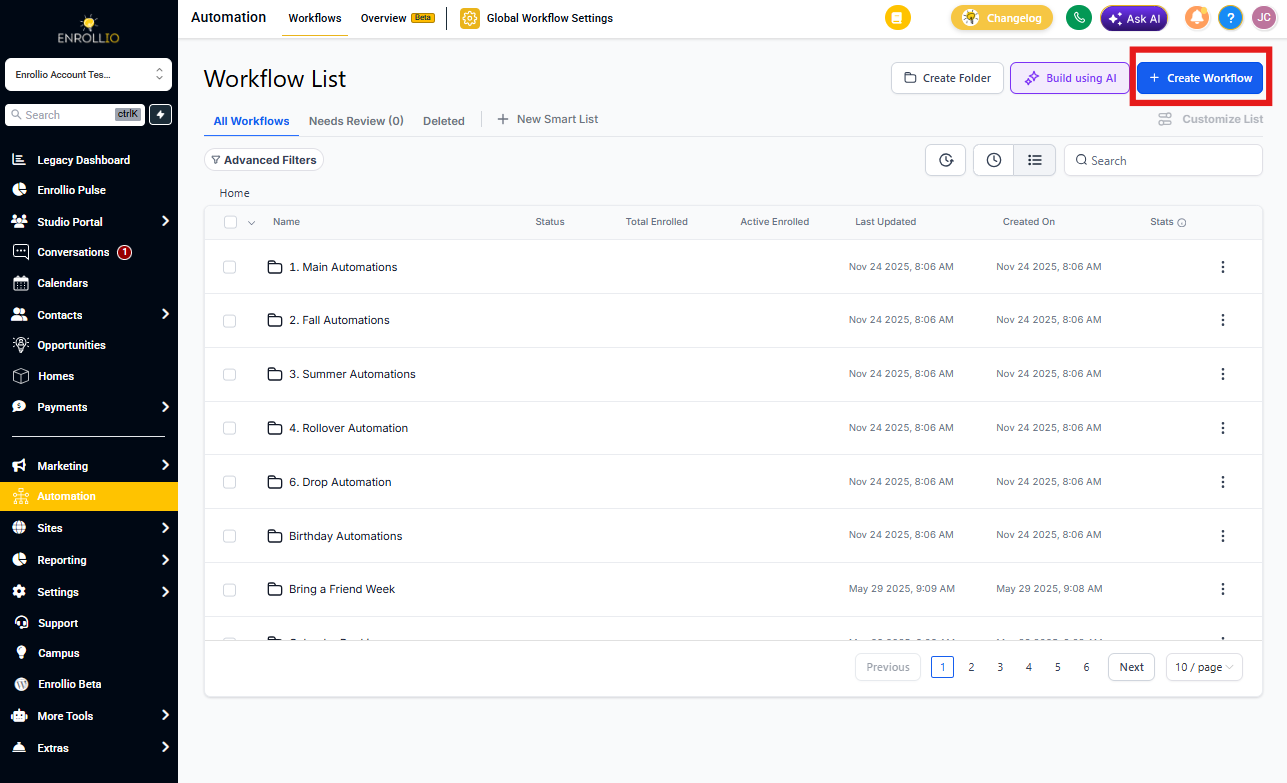
Step 1: Access Your Automations
Navigate to the Automations section in Enrollio. Create a new automation or open an existing one where you want to add the Call Status trigger.
Step 2: Add the Trigger
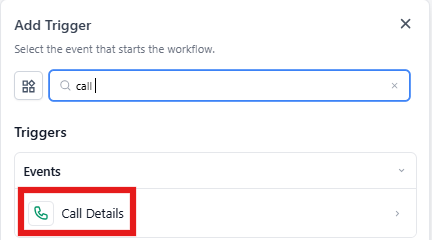
Click "Add New Trigger" and select "Call Status" from the dropdown menu.
Step 3: Name Your Trigger
Give it a clear name that describes what it does, like "Missed Parent Call Follow-Up" or "Tour Call Completed."
Step 4: Configure Your Filters
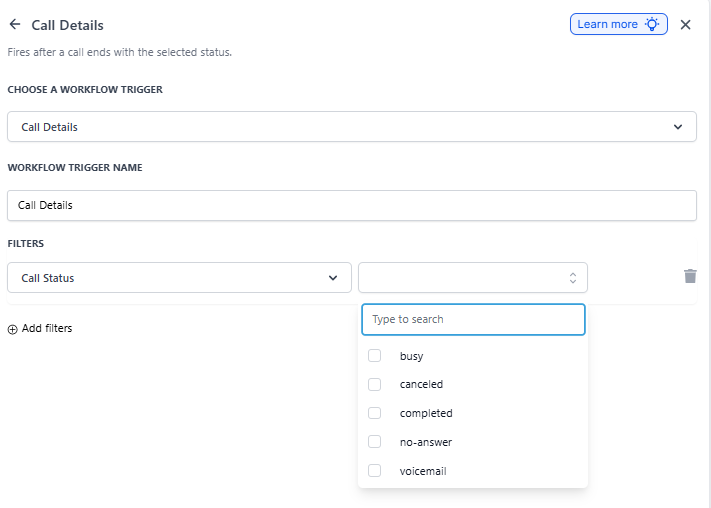
Customize when the trigger activates using these filters:
Call Direction
Choose whether this applies to incoming calls (parents calling you) or outgoing calls (you calling parents).
Call Status
Select which call outcome should trigger the automation:
- Busy: The line was busy
- Voicemail: The call went to voicemail
- Completed: The call was answered and completed
- Not Answered: No one picked up
- Canceled: The call was canceled
In Automation (Optional)
Link this trigger to another automation to create a seamless flow. Just select the automation from the dropdown menu.
Step 5: Save and Test
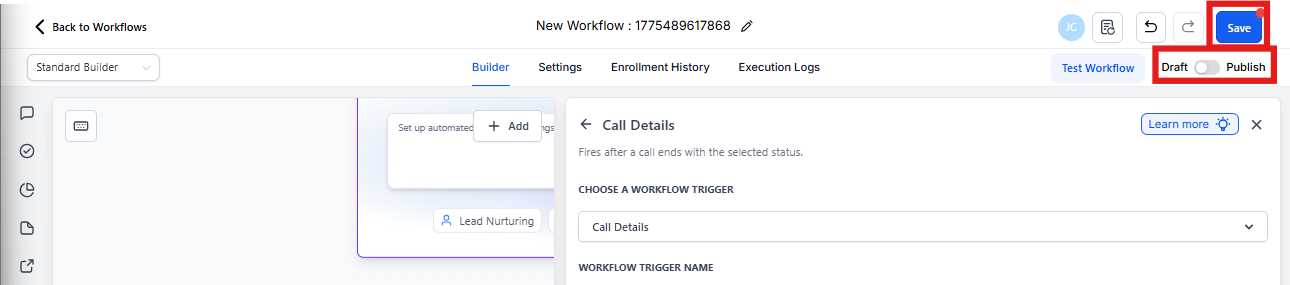
Click Save to confirm your setup. Test the automation with a sample call to make sure it works as expected. Once verified, toggle it to Active.
Real-World Use Cases
Missed Call Follow-Up
Scenario: A parent calls outside business hours and no one answers. You want to respond immediately so they don't call a competitor.
Setup:
- Trigger: Call Status
- Filter: Call Status is "busy" or "not answered"
Actions: Send a text message: "Thanks for calling! We're sorry we missed you. When's a good time for us to call back?" Create a follow-up task for your enrollment coordinator.
Tour Call Completed
Scenario: Your director completes a phone tour with a prospective family. You want to send immediate follow-up materials.
Setup:
- Trigger: Call Status
- Filter: Call Direction is "outgoing" and Call Status is "completed"
Actions: Send an email with your enrollment packet and tuition information. Log the call details in the family's record. Schedule a follow-up task for 2 days later.
Voicemail Notification
Scenario: A parent leaves a voicemail. You need to notify the right staff member immediately.
Setup:
- Trigger: Call Status
- Filter: Call Status is "voicemail"
Actions: Send a text to the enrollment coordinator. Log the voicemail in the family's record. Create a callback task with high priority.
Unanswered Parent Inquiry
Scenario: An incoming call goes unanswered. You want to ensure a callback happens within the hour.
Setup:
- Trigger: Call Status
- Filter: Call Direction is "incoming" and Call Status is "not answered"
Actions: Notify your front desk team. Schedule an automatic callback task. Send a text message: "We're sorry we missed your call! Can we schedule a time to chat about your childcare needs?"
Weekly Call Status Report
Scenario: You want to track missed and canceled calls to identify staffing gaps.
Setup:
- Trigger: Call Status
- Filter: Call Status is "canceled" or "busy"
Actions: Log the call data. Generate a weekly summary report. Email it to your director every Monday morning.
Frequently Asked Questions
Can I set up one automation for multiple call statuses?
Yes. You can configure the automation to activate for multiple call statuses by adding filters. However, it's often clearer to create separate automations for different scenarios (like one for missed calls and another for completed calls).
What if a call status changes multiple times quickly?
The trigger activates for each status change. To avoid sending multiple texts or emails to the same parent, use wait steps or conditions in your automation to prevent duplicate actions.
Can I connect this trigger to other automations?
Absolutely. Use the "In Automation" filter to link this trigger to another automation. This is helpful for creating multi-step enrollment flows.
How do I handle incoming vs. outgoing calls differently?
Use the Call Direction filter. For example, incoming calls from new families might trigger a tour invitation, while outgoing calls you make might trigger different follow-up materials.
Does this work with external phone systems?
Yes. If your phone system integrates with Enrollio, this trigger will activate based on call data received from that system. Contact support if you need help setting up a phone integration.
Can I see which calls triggered an automation?
Yes. Go to the family's contact record and check their activity timeline. You'll see both the call and any automation actions that were triggered.