Automations - Improved Execution Logs & Enrollment History
This article walks you through the latest enhancements to Execution Logs and Enrollment History in Automations. You'll see exactly how parents and families progress through your automations, spot errors at a glance, and fix issues faster than ever.
These updates make every automation step transparent, efficient, and running smoothly for your childcare center.
What Are Execution Logs & Enrollment History?
Execution Logs and Enrollment History give you a clear picture of how families move through your automations and every action they've experienced. These tools help you track progress, spot any errors, and make sure everything runs smoothly.
We've introduced exciting updates to both tabs to improve your experience. These changes make it easier to understand what's happening at each step, quickly fix issues, and keep your enrollment process running efficiently.
Where to Find Execution Logs & Enrollment History
- Log in to your Enrollio account
- Click on the Automations tab
- Select an existing automation or create a new one
- Click on the Execution Logs option
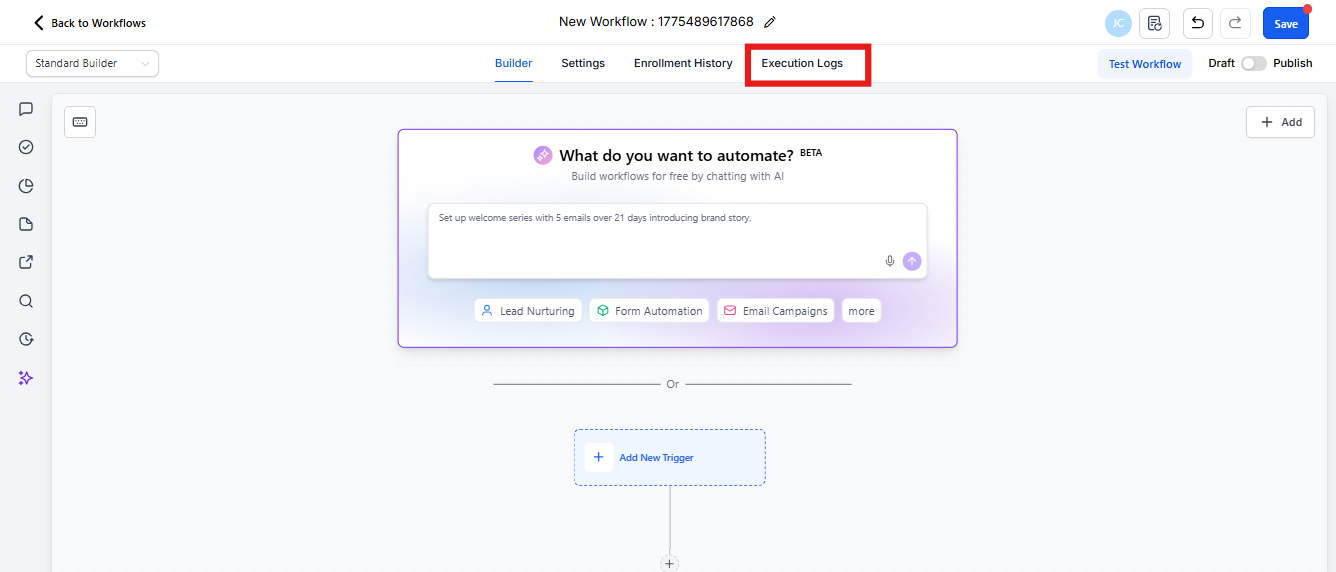
Quick Navigation Options
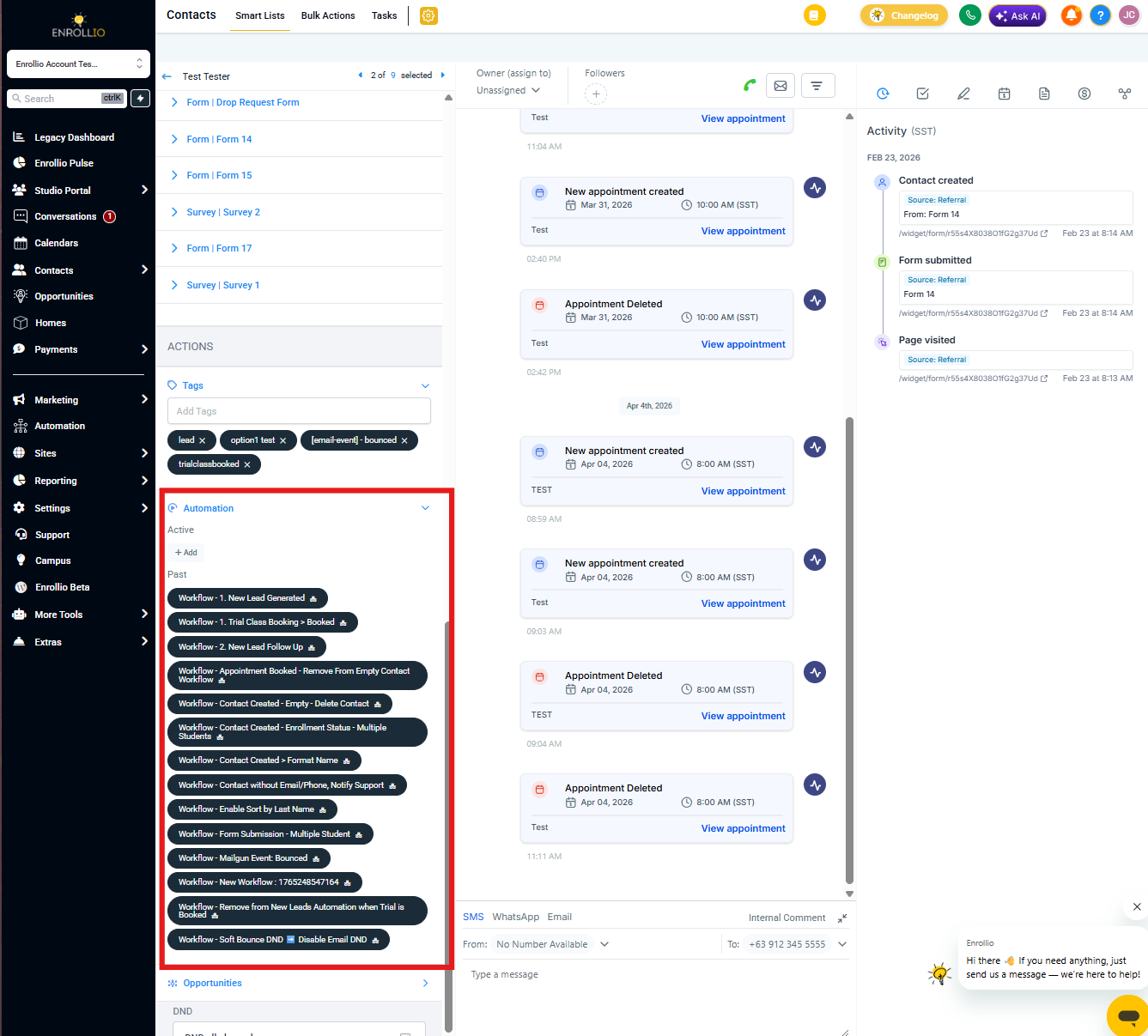
Option A (fastest): Conversations → message details → Automation → Execution Details (context preloaded)
Option B: Automations → open automation → Execution Logs → View Details
Open a Specific Execution from Message Details
Jump straight into the exact automation execution tied to a conversation. Review what happened without manually searching logs.
Steps:
- Go to Conversations
- Open the conversation and select the message
- Open message details
- Under Automation, click the automation link
- Enrollio opens Execution Logs with the family and execution context preselected
Execution Logs - What's New
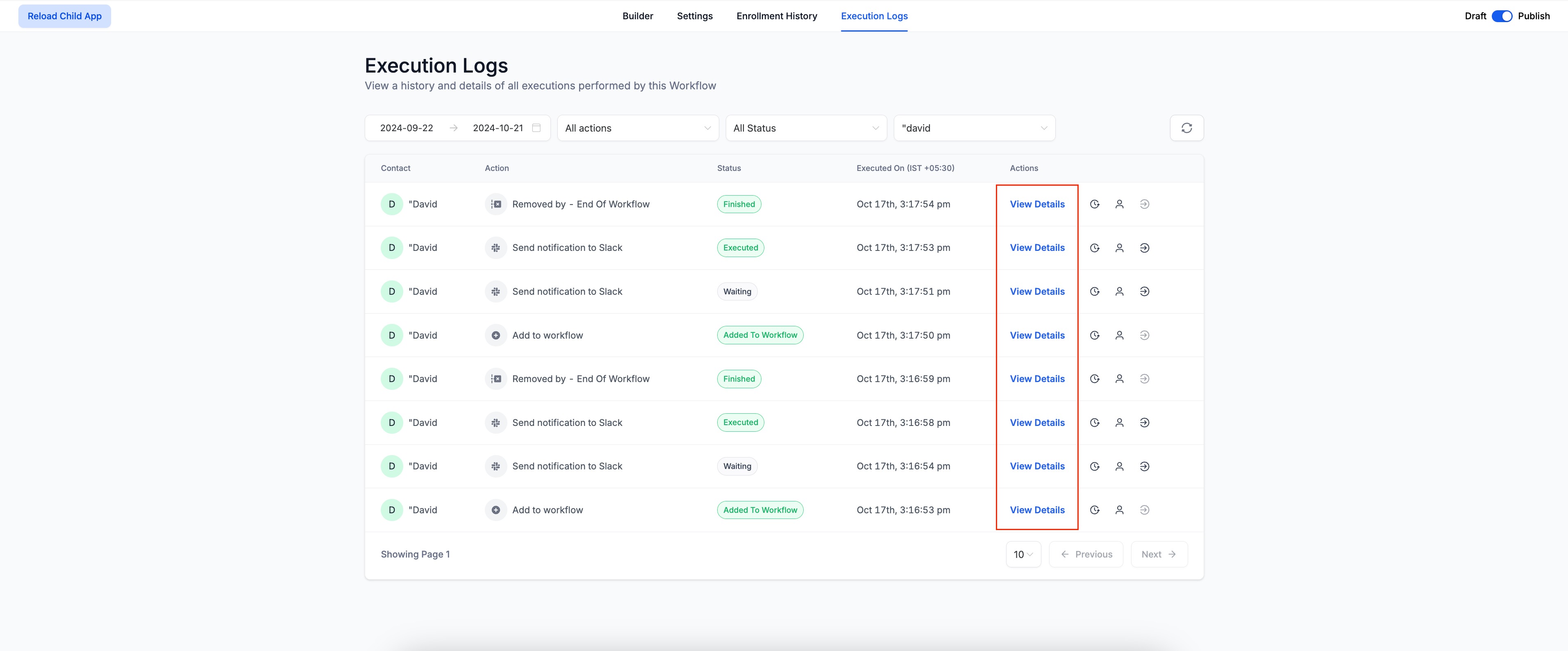
"View Details" Hyperlink
Previously an icon, the "View Details" option is now a clear hyperlink. This makes it easier to identify and access execution details for any specific action.
Improved Error Visibility
When any action encounters an error, the Status field or View Details link is now highlighted. Spot issues and take action without sifting through data.
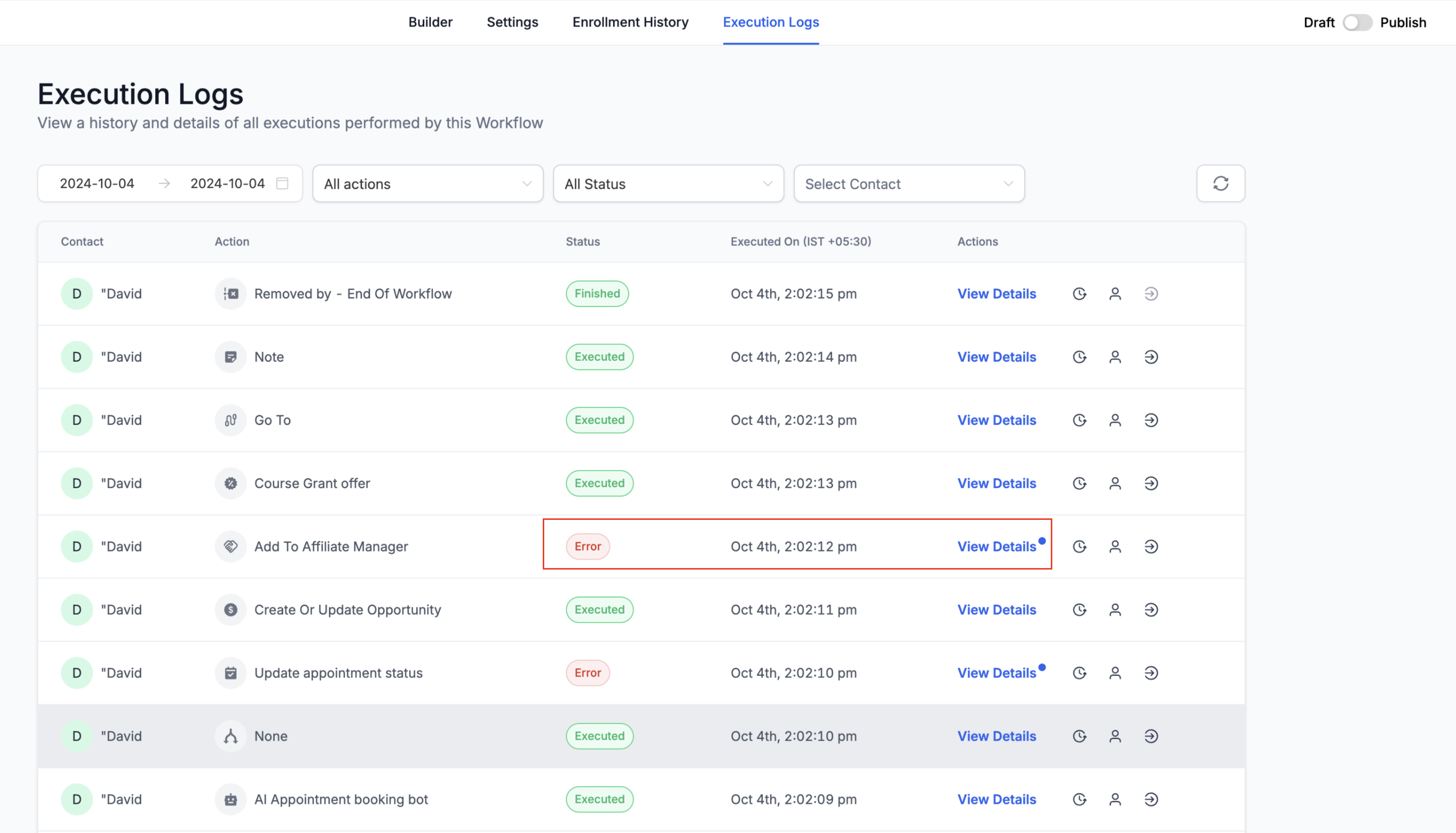
Highlighting Opened Rows
When you open the Details section for a specific row, that row highlights. This visual reference helps you track which row you're currently analyzing.
Action Column Overhaul
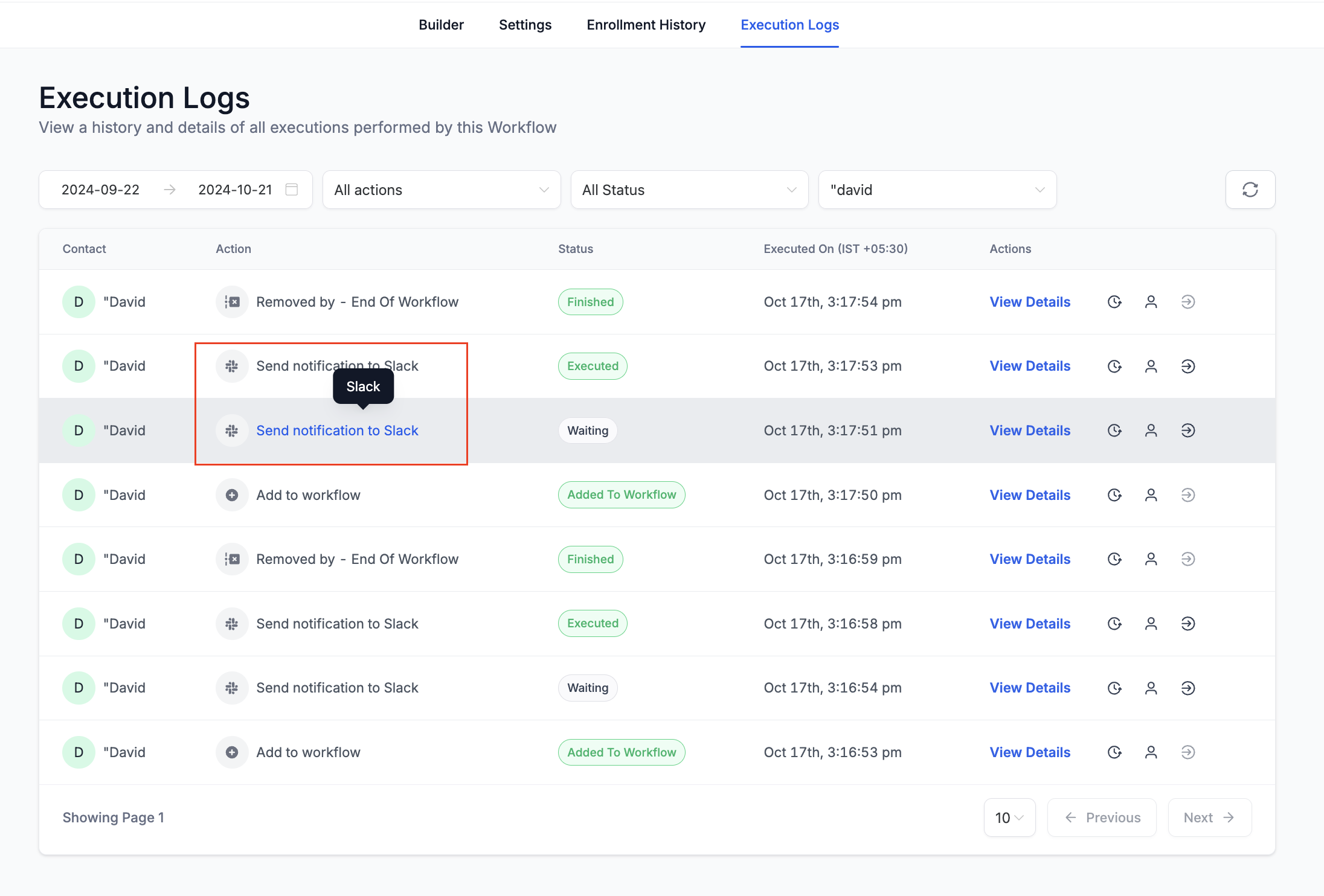
Previously, the "Action" column only displayed the action type—confusing when you had multiple actions of the same type. Now it displays the Action Name you assigned.
Hover over the Action Name to see the actual action type for additional context.
Enhanced Filter Sorting
In the filter dropdown, actions that are part of the automation appear first. Other actions are listed in a separate section below.
This breakdown makes filtering by action types more intuitive and helps you prioritize actions directly linked to your automations.
New Automation Statuses
The statuses in Enrollment History now provide better insights on why a family exited or completed an automation:
- Automation Completed: When the family completes the automation naturally
- Removed by Automation Action: When the family is removed due to an action within the current automation
- Removed by External Automation Action: When the family is removed because of an action in a different automation
Pagination
Both Enrollment History and Execution Logs tabs now support pagination. Choose how many rows display per page: 10, 25, or 50 at a time.
This improves performance and usability when working with large automations.
Family Merges in Execution Logs
When family records are merged, Execution Logs can include a Contact Merge entry. This helps you trace how an in-progress automation was handled—for example, when a duplicate family is merged during the process.
What you may see:
- A Contact Merge entry in the execution timeline
- Example: A live chat guest enters a follow-up automation. Later, the guest is merged into an existing family record. The automation continues under the master record so no steps are lost.
Enrollment History - What's New
Pagination
Choose how many rows display per page: 10, 25, or 50 at a time. This improves performance when reviewing large automations.
Highlight Family Path
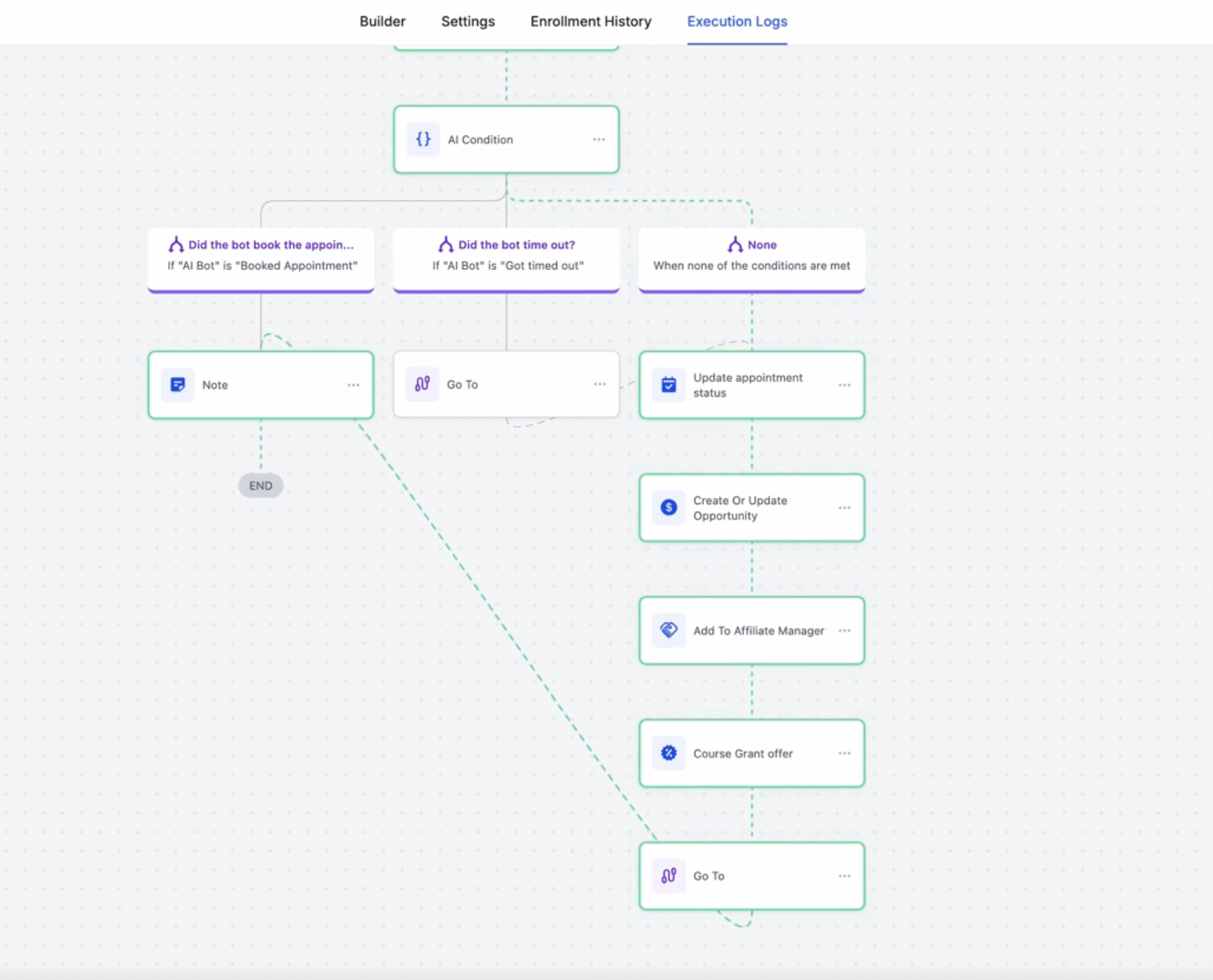
You can now highlight the path a family has taken in the automation builder.
Steps:
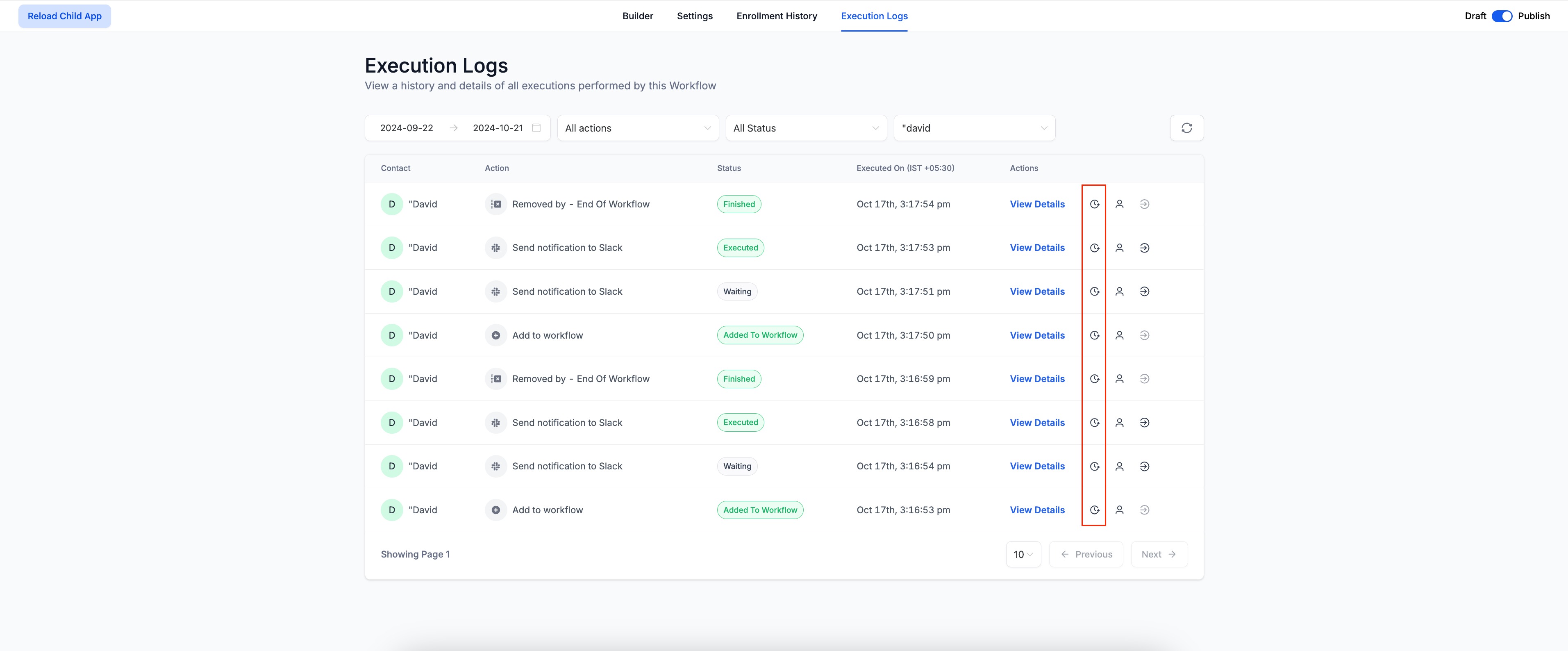
- Click the "Highlight Family Path" icon in the Enrollment History tab or Execution History
- The builder opens and highlights the path the family took through the automation
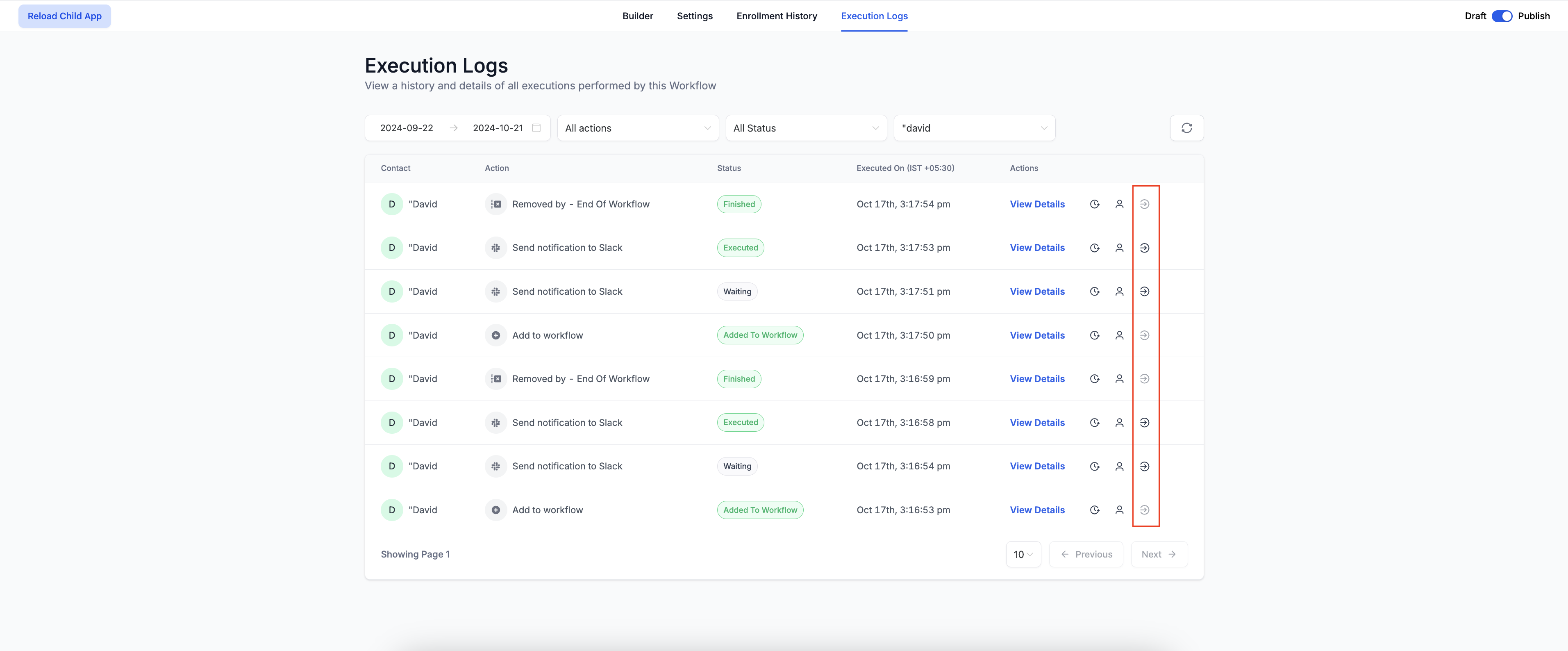
Go To Action Button
If you're in Execution History and need to make changes to an action, you can now open it directly in the Builder.
Click the Go To Action button. It takes you straight to the builder and opens the Action Sidebar so you can make your changes immediately.
Date and Time Enhancements
Date Format Update
To optimize space, dates now appear in MMM-DD format (e.g., Oct-21). Hover over the date to see the time—keeping the view clean while providing details when you need them.
Timezone Display
The "Executed On" field in execution logs now includes the timezone when the action was performed. This makes it easier to understand when actions were executed across different time zones.
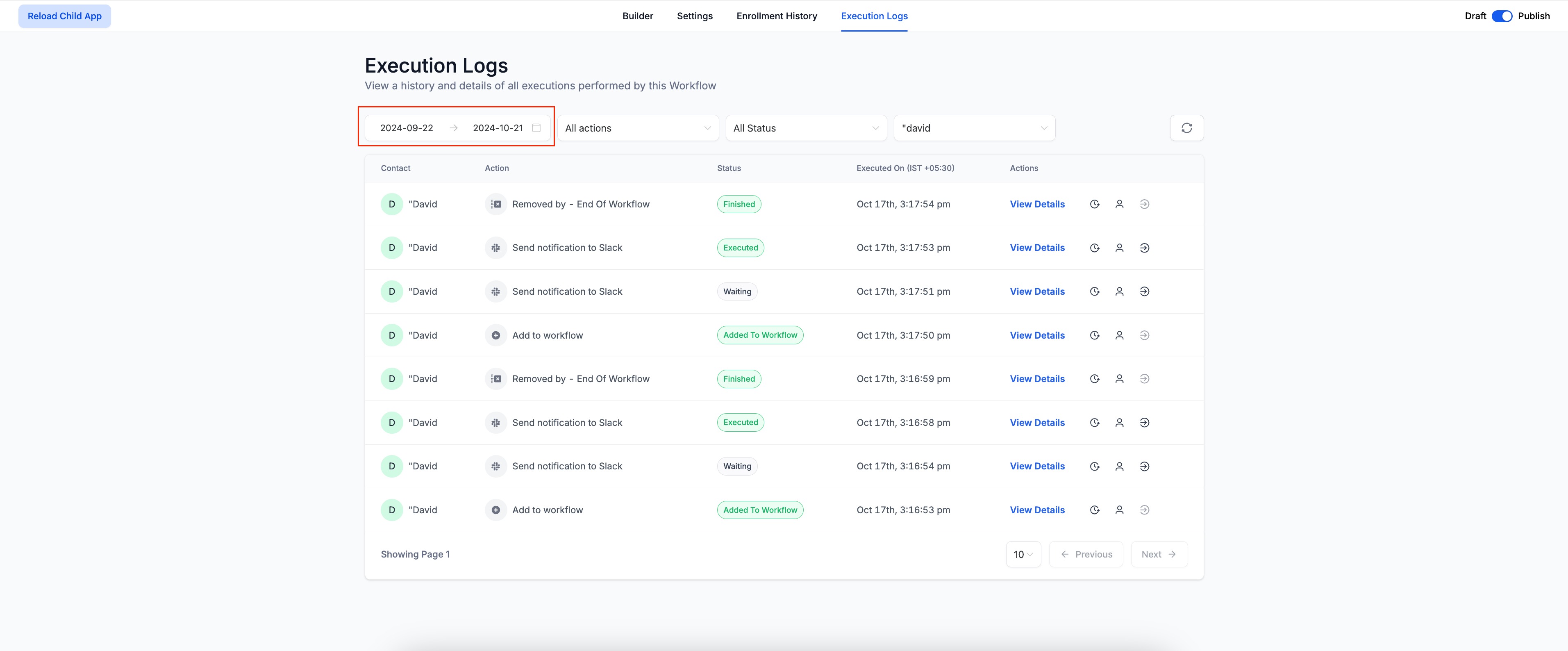
Custom Date Range
You now have more control over the date range when viewing enrollment history and execution logs. In addition to pre-set options (Today, Yesterday, etc.), you can select a custom start and end date with time, up to a maximum range of 30 days.
Changes in Family History
We've made significant improvements to the Family History section:
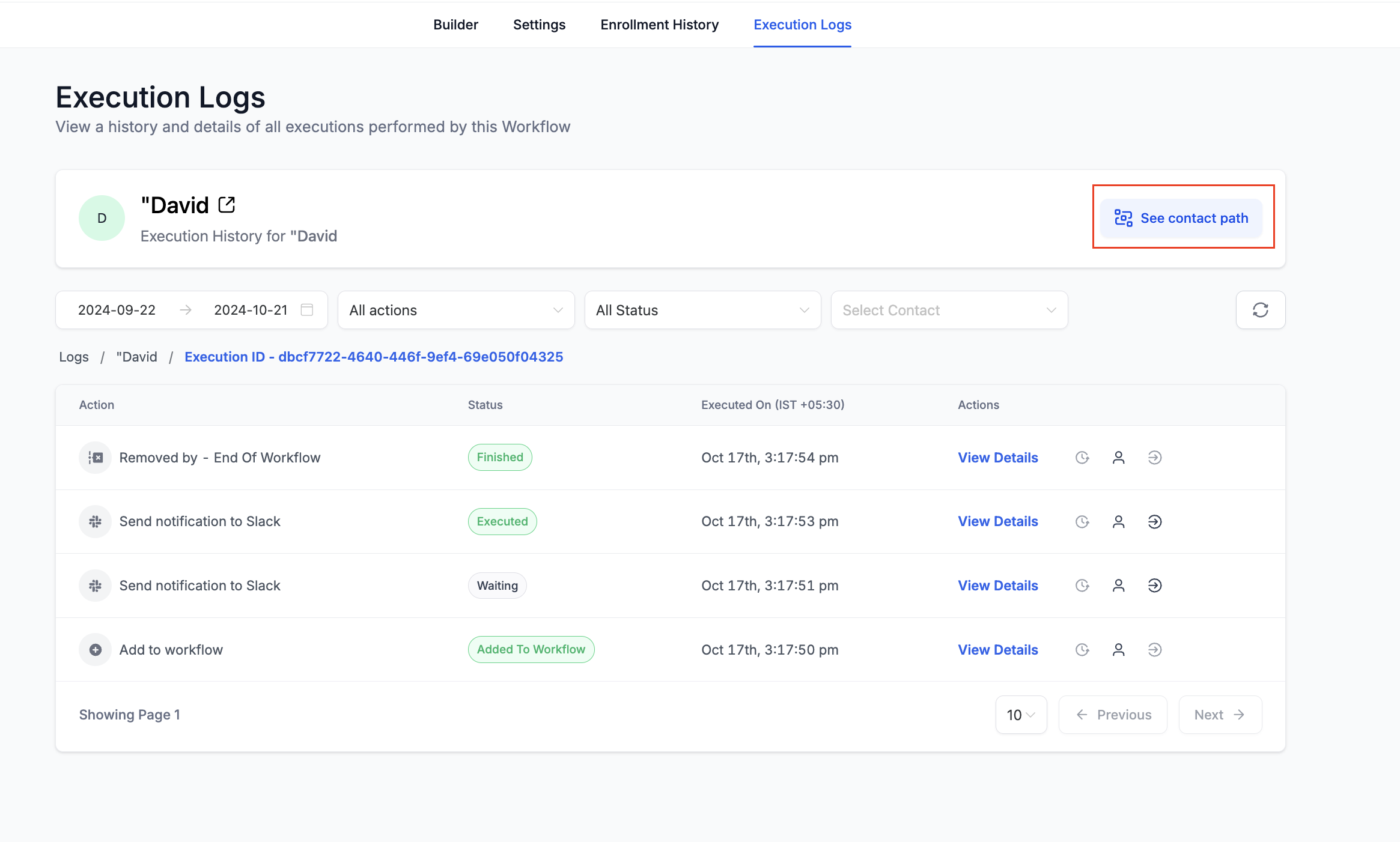
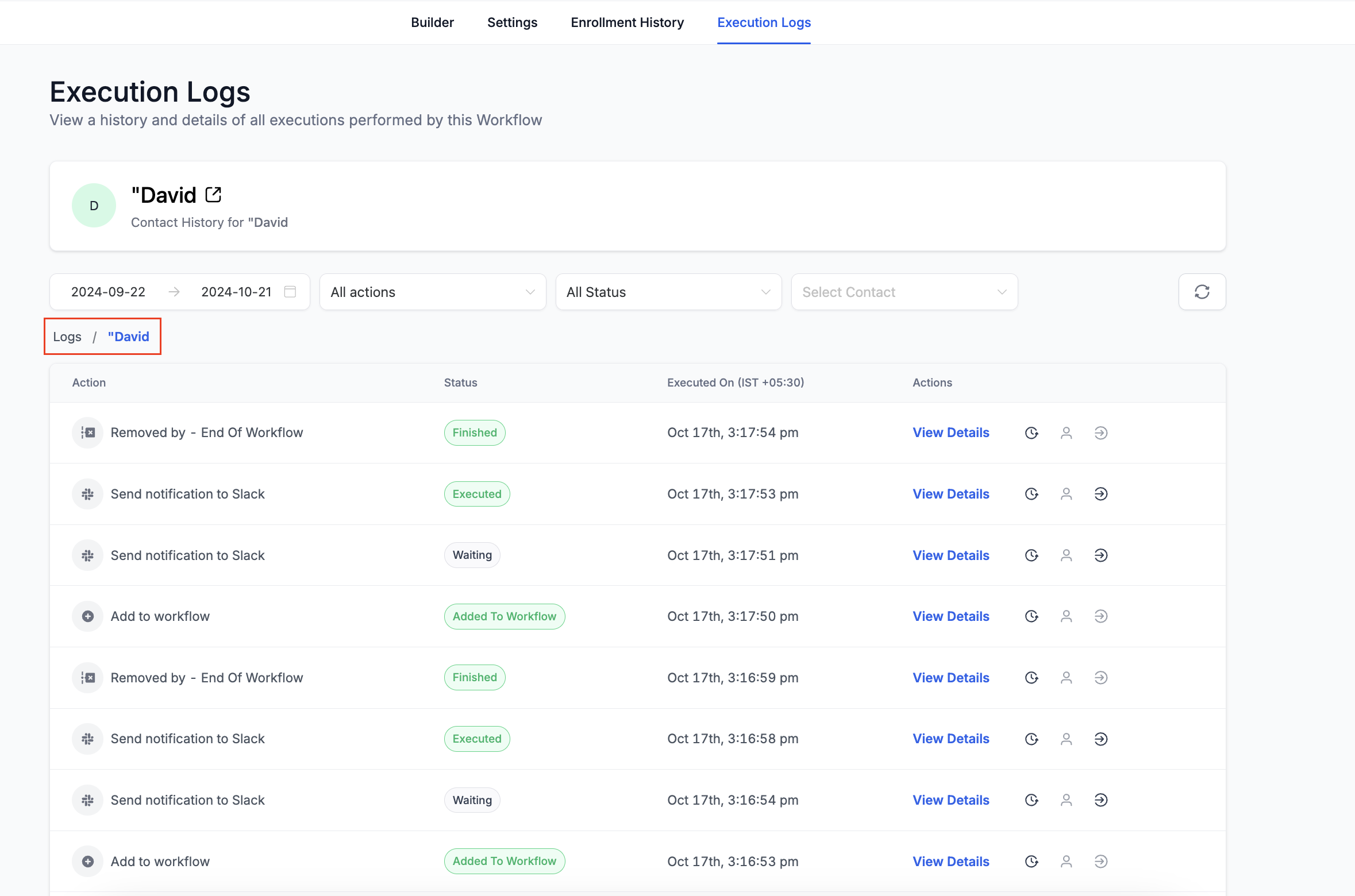
- Click the "View Family History" icon in Execution Logs
- You'll see the family's complete history for this automation
- Family details appear at the top
- All action executions for the family are visible across all enrollments they've had for this automation
We've also improved the breadcrumbs for easier navigation through Family History and Execution Logs. Breadcrumbs are clickable and take you back to the logs.
Changes in Execution History
Execution History has been revamped to provide clearer insights and easier navigation when reviewing how families progress through your automations.
Click "View Execution History" to see a comprehensive timeline of all actions taken for a specific automation run.