
How to Pre-Plan Holiday Promotions with Custom Date Triggers
Want to send enrollment specials for Back-to-School, summer camp registration, or holiday breaks without scrambling at the last minute? Custom date triggers in Enrollio let you pre-plan your entire year of promotions ahead of time.
Set them up once, and your campaigns will automatically launch on exactly the right day — whether that's August 1st for fall enrollment or December 15th for spring registration.
What Are Custom Date Triggers?
Custom date triggers start an automation on a specific calendar date you choose. Unlike birthday reminders that are based on each parent's data, custom dates fire for everyone at the same time.
Perfect for:
- Seasonal enrollment campaigns (fall, spring, summer)
- Holiday closure reminders
- Early bird registration windows
- Annual tuition increase notices
- Open house announcements
Setting Up a Holiday Promotion Automation
Here's how to create an automation that launches automatically on your chosen date:
Step 1: Create Your Automation
- Navigate to Automations in your Enrollio dashboard
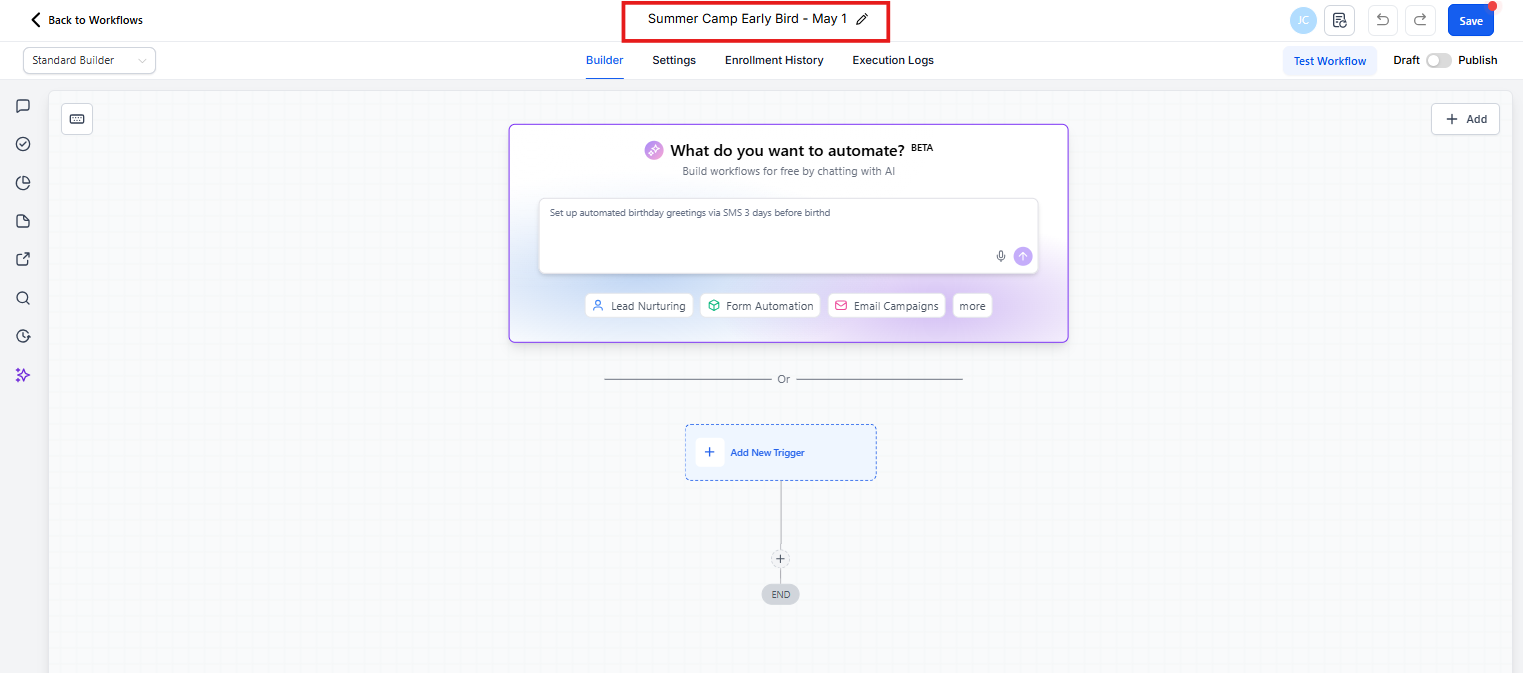
- Click Create Automation
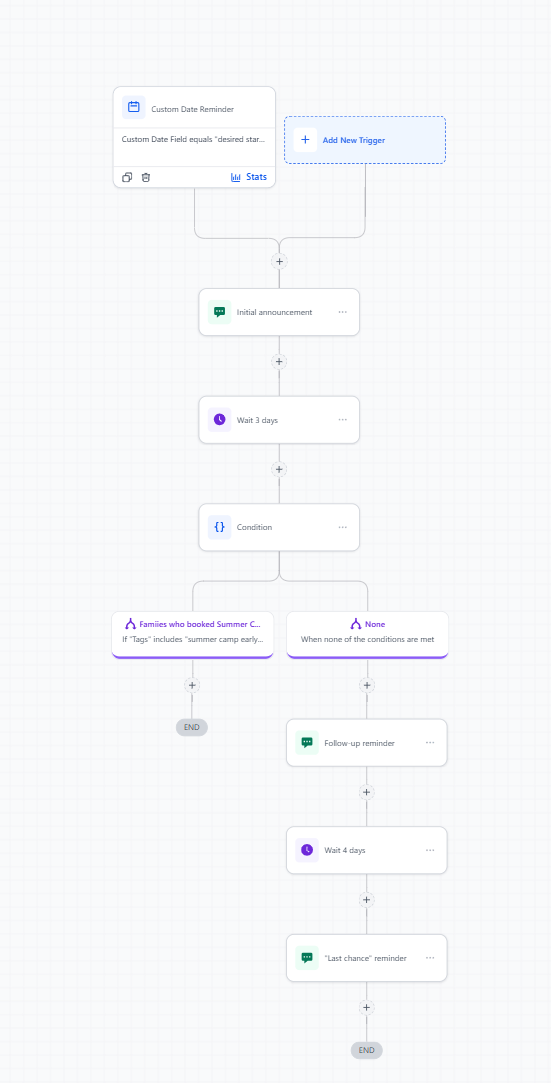
- Give it a clear name like "Summer Camp Early Bird - May 1"
Step 2: Add the Custom Date Trigger
- Click Add New Trigger
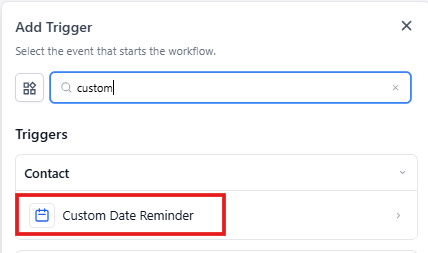
- Select Custom Date Reminder from the trigger options
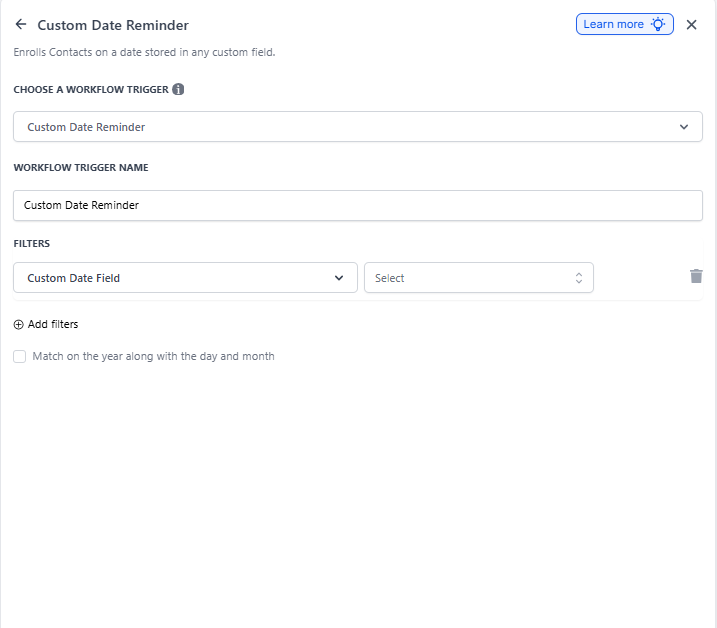
- Choose your launch date from the calendar picker
- Set the time you want the automation to start (recommend early morning, like 9 AM)
Step 3: Choose Your Audience
Decide which families should receive this promotion:
- All families — Great for general announcements
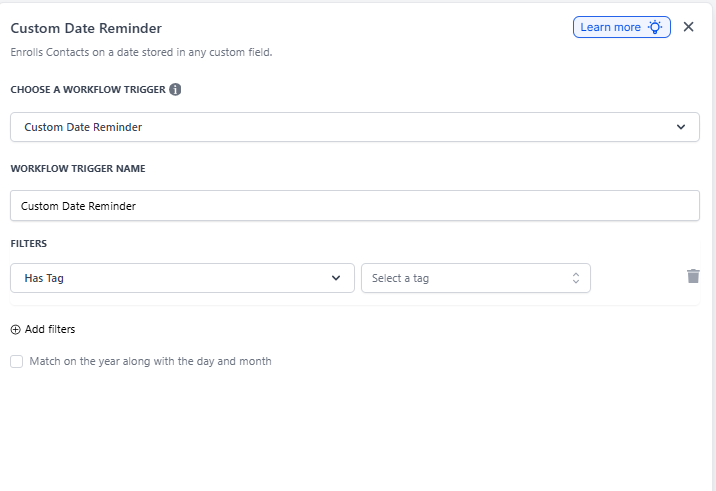
- Specific tags — Target families interested in specific programs ("Interested in Summer Camp")
- Waitlist families — Give priority access to those waiting for spots
- Current families only — Early notification for existing clients
Add filters to narrow your audience if needed.
Step 4: Build Your Campaign Actions
Now add what happens when the date arrives. Common sequences:
- Initial announcement — Text message or email about the promotion
- Wait 3 days — Give families time to respond
- Follow-up reminder — Second touchpoint for those who haven't booked
- Wait 4 days
- Final urgency message — "Last chance" reminder before deadline
Planning Multiple Campaigns at Once
You can set up your entire promotional calendar in one sitting:
- Create separate automations for each campaign
- Set different trigger dates throughout the year
- Leave them all active — they'll fire automatically when their dates arrive
Example schedule:
- January 15: Spring enrollment opens
- May 1: Summer camp early bird pricing
- August 1: Fall program registration
- November 15: Holiday closure reminder + January re-enrollment
Testing Before Launch
Always test your automation before the trigger date:
- Create a test parent profile with your own contact info
- Add the same tags/filters your real audience will have
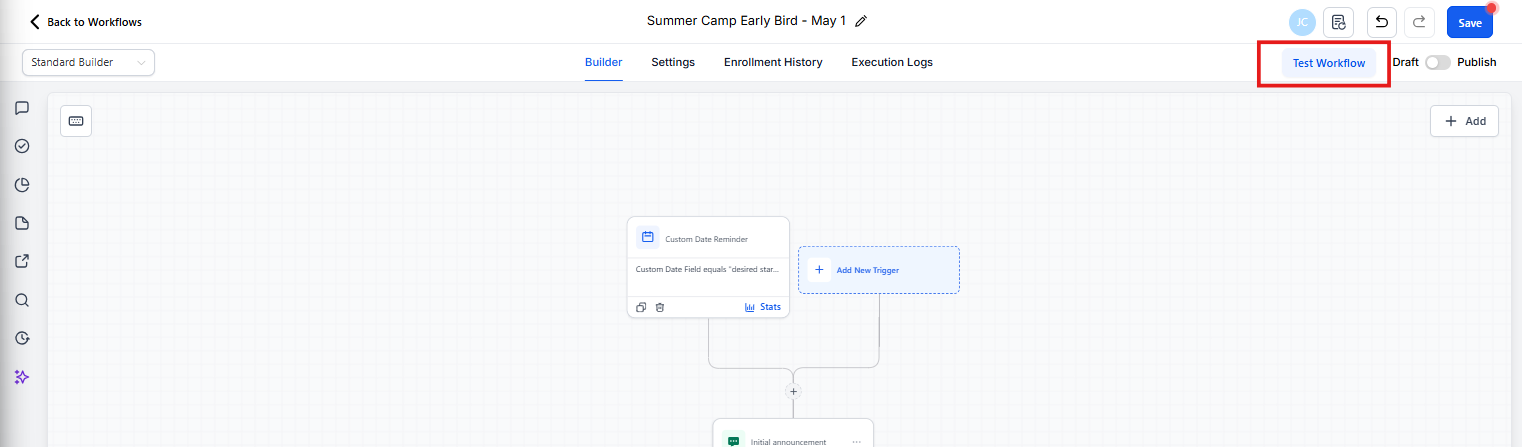
- Use the Test Automation button to send a test run
- Check that messages render correctly and links work
What Happens on Launch Day
When your custom date arrives:
- The automation checks which families match your filters
- It starts a separate sequence for each qualifying family
- Messages send at the scheduled times you configured
- You can monitor responses in real-time from the Conversations tab
Families who don't meet the criteria simply won't enter the automation — no manual list management needed.
Editing Future Campaigns
Need to adjust a campaign before it launches? No problem:
- Find the automation in your list
- Click to open it
- Make your changes to messages, timing, or audience
- Save — the updated version will run on the trigger date
You can edit right up until the trigger fires. Once it's launched, you can't modify past messages, but you can adjust future steps.
Common Use Cases for Childcare Centers
Annual Tuition Increase Notice
Set for 60 days before your rate change. Gives families advance notice and positions the increase professionally.
Seasonal Registration Windows
Launch your fall, spring, and summer enrollment campaigns automatically. Include early bird pricing to drive immediate action.
Holiday Closures + Re-enrollment
Remind families about December closures while simultaneously opening January re-enrollment. Capture commitments before the break.
Open House Events
Announce your event 3 weeks out, send reminders at 2 weeks and 3 days before, then follow up with attendees and no-shows afterward.
Tracking Campaign Performance
After your campaign launches, monitor these metrics:
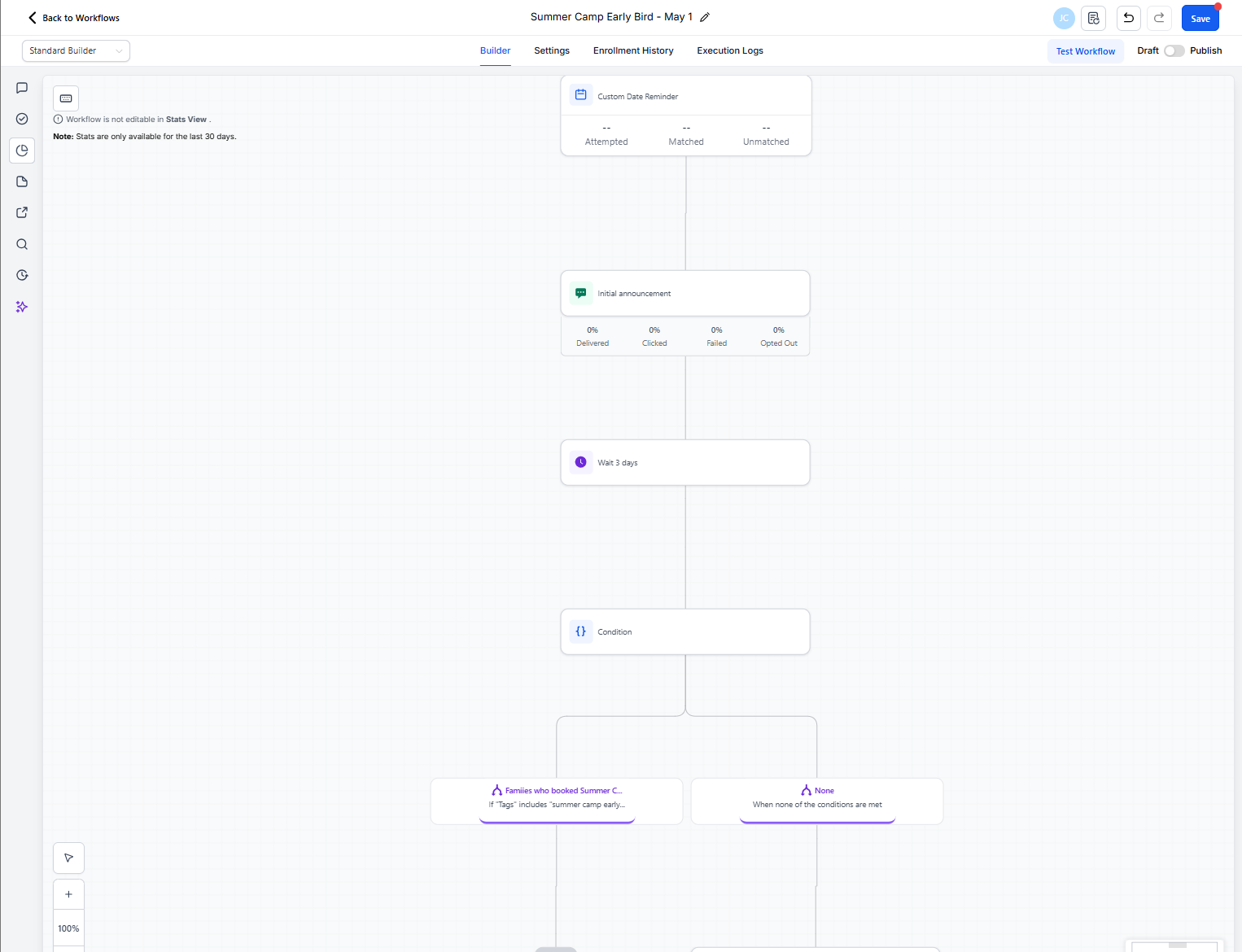
- Delivery rate — How many messages actually sent
- Response rate — How many families replied or clicked
- Conversion rate — How many booked tours or enrolled
- Opt-out rate — If unusually high, adjust your messaging
Find these stats in the Reporting section of your dashboard, filtered by automation name.
Best Practices
- Start early — Give families at least 2-3 weeks notice for enrollment decisions
- Create urgency thoughtfully — "Limited spots" works better than aggressive countdown language
- Segment your audience — Current families need different messaging than prospective families
- Include clear next steps — Always provide a link to book a tour or complete enrollment
- Don't over-message — 2-3 touchpoints per campaign is usually sufficient
- Respect quiet hours — Schedule messages between 9 AM - 6 PM in your local timezone
Troubleshooting
Automation didn't fire on the date: Check that the automation is set to Active (not paused) and the trigger date hasn't already passed.
No one received messages: Verify your audience filters. If they're too narrow, no families will qualify.
Messages sending at wrong time: Check your account timezone settings under Settings Business Profile.
Want to stop a running campaign: Pause the automation to prevent new families from entering, but existing sequences will complete.
Next Steps
Now that you know how to pre-plan promotions, try setting up your next three campaigns. Having your enrollment calendar automated means more time actually talking to families instead of managing marketing tasks.
Questions about custom date triggers or need help planning your promotional calendar? Contact our support team — we're here to help you fill your enrollment.