
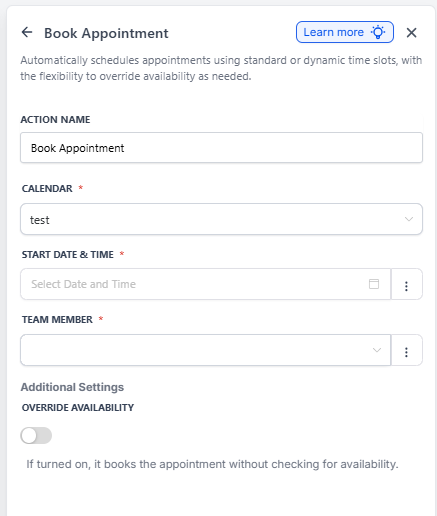
The Book Appointment automation action lets you automatically schedule tour appointments when specific events happen—like a parent submitting an inquiry form or requesting a tour through your website. No more manual calendar management.
What is the Book Appointment Action?
This action creates new tour appointments on your Enrollio calendar based on triggers you define. When a prospective family takes an action—submitting a form, clicking a link, or updating their status—Enrollio can instantly book them into your schedule.
Perfect for childcare centers that want to:
- Auto-book tour requests from your website
- Schedule follow-up visits when families move to a new enrollment stage
- Lock in appointments while parents are actively interested
Key points:
- You must select which Calendar will receive the booking
- Staff assignment can use Calendar Default (round robin) or a specific team member
- Appointment times can be fixed or pulled dynamically from form submissions
- If you're using dynamic dates, they must match supported formats (or use the Date Time Formatter action first)
- If no staff member is available and override is turned off, the appointment won't be created
Limitation: Calendars with recurring appointments enabled cannot be used with this action.
Why Use the Book Appointment Action?
This automation saves time and increases tour bookings by:
- Capturing families instantly — Book them while they're on your site, before they shop elsewhere
- Reducing admin work — No more back-and-forth emails or phone tag to find a time
- Respecting your availability — Only books when your team is actually free (unless you override)
- Enabling smart follow-ups — Branch your automation based on whether the booking succeeded or failed
- Flexible staffing — Distribute tours evenly via round robin or assign to your best closer
Setting Up the Book Appointment Action
Follow these steps to add automatic tour booking to your automation.
Step 1: Create Your Automation
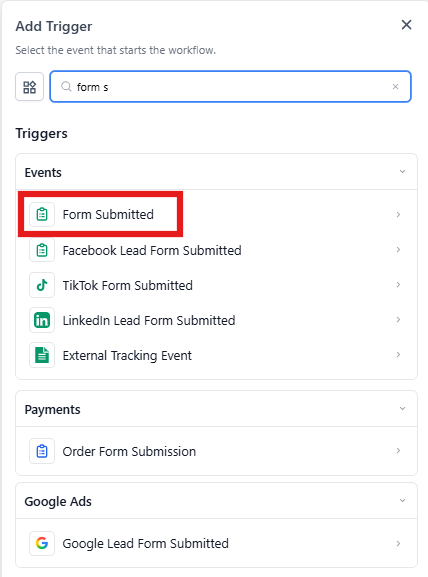
Go to Automations and click Create New Automation, then Start From Scratch. Choose a trigger that makes sense for your center:
- Form Submitted — When a parent fills out a tour request form
- Inbound Webhook — When data comes in from another system
- Tag Added — When a family is marked as "Ready for Tour"
- Enrollment Stage Changed — When they move to "Tour Scheduled" stage
Step 2: Add the Book Appointment Action
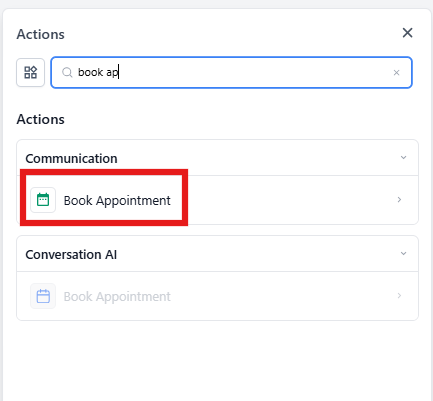
Click Add Action, then select Book Appointment. Give it a clear name like "Book Center Tour" or "Schedule Meet & Greet."
Step 3: Configure Calendar and Staff Assignment
Calendar: Choose which calendar will receive the appointments. This should be your tours calendar or whichever calendar your staff uses for family visits.
Team member:
- Calendar Default — Follows your calendar's assignment rules (like round robin to distribute tours evenly across staff)
- Specific member — Always assign to one person (your enrollment director, for example)
Step 4: Set the Appointment Date & Time
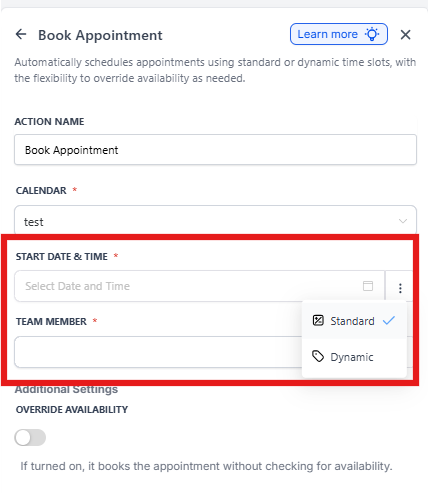
You have two options:
Standard (Fixed): Every appointment booked by this automation uses the same date and time. Example: "Every form submission books a tour for next Tuesday at 10 AM."
Dynamic (From trigger data): Pull the date and time from the form submission, webhook, or custom field. This lets parents choose their preferred time.
Supported date/time formats for dynamic booking:
- MM-DD-YYYY HH:MM → Example: 12-21-2025 08:30 AM
- DD-MMM-YYYY HH:MM → Example: 21-OCT-2025 08:30 AM
- ISO 8601 and other standard formats
Important: If your incoming date doesn't match these formats, add a Date Time Formatter action before this step to convert it.
Step 5: Configure Override Availability (Optional)
Override availability Off (recommended): Enrollio checks your calendar before booking. If no one is available, the appointment won't be created.
Override availability On: Books the appointment regardless of availability. Use this sparingly—only when you absolutely need the booking to go through and will handle conflicts manually.
You can also add an internal note in the Action Description field to remind yourself or your team what this step does.
Step 6: Add Branching Logic (Optional but Recommended)
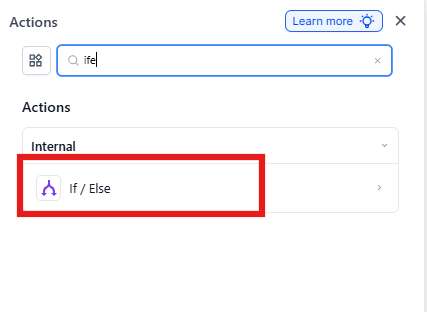
Use an If/Else action immediately after Book Appointment to handle success and failure differently.
Condition: Appointment booked successfully
- True: Send a confirmation text to the parent, add them to your "Tours Booked" pipeline stage, notify your team
- False: Create a task for your staff to follow up manually, or try booking an alternate time
Pro Tips
💡 Confirmation is key: Always send a text and email confirmation when the booking succeeds. Include the date, time, staff member's name, and a calendar link.
💡 Handle failures gracefully: If the booking fails (no availability), immediately create a task for your enrollment team to reach out within 2 hours.
💡 Use round robin wisely: If you have multiple tour guides, Calendar Default with round robin ensures everyone gets equal opportunities to convert families.
Frequently Asked Questions
Will this action respect my calendar availability?
Yes, unless you turn on Override availability. By default, Enrollio checks that someone is free before booking.
Can I send different messages based on whether the booking worked?
Absolutely. Add an If/Else action right after Book Appointment and use the condition Appointment booked successfully. Route True to a confirmation message and False to a manual follow-up task.
What date formats can I use for dynamic bookings?
Common formats like MM-DD-YYYY HH:MM and DD-MMM-YYYY HH:MM work out of the box. If your form or system uses a different format, add a Date Time Formatter action before Book Appointment to convert it.
Can I distribute tours evenly across my staff?
Yes. Set Team member to Calendar Default, then configure your calendar settings to use round robin assignment.
What happens if the booking fails?
The automation continues, but no appointment is created. Use the False branch of an If/Else to notify your team, create a task, or try booking at a different time.
Can I use this with recurring appointment calendars?
No. Calendars that have recurring appointments enabled cannot be selected in the Book Appointment action. Use a separate calendar for automated bookings.
Can I book families for specific types of tours?
Yes. Create separate calendars for different tour types (Infant Tours, Toddler Tours, Evening Tours) and use automation logic to route families to the right one based on their child's age or preferences.