
What is the Call Automation Action?
The Call action automatically initiates a phone call to either an assigned staff member or a designated number when triggered. You can include a whisper message that plays before the call connects, and configure advanced settings like voicemail detection and keypress confirmation.
Action Overview
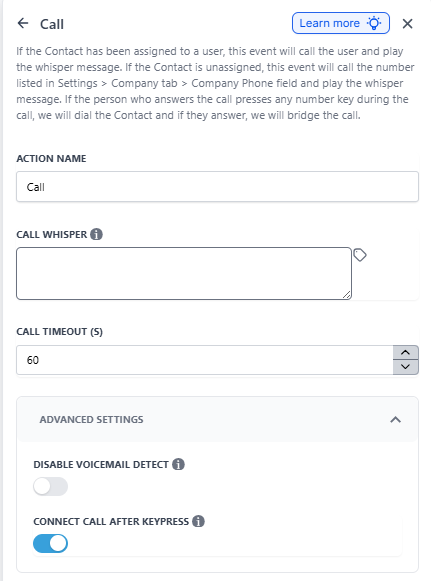
Action Name: Call
What it does: Automatically places a call as part of your automation. If a parent or prospective family is assigned to a specific staff member, it calls that person. Otherwise, it calls your default center number. You can add a whisper message that plays before connecting, and control how voicemail is handled.
Configuration Fields
| Field | Description | Required |
|---|---|---|
| Action Name | Give this call action a descriptive name (e.g., "Tour Reminder Call") | Yes |
| Call Whisper | A short message that plays to the person who answers before the call connects. You can personalize this with custom values like names or appointment times. The message will play up to three times. | No |
| Call Timeout (seconds) | How long to wait before ending the call attempt if no one answers | Yes |
| Disable Voicemail Detect | When enabled, the system won't try to detect voicemail. This speeds up connection but means voicemail may be treated as a regular call. Recommended when using shorter timeouts. | No |
| Connect Call After Keypress | When enabled, the call only connects after the person presses a key. This confirms a live person answered (not voicemail). | No |
How to Set Up a Call Action
- Add the Call Action: In your automation, click to add an action and select Call from the list.
- Name your action: Give it a clear name like "New Tour Notification Call" or "Follow-up Call Reminder"
- Write your whisper message: Enter the message you want played before connecting. Example: "You have a new tour scheduled with [Parent Name] at [Tour Time]. Press any key to connect."
- Set the timeout: Choose how many seconds to wait before ending the call attempt (typically 30-60 seconds)
- Configure voicemail settings: Decide whether to enable voicemail detection or require a keypress
- Save: Click save to add the action to your automation
Understanding Voicemail Detection
By default, Enrollio tries to determine if a person or voicemail answered the call. This creates a slight delay but works with the automation's "Stop on Response" setting.
How it works with Stop on Response:
- If voicemail detection is enabled and voicemail answers, the automation continues (doesn't stop)
- If voicemail detection is disabled, the automation stops whether a person or voicemail answers
- If your staff member answers but the parent doesn't, the automation continues regardless of these settings
Example Automation
Here's a practical example for childcare centers:
Scenario: Alert staff when a prospective family books a tour
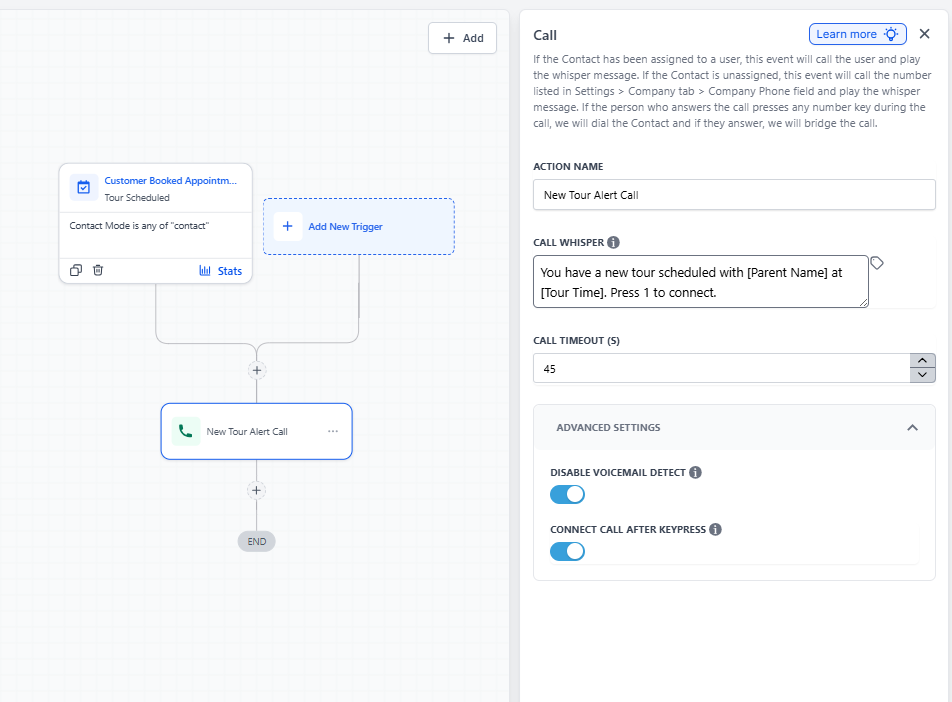
- Trigger: "Tour Scheduled" - When a family books a tour on your calendar
- Action: Call - Automatically call the assigned staff member
- Action Name: "New Tour Alert Call"
- Call Whisper: "You have a new tour scheduled with [Parent Name] at [Tour Time]. Press 1 to connect."
- Call Timeout: 45 seconds
- Disable Voicemail Detect: Enabled (for faster connection)
- Connect Call After Keypress: Enabled (ensures a person answers)
When to Use Call Actions
Call actions work great for time-sensitive notifications:
- Tour scheduled: Immediately notify your tour coordinator
- Enrollment form submitted: Alert your enrollment director when a family completes an application
- Waitlist spot opens: Call staff when space becomes available
- Payment issue: Notify your billing contact about failed payments
- Emergency contact update: Alert relevant staff when critical information changes