
Overview
The Edit Conversation action lets you automatically update the status of conversations with families. You can mark messages as read or unread, and archive or unarchive them to keep your inbox organized.
This is especially helpful when you want to automatically clean up conversations after tours are scheduled, enrollments are completed, or parent questions are resolved.
What This Action Does
The Edit Conversation action allows you to:
- Mark a conversation as read or unread
- Archive a conversation to move it out of your active inbox
- Unarchive a conversation to bring it back to your recents tab
Use this action to keep your team's inbox focused on families who need attention right now.
How to Configure This Action
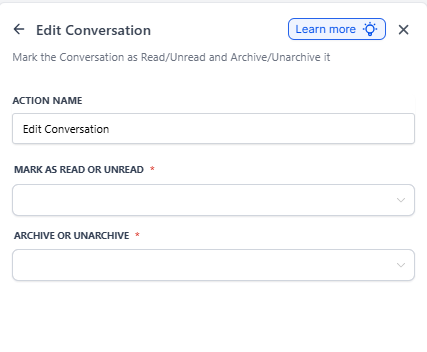
When you add this action to an automation, you'll see these options:
Action Name
Give your action a clear name like "Mark as Read and Archive" or "Unarchive Tour Follow-up." This helps you understand what the action does when reviewing your automation later.
Mark as Read or Unread
Choose how to update the read status:
- None - Don't change the read status
- Mark as Read - Mark the conversation as read
- Mark as Unread - Mark the conversation as unread
Not mandatory - you can leave this as "None" if you only want to archive/unarchive.
Archive or Unarchive
Choose what to do with the conversation:
- None - Don't change archive status
- Archive - Move the conversation out of your active inbox
- Unarchive - Move the conversation back to your recents tab
Not mandatory - you can leave this as "None" if you only want to change read status.
When to Use This Action
Suggested Triggers
Parent Replied: Automatically mark conversations as read when a parent responds to your message.
Tour Status Changed: Archive conversations after a tour is marked as completed or no-show.
Enrollment Completed: Mark conversations as read and archive them once a family completes enrollment.
Example Setup
Let's say you want to automatically clean up conversations after resolving parent questions about your program.
Scenario: Archive and mark conversations as read once a family replies to confirm their question is answered.
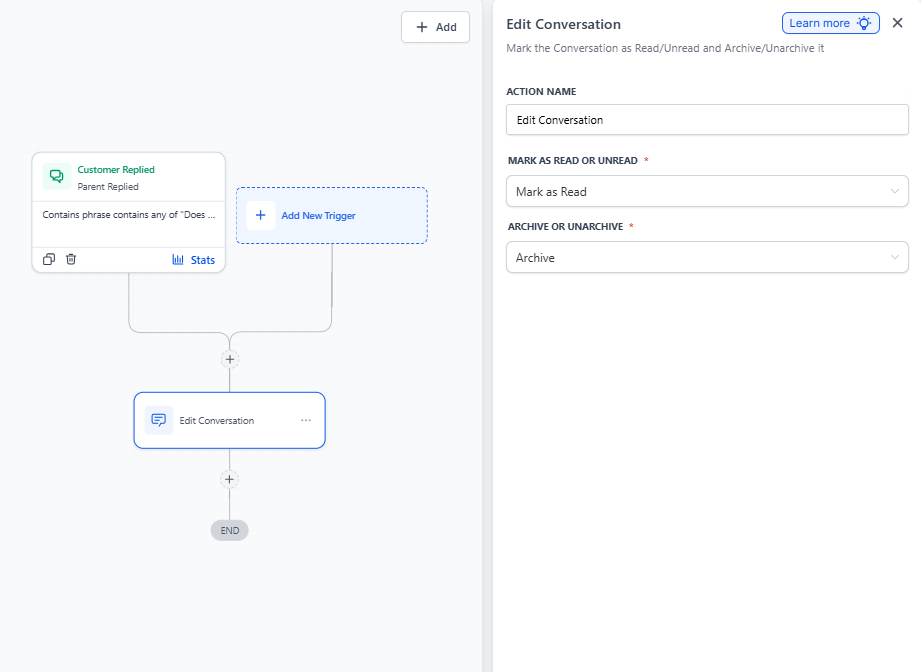
- Create a new automation
- Set your trigger to "Parent Replied"
- Add a condition to check if your last message included "Does this answer your question?"
- Add the Edit Conversation action
- Set it to "Mark as Read" and "Archive"
Now resolved conversations automatically move out of your active inbox, keeping your team focused on families who still need responses.
Keep Your Inbox Organized
This action helps you maintain a clean communication system. Your team sees only active conversations that need attention, while archived messages remain searchable whenever you need them.
Use this strategically at key moments in your enrollment process - after tours, after enrollment completion, or after sending welcome packets to new families.