
Overview
The Date/Time Formatter action helps you format and compare date fields in your automations. Use it to standardize date formats, convert timestamps, or compare dates to trigger specific actions — like sending reminders when a tour is scheduled within 3 days.
What This Action Does
1. Format Date
What it does: Converts a date from one format to another. For example, change "12/21/2023" to "2023-12-21" for consistent reporting.
When to use it: Standardize enrollment dates, tour dates, or any date field across your communications and reports.
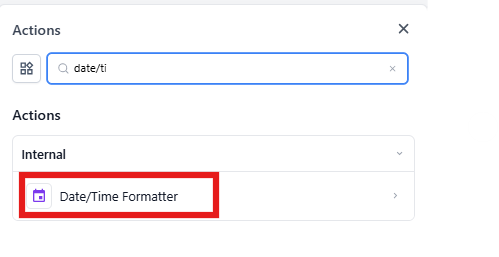
2. Format Date and Time
What it does: Converts both date and time from one format to another. Perfect for timestamps that include hours and minutes.
When to use it: Format tour appointment times, parent meeting schedules, or enrollment timestamps for calendar events and notifications.
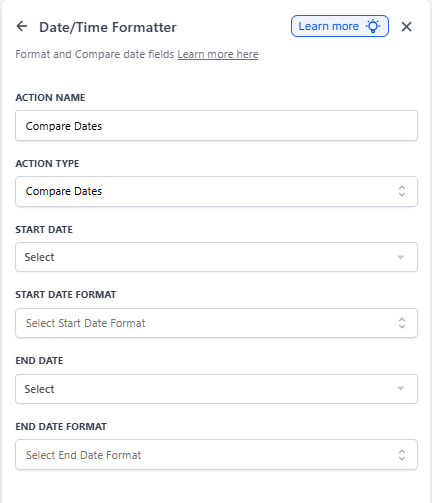
3. Compare Dates
What it does: Compares two dates to determine which is earlier, later, or if they're equal.
When to use it: Send reminders when a tour is coming up, check if an enrollment deadline is approaching, or trigger follow-ups based on how long a family has been on your waitlist.
How to Set Up Format Date
| Field | Description | Required |
|---|---|---|
| Action Name | Give this action a descriptive name (e.g., "Format Enrollment Date") | Yes |
| Action Type | Select "Format Date" | Yes |
| Field | Choose the date field you want to format | Yes |
| From Format | The current format of your date field (e.g., MM/DD/YYYY) | Yes |
| To Format | The format you want to convert to (e.g., YYYY-MM-DD) | Yes |
Example Automation
Trigger: New enrollment form submitted
Action: Format the enrollment date from MM/DD/YYYY to YYYY-MM-DD for your reporting system
How to Set Up Format Date and Time
| Field | Description | Required |
|---|---|---|
| Action Name | Name this action (e.g., "Format Tour Appointment Time") | Yes |
| Action Type | Select "Format Date and Time" | Yes |
| Field | Choose the date/time field to format | Yes |
| From Format | Current format including time (e.g., DD/MM/YYYY HH:mm) | Yes |
| To Format | Desired format with time (e.g., MM-DD-YYYY HH:mm) | Yes |
Example Automation
Trigger: Tour appointment scheduled
Action: Format the appointment timestamp from Unix format to a readable format for text message reminders
How to Set Up Compare Dates
| Field | Description | Required |
|---|---|---|
| Action Name | Name this action (e.g., "Check Tour Date Proximity") | Yes |
| Action Type | Select "Compare Dates" | Yes |
| Start Date | First date to compare (e.g., today's date) | Yes |
| Start Date Format | Format of the first date (e.g., MM-DD-YYYY) | Yes |
| End Date | Second date to compare (e.g., tour appointment date) | Yes |
| End Date Format | Format of the second date (e.g., DD/MM/YYYY) | Yes |
Example Automation
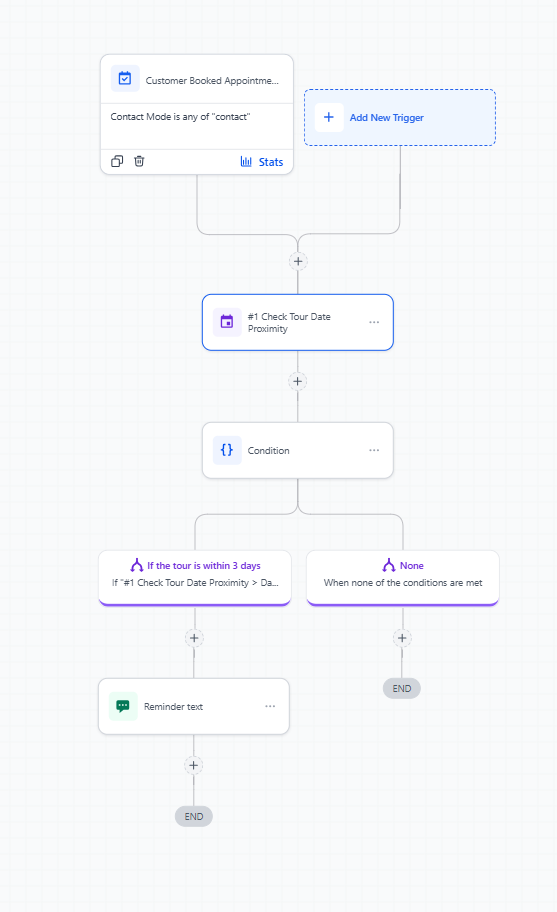
Trigger: Family schedules a tour
Action: Compare tour date with today's date. If the tour is within 3 days, send a reminder text message to the family.
Supported Date and Time Formats
| Format Type | Example Output |
|---|---|
| YYYY-MM-DD | 2023-12-21 |
| MM-DD-YYYY | 12-21-2023 |
| MM/DD/YYYY | 12/21/2023 |
| MM/DD/YY | 12/21/23 |
| DD-MM-YYYY | 21-12-2023 |
| DD/MM/YYYY | 21/12/2023 |
| DD/MM/YY | 21/12/23 |
| DD MMM YYYY | 21 Dec 2023 |
| D MMMM YYYY | 21 December 2023 |
| MMMM D, YYYY | December 21, 2023 |
| MMM DD, YYYY | Dec 21, 2023 |
| MMMM Do YYYY | December 21st, 2023 |
| X (Unix Timestamp) | 1703176259 |