
What is the Tour Booked Automation Trigger?
The Tour Booked trigger activates whenever a prospective family books a tour using your online scheduling link — without you lifting a finger. This trigger is your foundation for automating follow-up actions, reminders, and notifications based on scheduled tours.
Note: This trigger works only for standard tours, not recurring appointments.
Why Use the Tour Booked Trigger?
Automating tour-based actions saves time and creates a professional experience for families considering your childcare program. Here's what you gain:
- Automatic Tour Reminders: Reduce no-shows by sending timely reminders via email or text message.
- Better Family Experience: Keep prospective families informed with instant confirmation messages and helpful follow-ups.
- Staff Notifications: Alert your enrollment team or tour guides the moment a tour is booked.
- Smart Filtering: Target specific calendars or families with particular tags to customize your response.
- More Time for Families: Your team can focus on giving great tours instead of managing schedules.
How to Set Up the Tour Booked Trigger
Follow these steps to configure your automation:
1. Open the Automation Builder
Navigate to the Automation section in your Enrollio dashboard. Create a new automation from scratch or open an existing one where you want to add this trigger.
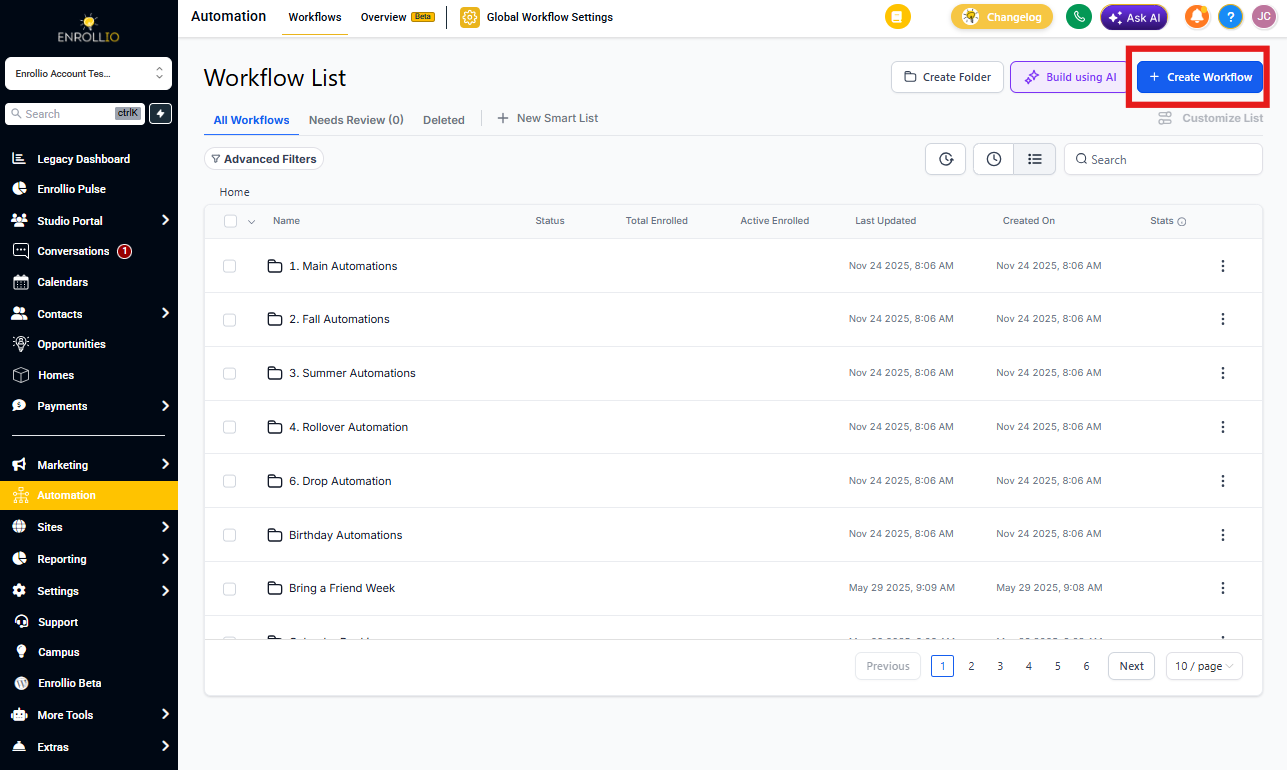
2. Add the Trigger
Click "Add New Trigger" and search for "Customer Booked Appointment." Select it from the list.
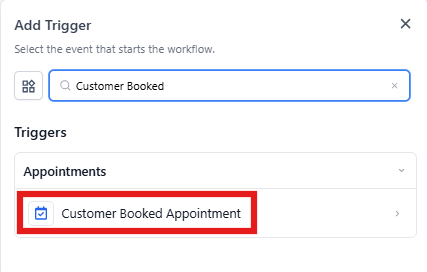
3. Name Your Trigger
Give it a clear, descriptive name like "Tour Scheduled - Send Confirmation" so you can easily identify it later.
4. Apply Filters (Optional)
Refine when this trigger activates using these filters:
Has Tag
Trigger only when families with a specific tag book a tour. For example, use this to give VIP families special treatment or prioritize certain enrollment opportunities.
In Calendar
Target a specific calendar. Your automation will only run when tours are booked in that calendar — useful if you have separate schedules for infant tours, toddler tours, or different locations.
In Calendar Group
Target an entire group of calendars. The automation triggers when a tour is booked in any calendar within that group.
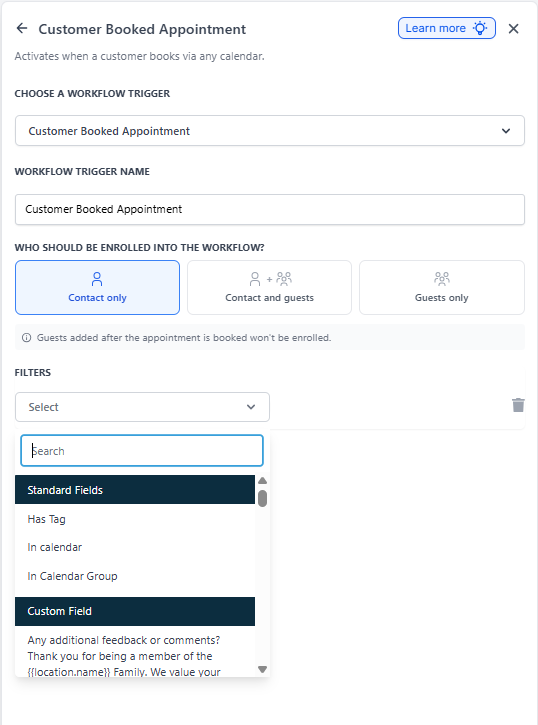
5. Save Everything
Click "Save" on the trigger, then click the blue "Save" button in the top-right corner to save your entire automation.
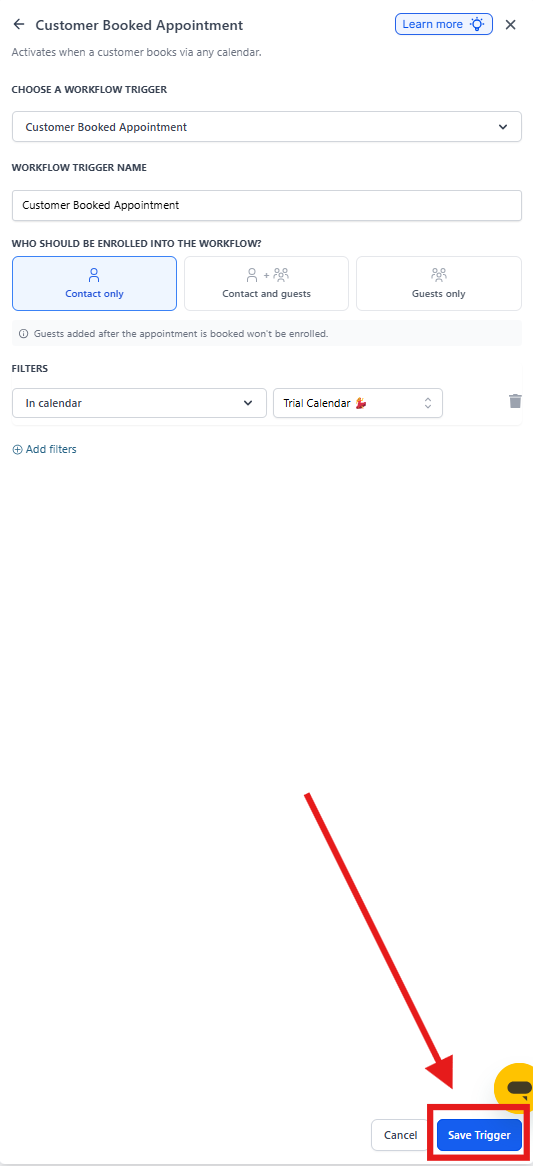
Real-World Examples
Example 1: Tour Reminder Automation
Scenario: You want to send an automatic reminder 24 hours before each scheduled tour to reduce no-shows.
Setup: Create an automation that waits 24 hours before the tour time, then sends a text message and email reminder with your address, parking instructions, and what to bring.
Result: Fewer no-shows and families arrive prepared for their visit.
Example 2: Instant Tour Confirmation
Scenario: You want families to receive immediate confirmation when they book a tour, including tour details and directions to your center.
Setup: Create an automation that sends a confirmation email immediately after the trigger fires, with a Google Maps link, parking details, and what to expect during the tour.
Result: Families feel confident about their upcoming visit and have all the information they need.
Example 3: Staff Alert for High-Priority Tours
Scenario: You want your enrollment director notified immediately whenever a family tagged as "Referral" or "Corporate Partner" books a tour.
Setup: Use the "Has Tag" filter to target specific tags, then send an internal text message or email to your director with the family's details.
Result: Your team can prepare personalized touches for important tours.
Example 4: Location-Specific Tour Management
Scenario: You operate multiple locations and want to send location-specific confirmation messages with different staff contact information.
Setup: Create separate automations for each location's calendar, each sending customized confirmation emails with the right address, phone number, and tour guide name.
Result: Families receive accurate, location-specific information automatically.
Frequently Asked Questions
Can I use this trigger for recurring tours?
No, this trigger only works for standard, one-time appointments. Recurring appointments aren't supported.
How do I create different automations for different tour types?
Use the "In Calendar" or "In Calendar Group" filters to target specific tour types. Set up separate automations for infant tours, preschool tours, after-school tours, etc.
What if my staff books the tour manually for a family?
This trigger only activates when families book tours themselves through your online scheduling link. Tours booked manually by your staff won't trigger the automation.
Can I send multiple reminders before a tour?
Absolutely. Add multiple actions within the same automation with different wait times. For example: wait 48 hours, send first reminder; wait another 24 hours, send second reminder.
How do I track tours booked by priority families?
Use the "Has Tag" filter to create an automation that only triggers when families with specific tags (like "VIP Family," "Board Member," or "Employee Referral") book tours. This ensures special handling for important prospects.
Can I add the family to a waitlist automatically after they book a tour?
Yes! After the trigger fires, add an action to assign the family to your waitlist or update their enrollment opportunity stage. This keeps your pipeline organized automatically.