
Google Contacts Integration: Automations & Syncing
Keep your parent and family data perfectly synced between Enrollio and Google Contacts. This native integration eliminates manual data entry and ensures your contact information stays consistent everywhere you work.
What is Google Contacts Integration?
Google Contacts Integration enables two-way automation between Enrollio and your Google address book. Changes in either system trigger updates in the other—automatically creating, updating, or organizing contacts without lifting a finger.
This is especially useful if your childcare team relies heavily on Gmail and Google Workspace for day-to-day communication.
Key Benefits
- Stop double-entry — Parent and family data syncs automatically between systems
- Keep data clean — Avoid duplicate records with smart find-or-create logic
- Trigger follow-ups instantly — Start personalized outreach the moment a new contact or group appears
- Near real-time updates — Data syncs every 5 minutes
- No third-party tools needed — Direct integration cuts complexity and cost
Google Contacts Triggers
Triggers start an Enrollio automation when something happens inside Google Contacts:
- New Contact — Fires when a brand-new contact appears in Google Contacts
- New Group — Fires when someone creates a new contact group in Google Contacts
Use these when your team adds families directly in Gmail but still wants Enrollio to handle follow-up and nurturing.
Google Contacts Actions
Actions let your Enrollio automations create or update records inside Google Contacts:
- Create Contact — Add a brand-new entry to Google Contacts
- Update Contact — Refresh phone numbers, emails, or other fields
- Find Contact — Search by name, email, or phone
- Find or Create Contact — Update existing contacts or create new ones—no duplicates
- Create Group — Build a new Google contact group on the fly
- Add Contact to Groups — Drop a contact into one or multiple groups automatically
Getting Started with Google Contacts
Connect your Google account to unlock contact syncing in your automations.
Method 1: Connect from the Automation Builder
- Open the automation builder and search for Google Contacts
- Select a trigger or action (e.g., "Find Contact" or "Create Contact")
- Click Connect Now and log in with your Google account
- Authorize Enrollio to access Google Contacts
Once connected, you can configure fields and map data right away.
Method 2: Connect via Settings
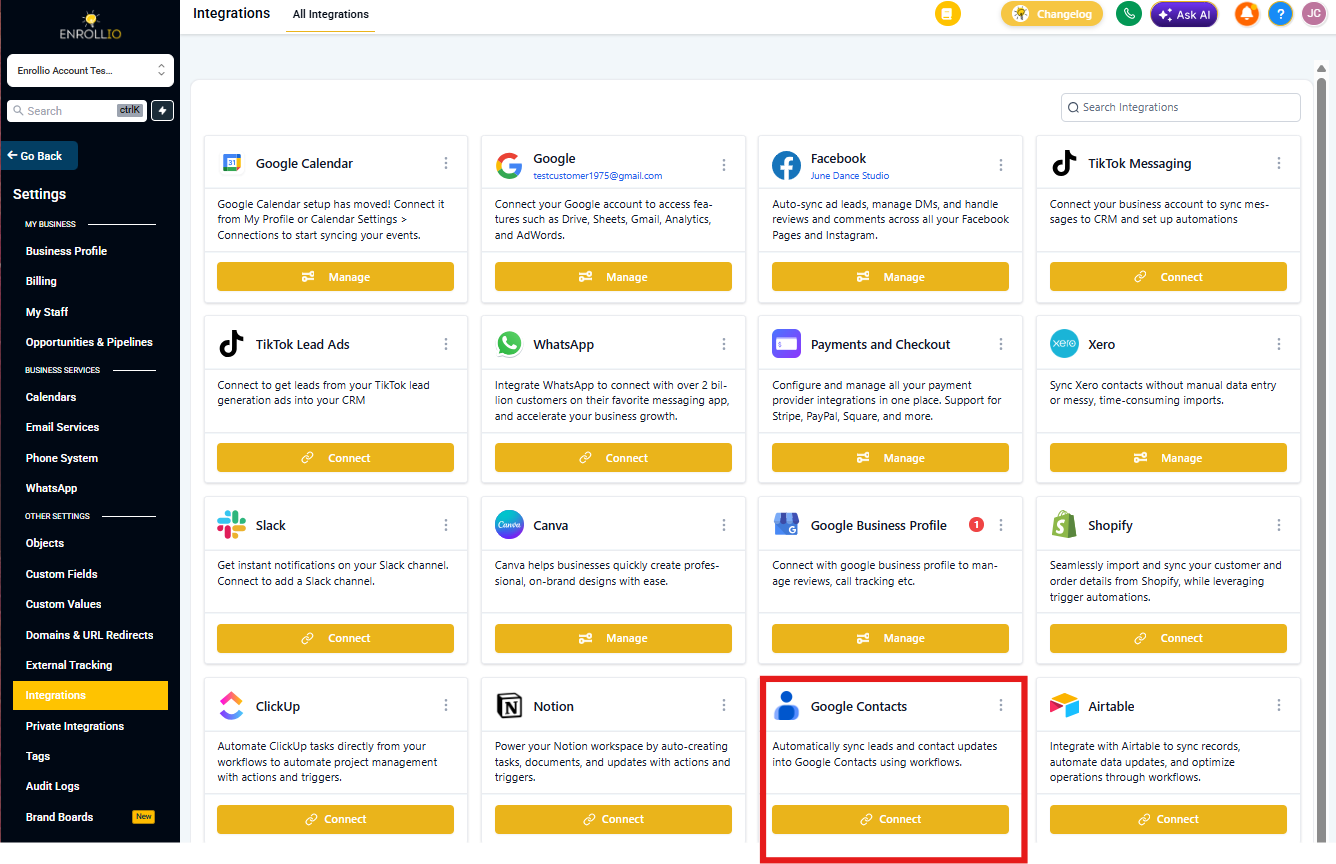
- Go to Settings → Integrations
- Locate Google Contacts
- Click Connect and authorize access
How Do Google Contacts Triggers Work?
Google Contacts triggers use polling to detect changes. Enrollio checks Google every 5 minutes for new contacts or groups. When it finds something new, it fires the automation.
Setting Up a Trigger
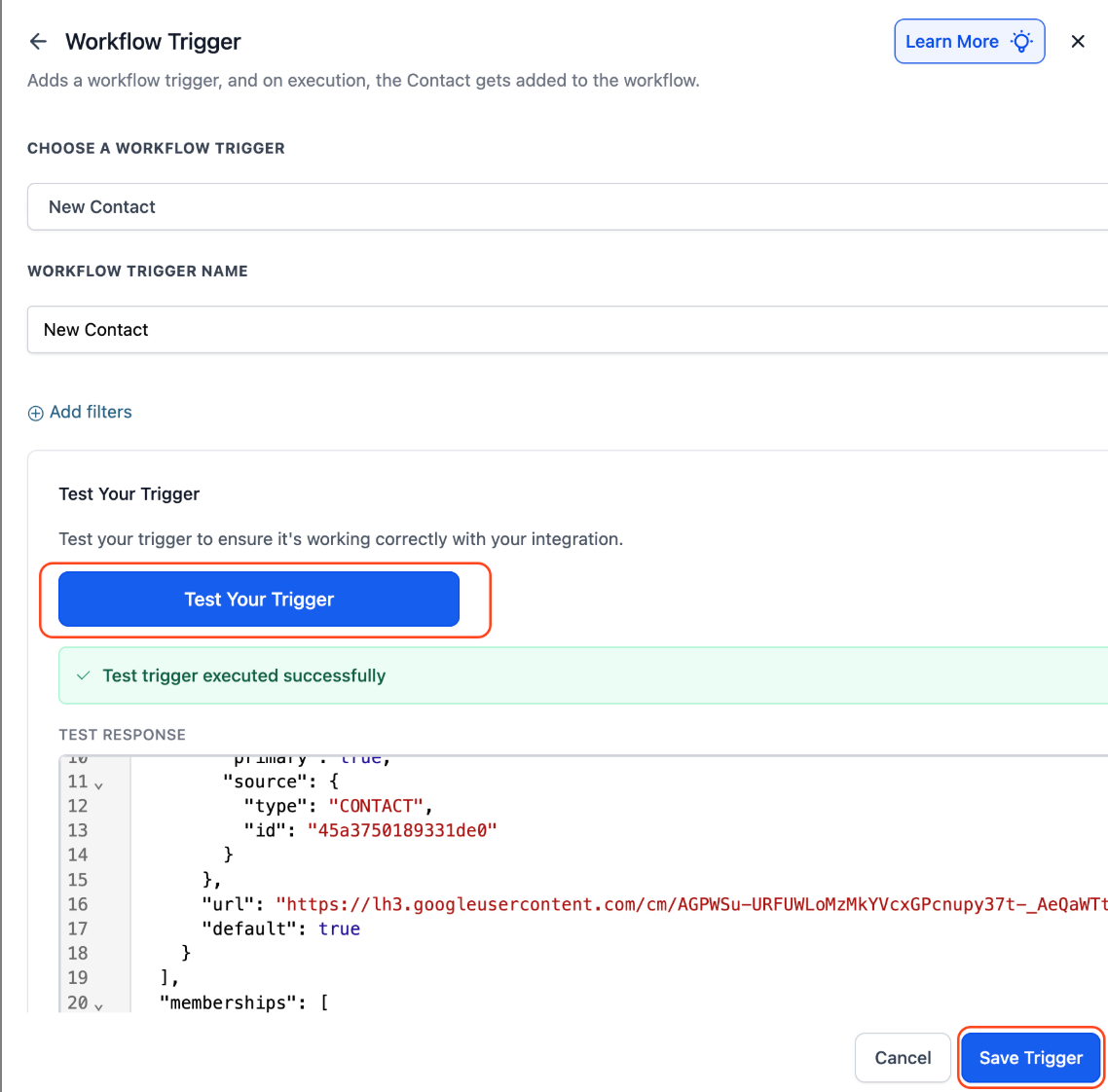
- Choose a trigger (e.g., New Contact or New Group)
- Give your trigger a descriptive name
- Click Test Trigger to pull sample data
- Testing is required—it lets you map contact fields in later steps
Use Case: Save Tour Contacts to Google
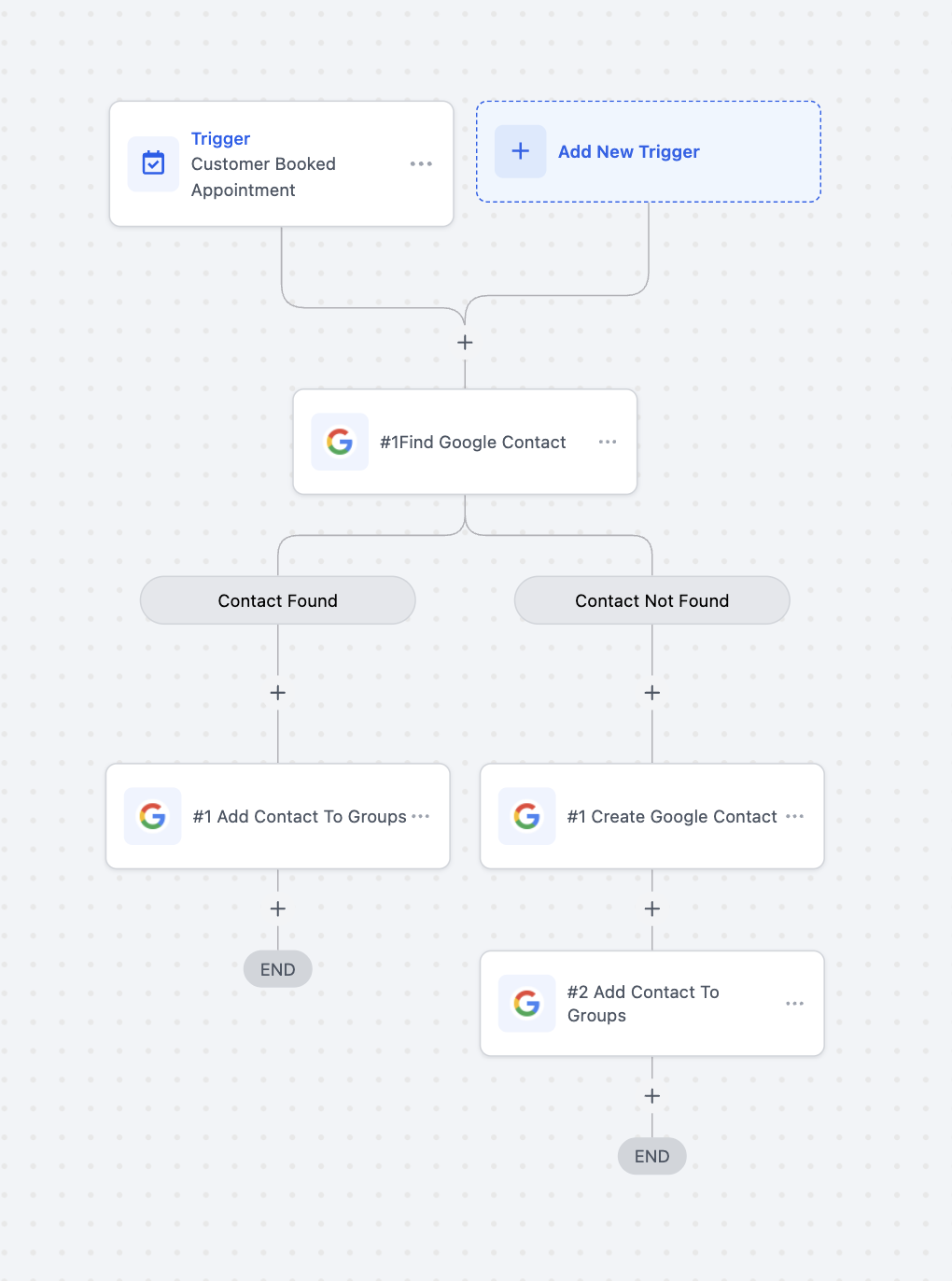
Scenario: Automatically add families to Google Contacts when they book a tour, and organize them into a "Tour Scheduled" group.
Automation Setup
- Trigger: Appointment Booked
- Filter: Calendar = "Center Tours"
-
Actions:
- Find or Create Contact (Google Contacts)
- Add Contact to Groups → "Tour Scheduled"
How it works: When a tour is booked via your "Center Tours" calendar, Enrollio checks if the parent exists in Google Contacts. If not found, it creates a new contact. Then it adds them to your "Tour Scheduled" group for easy follow-up.
Use Case: Sync Web Form Submissions to Google
Scenario: Capture lead data from your website inquiry form and sync it into Google Contacts for smooth follow-ups.
Automation Setup
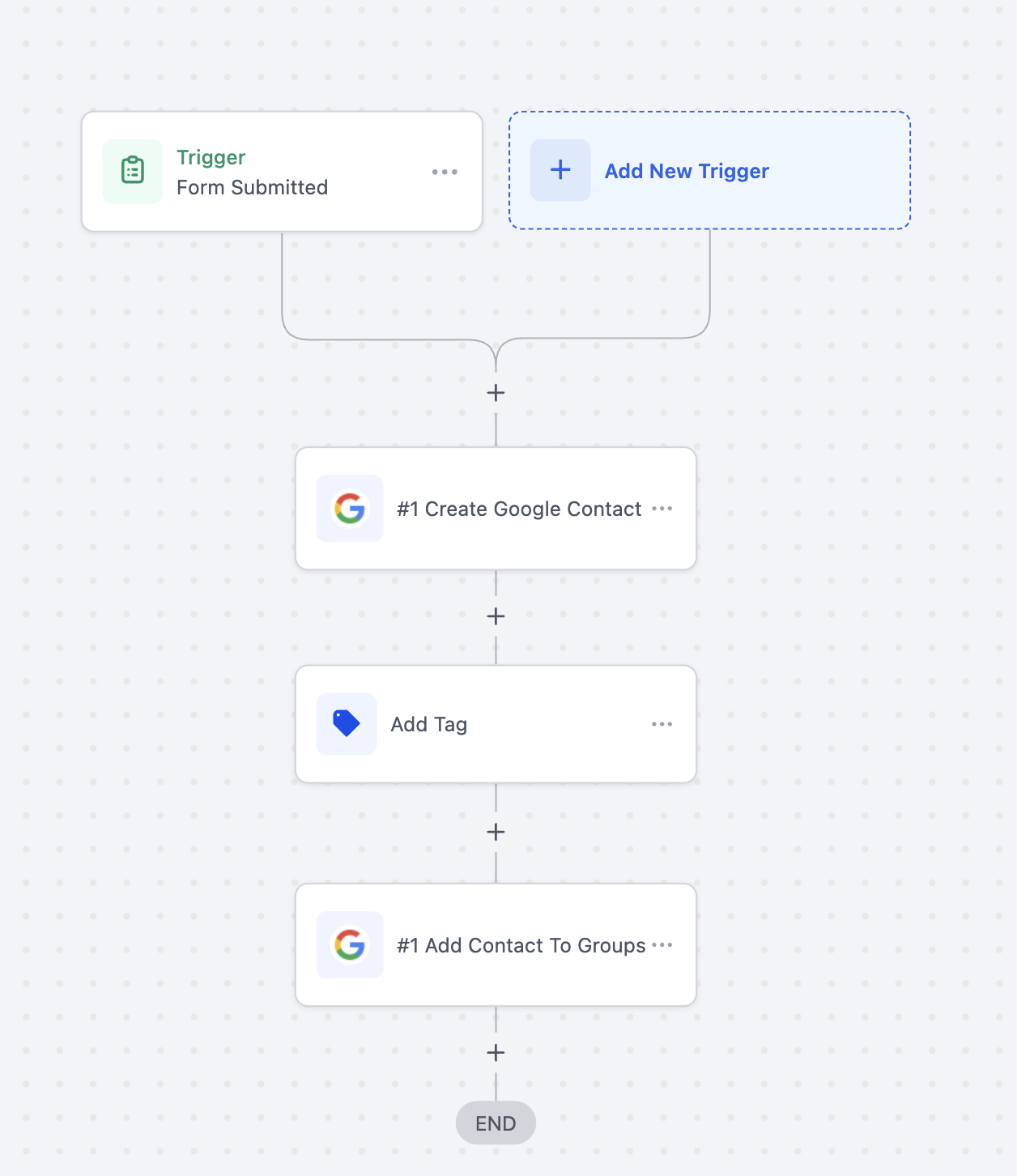
- Trigger: Form Submitted
- Filter: Form Name = "Website Inquiry Form"
-
Actions:
- Find or Create Contact
- Update Contact (if they resubmit with new info)
How it works: When a parent submits your "Website Inquiry Form," Enrollio checks Google Contacts by email. If found, it updates their record. If not, it creates a new contact with all the form data.
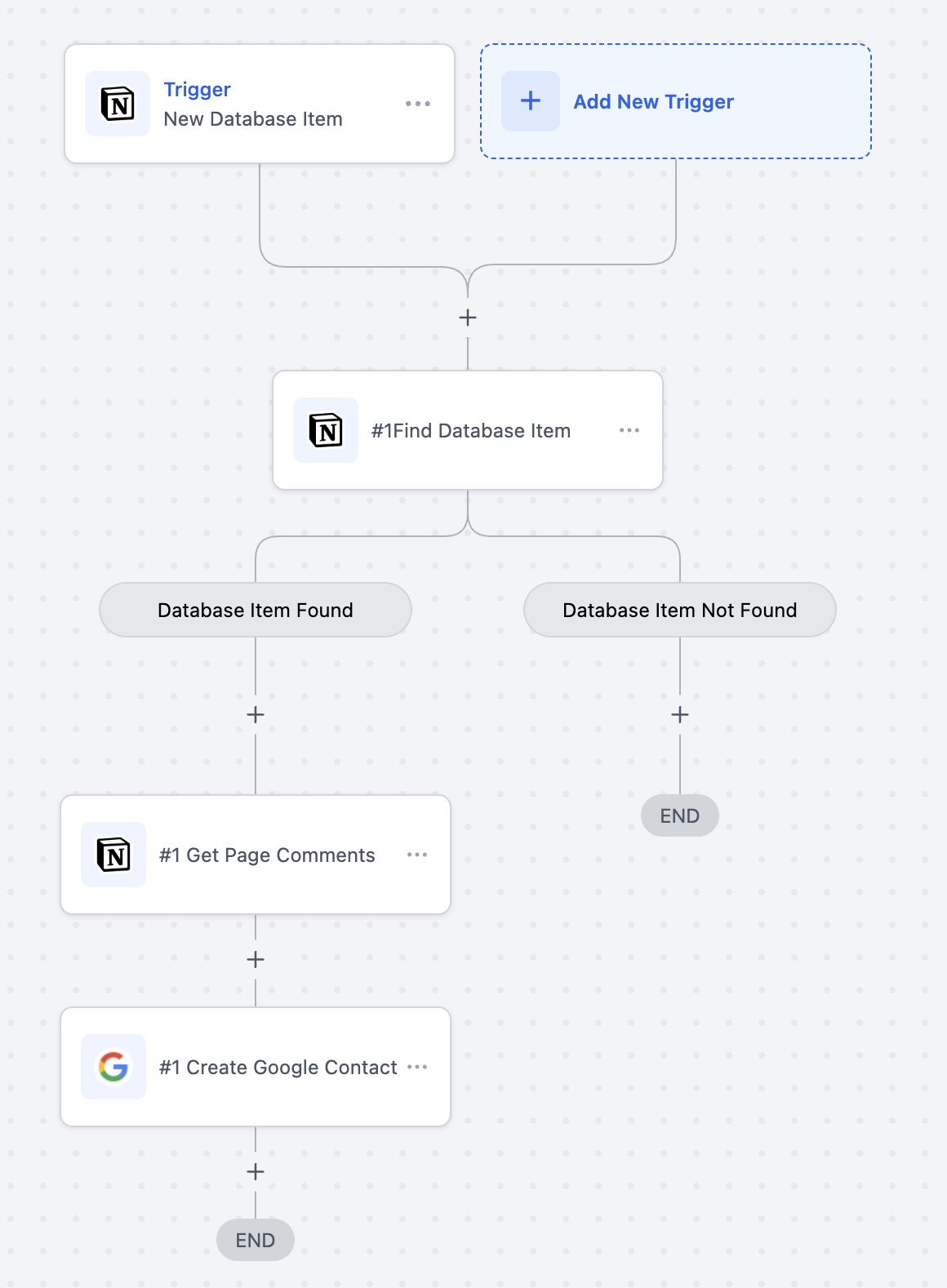
Use Case: Create Google Contacts from Notion Records
Scenario: Automatically create Google Contacts when your team adds new family records to a Notion database.
Automation Setup
- Trigger: Notion - New Database Item
- Database: "Family Records"
-
Actions:
- Find Record in Database
- Create Contact (Google Contacts)
- Add Contact to Groups
How it works: When a new record appears in your Notion "Family Records" database, the automation checks if it includes a "New Family" tag. If yes, it creates a contact in Google Contacts and adds them to your preferred group.
Frequently Asked Questions
Can I update contacts already in Google Contacts?
Yes. Use the Update Contact action to modify existing contact records—perfect for keeping phone numbers, emails, or notes current.
Do I need a paid Google account?
No. This integration works with any Gmail account that has access to Google Contacts, including free personal accounts.
Can I organize contacts dynamically based on enrollment stage?
Absolutely. Use conditional logic in your automations to map Enrollio tags or enrollment pipeline stages to specific Google Groups. This lets you dynamically segment families as they move through your enrollment process.
What happens if a contact exists in both systems?
Use Find or Create Contact to handle this safely. It searches first, then updates if found or creates if missing—preventing duplicates.
How often does data sync?
Triggers check for new contacts or groups every 5 minutes. Actions (creating or updating contacts) happen in real-time as your automations run.