
What are Tour & Appointment Filters in If/Else Actions?
The Tour & Appointment filter in If/Else actions lets you create different automation paths based on what happens with scheduled tours and appointments. Think of it as asking questions about a family's tour — "Did they reschedule?" or "Is their tour coming up next week?" — and taking different actions based on the answer.
This helps you automate follow-ups, send timely reminders, and respond appropriately when families reschedule or miss their tour.
Available Filters
When you add an If/Else action to a tour-based automation, you can filter based on three criteria:
- Rescheduled: Check whether the family changed their tour time
- Start Date: Filter based on when the tour is scheduled to begin
- End Date: Filter based on when the tour is scheduled to end
Why Use Tour Filters in Your Automations?
- Smarter Follow-Ups: Send different messages to families who reschedule versus those who keep their original time
- Timely Reminders: Trigger reminder texts based on when tours are scheduled
- Better Engagement: Identify families who scheduled but didn't show up, so you can reach out appropriately
- Time-Sensitive Offers: Create special promotions for tours happening within specific timeframes
Setting Up Tour Filters
Step 1: Create Your Automation
- Navigate to Automations and create a new automation or open an existing one
- Choose either Family Booked Tour or Tour Status Changed as your trigger
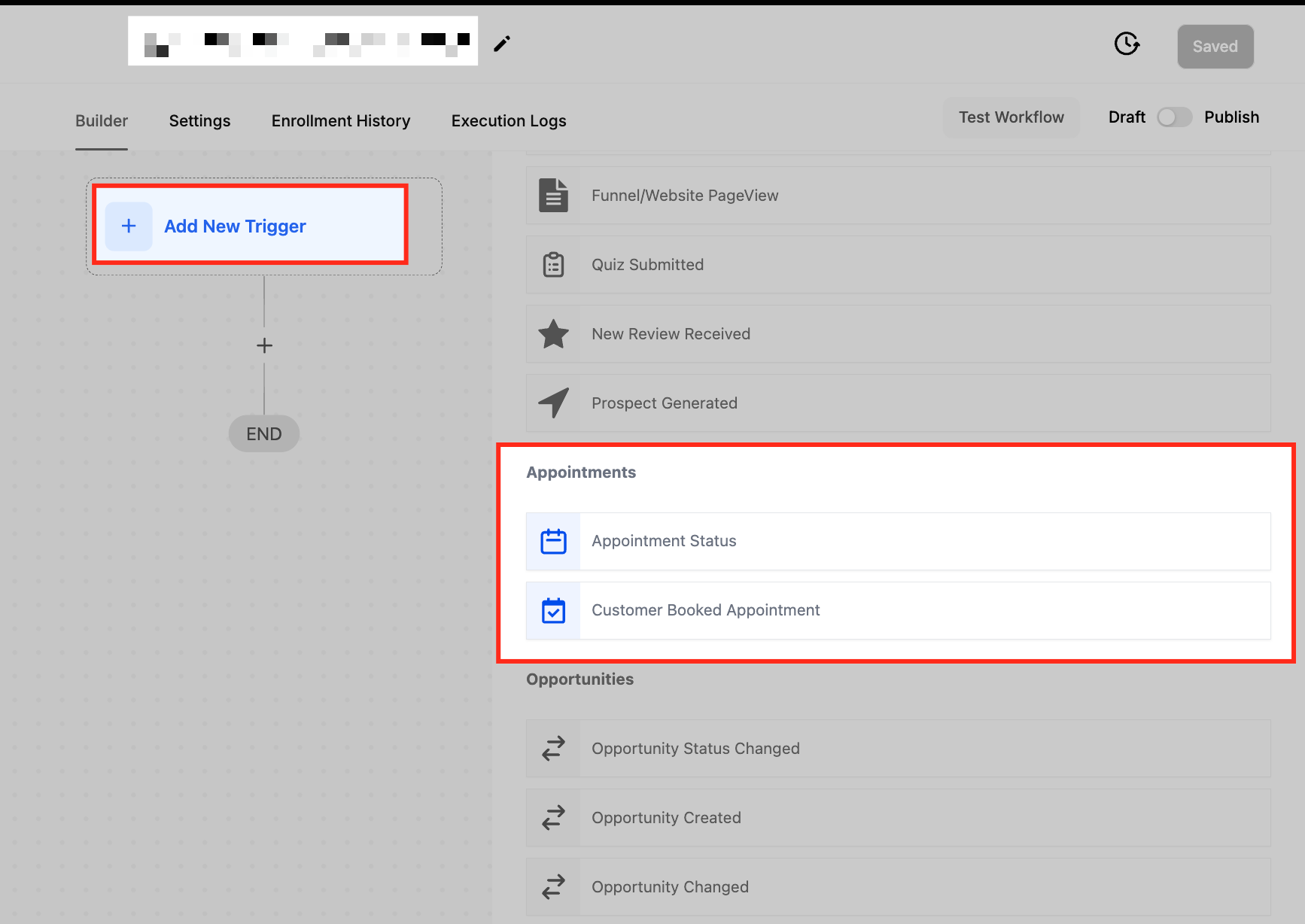
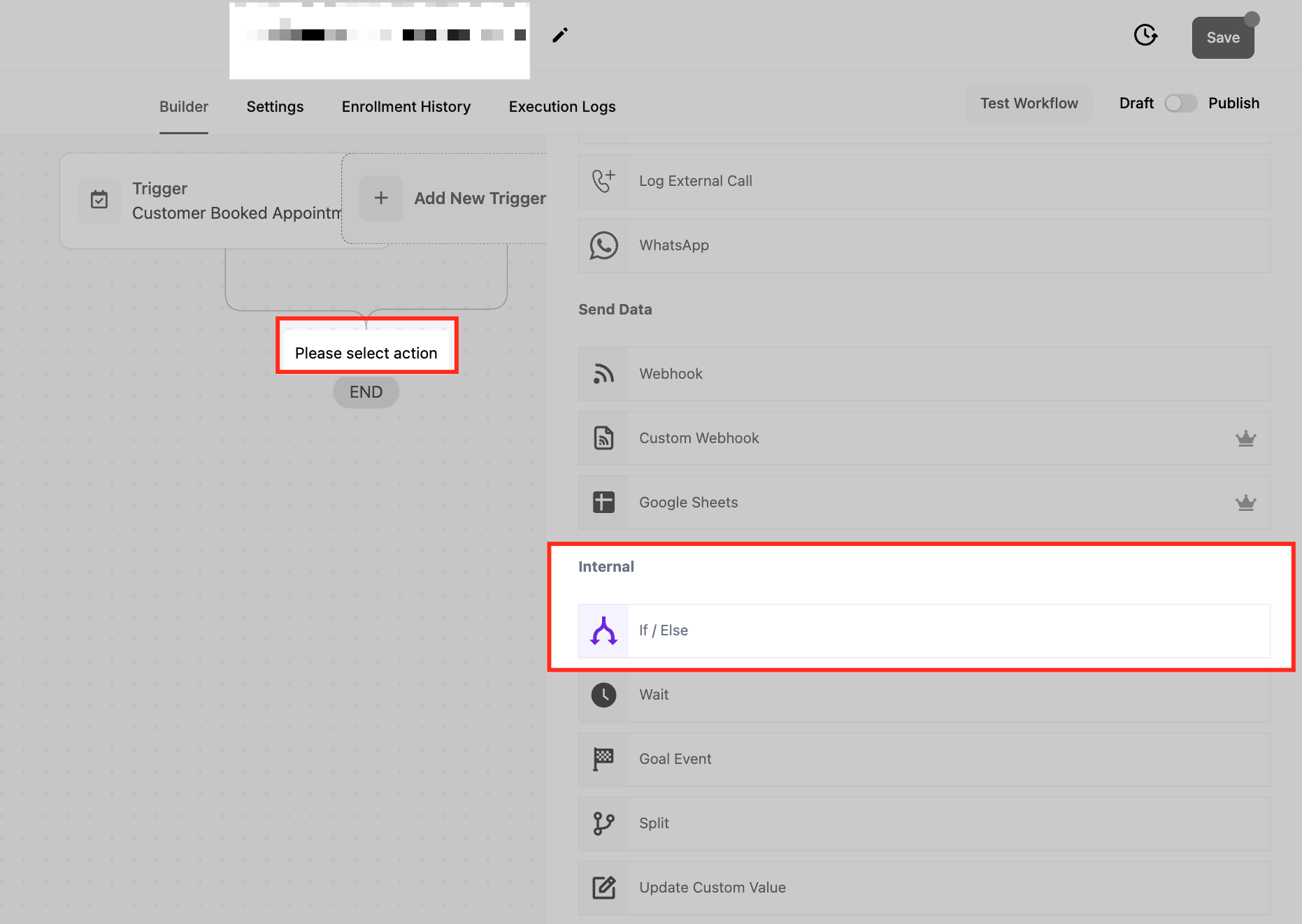
Step 2: Add an If/Else Action
- Click the + button in your automation
- Select If/Else Condition
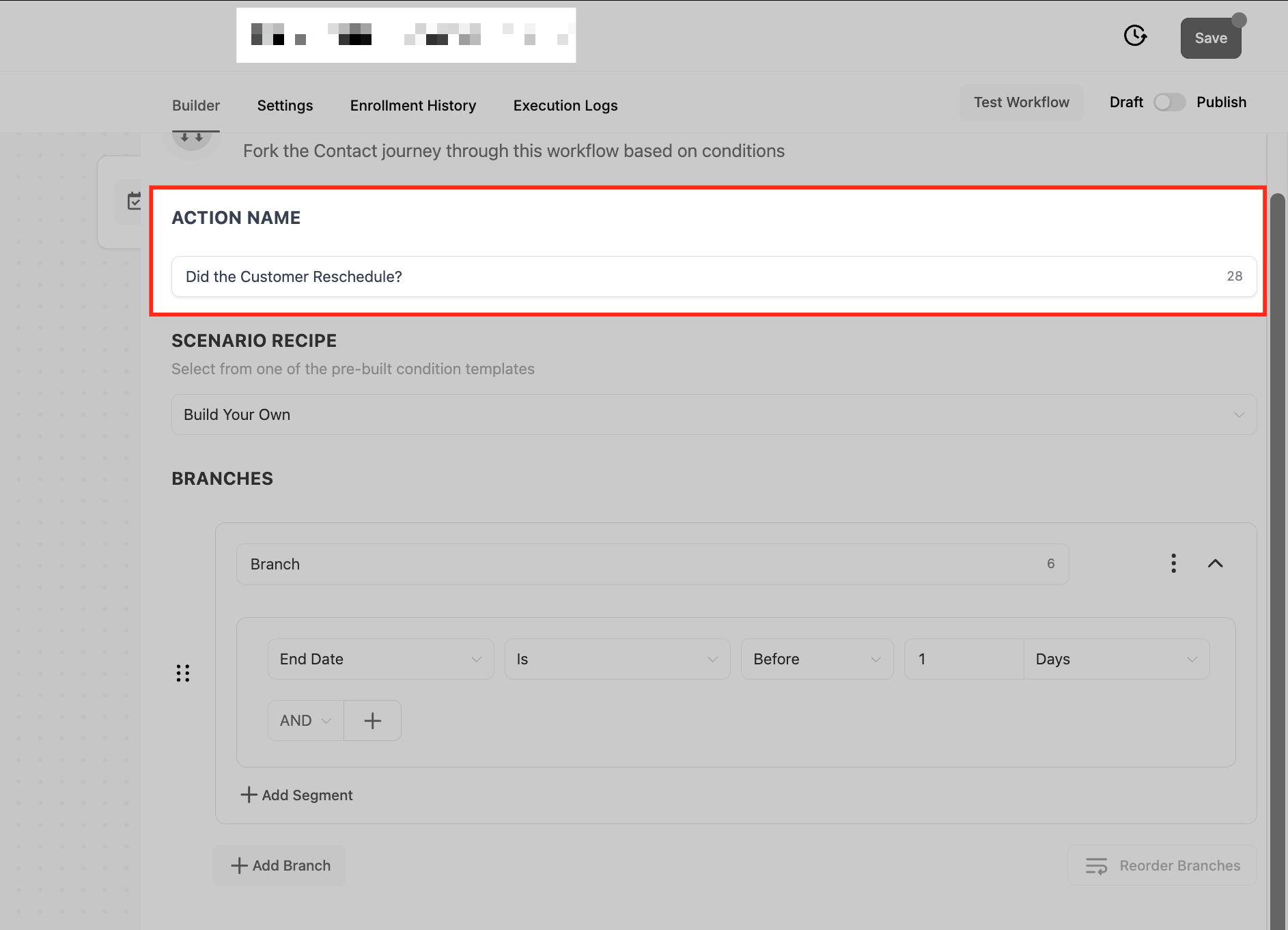
Step 3: Name Your Condition (Recommended)
At the top of the If/Else panel, you'll see an "Action Name" field. Replace the default "Condition" with a clear question that describes what you're checking.
Good naming examples:
| Filter Type | Example Name |
|---|---|
| Rescheduled | "Did the Family Reschedule Their Tour?" |
| Start Date | "Is the Tour Within the Next 2 Weeks?" |
| End Date | "Did the Tour End More Than 4 Days Ago?" |
This makes your automation easier to understand at a glance, especially when you have multiple conditions.
Step 4: Build Your Condition
In the "Scenario Recipe" dropdown, select Build Your Own for complete flexibility in defining your tour-related conditions.
Step 5: Name Your Branches
Each branch represents a possible outcome. Give them clear names that match your condition.
Example: If you're checking "Did the Family Reschedule?" name your branches:
- "Yes - Rescheduled"
- "No - Original Time"
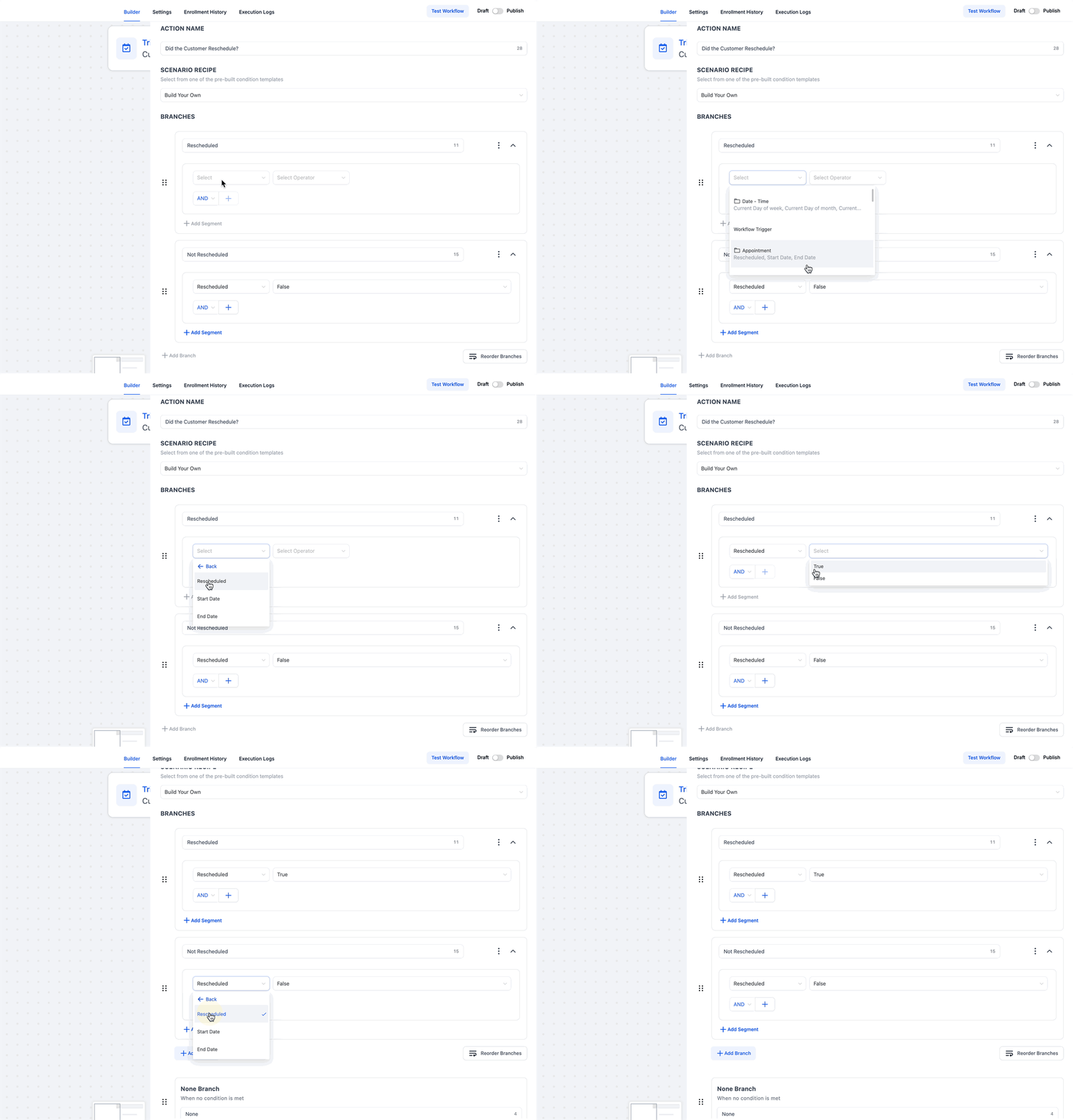
Understanding Each Filter Type
Rescheduled Filter
This filter checks whether a family changed their tour time. You'll see two options:
- True: The tour was rescheduled — use this path to acknowledge the change or confirm the new time
- False: The tour time wasn't changed — use this path for families keeping their original appointment
Example use case: Send a "Thanks for rescheduling" text to families who moved their tour, and a standard reminder to everyone else.
Start Date Filter
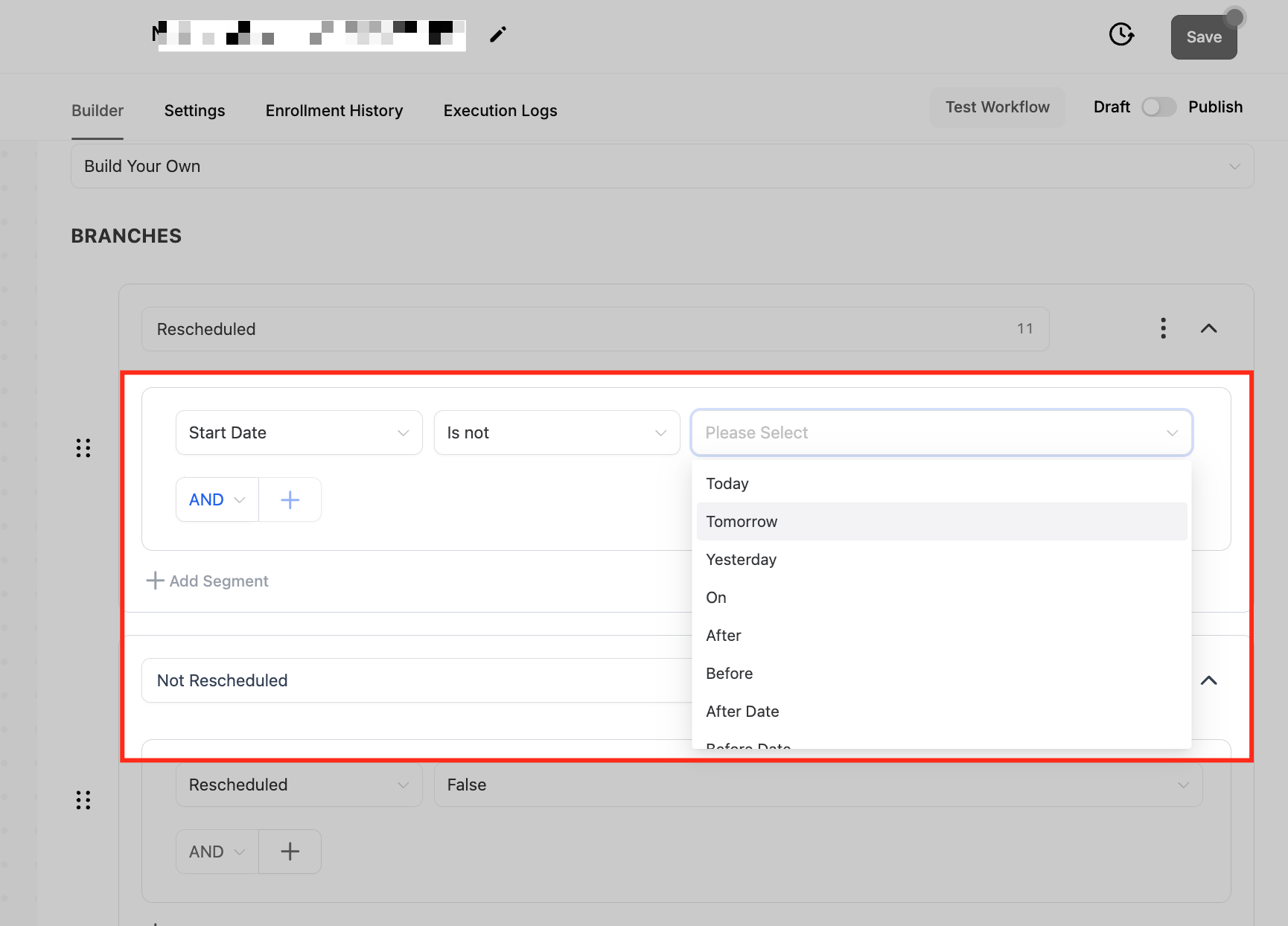
This filter lets you take action based on when a tour is scheduled to begin. After selecting "Start Date," you'll see two dropdown menus:
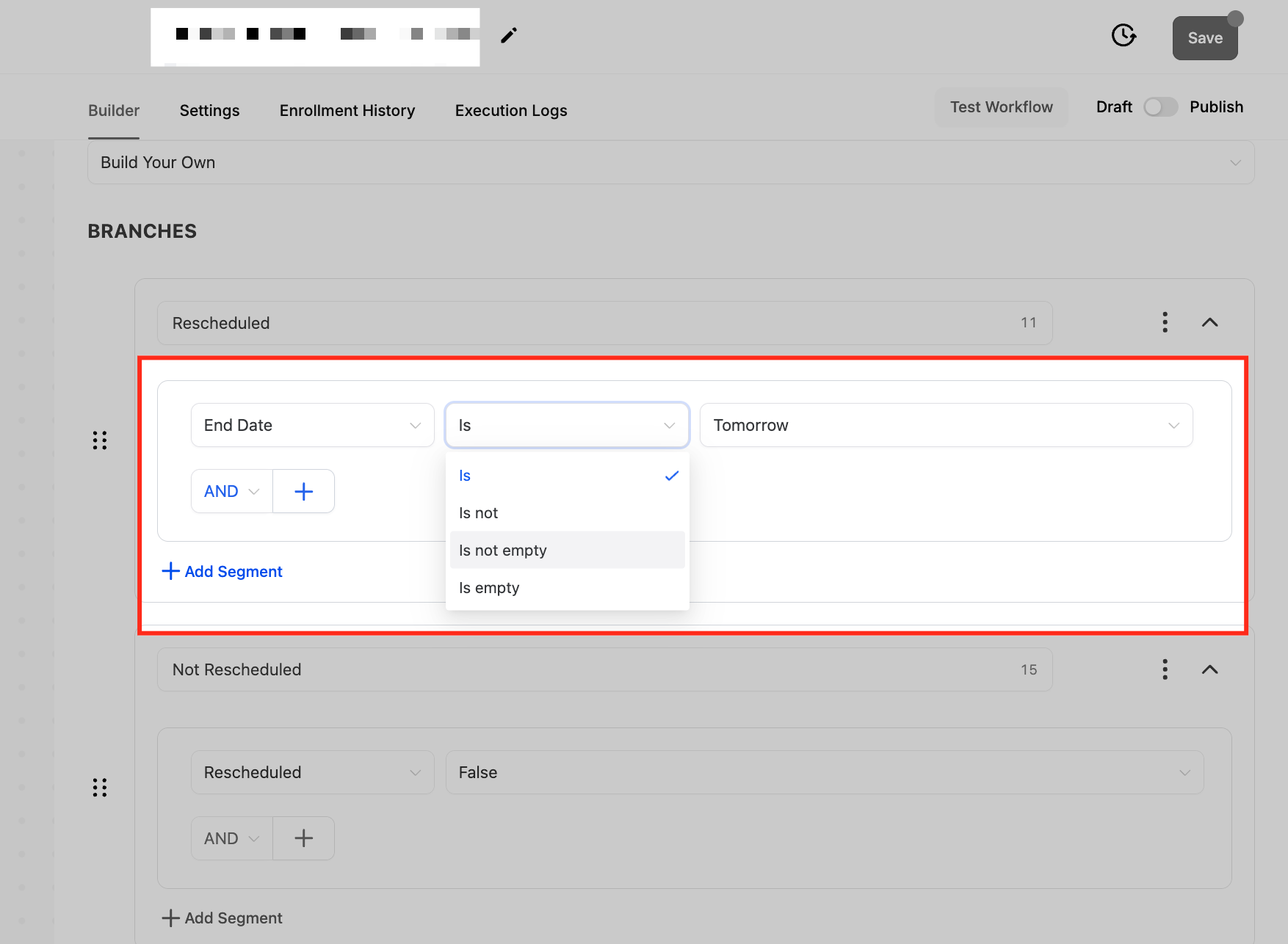
First Dropdown: Comparison Operators
- Is: Matches an exact date (e.g., tours starting on March 15th)
- Is Not: Excludes a specific date (e.g., all tours except March 15th)
- Is Empty: Tours with no start date set — useful for finding incomplete bookings
- Is Not Empty: Tours that have a confirmed start date
Second Dropdown: Time-Based Options
- Today: Tours happening today
- Tomorrow: Tours scheduled for tomorrow
- Yesterday: Tours that were yesterday
- After: Tours starting after a specific date
- Before: Tours starting before a specific date
- Date: Select any specific date manually
Example use case: Send a reminder text to families whose tour starts "Tomorrow," or follow up with families whose tour was "Yesterday" but they didn't show.
End Date Filter
This works exactly like the Start Date filter but applies to when the tour ends. Use this to trigger follow-ups after tours are complete.
Example use case: Wait until a tour's end date passes, then automatically send an enrollment application link.
Adding Multiple Branches
After configuring your first filter, click + Add Branch to create additional conditions. Each branch can handle a different scenario.
Example setup:
- Branch 1: "Tour is Today" → Send morning reminder
- Branch 2: "Tour is Tomorrow" → Send day-before reminder
- Branch 3: "Tour is Next Week" → Send initial confirmation
Frequently Asked Questions
Why don't I see tour & appointment options in my If/Else action?
Tour filters only appear when your automation starts with a tour-related trigger. Make sure your automation uses either Family Booked Tour or Tour Status Changed as the first step.
Can I use multiple tour filters in the same If/Else action?
No, you can only select one filter type per If/Else action. However, you can add multiple If/Else actions in sequence to check different criteria. For example, first check if a tour was rescheduled, then add another If/Else below it to check the start date.
How can I use Start Date and End Date filters effectively?
Use Start Date filters to trigger actions before tours happen — like reminders, confirmations, or preparation instructions. Use End Date filters to trigger actions after tours complete — like follow-up messages, enrollment links, or feedback requests.
What's the difference between "Is Empty" and "Is Not Empty"?
"Is Empty" catches tours that don't have a start or end date set, which might indicate incomplete bookings in your system. "Is Not Empty" ensures you're only working with tours that have confirmed dates. This is helpful for quality control in your automations.