
Overview
The Update Parent/Family Field action lets you change information in parent or family records directly from an automation. You can update standard fields (like phone or email), custom fields you've created, or clear values when needed.
This keeps your enrollment data accurate for personalization, segmentation, and follow-up communications. All changes are visible in your automation execution logs.
When to Use This Action
Use this action to:
- Update enrollment status after a tour is scheduled
- Track which program a family is interested in
- Record when a parent completed a specific form
- Clear outdated information from family records
- Set priority scores for waitlist management
How to Add the Action
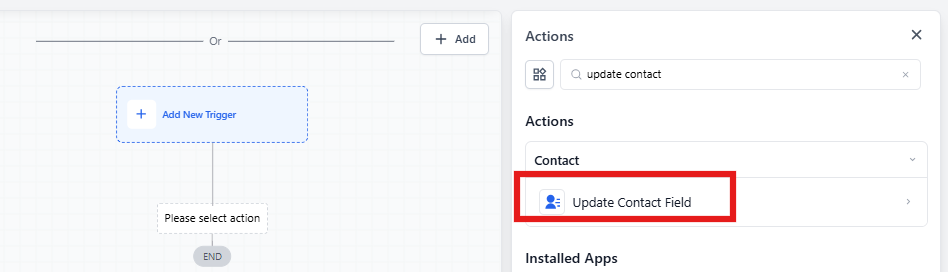
- Go to Automations in your Enrollio dashboard
- Open an existing automation or create a new one
- Click the + icon where you want to add the action
- Select Update Parent/Family Field from the Actions panel
Configuration Options
Action Name
Give your action a clear name so you can easily identify it later. For example: "Mark Tour as Completed" or "Update Interested Program."
Select Action Type
Choose what you want the action to do:
- Update field data – Write a new value to a field
- Clear field data – Remove the stored value (custom fields only)
Update Field Data
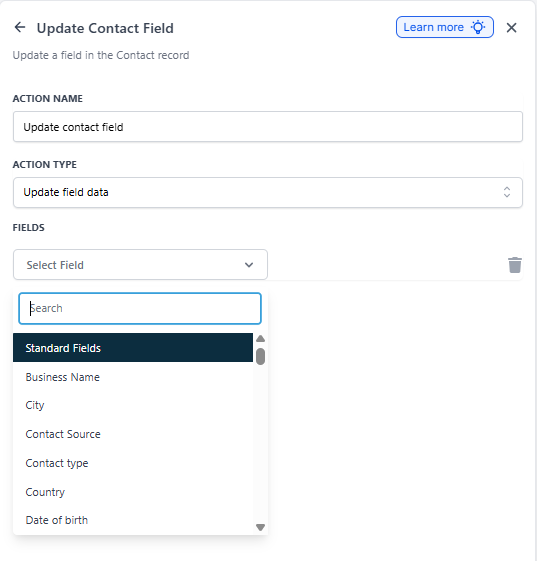
Use this option to change the value in a parent or family field.
- Select the field you want to update from the dropdown
- Enter the new value using either:
- A static value (text you type in)
- A dynamic value (live data from earlier in the automation)
- Click Save
The new value replaces whatever was stored in that field when the automation runs.
Clear Field Data
Use this option to remove information from custom fields.
- Choose Clear field data as the Action Type
- Select one or more custom fields to clear
- Click Save
Important: Clearing field values can affect your segments and other automations that check those fields. Review any dependencies before publishing your automation.
Using Dynamic Values
Dynamic values let you use live data from earlier automation steps or from the family's record itself. This keeps your automations flexible and eliminates manual updates.
Supported Field Types
You can use dynamic values with these field types:
- Numeric – scores, counts, ages
- Dropdown/Select – program names, enrollment status
- Monetary – deposit amounts, tuition
- Text – names, notes, preferences
- Date – tour dates, enrollment deadlines
Note: For dropdown fields, you don't need option IDs when updating. Just use the display value (e.g., "Preschool" or "Toddler").
How to Use Dynamic Values
- Add an Update Parent/Family Field action
- Choose Update field data
- Select your target field
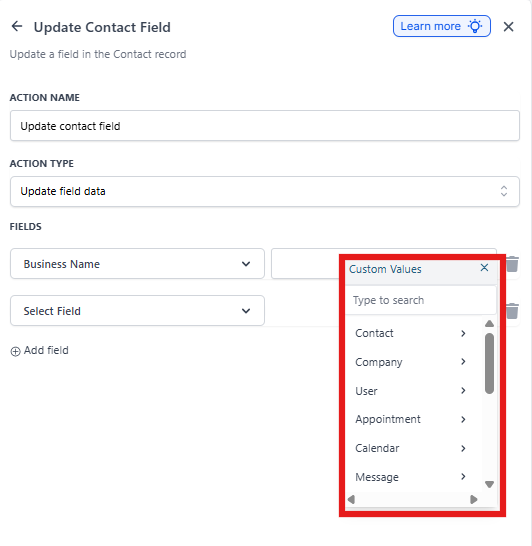
- In the value input, click the lightning bolt icon to switch to Dynamic Value
- Choose a value from:
- An earlier step in this automation
- A field already stored on the family record
- Save and publish
Example Use Case
A parent schedules a tour and selects their program of interest from a form. Your automation captures that selection and writes it to a custom "Program Interest" field on their record.
Now you can segment families by program interest and send targeted follow-ups about that specific program—without manually updating records.
Updating Multiple Fields at Once
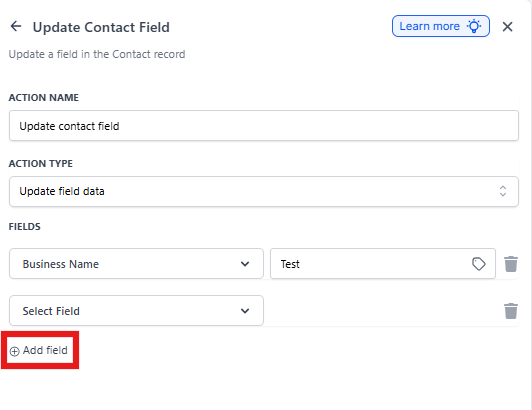
You can update several fields in a single action:
- Configure your first field update
- Click Add field to add another row
- Configure additional fields as needed
- Save the action
For clarity in your execution logs, some childcare centers prefer to use separate actions for updates vs. clears, but combining them works fine too.
Field Type Requirements
Make sure your values match the field type to avoid errors:
| Field Type | Requirements |
|---|---|
| Text | Any text string |
| Number | Numeric values only |
| Date | Valid date format (MM/DD/YYYY) |
| Dropdown/Radio | Must match an existing option exactly |
| Valid email format | |
| Phone | Valid phone format |
Pro Tip: Fields must already exist before you can update them. This action doesn't create new fields—you'll need to create custom fields first in your Settings.
Frequently Asked Questions
Can I update standard fields like Email or Phone?
Yes. The update option works for both standard fields (email, phone, name) and custom fields you've created.
Can I clear standard fields?
No. The clear option only works with custom fields. Standard fields must always have a value.
Can I update multiple fields in one action?
Yes. Click "Add field" to include multiple field updates in the same action.
What's the difference between static and dynamic values?
Static values are text you type in—they're the same for everyone. Dynamic values pull live data from the family's record or earlier automation steps, so they're personalized for each family.
What happens if I use the wrong format?
The update may fail. Check your automation execution logs to see specific error messages, and verify your value matches the field type.
Will clearing a value affect my segments?
Yes. If you have segments or other automations that check for specific field values, clearing those values will change who qualifies. Always review dependencies before clearing important fields.
Can I see what values were changed?
Yes. Go to your automation and click "View Execution Logs" to see exactly what changed for each family and when.
Related Articles
- Automation Action – If/Else Conditions
- Automation Action – Wait/Delay
- Creating Custom Fields for Families
- Understanding Dynamic Values in Automations