
Automation Performance Stats
Track how your automations are performing with built-in stats for email and text messages. Compare results across different automations without opening each one individually — perfect for quickly identifying which parent communications are getting the best response.
How to View Automation Stats
Follow these steps to check performance metrics for your automations:
- Navigate to Automations: Click on the Automations section from your main menu.
- Find Your Automation: Locate the automation you want to review in your list.
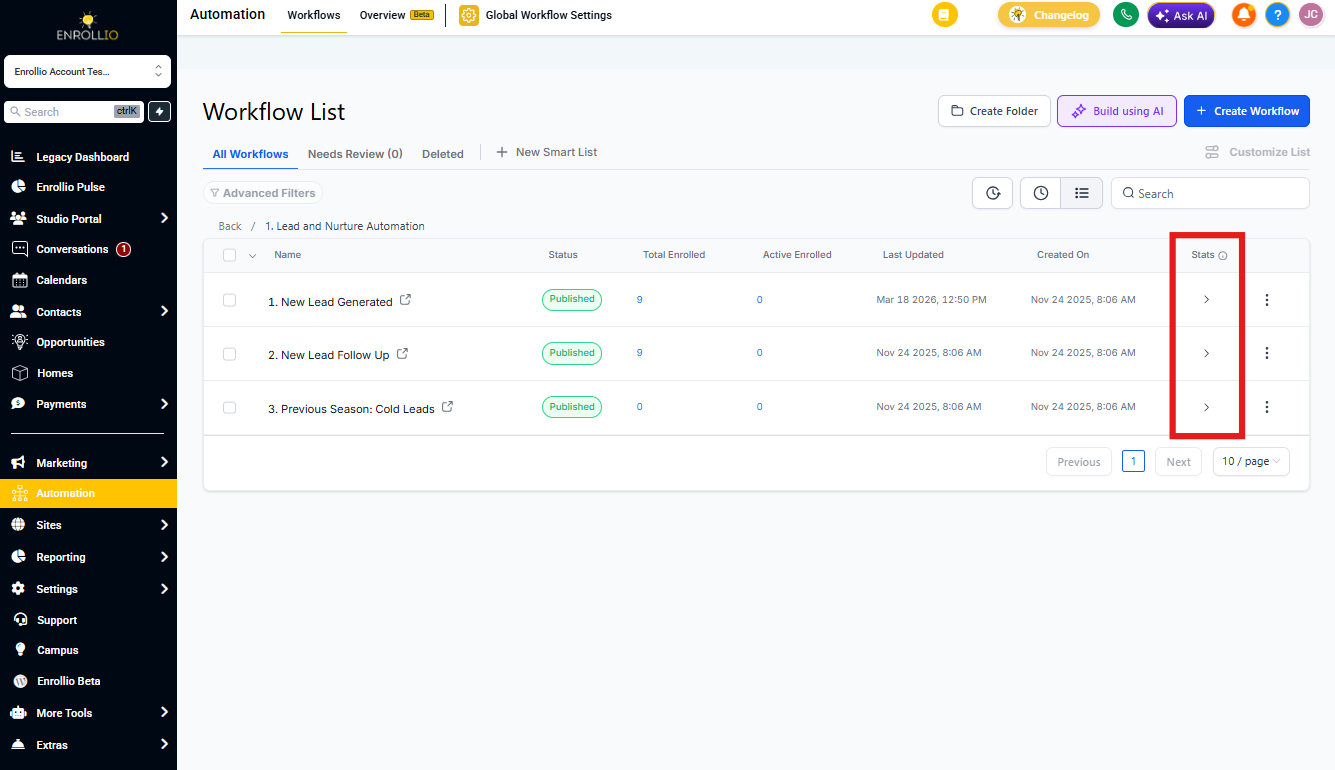
- Expand to View Stats: Click the accordion button next to the automation name to expand it. The "Stats" button will appear.
- Review Your Metrics: Click the Stats button to see email and text message performance for that automation.
What You Can Track
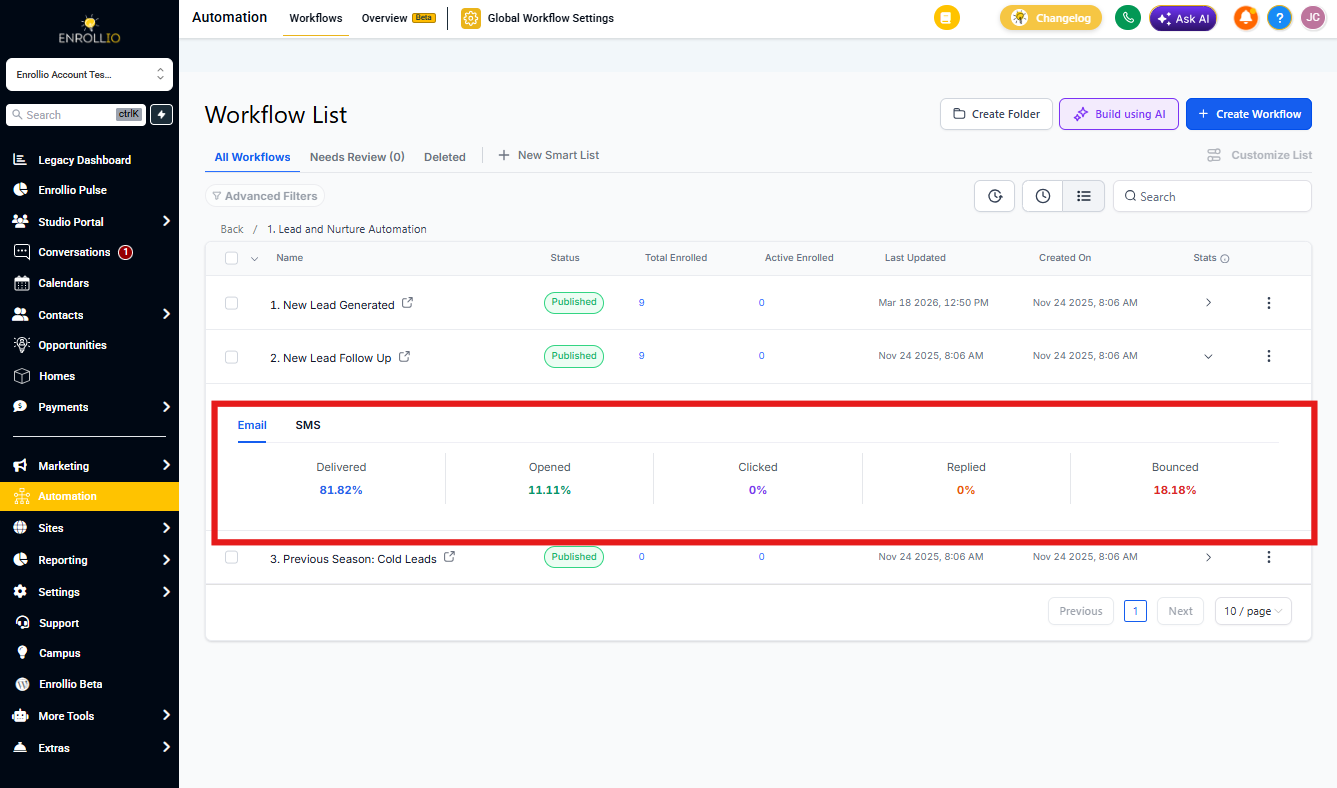
The Stats feature shows performance metrics for:
- Text Messages: Delivery rates, open rates, and engagement for texts sent through your automations
- Emails: Sends, opens, clicks, and bounces for automated emails to parents
Pro Tip: Use these stats to test different messages in your tour reminders or enrollment follow-ups. See which version gets better engagement, then update your automations accordingly.
Important Notes
Historical Data
Stats include data from January 1, 2023 onwards. Any automations run before this date won't show historical metrics.
Deleted Actions
If you previously had text or email steps in an automation and removed them, those stats will still appear in your reports. This helps you track the full history of how that automation performed over time.
Individual Automations Only
Currently, stats are available for individual automations only. If you organize your automations in folders, you'll need to check each automation separately rather than viewing folder-level stats.
Frequently Asked Questions
What types of stats can I see?
You can view performance metrics for text messages and emails sent through your automations. This includes delivery rates, open rates, clicks, and other engagement metrics. WhatsApp and phone call stats are not currently supported.
Can I see stats for all automations in a folder at once?
No, stats are currently only available for individual automations. You'll need to view each automation's stats separately.
Will I see stats for messages I deleted from an automation?
Yes. If you previously had text or email steps in an automation that you later removed, the historical stats for those messages will still appear. This gives you a complete picture of how your automation has performed over time.
Why would I use this instead of opening the automation?
The Stats button lets you quickly compare performance across multiple automations without opening each one. This is especially helpful when you're testing different approaches — like comparing how parents respond to morning versus evening tour reminders.