
Control exactly who can see or change each enrollment pipeline, keep sensitive family data private, and give every team member a clutter-free view that matches their role.
What are Pipeline Permissions?
Pipeline Permissions define visibility and editing rights for individual enrollment pipelines. Admins can grant access to everyone, target specific roles or staff members, or explicitly exclude users—without changing broader account permissions.
This granular visibility keeps family data secure and lets your enrollment team focus only on the opportunities that matter to them.
Key Benefits of Pipeline Permissions
- Consistency: Preserve stage names and order while allowing staff to work enrollment opportunities
- Data privacy: Hide revenue and enrollment data from part-time staff or new team members
- Granular control: Share with everyone, specific users, or exclude exceptions
- Auditability: Track who changed pipeline settings for compliance needs
- Cross-platform: The same permissions apply on web and the Enrollio mobile app
- Dashboard parity: Widgets and metrics honor pipeline access and assigned data
How to Manage Pipeline Permissions
Follow these steps to configure who sees and edits each enrollment pipeline while protecting stage structure and sensitive family data.
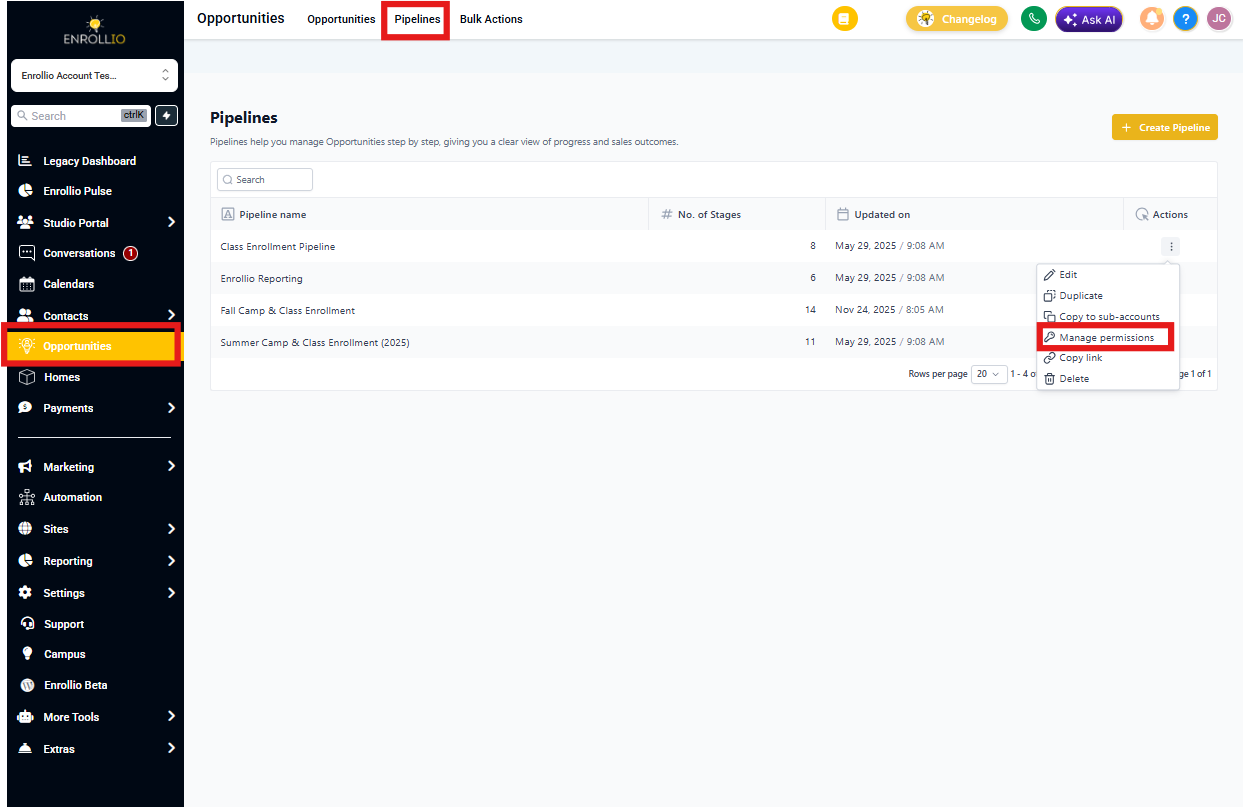
- Go to Enrollment Opportunities → Pipelines
- Click the Key icon next to the pipeline name to open Manage permissions
- Choose a Sharing mode: Share with all users, Share with selected users/roles, or Exclude specific users
- For each included user or role, set an Access level: View Only, Edit, or No Access
- Click Copy link to share direct access with teammates who already have permission
- Click Save to apply your changes
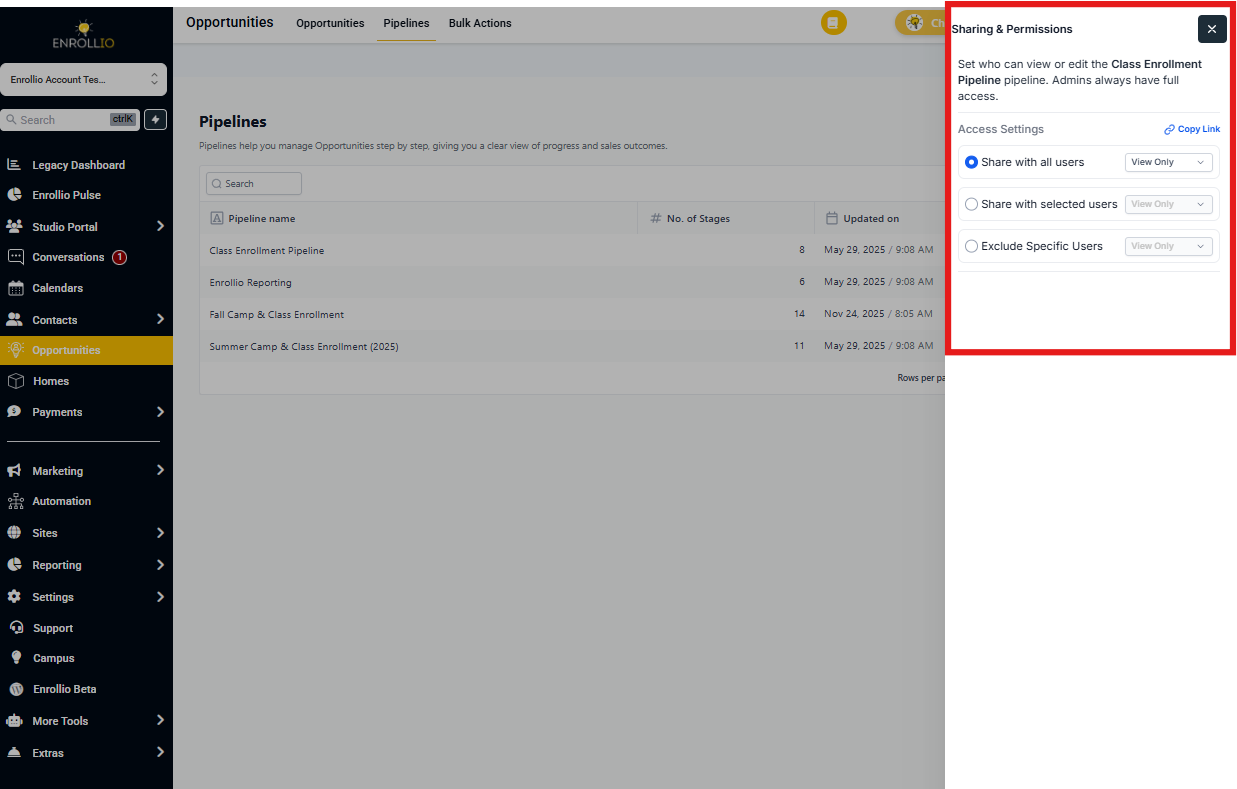
Sharing Modes for Pipeline Permissions
Three flexible ways to share each pipeline let you mirror your center's organizational structure.
Share with All Users
Grant everyone View Only, Edit, or No Access in one click. Perfect for pipelines that your entire team needs to see.
Share with Selected Users
Pick individual staff members or roles and set View Only, Edit, or No Access for each. Use this when only certain team members should work with specific enrollment stages.
Exclude Specific Users
Keep the pipeline visible to everyone, then remove access for a few exceptions. Ideal when most staff need access but a few don't.
Access Levels for Pipeline Permissions
Clear labels make it obvious what each person can do with your enrollment pipelines.
View Only
Move and update enrollment opportunities, but cannot add, edit, or delete stages or pipelines. Your staff can work their assigned families without changing your enrollment process.
Edit
Full control to add, edit, and delete pipeline stages—including the pipeline itself. Reserve this for enrollment coordinators and managers.
No Access
The pipeline is completely hidden in web, mobile, and API responses. Use this to keep sensitive enrollment data private from part-time or temporary staff.
Audit Logs & Safeguards for Pipeline Permissions
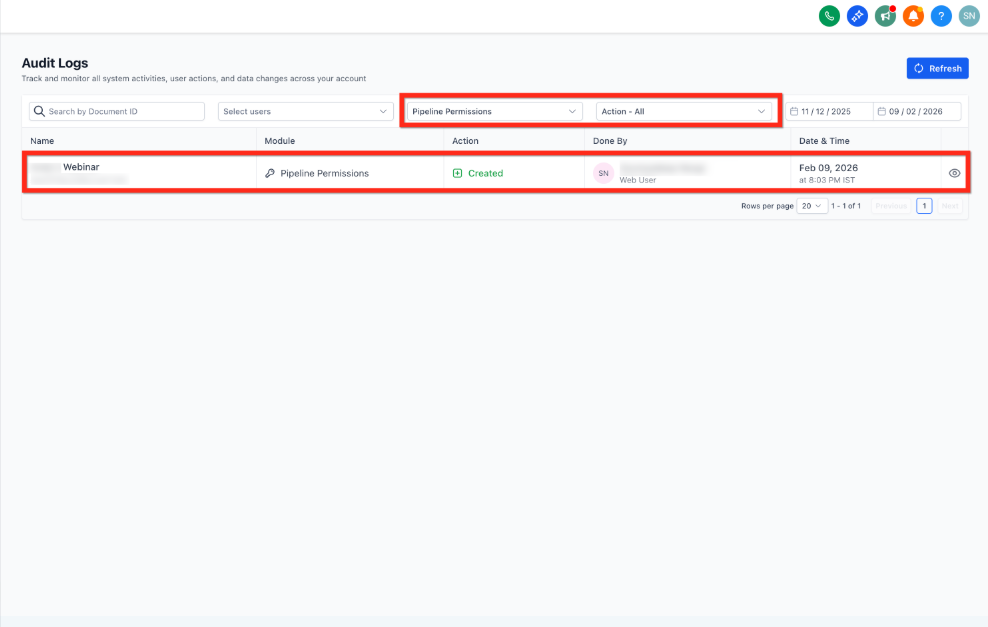
Enrollio automatically logs every create, update, or revoke action with user, pipeline, action, and timestamp for 60 days. This audit trail simplifies troubleshooting and compliance reviews.
- Navigate to Settings → Audit Logs
- Filter by User, Module - Pipeline Permissions, Actions, and Date Range to view who changed what, and when
Frequently Asked Questions
What's the difference between "View Only" and "No Access"?
View-only users can still move or update their assigned enrollment opportunities inside the pipeline. No Access hides the pipeline completely—they won't even know it exists.
What if a staff member already owns opportunities and I set them to No Access?
Enrollio blocks that change. Reassign or delete their enrollment opportunities first, then remove access.
Do permissions sync to the mobile app?
Yes. The same rules apply across web, iOS, Android, and all API responses. Your team sees the same pipelines no matter how they access Enrollio.
Can I bulk-assign permissions to a role instead of each user?
Yes—roles appear in the selector. Everyone in that role inherits the chosen access level. Perfect for your Lead Teachers, Assistant Directors, or Enrollment Coordinators.
Will permission changes break active automations or text messages?
No. Automations continue to run. However, API calls made with a user token that lacks access will return an empty pipeline list.
Is there an "Owner Only" option?
Use "Share with selected users," choose the owner, and set everyone else to No Access for a true owner-only pipeline.
How long are Audit Logs retained?
60 days of history are available for download or review.
Related Articles
- Understanding Enrollment Pipelines
- Step-by-Step Guide: Creating Enrollment Pipelines
- How to Color-Code Enrollment Opportunities (Smart Tags)
- Deleting and Restoring Enrollment Opportunities & Pipelines