
Guide: Dynamic Countdown Timer for Email Campaigns
Dynamic countdown timers personalize the countdown experience for each family based on when they receive or open your email. Instead of showing the same timer to everyone, each recipient sees a unique countdown that starts from their specific interaction time.
What is a Dynamic Timer?
A dynamic countdown timer adjusts automatically for each parent based on their interaction with your email. Unlike static timers that display identical countdowns for all recipients, dynamic timers create a personalized sense of urgency.
Example with 2-hour duration (no end time):
- Parent A opens the email at 2 PM — their timer counts down from 2 PM to 4 PM
- Parent B opens the email at 5 PM — their timer counts down from 5 PM to 7 PM
Example with 2-hour duration ending at midnight:
- Parent A opens the email at 2 PM — their timer counts down from 2 PM to 12 AM
- Parent B opens the email at 5 PM — their timer counts down from 5 PM to 12 AM
This creates time-sensitive experiences that drive immediate action and boost enrollment responses.
Real-World Use Cases
New Family Welcome Offer (Email Sent Trigger)
Scenario: Send a registration discount valid until midnight on the day families receive your welcome email.
Setup:
- Trigger: Email sent at 11:59 PM the previous day
- Duration: 24 hours
- Ends at: 12:00 AM (midnight)
Result: Each family has a full day from receiving the email to claim their discount.
Limited-Time Tour Slot (Email Opened Trigger)
Scenario: Offer priority tour scheduling with a minimum 2-hour window after families open your email.
Setup:
- Trigger: Email opened
- Duration: 2 hours minimum
- Ends at: 11 PM same day
Result:
- Parent A opens at 6 PM — timer ends at 11 PM same day
- Parent B opens at 10 PM — timer extends to 11 PM next day
Each family gets a unique window that feels personal and urgent.
Understanding "Timer Ends at Time"
The "Ends at Time" feature ensures your countdown stops at a specific time rather than just running for a set duration. This creates more authentic urgency.
Why Use a Fixed End Time?
Without a fixed end time, timers can feel artificial. Imagine a parent opens your email at 11:07 PM with a 2-hour countdown. The timer would end at 1:07 AM — which feels like you extended the deadline just for them.
With "Ends at Time" set to midnight, the timer stops at 12 AM for everyone, regardless of when they open. This keeps your offer authentic and aligned with real-world timeframes.
Key Benefits
- Personalization: Each family sees a countdown tailored to their interaction
- Authentic urgency: Real deadlines drive faster enrollment decisions
- Flexible campaigns: Set custom durations and triggers for different offers
How to Create a Dynamic Timer
- Navigate to the Timer section and click Create New Timer
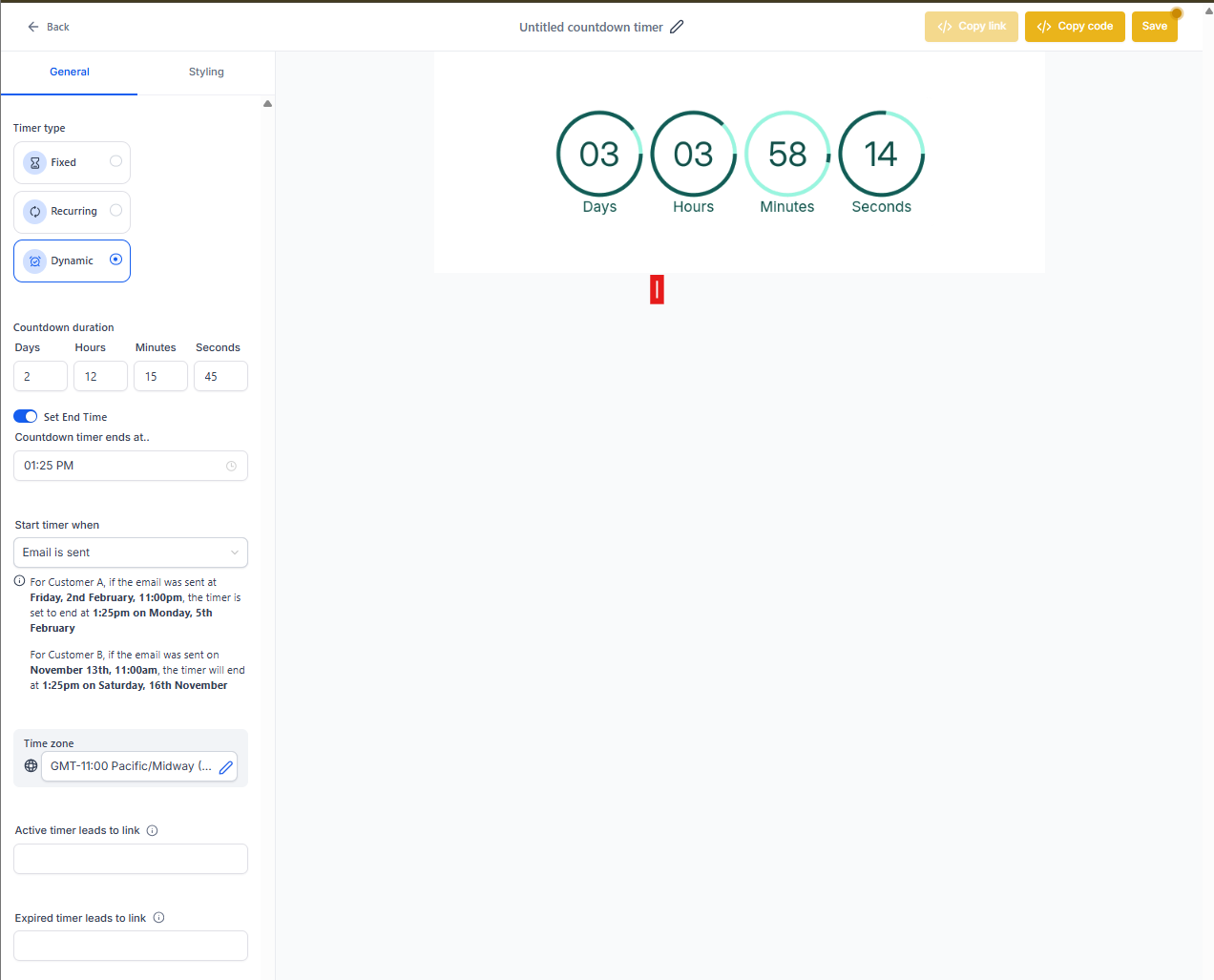
- Select Dynamic Timer as your timer type
- Set your duration (e.g., 2 hours) and choose an exact end time (e.g., 12 PM)
- Review the dynamic helper text to verify timer behavior
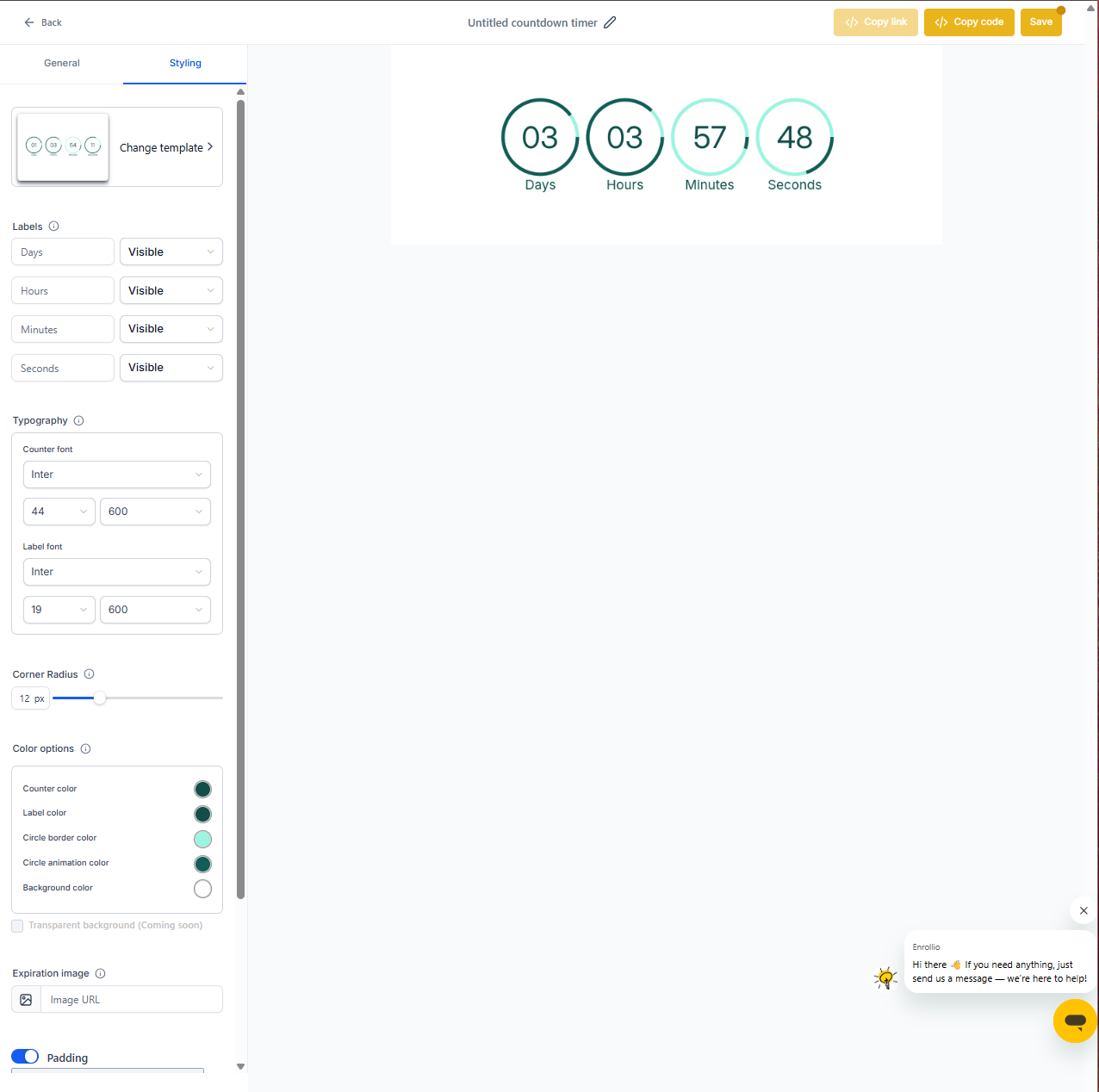
- Customize the design to match your email style
- Define what happens when the timer is active vs. expired (include relevant links for each state)
- Click Save to use in your emails or copy the code for custom templates
Best Practices
- Use "Email Opened" triggers for offers that should start when families engage with your message
- Use "Email Sent" triggers for time-specific offers like open house events or seasonal promotions
- Always set a realistic end time that aligns with your business hours or campaign goals
- Test your timer before launching to ensure the countdown behaves as expected