
How to Import Email Templates from ActiveCampaign
If you're moving to Enrollio from ActiveCampaign, you can bring your existing email templates with you. This guide shows you how to import templates directly into Enrollio's email builder.
Before You Start
Make sure you're logged into your ActiveCampaign account. You'll need to grab a share link from there before importing.
Step 1: Get Your Template Link from ActiveCampaign
In ActiveCampaign, follow these steps to get a shareable link for your template:
- Click Campaigns in the left menu, then select Campaign Templates
- Find the template you want to import
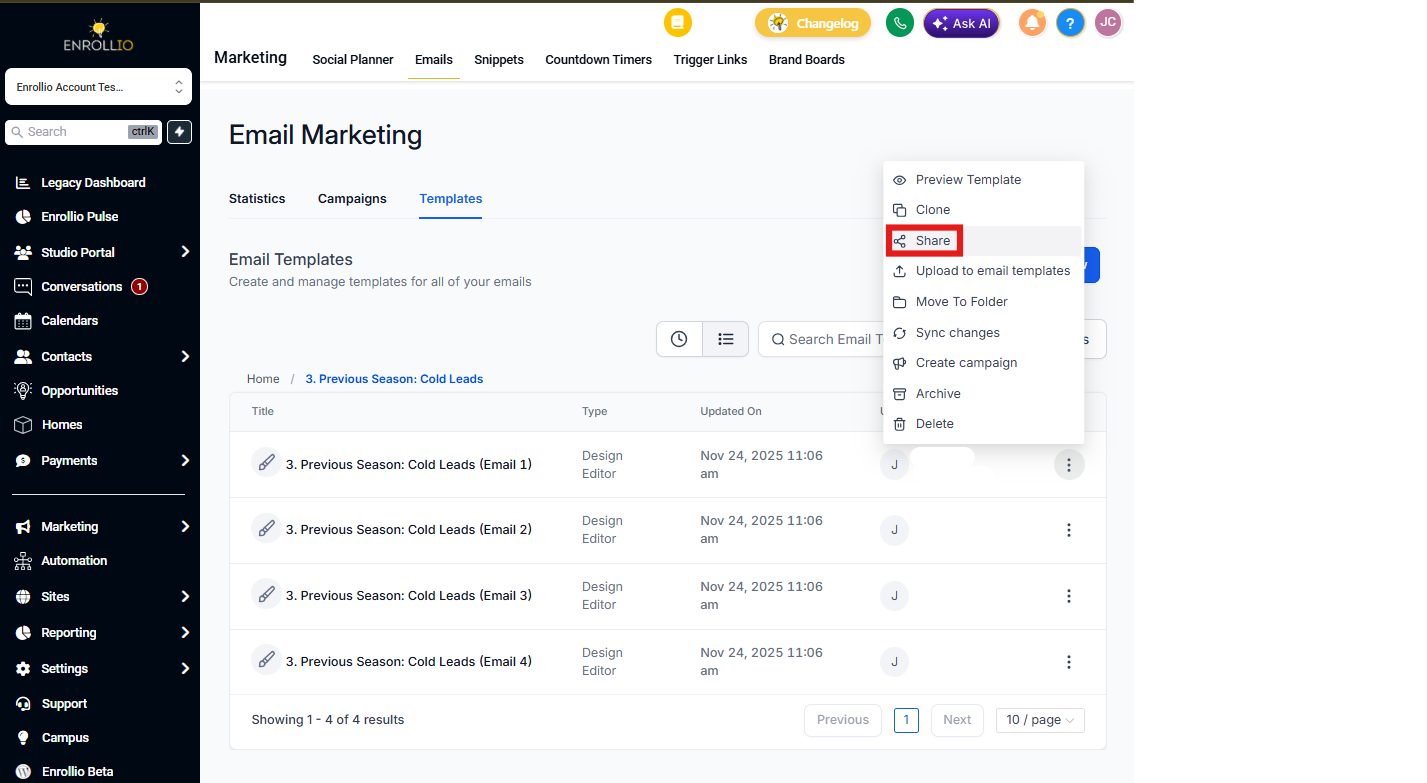
- Hover over the template and click the gear icon that appears
- Click Share
- In the share modal, click the link icon to copy the URL
- Close the window — you're ready to import
Step 2: Import the Template into Enrollio
Now head over to Enrollio to complete the import:
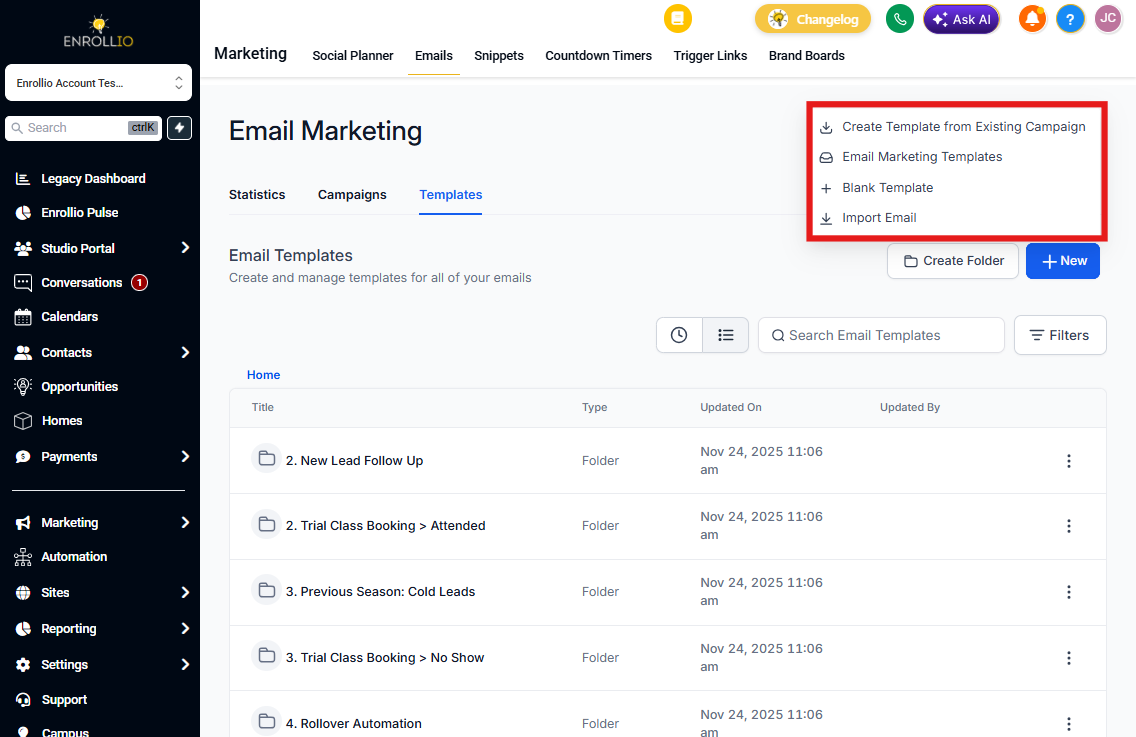
- Go to Marketing > Email Templates
- Click Create New Template
- Select Import Template
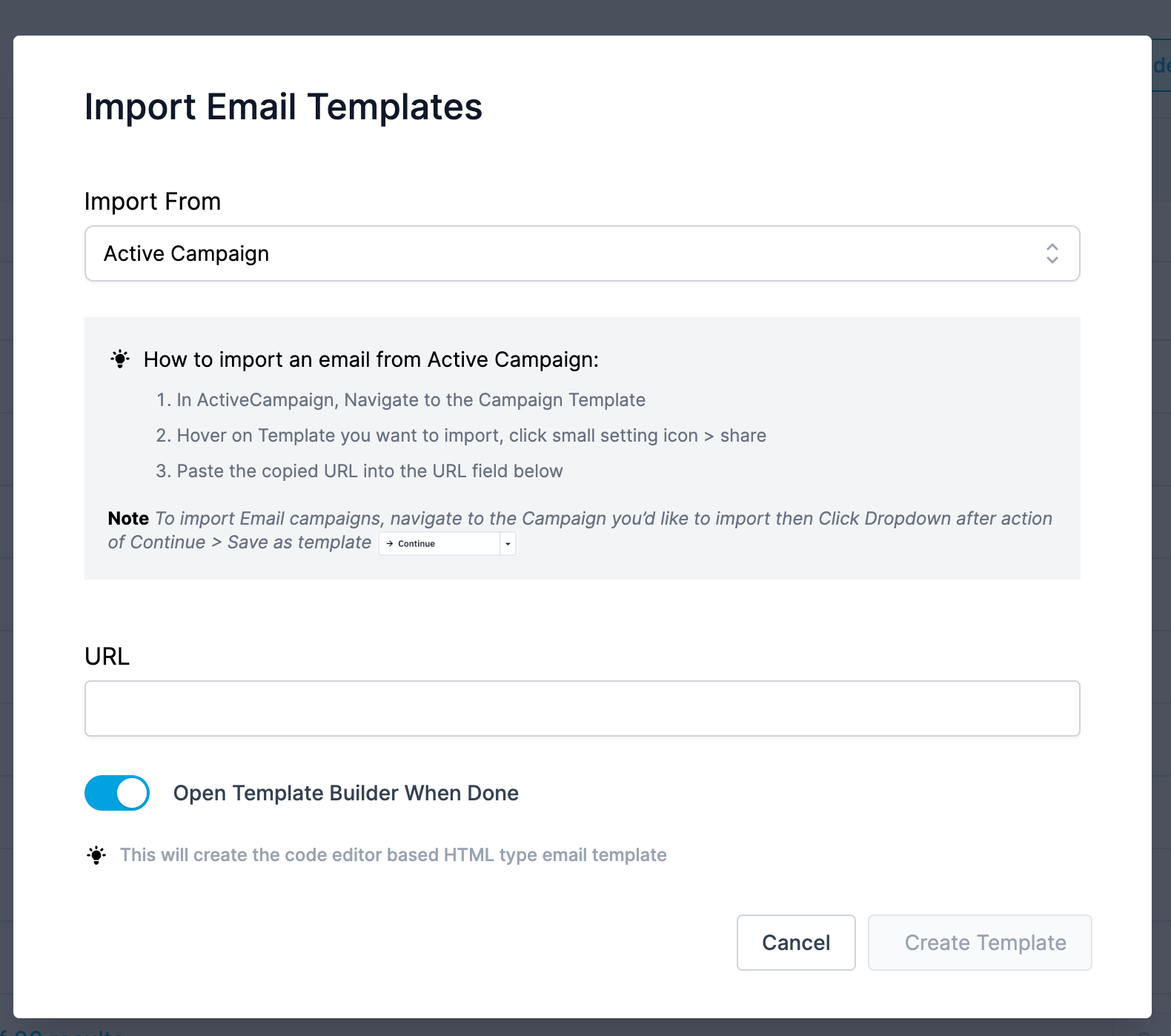
- Paste the ActiveCampaign URL you copied earlier
- Review the preview to make sure it looks correct
- Click Create Template
- Give your template a name when prompted
What You Can Import
You can import two types of content from ActiveCampaign:
- Saved templates — Follow the steps above
- Email campaigns — In ActiveCampaign, open your campaign, click the dropdown action button, and select "Save as Template" to generate a shareable link
After Importing
Your imported template is now available in your Enrollio template library. You can use it to send emails to parents, customize it for tour confirmations, enrollment updates, or any other family communication.
Frequently Asked Questions
What format will my imported template be in?
All imported templates come in as HTML/Code Editor format. You can edit the code directly or use Enrollio's visual email builder to make changes.
Can I import multiple templates at once?
Not currently. You'll need to import templates one at a time using the steps above.
Do I need to rename my template during import?
Yes, you'll be prompted to give your template a name after clicking "Create Template." Choose something descriptive so you can easily find it later when sending emails to families.