
What You'll Learn
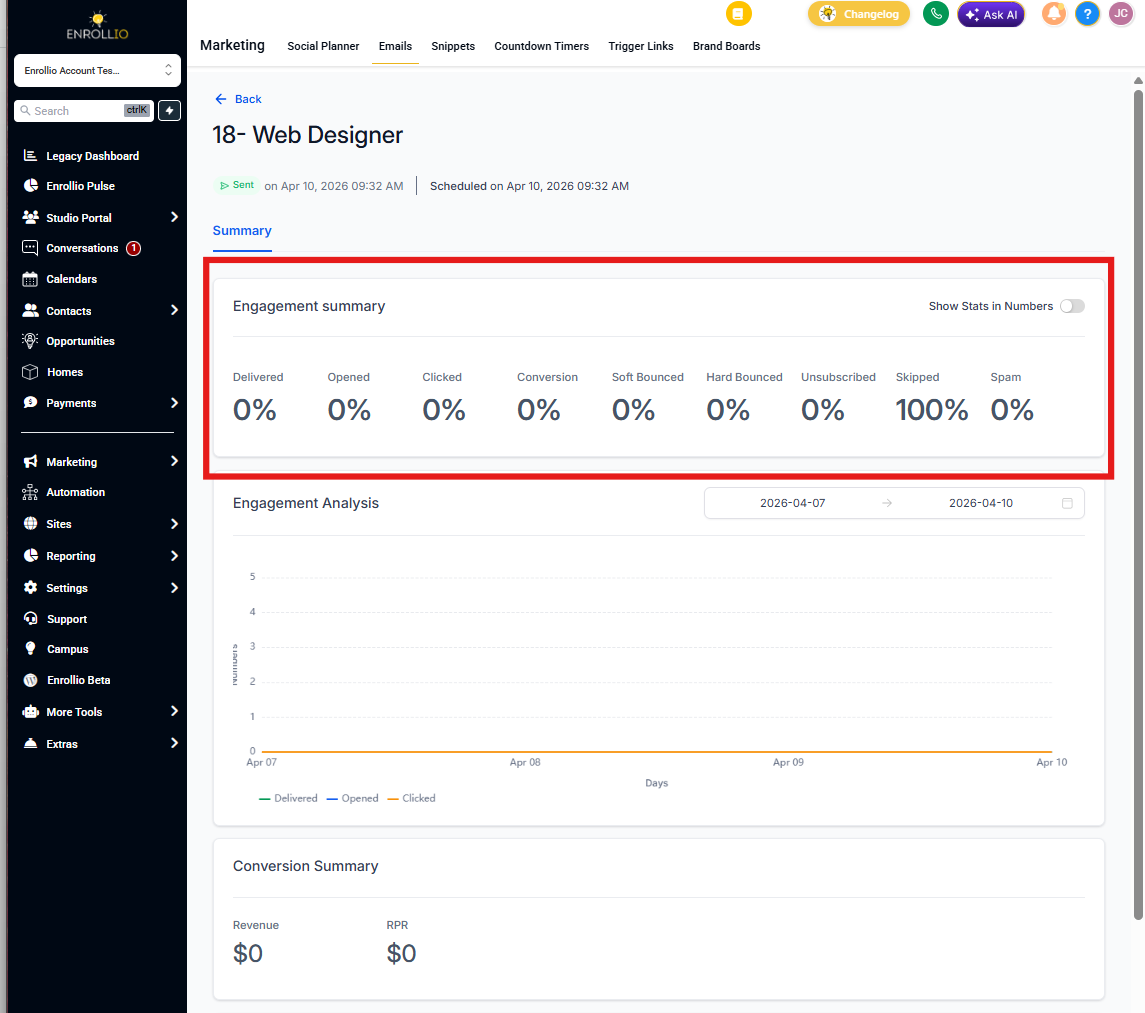
The Summary page gives you a complete picture of your email campaign's performance. You'll see delivery rates, who opened your message, who clicked through, and how families engaged with your content. This guide shows you exactly what each metric means and how to use this data to improve your next campaign.
Accessing Your Campaign Summary
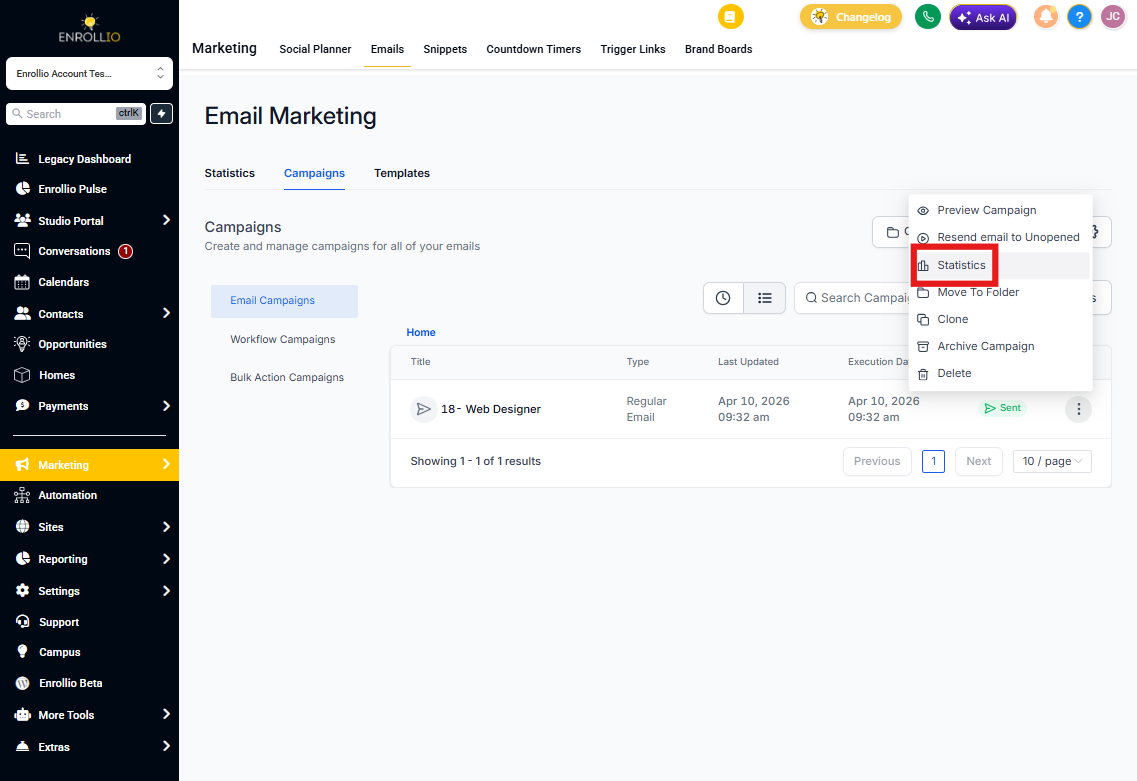
- Go to Marketing → Emails in your Enrollio dashboard.
- Click the Campaigns tab.
- Find your sent email campaign in the list.
- Click the three-dot menu (⋮) next to the campaign name.
- Select Statistics.
- In the stats panel that opens, click Load More Statistics.
- Select the Summary tab at the top of the full statistics page.
Understanding Your Metrics
Delivered
The percentage of emails that successfully reached families' inboxes. Formula: (Delivered / Total Sent) × 100
A delivery rate above 90% indicates a healthy sender reputation and clean contact list. Lower rates may signal invalid email addresses or deliverability issues.
Opened
The percentage of families who opened your email at least once. Formula: (Unique Opens / Delivered) × 100
This metric tells you how effective your subject line and sender name are at capturing attention. Higher open rates mean your message stood out in busy inboxes.
Clicked
The percentage of families who clicked at least one link in your email. Formula: (Unique Clicks / Delivered) × 100
Strong click rates indicate engaging content and effective calls-to-action. This shows families are interested enough to take the next step.
Conversion
The percentage of families who completed your desired action after clicking through—like scheduling a tour, submitting an application, or enrolling. Formula: (Conversions / Delivered) × 100
This is your most important metric for measuring campaign ROI and whether your email achieved its goal.
Soft Bounced
Emails that couldn't be delivered temporarily due to issues like full inboxes or temporary server problems. These may succeed if Enrollio retries them later.
Hard Bounced
Emails that failed permanently—usually from invalid addresses or blocked domains. Keep your hard bounce rate below 2% by regularly cleaning your contact list and removing invalid emails.
Unsubscribed
The percentage of families who opted out using your unsubscribe link. Formula: (Unsubscribed / Delivered) × 100
An unsubscribe rate under 1% is normal. Higher rates may indicate you're sending too frequently or your content isn't relevant to your audience.
Skipped
Emails that weren't sent to specific contacts, usually because:
- An internal sending issue occurred
- The contact is marked as Do Not Disturb (DND)
- The contact was filtered out by your campaign settings
Spam
The percentage of families who marked your email as spam. Keep this number as close to zero as possible by ensuring your content is relevant and avoiding spam-triggering language.
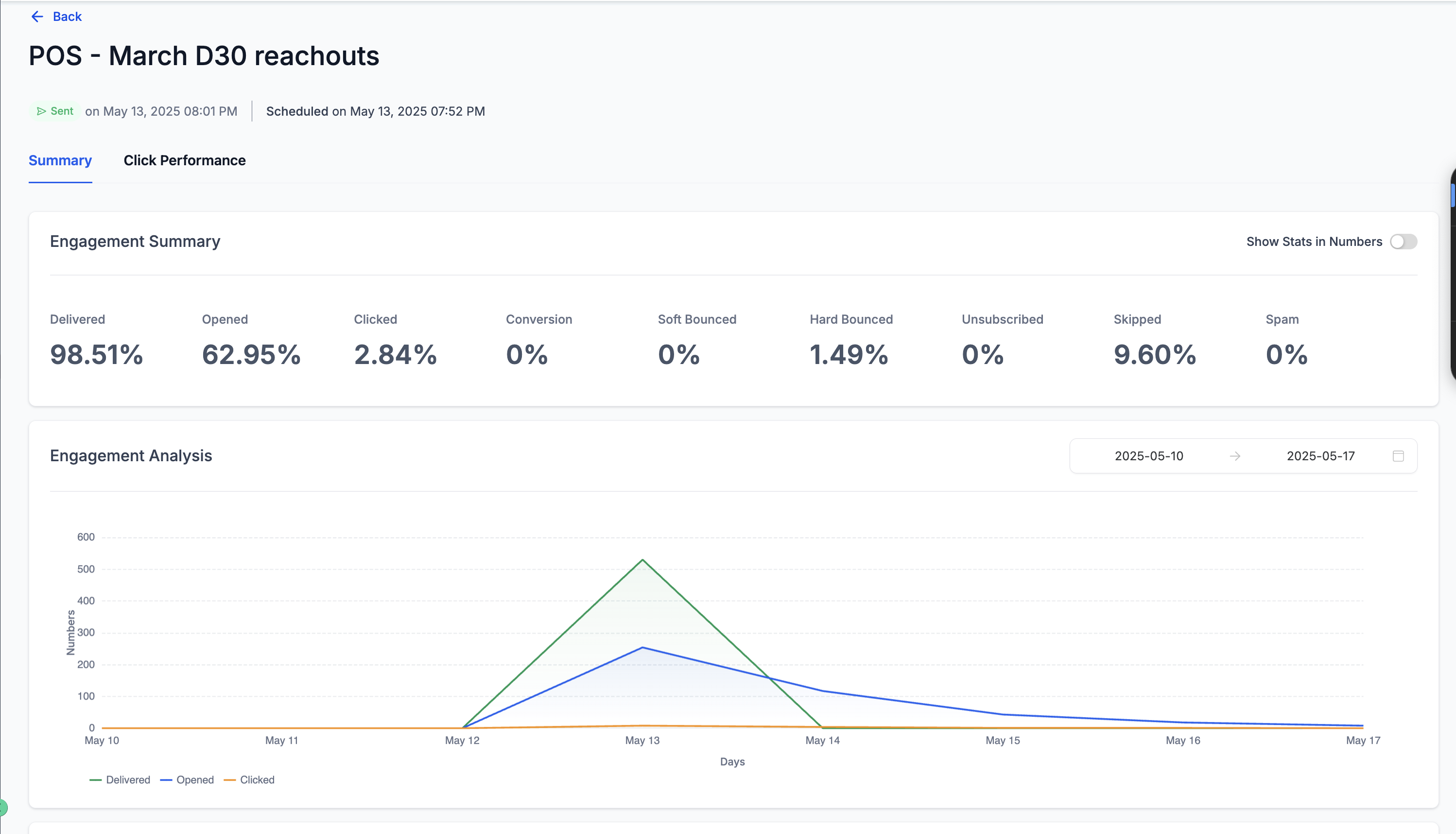
Engagement Analysis Chart
Below your summary metrics, you'll see a visual chart tracking your campaign's performance over time. The chart displays three key lines:
- Green line: Delivered emails
- Blue line: Opened emails
- Orange line: Clicked links
Use this chart to identify when families are most engaged with your emails. Peaks in the chart show you the best days or times to reach your audience.
Conversion Summary
If you've set up conversion tracking for goals like tour bookings or enrollment applications, this section shows:
- Revenue: Total income generated from the email campaign
- RPR (Revenue per Recipient): Average revenue earned per family who received the email
- Conversion Analysis Chart: Visual breakdown of conversions over time
Note: If conversion tracking isn't configured, these fields will display as $0.
Details Tab: Contact-Level Data
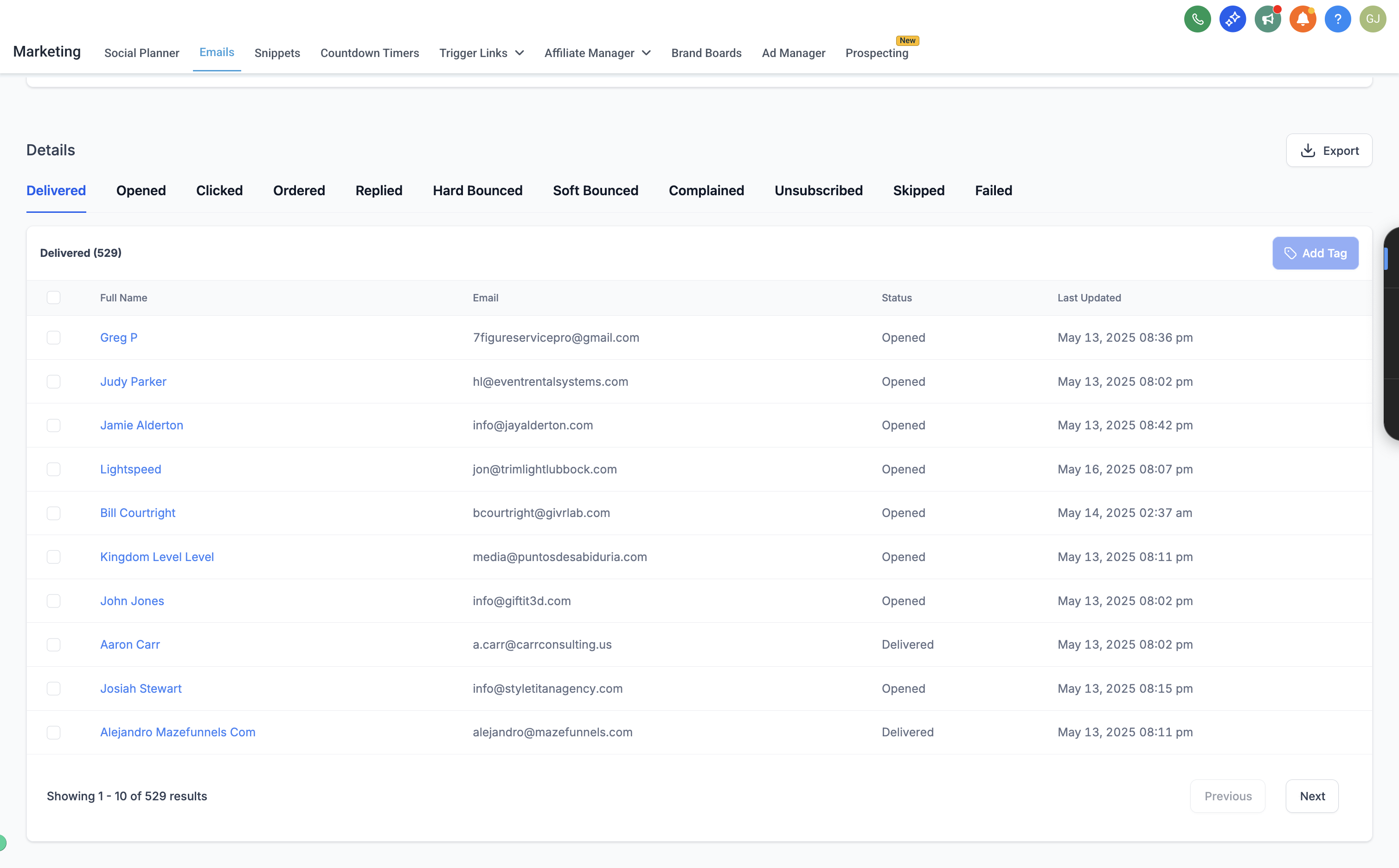
The Details section breaks down exactly which families engaged with your email. Click any of these tabs to see specific contacts:
- Delivered: All families who received your email
- Opened: Families who opened the message
- Clicked: Families who clicked at least one link
- Ordered: Families who completed a tracked action (if conversion tracking is enabled)
- Replied: Families who responded directly to your email
- Hard Bounced / Soft Bounced: Contacts whose emails couldn't be delivered
- Complained: Families who marked the email as spam
- Unsubscribed: Families who opted out
- Skipped: Contacts who weren't sent the email due to filters or settings
- Failed: Emails that encountered sending errors
Each list includes the family's name, email address, status, and timestamp of their action.
You can export any of these lists as a CSV file for deeper analysis or to use in other systems.
Frequently Asked Questions
Why don't I see any statistics for my campaign?
Statistics only appear after your email has been sent and delivered. Draft campaigns or scheduled emails that haven't gone out yet won't show data.
Can I download these reports?
Yes. In the Details section, you can export any engagement list (Delivered, Opened, Clicked, etc.) as a CSV file for record-keeping or further analysis.
Can I see which specific families opened or clicked my email?
Absolutely. Click the corresponding tab in the Details section (Opened, Clicked, Unsubscribed, etc.) to view individual family engagement. This helps you follow up with interested families or understand who's disengaging.
What's a good open rate for childcare emails?
While it varies by audience, aim for 20-30% or higher. Current families typically have higher open rates than prospective families. Test different subject lines and send times to improve your results.
How can I reduce my bounce rate?
Regularly clean your contact lists by removing hard bounced emails. Verify email addresses when families enroll or inquire, and avoid purchasing contact lists which often contain invalid addresses.