
Overview of Brand Boards in Enrollment Pages & Sites
Brand Boards are reusable design kits that bundle your center's logos, color palette, and typography. Once you create a Brand Board, its assets appear inside your enrollment page and site builder.
Apply your brand's colors and fonts with one click, keeping everything consistent across all your enrollment pages and websites.
Key Benefits of Using Brand Boards
Brand Consistency: Create or update pages that match your center's brand every time.
Save Time: No more hunting for the right color or remembering HEX codes. Brand Boards streamline your workflow.
Instant Palette Access: Your approved brand colors and fonts appear within the page builder. No need to copy HEX codes or refer to external branding guides.
Centralized Updates: Refresh your Brand Board once and the updated colors, fonts, and logos populate every picker in the builder.
How to Use Brand Boards in Enrollment Pages & Sites
You'll need to create a Brand Board first. If you haven't done that yet, see our guide on creating a Brand Board.
Step 1: Navigate to the Page Builder
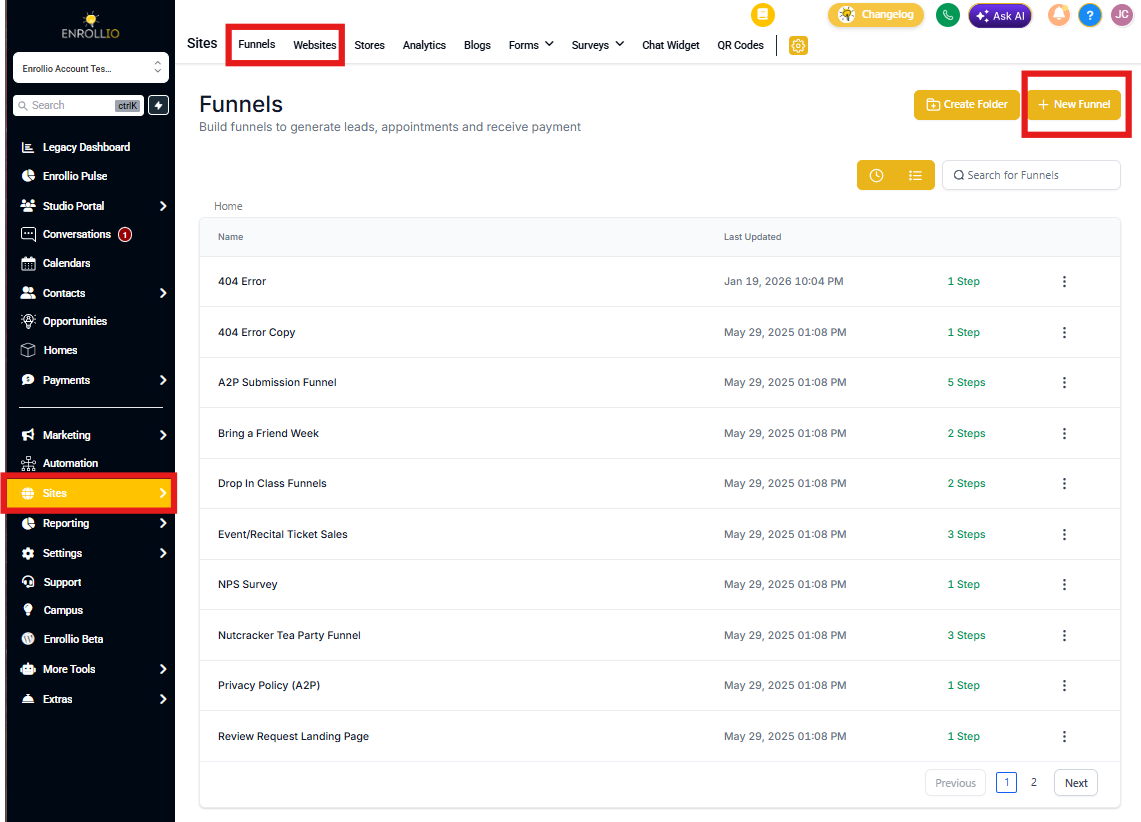
- Select Sites from the main navigation bar
- Click either the Landing Pages or Websites tab in the top ribbon
- Select the site you want to edit, or click + New Landing Page / + New Website to create a new one
Step 2: Access the Color Palette
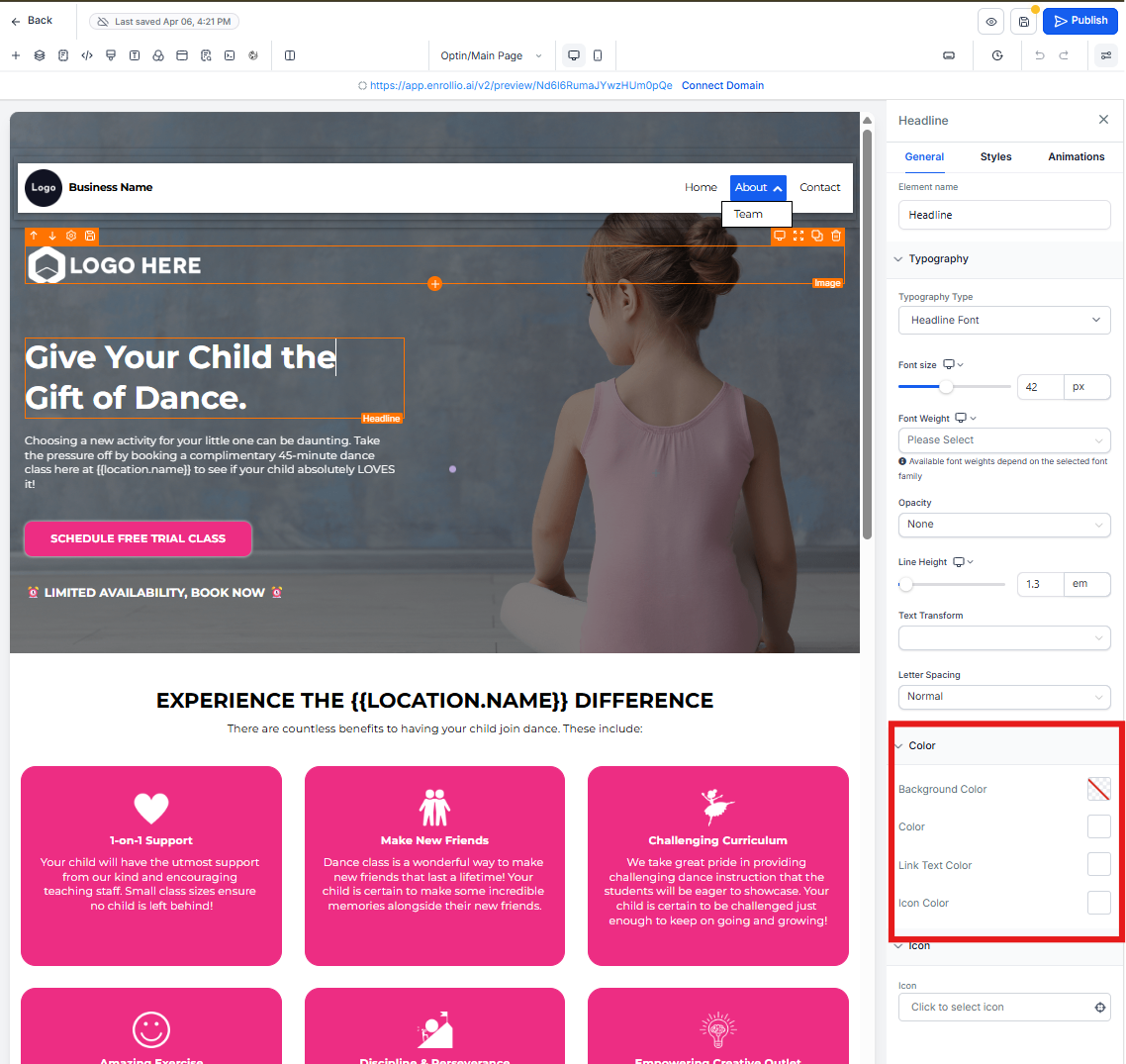
- Click on the element you want to style
- From the right sidebar, click on a Color Swatch to open the color picker
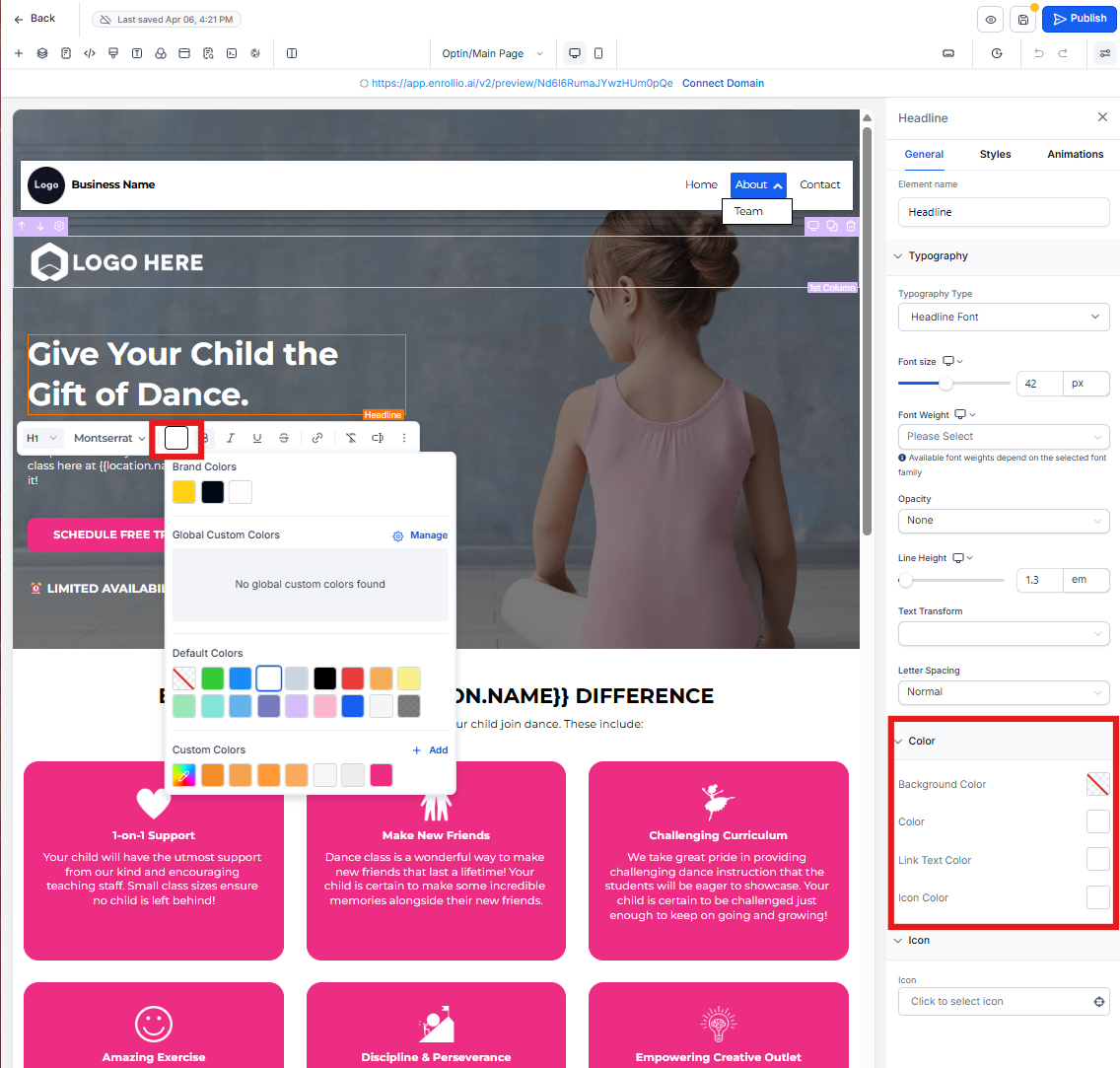
- For text color, you can also open the color picker using the inline toolbar
Step 3: Apply Your Brand Colors
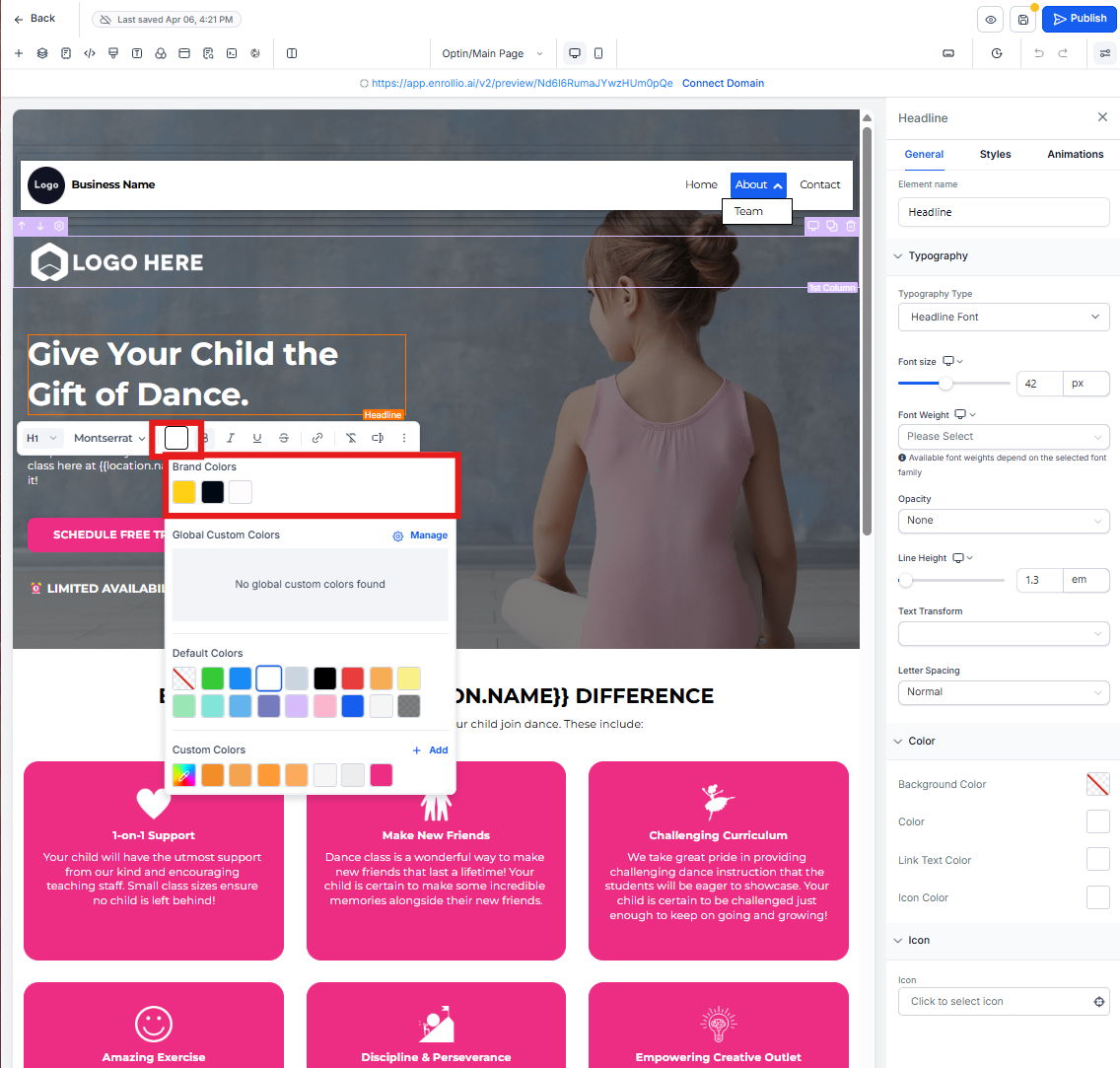
- At the top row of the Color Picker, your Brand Board colors will appear
- Click a color from your Brand Board to apply it instantly
Frequently Asked Questions
Will updating a Brand Board automatically change existing colors in my pages?
No. Updating a Brand Board doesn't retroactively affect previously created enrollment pages or website pages. The new colors will only appear in pages you create or edit going forward.
How can I set a default Brand Board for new projects?
Go to Marketing → Brand Boards, click the three-dot menu next to the board you want to use, and select Set as Default. This applies the selected Brand Board to new pages and sites automatically.
Why aren't my Brand Board colors showing up in the color picker?
Brand Board colors only appear when a Brand Board is actively selected. Go to the Design tab and make sure a Brand Board is applied to your page.
Can I have multiple Brand Boards in one account?
Yes. Create as many as you need, but only one can be set as Default at a time.
What happens if I delete a Brand Board?
Any colors or styles already used in your pages remain unchanged, but the board will disappear from the color pickers going forward.