
AI-Powered Email Generation in Automations
Create professional, high-converting emails in seconds using Enrollio's AI-powered email feature. Save time, boost engagement, and streamline your automations with just a simple description—no copywriting skills required!
What is AI Email Generation?
AI Email Generation is an integrated artificial intelligence tool within Enrollio's automation builder that lets you create complete, context-aware emails simply by describing what you need. Instead of manually writing email content, use the "Write with AI" feature to instantly create emails tailored to your use case, tone, and audience.
This feature helps you automate email creation while ensuring consistency, professionalism, and high engagement rates—all while reducing the time traditionally spent on copywriting.
Key Benefits
Discover how AI Email Generation can transform your communication with families:
- Instant Email Creation: Generate ready-to-send emails in seconds with a brief description
- No Copywriting Needed: Skip the manual writing or hiring copywriters
- Customizable Tone: Choose from different tones (neutral, friendly, professional) to match your center's voice
- Context-Aware Content: Generate emails relevant to your automation's specific context and audience
- Flexible Subject Lines: Use the AI-generated subject or create your own
- Easy Revisions: Quickly regenerate or refine emails with follow-up prompts
- Seamless Integration: Insert AI-generated emails directly into your automation without leaving the builder
- Enhanced Productivity: Save time and focus on running your center instead of repetitive content creation
How to Use AI Email Generation
Proper setup ensures you get the most out of AI-powered email generation, allowing you to automate communications efficiently and maintain a consistent brand voice.
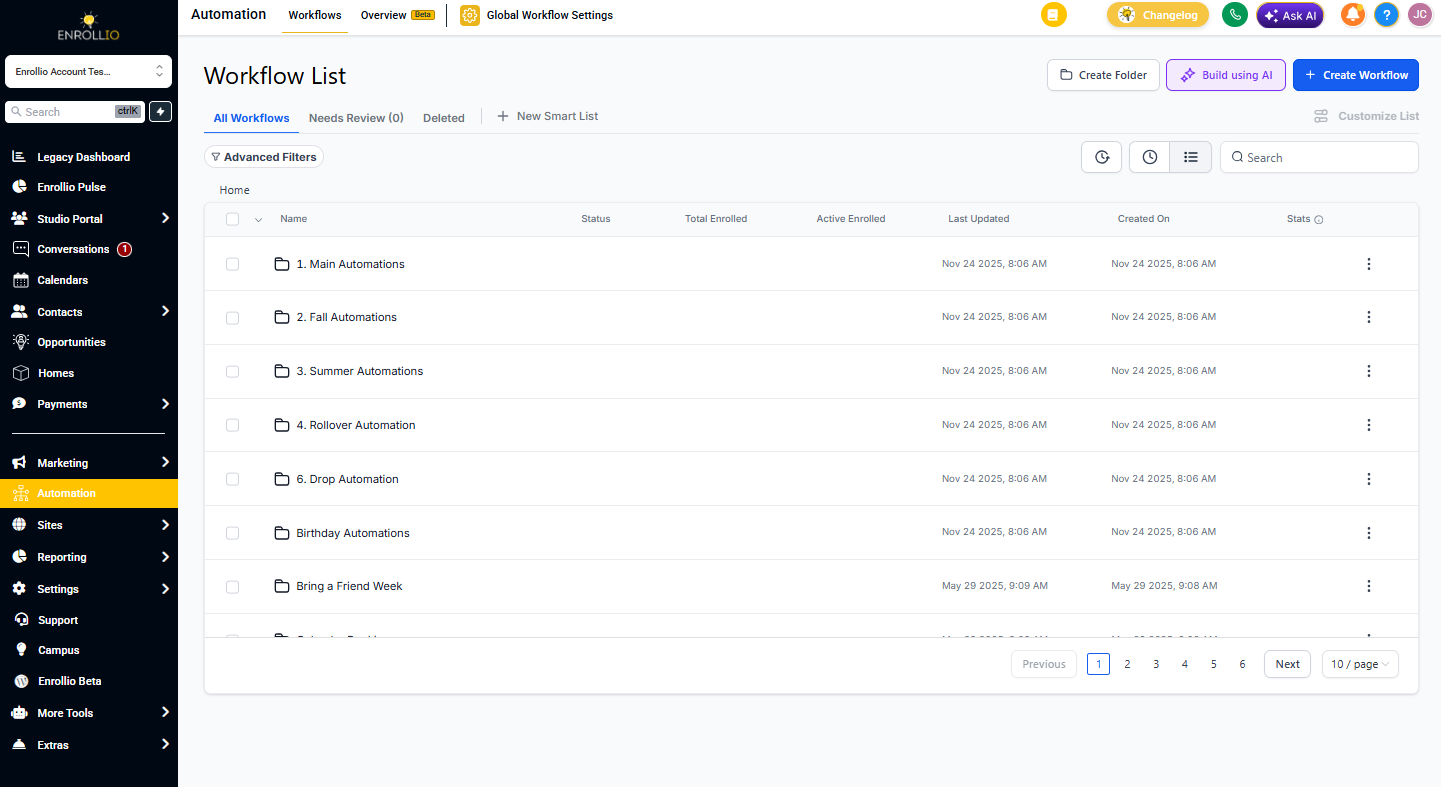
Step 1: Navigate to Automations
- Log in to your Enrollio account
- Click Automation in the left-hand menu
- Select Automations
- Choose one of the following:
- Click + Create Automation to start from scratch
- Click on an existing automation name to edit it
Step 2: Add the Send Email Action
- Inside your automation builder, add your trigger (e.g., tour request submitted, enrollment form completed, waitlist joined)
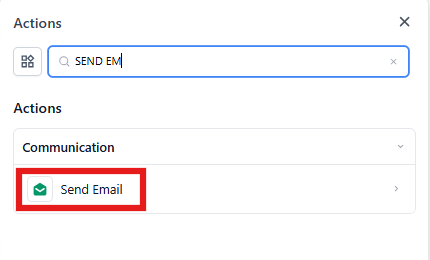
- Click the + button to add a new action
- In the search bar, type "Send Email"
- Or scroll to the Communications section and select Send Email
Step 3: Configure Basic Email Settings
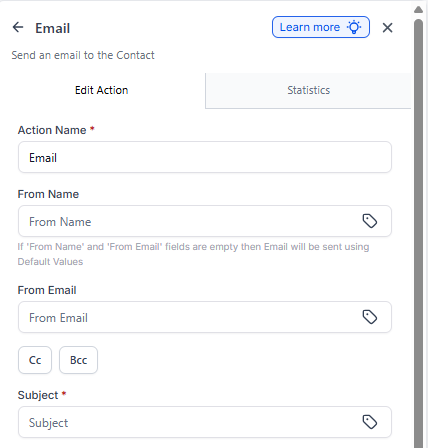
In the Send Email action block:
- Name the action (e.g., "Tour Follow-Up" or "Welcome New Family")
- Enter the From Name and From Email
- Add CC or BCC if needed
- Enter a subject line or leave it empty (AI can generate one for you)
Step 4: Launch AI Email Writer
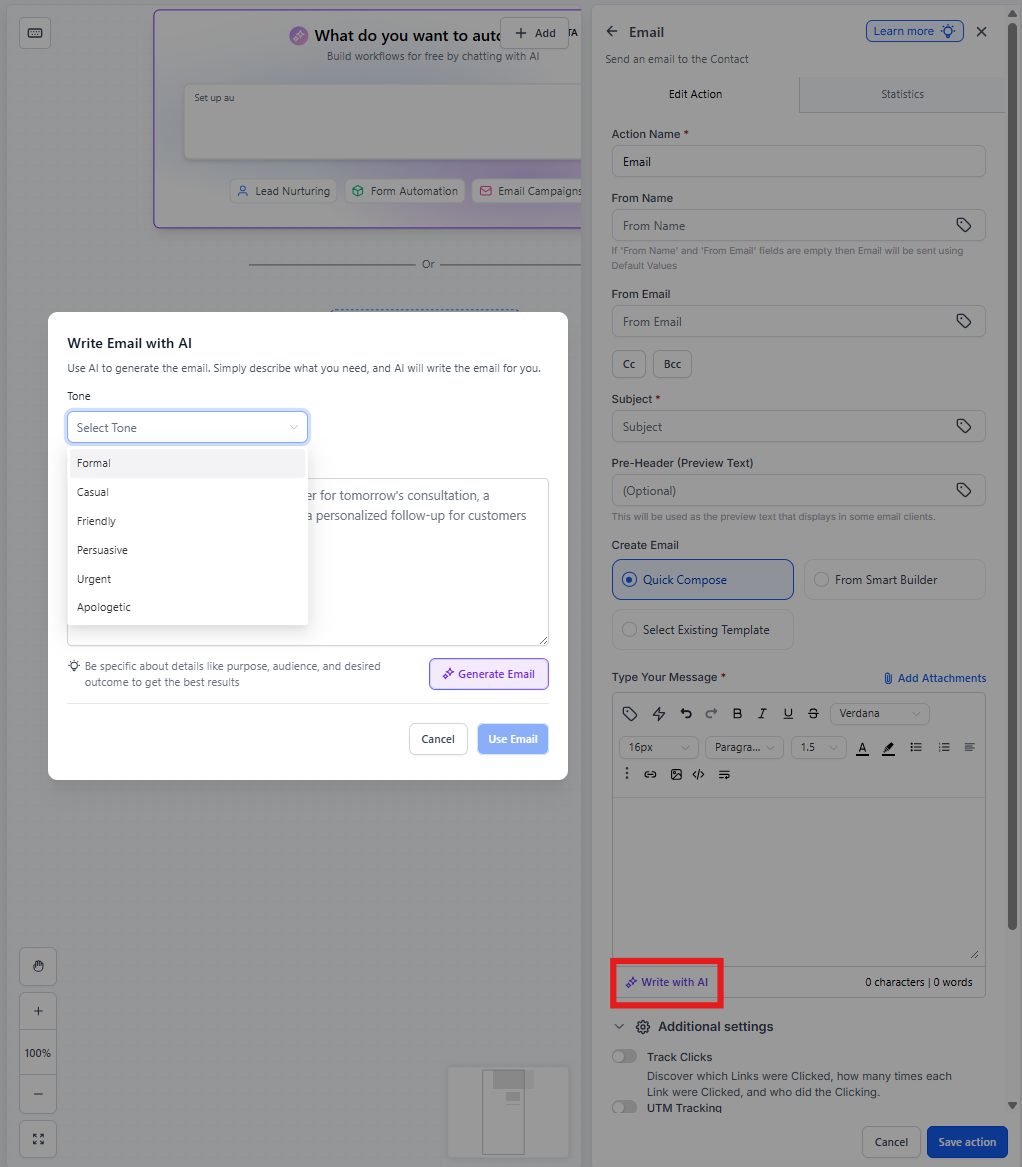
- Click the Write with AI button in the Message section
- Choose a Tone from the dropdown (e.g., Friendly, Professional, Warm)
- Enter a prompt describing:
- Purpose of the email (e.g., "thank parent for scheduling a tour")
- Audience (e.g., prospective families, current parents)
- Desired outcome (e.g., confirm attendance, complete enrollment, schedule meeting)
- Click Generate Email
Pro Tip: Be specific in your prompt. Instead of "email about tours," try "friendly email thanking parent for scheduling a tour, confirming date and time, and letting them know what to expect during their visit."
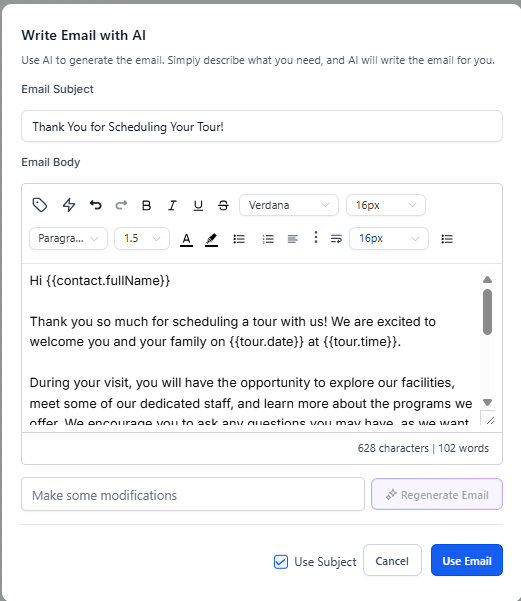
Step 5: Review and Insert the Email
AI will auto-generate:
- A suggested subject line
- A complete email body
Review the content:
- Edit anything that needs adjustment to match your center's voice
- Replace the subject line if you prefer your own
- Provide suggestions and click Regenerate if needed
- When ready, click Use Email
Step 6: Finalize and Save the Action
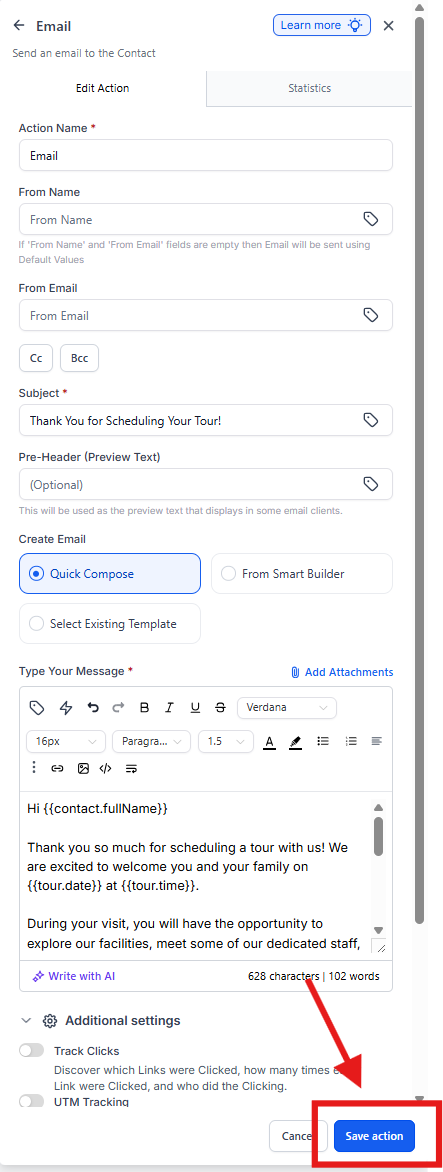
The AI-generated email will now appear in the Message section.
- Add any attachments if needed (e.g., center handbook, enrollment forms)
- Send a test email (optional but recommended)
- Click Save Action to finalize
You'll now see the completed Send Email step within your automation. The AI-generated email is ready to be triggered by your automation.
Common Use Cases for Childcare Centers
- Tour Follow-Ups: "Warm email thanking parent for touring our center and inviting them to start enrollment"
- Waitlist Updates: "Professional email notifying parent that a spot has opened up in their preferred classroom"
- Enrollment Confirmations: "Friendly email welcoming new family and outlining next steps before their start date"
- Payment Reminders: "Gentle reminder about upcoming tuition payment with payment link"
- Event Invitations: "Exciting email inviting current families to our upcoming open house event"
Frequently Asked Questions
Can I edit the AI-generated email before sending it?
Yes, you can review and edit the content before inserting it into your automation. We recommend personalizing it to match your center's unique voice.
What tones are available for AI-generated emails?
The default is neutral, but you can select from various tones such as friendly, professional, warm, persuasive, and more.
Can I use this feature for all types of automations?
AI Email Generation is available in any automation where the Send Email action is used.
How does the AI ensure emails are contextually relevant?
The AI uses your description and automation context to generate tailored, relevant content specific to your childcare business.
Will this feature work with custom email templates?
You can edit and format the AI-generated email to fit your existing templates and branding as needed.
Is there an extra cost for using AI Email Generation?
No, there is no additional cost associated with using AI Email Generation in Enrollio.
Can I regenerate the email if I'm not satisfied with the first result?
Yes, you can provide follow-up prompts and regenerate the email as many times as needed until you get the perfect message.
Related Articles
- Automation Builder Overview
- Send Email Action Guide
- Email Best Practices for Childcare Centers