
Overview
The Create Task action lets you automatically assign tasks to your team when something important happens — like when a new family books a tour or completes enrollment. This keeps your staff on top of follow-ups without manual tracking.
How It Works
When this action runs in your automation, it creates a task with a specific due date and assigns it to a staff member. The task appears in their dashboard with all the details they need to take action.
Setting Up the Action
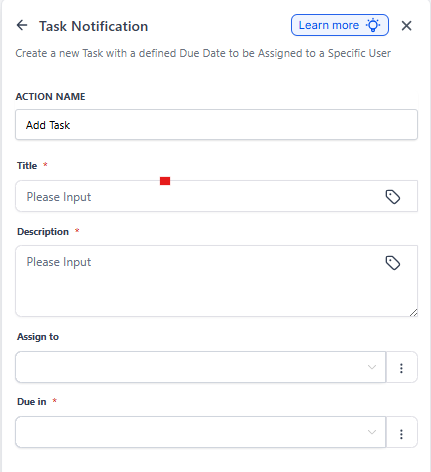
- Action Name: Give this action a clear name like "Assign Tour Follow-Up Task" so you can identify it when reviewing your automation.
- Task Title: Enter what the staff member will see as the task name (e.g., "Call new family about enrollment").
- Description: Add any details your team member needs to complete the task. Include context like "Follow up on their questions about our toddler program."
- Assign To: Choose which staff member should receive this task from your team list.
- Due In: Set when the task should be completed — options include immediately ("Now"), 1 day, 2 days, 5 days, or custom timeframes.
Required Fields
| Field | Description | Required |
|---|---|---|
| Task Title | What your team sees in their task list | Yes |
| Description | Additional context and instructions | No |
| Assign To | Staff member who will receive the task | Yes |
| Due In | Deadline for completing the task | Yes |
Example: Tour Follow-Up Task
Let's say you want your enrollment coordinator, Sarah, to follow up with families after they schedule a tour. Here's how you'd configure it:
- Action Name: Assign Tour Follow-Up
- Task Title: Call Johnson Family - Tour Scheduled
- Description: Family scheduled a tour for Friday at 2pm. Call to confirm attendance and answer any questions about our preschool program.
- Assign To: Sarah Martinez
- Due In: 1 Day
Sarah will see this task in her dashboard the next day, giving her time to prepare before reaching out to the family.
Pro Tip: Use dynamic fields in your task descriptions to automatically include parent names, child ages, or program interests. This saves your team from having to look up context in other places.
Common Use Cases
- Assign follow-up calls after tour bookings
- Create tasks to prepare enrollment paperwork when families move from waitlist to active
- Remind staff to check in with families 30 days after enrollment starts
- Assign tasks to process new applications within 24 hours