
Automation Action - Send Text Message
The Send Text Message action lets you communicate directly with parents and families through automated SMS. This guide walks you through setting up text message automations for tour reminders, enrollment updates, waitlist notifications, and more.
What Is the "Send Text Message" Action?
The Send Text Message action sends personalized texts as part of your automations. Set up messages to trigger based on specific events—like when a family books a tour, joins your waitlist, or completes enrollment.
You can personalize each message with dynamic fields like parent names, child names, or appointment times. You can even include links to directions, forms, or other resources.
When Should You Use the "Send Text Message" Action?
Text messages work best when families need timely, important information:
- Tour Reminders: Reduce no-shows with automated reminders before scheduled tours
- Enrollment Updates: Notify families when spots open up or when paperwork is ready
- Waitlist Notifications: Alert families when they move up the waitlist or when enrollment opens
- Event Announcements: Send updates about open houses, orientation sessions, or schedule changes
- Payment Reminders: Remind families about upcoming tuition or registration fee due dates
Step-by-Step: Setting Up the "Send Text Message" Action
Step 1: Add the Action to Your Automation
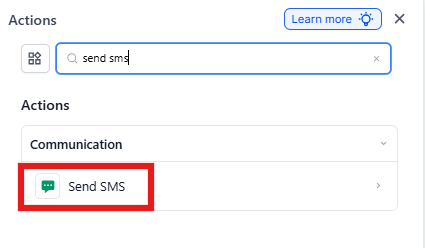
- Open your automation in the automation editor
- Drag the "Send Text Message" action from the actions menu into your automation where you want the text to send
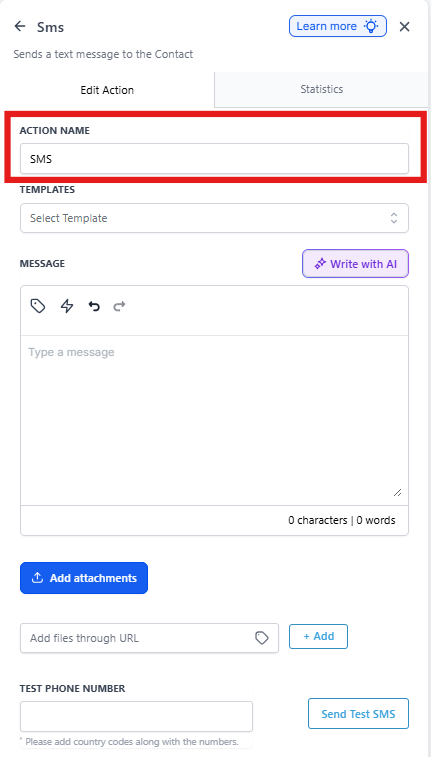
Step 2: Name Your Action
Give your action a clear name like "Tour Reminder - 24 Hours Before" so you can easily identify it later.
Step 3: Write Your Message
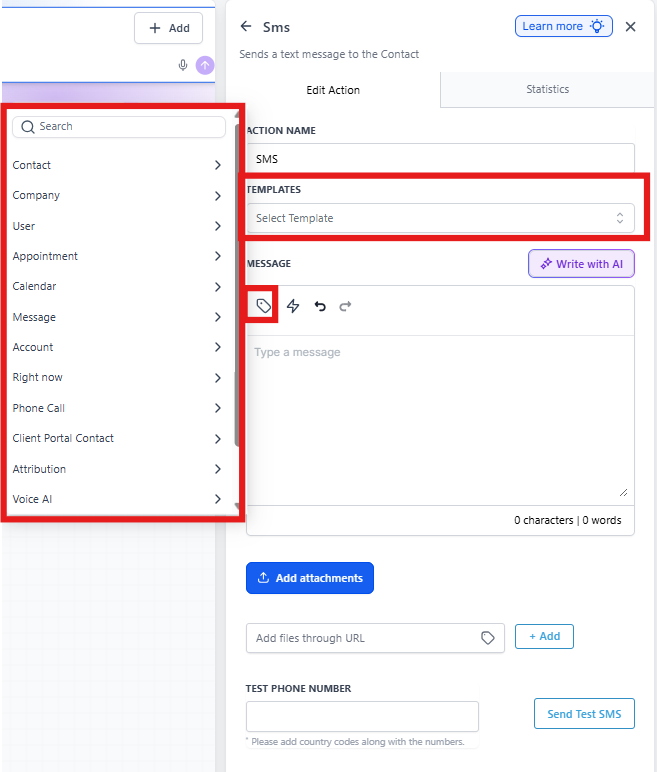
Compose your text message in the message field. Keep it concise—parents are often reading on the go.
Use personalization: Click the dynamic fields button to insert parent names, child names, appointment times, or custom fields. For example:
Hi {{contact.first_name}}, this is a reminder about your tour tomorrow at {{appointment.start_time}}. We're excited to meet {{child.first_name}}! Reply CONFIRM to let us know you're coming.
Pro tip: If you've created message templates, select one from the Templates dropdown to save time.
Step 4: Add Links or Resources (Optional)
Include helpful links in your message—like directions to your center, parking instructions, or what to bring:
Here's a map to our center: https://yoursite.com/directions
Step 5: Test Your Message
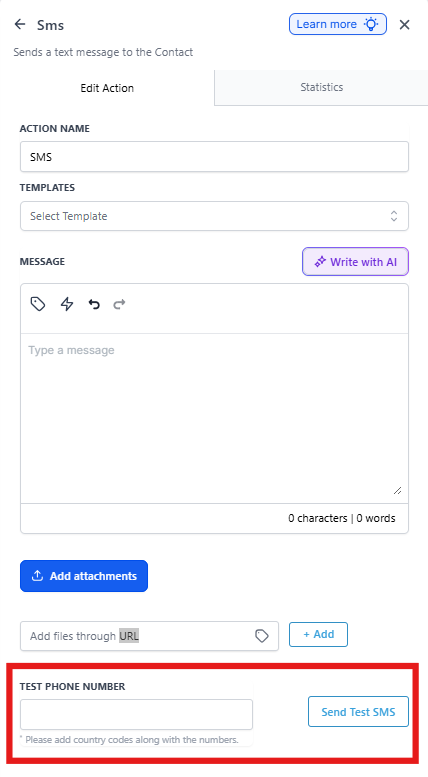
Before activating your automation, send yourself a test. Enter your phone number in the "Test Phone Number" field and click "Send Test."
Check that personalization fields populate correctly and links work as expected.
Step 6: Save and Activate
Save your automation and turn it on. Test with a real scenario (like scheduling a test tour) to confirm everything works.
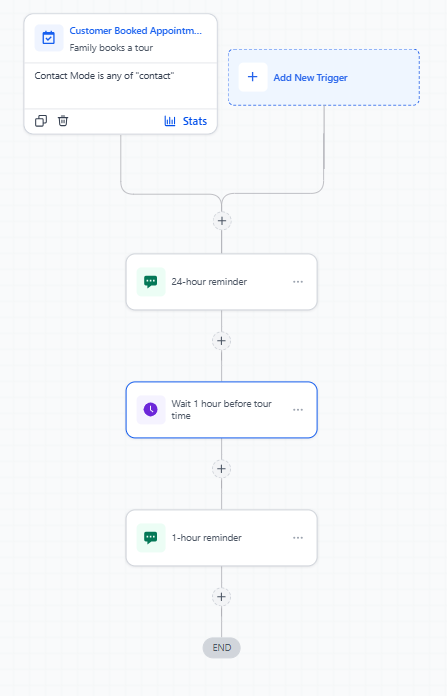
Real-Life Example: Multi-Stage Tour Reminder
Goal: Reduce tour no-shows with timely reminders
How it works:
- Trigger: Family books a tour
- Wait: Until 24 hours before tour time
-
Send Text Message: 24-hour reminder
Hi {{contact.first_name}}, your tour is tomorrow at {{appointment.start_time}}. We're excited to show you around and meet {{child.first_name}}! Reply if you have any questions. - Wait: Until 1 hour before tour time
-
Send Text Message: 1-hour reminder
Hi {{contact.first_name}}, your tour starts in one hour at {{appointment.start_time}}. See you soon!
Pro tip: Add a condition after the first message to check if the parent replied "CONFIRM." If they did, you might skip the second reminder or send a different message.
Frequently Asked Questions
Can I personalize text messages with family information?
Yes. Use dynamic fields to insert parent names, child names, appointment times, or any custom fields you've set up. This makes your messages feel personal and relevant.
Can I include links in text messages?
Yes. Add any URL directly in your message—like links to directions, forms, or your parent portal. Keep in mind that text messages don't support file attachments, but links work great.
Can I test a text message before turning on my automation?
Absolutely. Use the "Test Phone Number" field to send yourself a preview. This lets you verify that your message looks right and personalization fields populate correctly.
When exactly does the text message send?
The text sends when your automation reaches the Send Text Message action. Use wait steps and conditions before the action to control exactly when families receive the message.
What if a parent doesn't have a mobile number in their profile?
The text won't send if there's no valid phone number. Make sure you're collecting mobile numbers during tour booking or enrollment. You can set up a separate automation path for families without phone numbers that sends an email instead.
Can parents reply to these text messages?
Yes. Replies come into your Enrollio inbox under Conversations, where you or your staff can respond. You can also set up automations that trigger based on specific replies.