
How to Write Emails with AI in Automations
Save time and create professional emails for your childcare center using Enrollio's built-in Email AI. Whether you're sending tour confirmations, enrollment updates, or promotional messages, AI handles the copywriting so you can focus on running your center.
What is Email AI?
Email AI is your built-in writing assistant that creates professional, personalized email content inside your automations. Instead of writing from scratch, just describe what you need—like "Send a welcome email to new families" or "Remind parents about upcoming enrollment deadlines"—and AI generates the email for you.
No copywriting experience needed. Just describe your goal and get polished results instantly.
Why Use Email AI?
Email AI transforms how you communicate with families:
- Save time: Generate professional emails in seconds instead of starting from a blank page
- Stay consistent: Maintain your center's voice across all parent communications
- Boost engagement: AI creates subject lines designed to get opened
- Reduce errors: Get polished, typo-free content every time
- Empower your team: Anyone on staff can create effective emails—no writing skills required
How to Use Email AI
Follow these steps to generate emails in your automations:
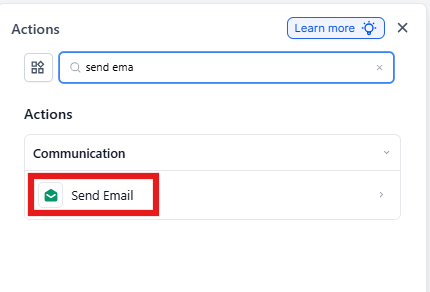
1. Add the Send Email Action
In your automation builder, add or select the Send Email action where you want the email to send.
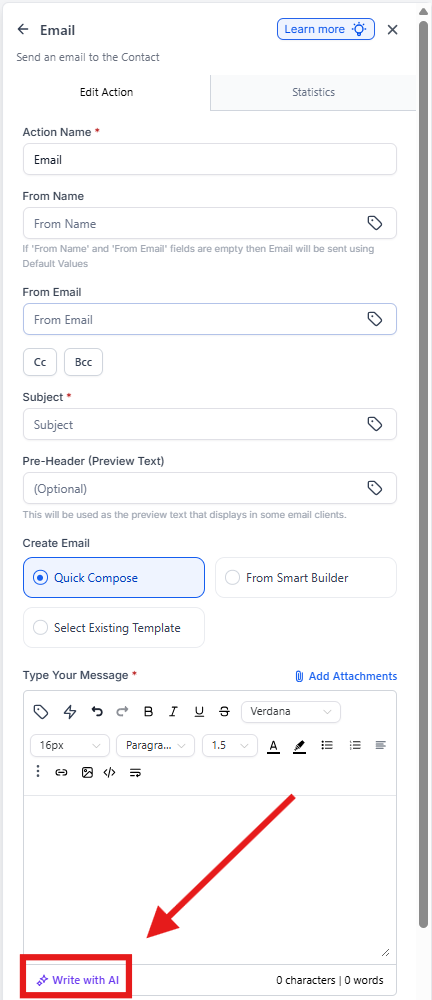
2. Open the AI Writer
Click the Write with AI button to launch the email generator.
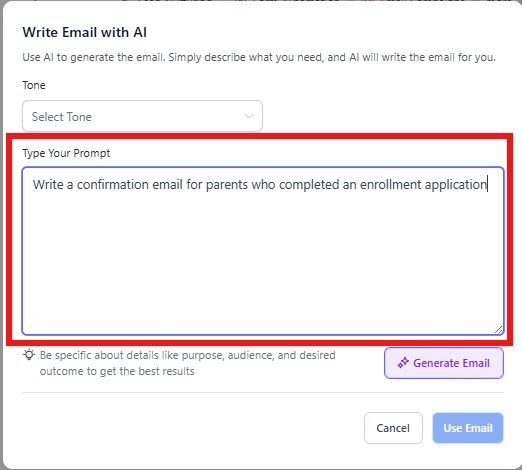
3. Describe Your Email
Tell AI what you need in plain language. Be specific about your goal.
Examples:
- "Write a welcome email for families who just enrolled their child"
- "Send a reminder about our open house next Saturday with registration link"
- "Thank parents for scheduling a tour and confirm their appointment details"
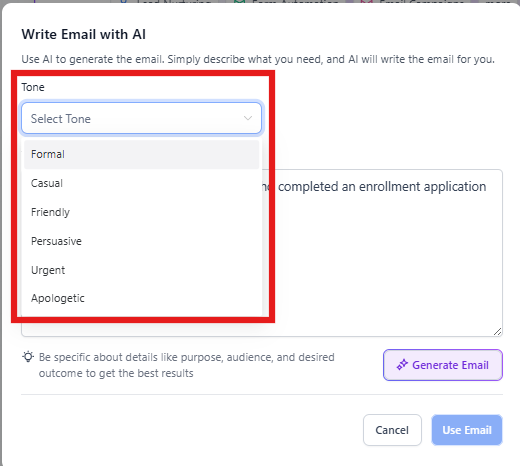
4. Choose Your Tone (Optional)
Select the tone that matches your center's personality. The default is Neutral, but you can choose:
- Friendly: Warm and welcoming
- Professional: Polished and formal
- Casual: Relaxed and conversational
- Neutral: Balanced and clear
5. Generate Your Email
Click Generate and let AI create your email content and subject line.
6. Review and Customize
Check the AI-generated content. You can:
- Use the Use Subject checkbox to include or skip the AI-generated subject line
- Click Re-generate and add a follow-up prompt like "Make it shorter" or "Add more warmth"
- Manually edit any part of the email before saving
7. Insert the Email
Once you're happy with the content, click Use Email to add it to your automation.
Key Features
AI-Powered Writing
Generates professional email content instantly based on your description. No more staring at a blank screen wondering what to write.
Tone Selection
Fine-tune your email's voice to match your center's personality—from warm and friendly to polished and professional.
Smart Subject Lines
AI creates attention-grabbing subject lines designed to get opened. You can use them as-is or write your own.
Iterative Refinement
Not quite right? Use the Re-generate feature with follow-up prompts to adjust the content until it's exactly what you need.
Frequently Asked Questions
Is Email AI available on all Enrollio plans?
Yes! Email AI is available for free on all Enrollio plans.
Can I use this for tour confirmations and enrollment updates?
Absolutely! Use Email AI for any parent communication—tour confirmations, enrollment updates, payment reminders, event invitations, and more.
Can I edit the AI-generated content?
Yes. You have full control to edit, add to, or rewrite any part of the generated email before using it in your automation.
Will AI personalize emails with parent names automatically?
AI generates the base content. You'll need to add personalization tags like {{first_name}}, {{child_name}}, or {{tour_date}} yourself to customize emails for each family.
What tones are available?
You can choose from Neutral, Friendly, Professional, Casual, and more. Pick the tone that fits your center's voice.
Is there a limit to how long my description can be?
No strict limit, but concise, clear descriptions typically produce the best results. Focus on the key goal and any important details.
Next Steps
- Try Email AI in your existing automations—start with welcome emails or tour confirmations
- Experiment with different tones to find what resonates with your families
- Review your current parent communications and identify where AI can save you time
- Combine Email AI with automation triggers for fully hands-off parent communication