
Duplicating automations is useful when you want to run the same automation across multiple locations or make variations without starting from scratch. Instead of rebuilding everything, you can duplicate and adjust as needed.
How to Duplicate an Automation
- Click Automations in the left navigation.
- Find and click the automation you want to duplicate.
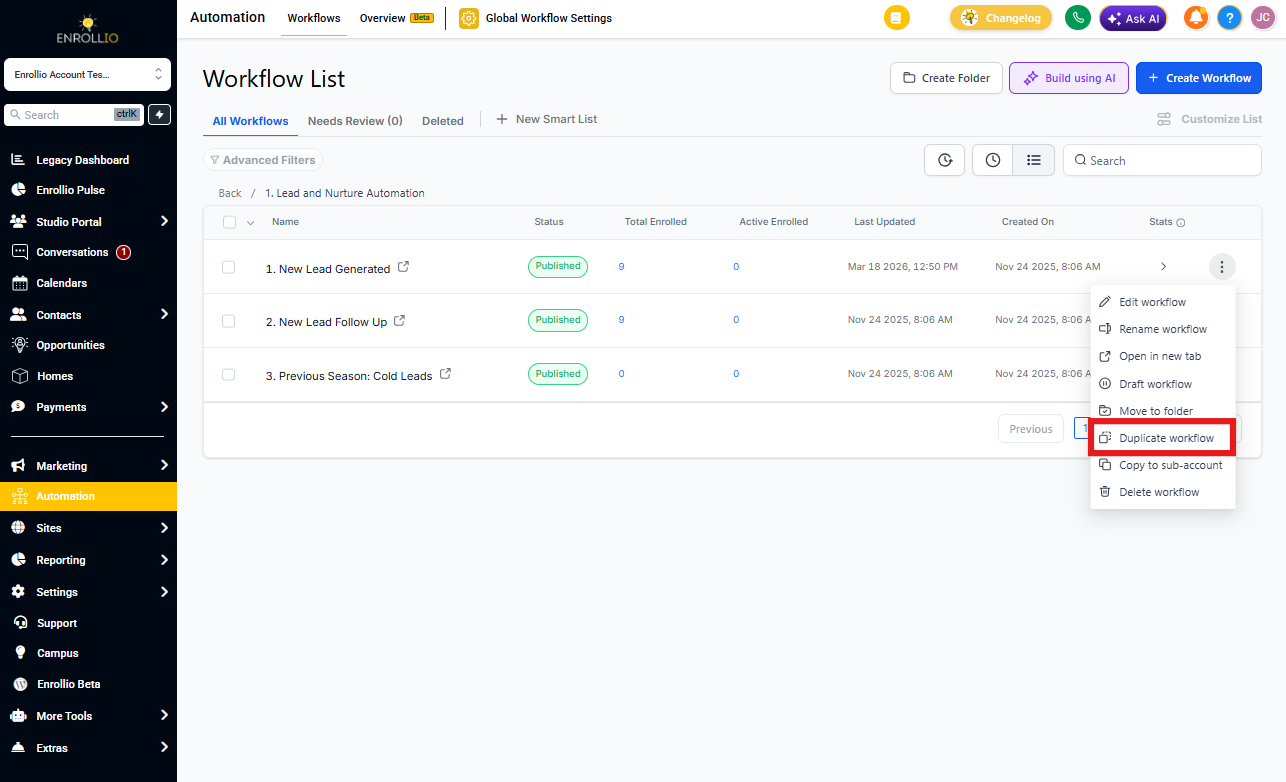
- Click the Actions dropdown in the top right.
- Select Duplicate Automation.
- Enter a New Automation Name and select which location(s) you want to copy it to.
- Click Save.
Important Notes
All duplicated automations start in draft mode. Make sure to review and activate them before they'll run.
You may need to adjust settings in the duplicated automation depending on each location's configuration — things like staff assignments, custom fields, or enrollment pipeline stages.
Pro Tip: Duplicating is perfect for creating location-specific variations of a successful automation. For example, duplicate your new enrollment welcome sequence and customize it with each center's director info.