
What is the Date/Time Formatter Automation Action?
The Date/Time Formatter action helps you work with dates and times in your automations. Whether you're tracking enrollment start dates, calculating payment due dates, or scheduling family communications, this action ensures your dates display correctly and consistently.
Here are the three main features:
- Format dates (ex: 2024-12-09)
- Format date-times (ex: 2024-12-09 15:48)
- Compare two dates to calculate the difference (ex: 2024-12-09 vs 2024-12-08)
With these features, you can easily reformat dates for emails, text messages, or database storage—and compare dates to trigger time-sensitive actions.
Key Benefits
The Date/Time Formatter action offers several benefits for childcare owners managing enrollments and family communications:
Consistency: Display dates uniformly across all your communications and reports, making information clear and professional.
Compatibility: Convert dates to work seamlessly with different systems, databases, or third-party integrations.
Decision-making: Calculate date differences to automate reminders for enrollment deadlines, payment due dates, or upcoming tours.
Flexibility: Choose from multiple date formats to match your preferences or state requirements.
How To Setup Date/Time Formatter Action
Access the Automation Builder
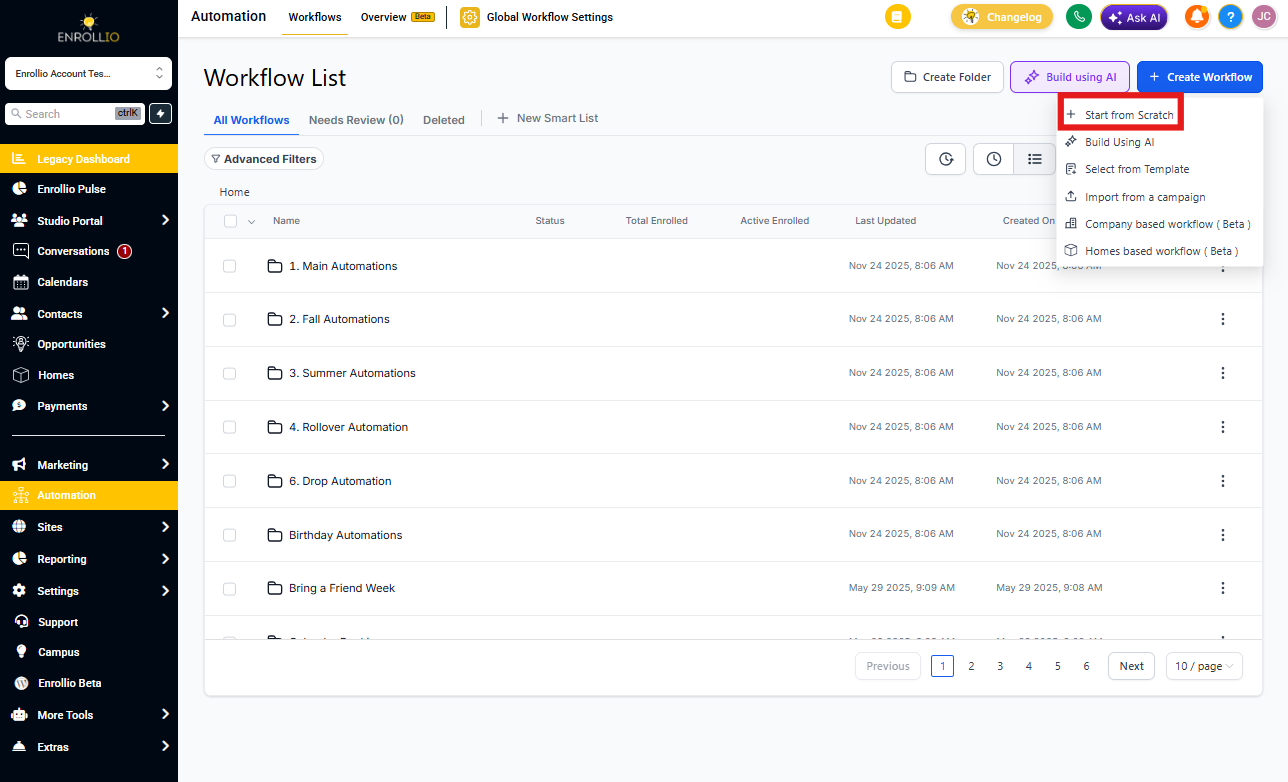
Go to Automations → Create Automation → Start from Scratch.
Alternatively, open an existing automation where you want to use the Date/Time Formatter action.
Add Date/Time Formatter Action
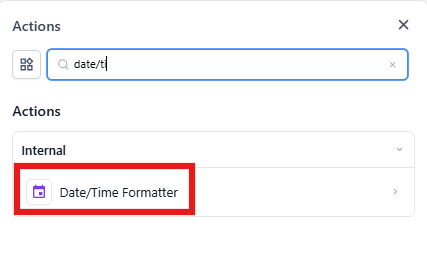
Click the "+" icon to view available actions, then select Date/Time Formatter from the list.
Understanding Different Action Types
The Date/Time Formatter action ensures your automations can properly format, store, and compare date values. Once configured, it stores the reformatted or calculated values as dynamic variables you can use in later steps—like sending emails, updating family records, or triggering conditional actions.
There are three primary ways to use this action:
- Format Date: Convert a date into a different format
- Format Date-Time: Change both date and time formatting
- Compare Dates: Calculate the difference between two dates
Format Date
The Format Date function converts date structures from one format to another. This is useful when you need to display enrollment dates, tour dates, or payment deadlines in different formats.
Field Selection
Choose the date field you want to reformat. You can select from:
- Specific Date
- Current Date
- Family date fields (like enrollment date or date of birth)
- Date-type custom fields
- Appointment start/end date
- Custom values
- Data from an Inbound Webhook Trigger
From Format
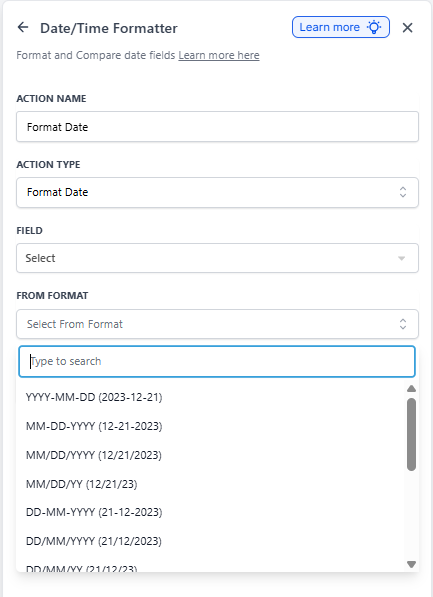
If you select a system field like Specific Date, Current Date, family date fields, or Appointment dates, Enrollio will auto-detect the format and preselect it.
If you choose a Custom Value or data from a webhook, you'll need to manually select the matching format.
To Format
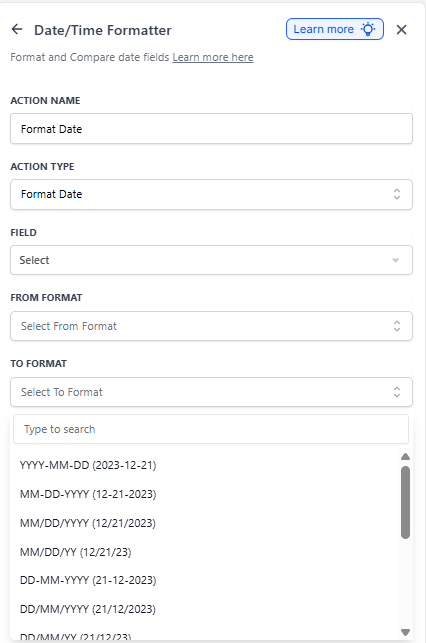
Select your desired output date format from the available options. This is how the date will appear after conversion.
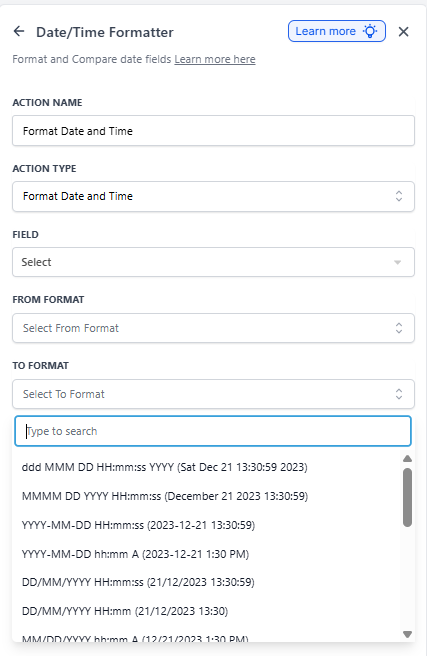
Format Date-Time
The Format Date-Time function converts structures that include both date and time information. This is essential when working with tour scheduling, enrollment timestamps, or payment processing times.
Field Selection
Choose the date and time field you want to reformat. You can select from:
- Specific Date and Time
- Current Date and Time
- Appointment start/end date and time
- Custom values
- Data from an Inbound Webhook Trigger
From Format
Enrollio will auto-detect the format if you select a system field like Specific Date and Time, Current Date and Time, or Appointment dates and times.
For Custom Values or webhook data, you'll need to manually select the matching format.
To Format
Select your desired output date and time format from the available options. This determines how the date and time will display after conversion.
Compare Dates
The Compare Dates function calculates the difference between two dates in days. This is valuable for tracking enrollment timelines, calculating payment schedules, or sending timely reminders.
Start Date Selection
Choose your start date from:
- Specific Date
- Current Date
- Family date fields
- Date-type custom fields
- Appointment start/end date
- Custom values
- Data from an Inbound Webhook Trigger
Start Date Format
Enrollio will auto-detect the format for system fields like Specific Date, Current Date, family date fields, or Appointment dates.
For Custom Values or webhook data, manually select the matching format.
End Date Selection
Choose your end date from the same sources as the start date.
End Date Format
Like the start date, Enrollio will auto-detect the format for system fields. Manually select the format for Custom Values or webhook data.
Use Cases
Here are practical ways childcare centers use the Date/Time Formatter action:
Tour scheduling: Format tour dates and times from different sources (web forms, phone calls, walk-ins) to maintain consistency in your calendar and communications.
Enrollment campaigns: Use formatted dates in automated email and text message sequences for personalized family communications—like "Your child's first day is [formatted date]!"
Payment reminders: Compare the current date with tuition due dates to automatically send reminders to families with upcoming or overdue payments.
Waitlist management: Calculate how long families have been on the waitlist by comparing their waitlist join date with the current date.
Enrollment deadlines: Compare enrollment start dates with deposit deadlines to trigger automated follow-ups for families who haven't completed registration.
Staff scheduling: Reformat date and time data from external systems to update staff schedules or send shift reminders.
Reporting: Convert date formats to match state reporting requirements or export data to accounting systems.
Frequently Asked Questions
Can I use this action with family custom fields?
Yes, but only with date-type custom fields. Custom fields that include time information are not currently supported.
What happens if I compare dates in the wrong order?
You'll receive a negative number. The calculation is always End Date minus Start Date, so if your start date is later, the result will be negative.
Can I format dates for text messages?
Absolutely. Format dates to be more conversational for text messages (like "Monday, December 9th" instead of "2024-12-09") to make your automated messages feel more personal.
How do I use the formatted date in later automation steps?
The Date/Time Formatter action creates a custom value that you can reference in subsequent automation steps using the custom value picker in emails, text messages, or other actions.