
What is Learn More Using AI?
Learn More Using AI is your built-in assistant for building automations in Enrollio. When you're setting up triggers and actions, this AI-powered feature gives you instant help right where you need it—no searching through help docs or leaving the page.
Think of it as having an expert looking over your shoulder, offering real-time guidance tailored to exactly what you're working on. Whether you're automating tour confirmations, waitlist notifications, or enrollment follow-ups, the AI Assistant helps you configure everything correctly the first time.
Why You'll Love This Feature
Get Instant Answers: No more hunting through documentation. The help you need appears right in the automation builder.
Learn While You Build: Understand how triggers and actions work with contextual explanations and real childcare examples.
Build with Confidence: Clear guidance and validation tips ensure your automations work perfectly from day one.
Save Time: Access precise, AI-powered instructions exactly when you need them, so you can set up automations faster.
How It Works
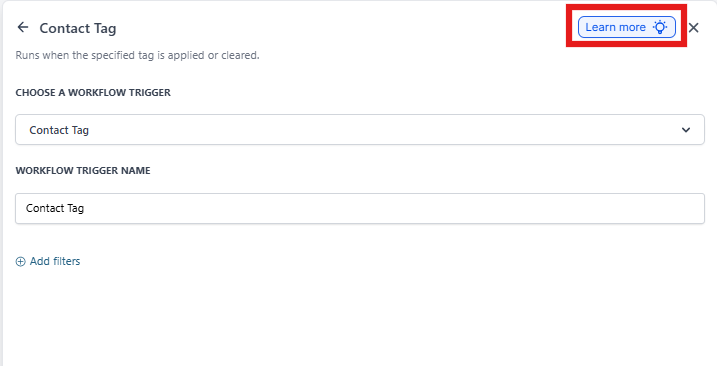
Every trigger and action in the Automation Builder has a blue "Learn More" button with a lightbulb icon in the top-right corner. Click it, and the AI Assistant sidebar opens with detailed help specific to what you're configuring.
The sidebar shows you configuration instructions, validation rules, and practical examples from childcare scenarios. You can even ask follow-up questions to get personalized answers—all without leaving the automation builder.
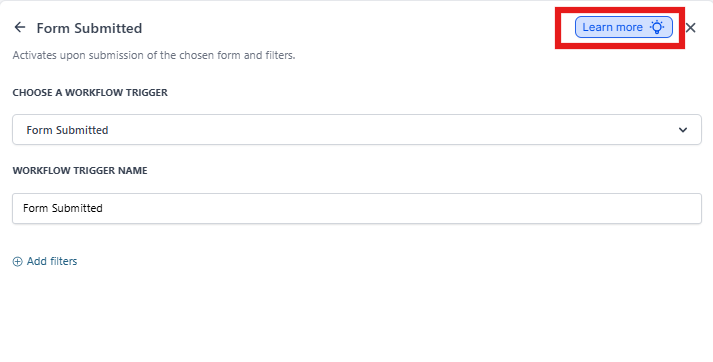
Using Learn More in Your Automations
Step 1: Access the Automation Builder
- From your left menu, click Automation
- Select the Automations tab
- Click + Create Automation in the top-right to start from a template or build from scratch
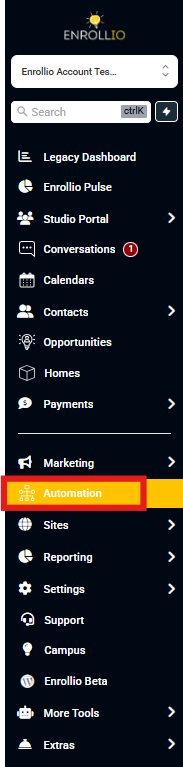
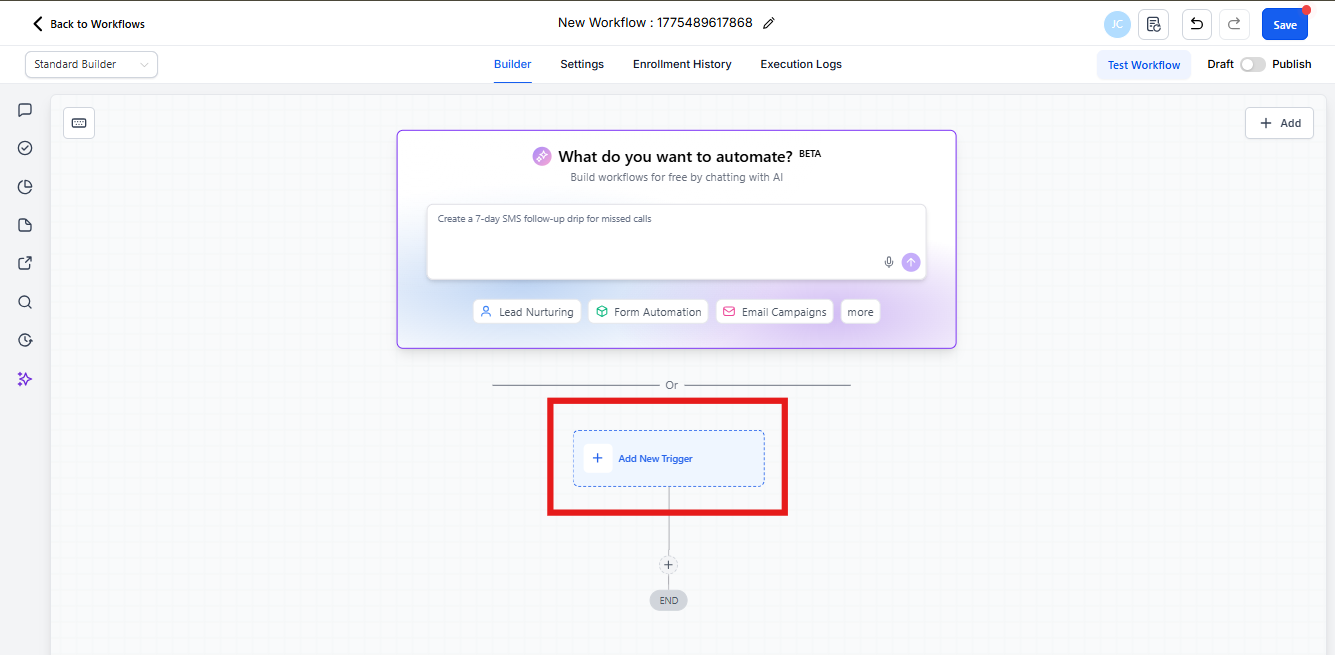
Step 2: Open a Trigger or Action
Click into any trigger or action configuration panel. For example, click + Add New Trigger to set up what starts your automation.
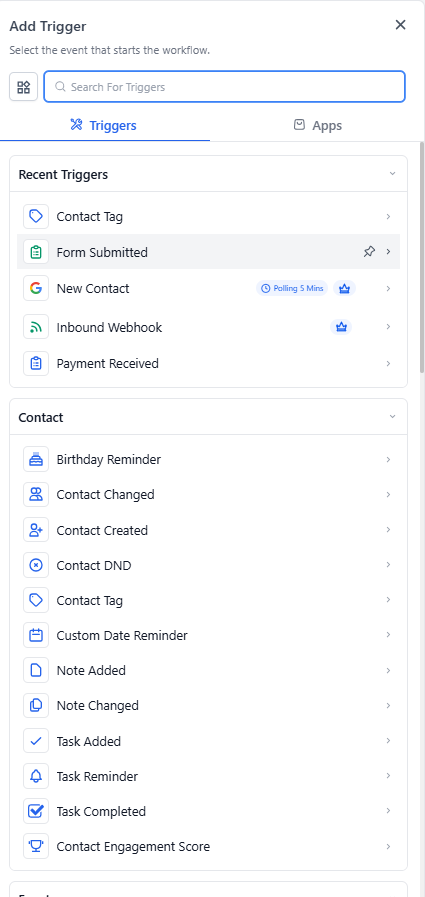
Step 3: Select Your Trigger Type
Choose a trigger from the list. For this example, we'll use the Tag Applied trigger—but any standard trigger or action will show the Learn More button.
Step 4: Click Learn More
In the upper-right corner of the configuration panel, click the blue Learn More button with the lightbulb icon. This launches the AI Assistant with help specific to your selected trigger.
Step 5: Review AI-Powered Guidance
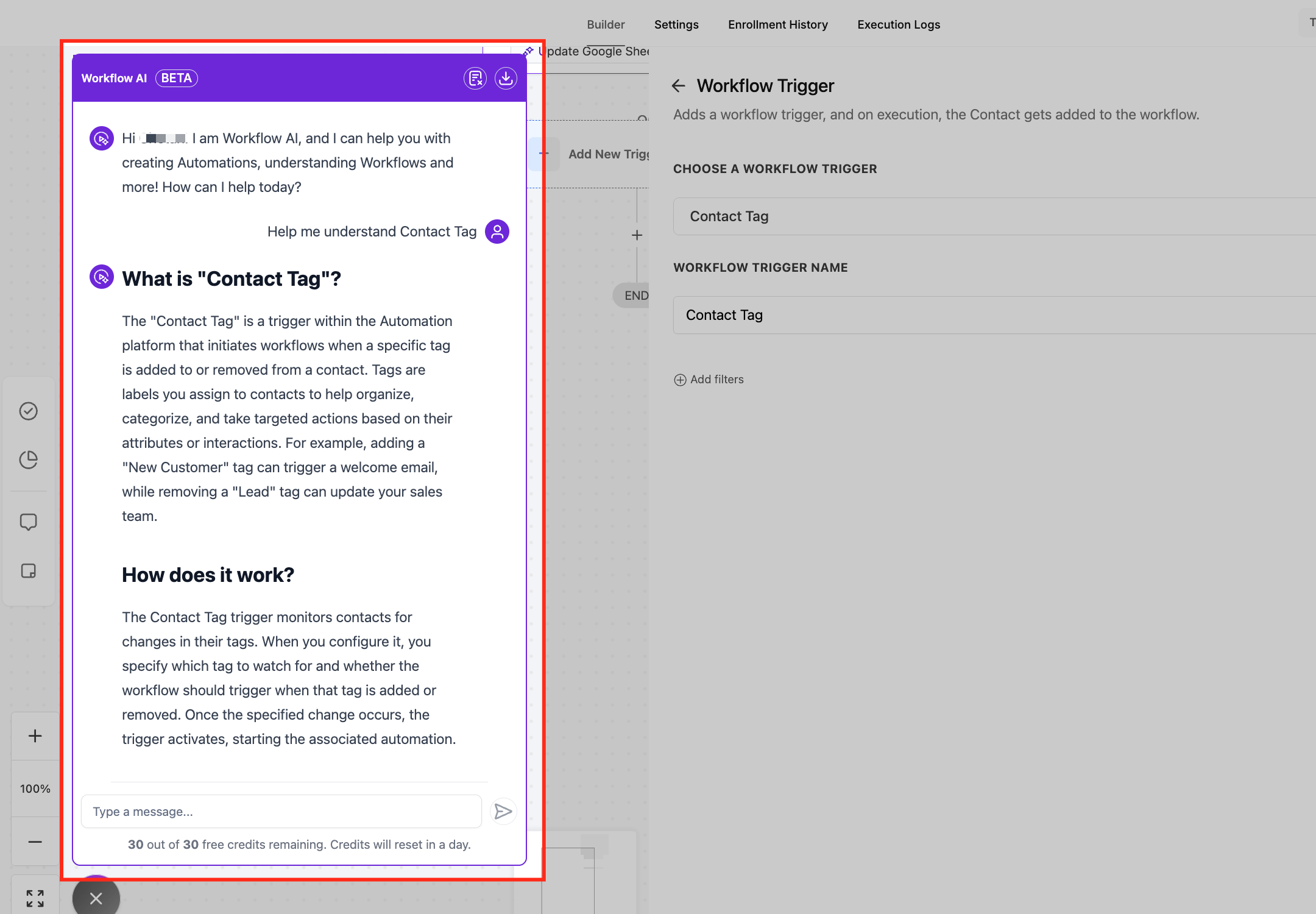
The AI Assistant sidebar opens on the left with detailed information about your trigger or action. You'll see:
- Clear explanation of what the feature does
- Step-by-step configuration instructions
- Validation rules and requirements
- Real-world examples from childcare use cases
Type follow-up questions directly in the chat box to get personalized answers. Ask things like "How do I trigger this when a parent books a tour?" or "What's the best way to segment by program interest?"
Common Questions
Is Learn More available for all automation components?
Yes, it's available for all standard triggers and actions built into Enrollio. Note that custom marketplace actions may not be supported.
Does this feature cost extra?
No, Learn More Using AI is completely free and included with your Enrollio platform.
Can I ask multiple questions?
Absolutely. The AI Assistant is interactive—ask as many follow-up questions as you need to get your automation configured correctly.
What kind of help does the AI provide?
The AI gives you detailed explanations of how triggers and actions work, step-by-step setup instructions, validation requirements, and practical examples relevant to childcare enrollment scenarios.
Where can I learn more about specific automation features?
Check out our related help articles on automation triggers, actions, and best practices for childcare workflows in the Enrollio Help Center.