
What Are Nested Folders?
Nested folders help you organize your automations into a clear hierarchy. Instead of scrolling through a long list of automations, you can create folders within folders — keeping everything organized by purpose, program, or enrollment stage.
Think of it like a filing cabinet: top-level folders for broad categories (like "New Family Onboarding" or "Waitlist Management"), with nested folders inside for specific programs or seasons.
Creating and Managing Nested Folders
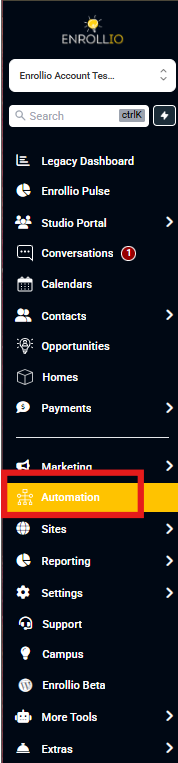
Step 1: Navigate to Automations
Click Automations in your left navigation menu to open your automation list.
Step 2: Create a New Folder
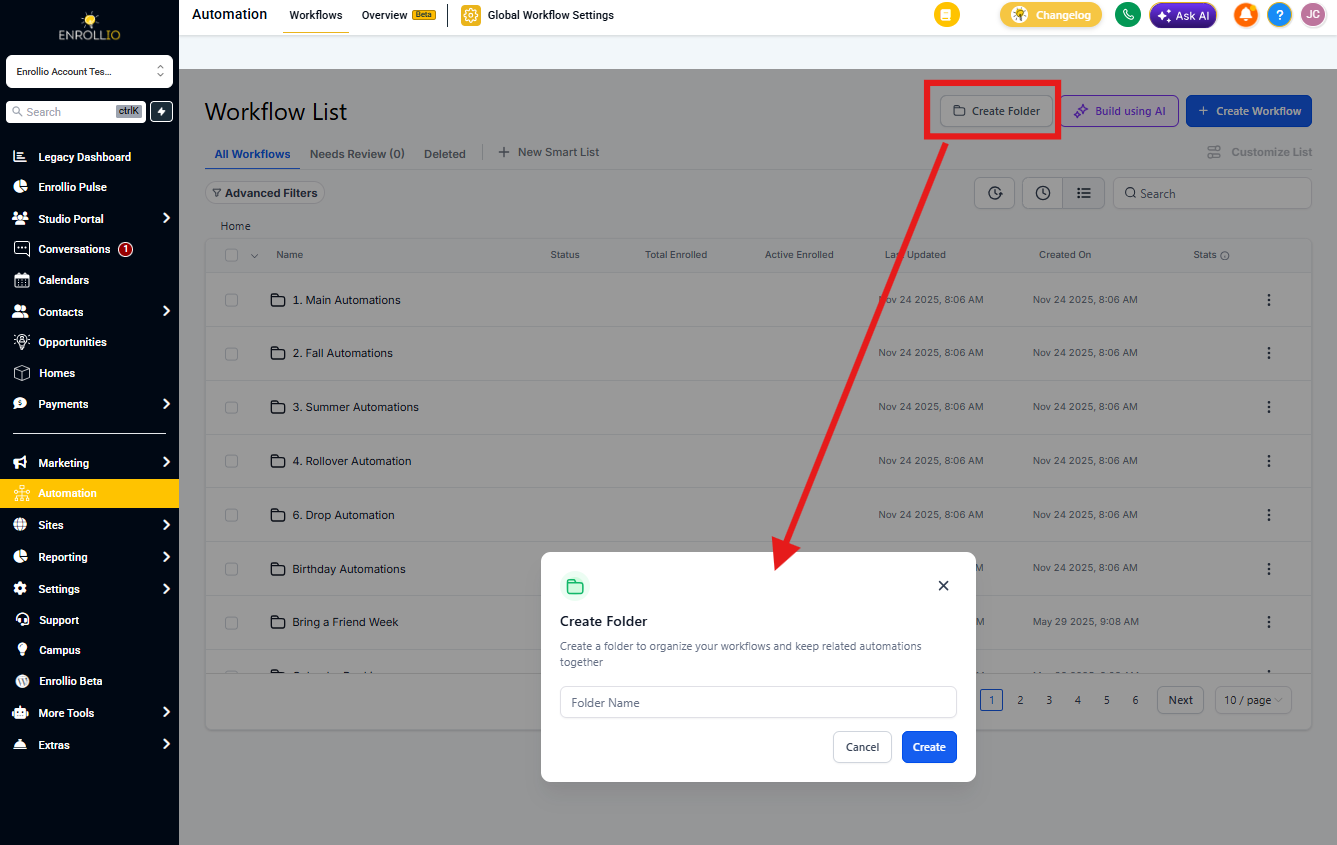
Click the Create Folder button, type your folder name (like "Enrollment Sequences" or "Parent Communication"), and click Save.
Step 3: Create a Nested Folder
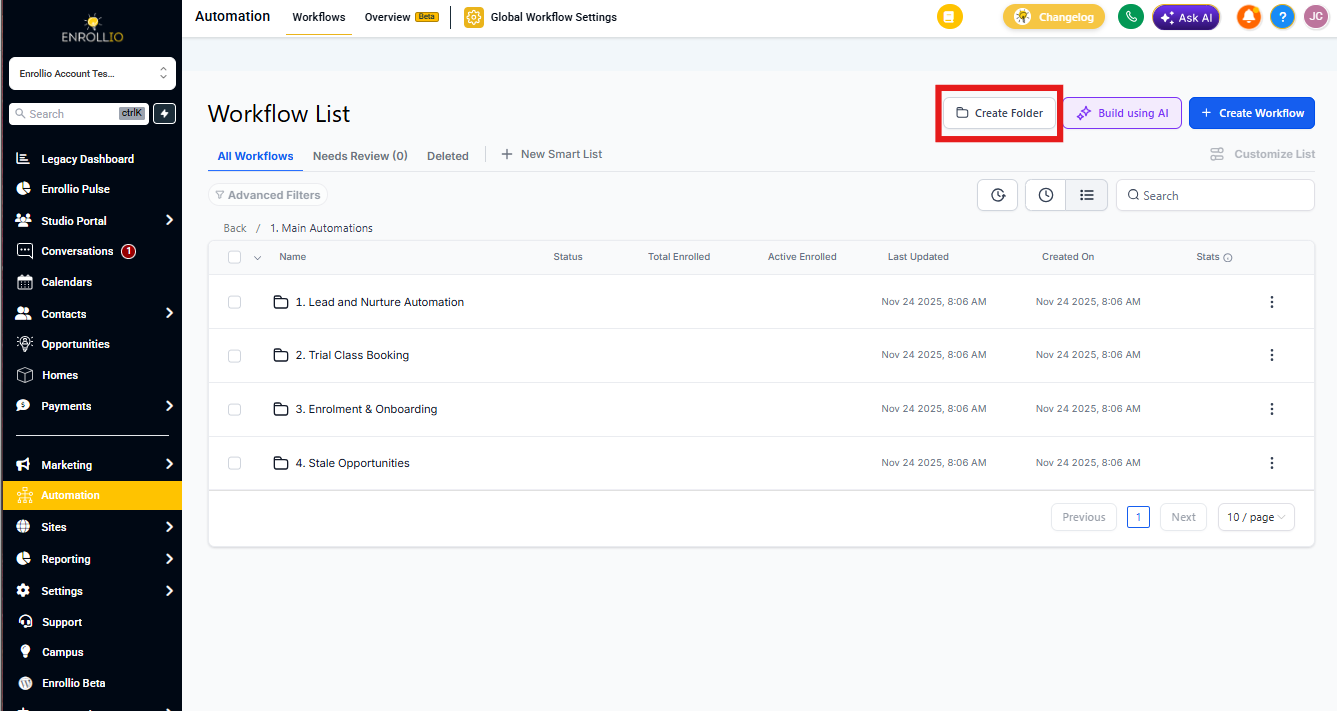
Click into any existing folder to open it, then click Create Folder again. This new folder will be nested inside the parent folder.
For example, inside "Enrollment Sequences" you might create nested folders for "Infant Program," "Toddler Program," and "Preschool Program."
Step 4: Move an Automation or Folder
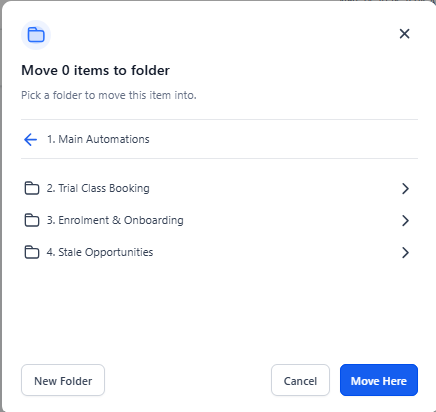
Find the automation or folder you want to move, click the three-dot menu on the right, and select Move To Folder.
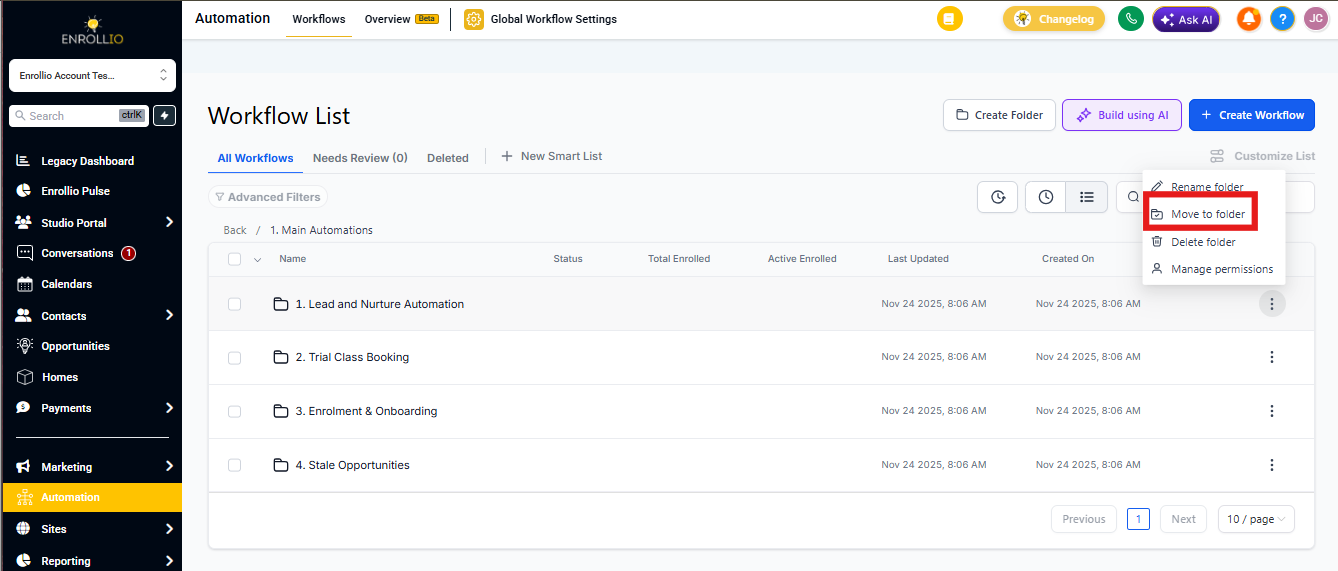
A window will appear showing your folder structure. Navigate to your target folder, select it, and click Move Here. You can also create a new destination folder right from this window.
Step 5: Rename a Folder
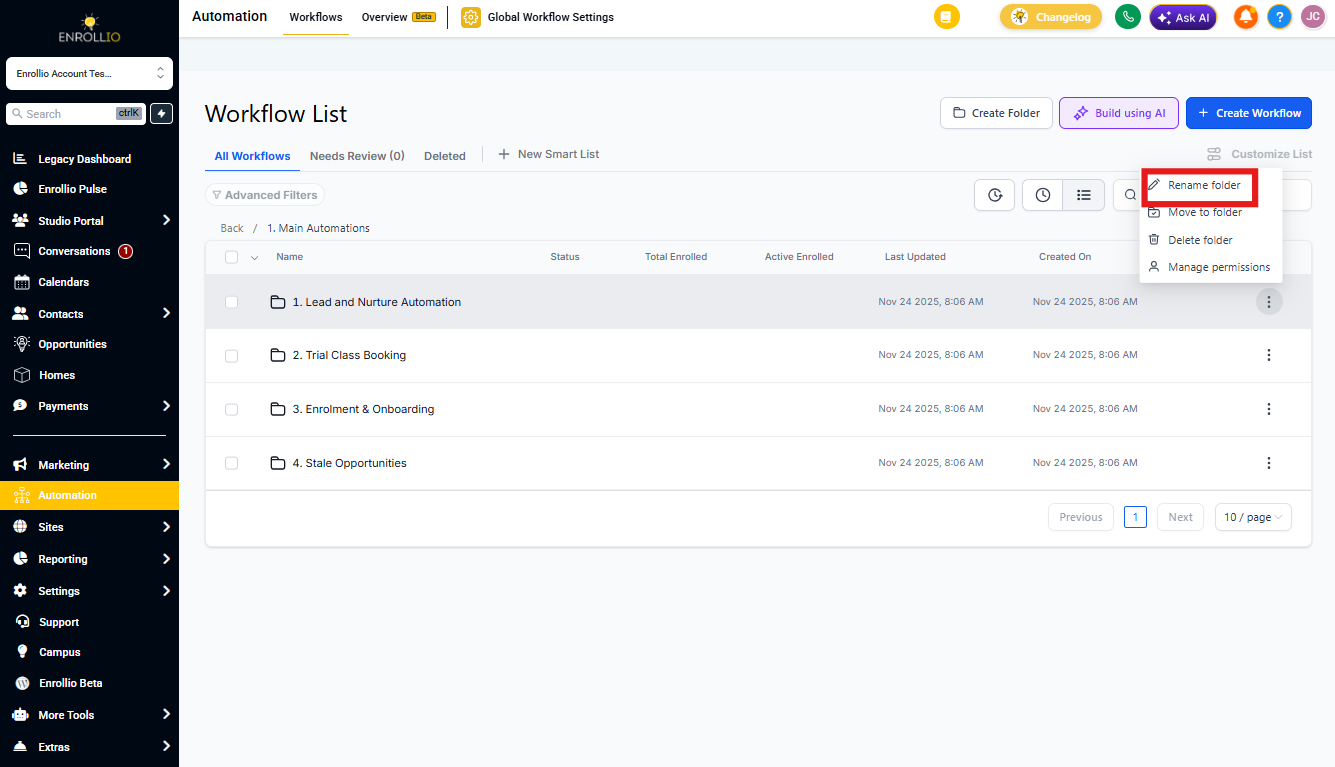
Navigate to the folder you want to rename, click the three-dot menu, and select Rename Folder. Type the new name and click Save.
Step 6: Delete a Folder
Click the three-dot menu next to any folder and select Delete Folder. Confirm when prompted.
Important: Deleting a folder won't delete the automations and nested folders inside it. They'll automatically move up one level in your folder structure.
Permissions for Nested Folders
Proper permissions keep your automations secure while enabling your team to collaborate effectively.
Role-Based Access
Your team members' access depends on their role. Admin users have full control — they can create, delete, and move folders. Staff users may have restricted access based on the permissions you configure.
Inherited Permissions
Nested folders typically inherit permissions from their parent folder. If you need different access rules for a specific folder, you can customize permissions at the individual folder level.
View-Only vs. Full Control
You can assign team members view-only access (they can see automations but not change them) or full control (they can create and edit automations).
Collaboration Best Practices
When multiple staff members work with automations, ensure only authorized users can access critical sequences — like enrollment workflows or billing reminders. This prevents accidental changes or deletions.
Best Practices for Using Nested Folders
Group Automations by Purpose
Create top-level folders for broad categories like:
- Enrollment Sequences — automations that guide families from inquiry to enrollment
- Parent Communication — newsletters, announcements, and updates
- Waitlist Management — automations for waitlisted families
- Staff Operations — internal workflows and reminders
Then create nested folders within each category. For example, under "Enrollment Sequences" you might have folders for each age group or program.
Keep It Simple
Avoid creating too many nested levels. A maximum of 2-3 levels keeps things easy to find. Going deeper than that can make locating automations more difficult, not easier.
Set Permissions Strategically
For sensitive automations — like billing sequences or legal notices — restrict access to key team members only.
Review Regularly
Set a reminder to review your folder structure quarterly. Archive or delete unused automations and reorganize as your center's needs evolve.
Use Search When Needed
If your folder structure grows large, use the search function to quickly locate specific automations by name or keyword.
Frequently Asked Questions
What happens if I delete a nested folder?
All automations and folders inside it move up one level. Nothing is permanently deleted unless you specifically delete individual automations.
Can I share specific folders with people outside my organization?
No, folder access is limited to your internal team members with appropriate permissions.
Is there a limit to how many folders I can create?
There's no fixed limit, but we recommend keeping your structure manageable. Too many folders can make organization harder, not easier.
Can I move multiple automations at once?
Not currently. You'll need to move automations one at a time using the three-dot menu.