
Tracking Multiple Enrollment Opportunities for the Same Family
The Allow Multiple Opportunities per Family setting lets you track more than one active enrollment for the same family in the same pipeline. This is essential for multi-child enrollments, program upgrades, and families transitioning between age groups.
What is "Allow Multiple Opportunities per Family"?
This setting in Enrollio allows you to create more than one enrollment opportunity for the same family within a single enrollment pipeline. Instead of overwriting existing enrollment cards, you can track each child or program separately while keeping one unified family record in your CRM.
Common scenarios include families enrolling multiple children, adding after-school care to an existing infant program, or transitioning a toddler to preschool while a younger sibling stays in the infant room.
Key Benefits
Enabling this feature changes how families move through your enrollment pipeline and how automations behave. Here's what you gain:
- Multi-child tracking: Create separate enrollment opportunities for each child without duplicating the family contact record.
- Program transitions: Track when a child moves from one age group or program to another as a distinct enrollment event.
- Add-on enrollments: Manage families adding summer camp, after-care, or other programs to existing enrollments.
- Accurate forecasting: See your true enrollment pipeline value when families have multiple active opportunities.
- Smarter automations: Target the correct enrollment opportunity in your workflows when several exist for one family.
- Multi-location flexibility: Support families who enroll children at different center locations.
How to Enable Multiple Opportunities per Family
Follow these steps to turn on the setting and test it with a sample family record.
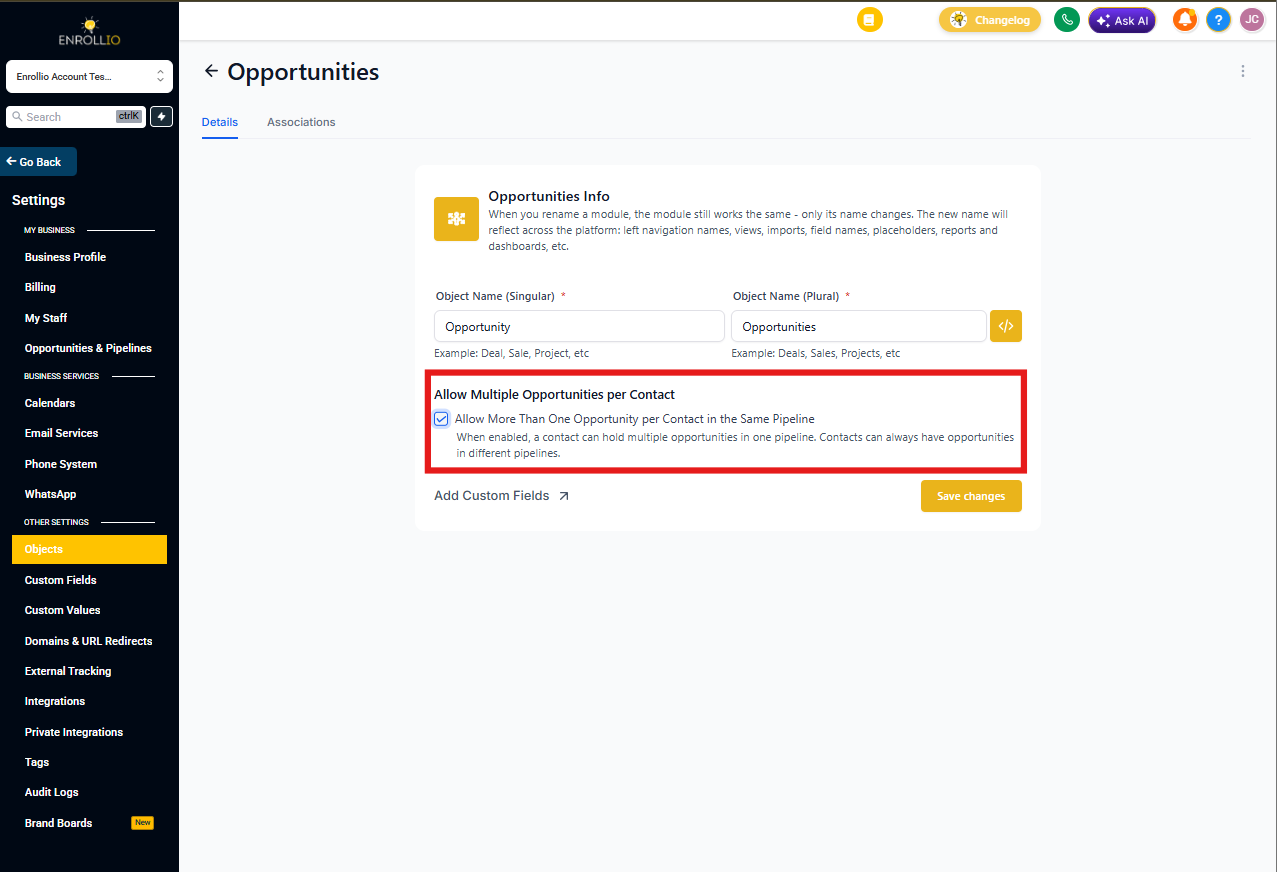
- Go to Client Account Settings → Objects → Opportunities
- Toggle Allow Multiple Opportunities per Family to ON
- Click Save changes
- Test by creating two enrollment opportunities for the same family in the same pipeline
- Confirm both cards appear and your automations behave as expected
Frequently Asked Questions
Does turning this setting ON change existing enrollment opportunities?
No. Your existing opportunity cards stay exactly as they are. Enabling this simply allows you to create additional cards for the same family going forward.
What happens if I turn the setting OFF later?
Existing opportunity cards are not deleted. The system will just prevent you from creating new duplicate opportunities for the same family in the same pipeline. Review your automations to avoid errors when trying to create or update opportunities.
Can a family have multiple opportunities across different pipelines even if this setting is OFF?
Yes. This setting only governs duplicates within the same pipeline. Families can still have opportunities in different pipelines (for example, one in "New Enrollments" and another in "Waitlist") regardless of this setting.
How do I make sure automations act on the right enrollment card?
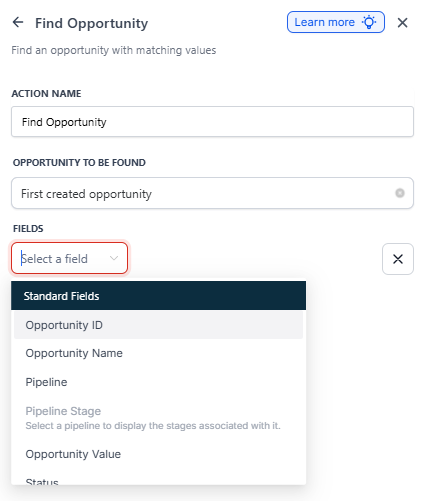
Use the Find Opportunity action in your automations to select the earliest, latest, or a specific match based on conditions. Set entry filters to prevent families from re-entering workflows unintentionally when you create a second opportunity for them.
Will my enrollment forecasts double-count revenue?
Your pipeline totals will reflect all open enrollment opportunities. If a family has three children enrolling, you'll see three separate values in your forecast. Make sure your dashboards and reports account for this—it's accurate, not duplicated.
Is this the same as the "Duplicate Opportunity" option in automation steps?
No. The automation-level duplicate setting controls what happens within that specific action. The global setting we're discussing here controls whether Enrollio allows multiple enrollment cards per family at all.
Do I need to update user permissions?
Confirm your staff can access enrollment pipelines and create or update opportunities. Adjust roles in your team settings if needed.
How do I avoid sending duplicate messages when a family has multiple opportunities?
Add safeguards to your automations: use Find Opportunity to target the right card, tighten your triggers, and apply re-entry rules or suppression conditions. You can also filter based on opportunity stage or custom fields to ensure messages only go out once per family.