
How to Update Enrollment Opportunity Status
Understanding enrollment opportunity statuses helps you track families through your enrollment process and close more enrollments. This guide shows you how to update statuses in Enrollio and explains what each status means.
Understanding Opportunity Statuses
Every enrollment opportunity in Enrollio has one of four statuses that reflects where the family is in your enrollment process:
Open
Open opportunities are families you're actively working to enroll. These are prospective families who haven't enrolled yet, but are still considering your childcare program. Most of your day-to-day enrollment work happens with Open opportunities.
Won
Won means the family enrolled! This status marks successful enrollments where the family has signed your contract and will be joining your program. Use this status to track your enrollment wins and conversion rates.
Lost
Lost opportunities are families who decided not to enroll. Maybe they chose another childcare provider, their needs changed, or the timing wasn't right. Tracking lost opportunities helps you understand what's not working in your enrollment process.
Abandoned
Abandoned opportunities are families who stopped responding or that you've decided not to pursue further. This could be families who ghosted after a tour, or leads that weren't a good fit for your program. Use this status to keep your pipeline clean and focused on active opportunities.
Three Ways to Update Opportunity Status
Enrollio gives you three different ways to update enrollment opportunity statuses. Pick whichever method works best for your workflow:
Option 1: Update Status Directly in the Opportunity
This is the most straightforward way to change a status when you're already looking at an opportunity.
- Navigate to Opportunities: Click "Opportunities" in your Enrollio sidebar menu.
- Open the Opportunity: Find the family's enrollment opportunity you want to update. You can use the search bar or filters to find it quickly. Click on the opportunity card to open the full details.
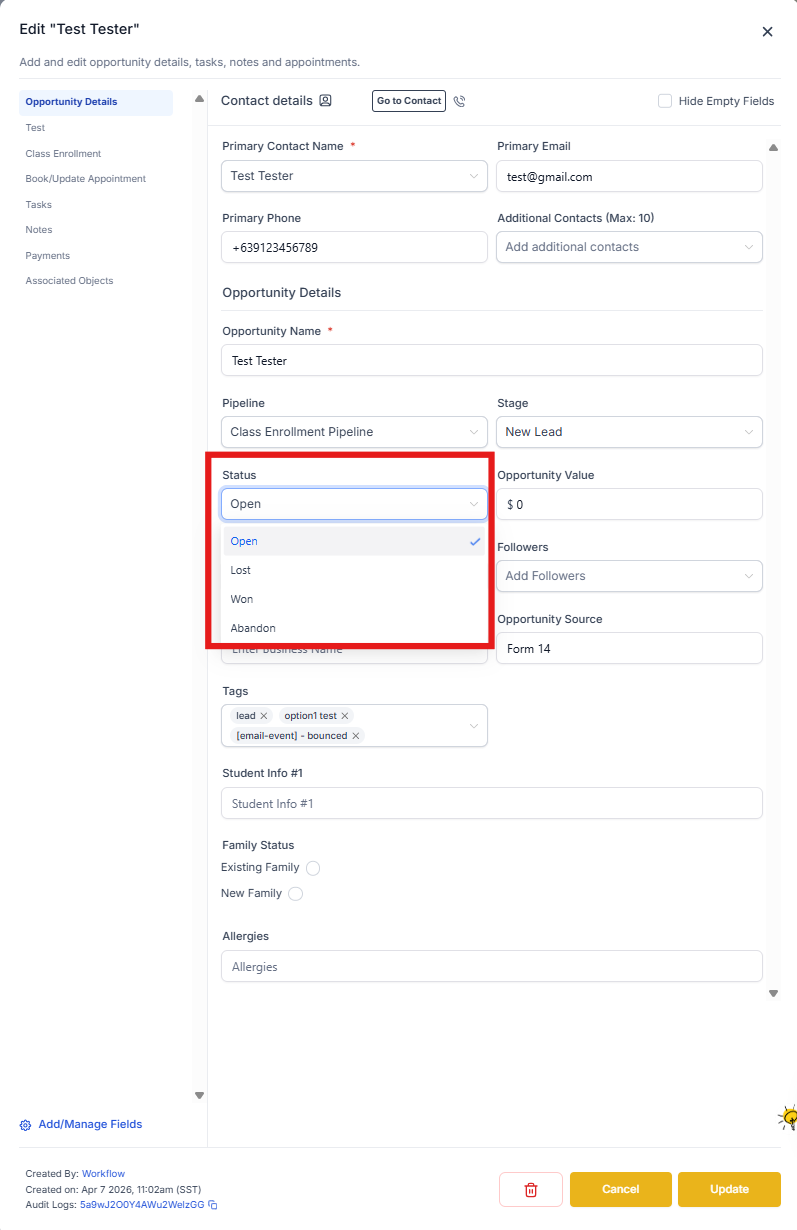
- Change the Status: At the top of the opportunity details, you'll see the current status. Click on it to open a dropdown menu with all four status options (Open, Won, Lost, Abandoned). Select the new status, and Enrollio will update the opportunity immediately.
Option 2: Drag and Drop Between Statuses
When you're viewing your enrollment pipeline, you can quickly drag opportunities between status columns. This is great for processing multiple families at once.
- Navigate to Opportunities: Click "Opportunities" in your Enrollio sidebar menu.
- Find the Opportunity: Locate the enrollment opportunity you want to update in your pipeline view. Use filters if you have lots of opportunities to sort through.
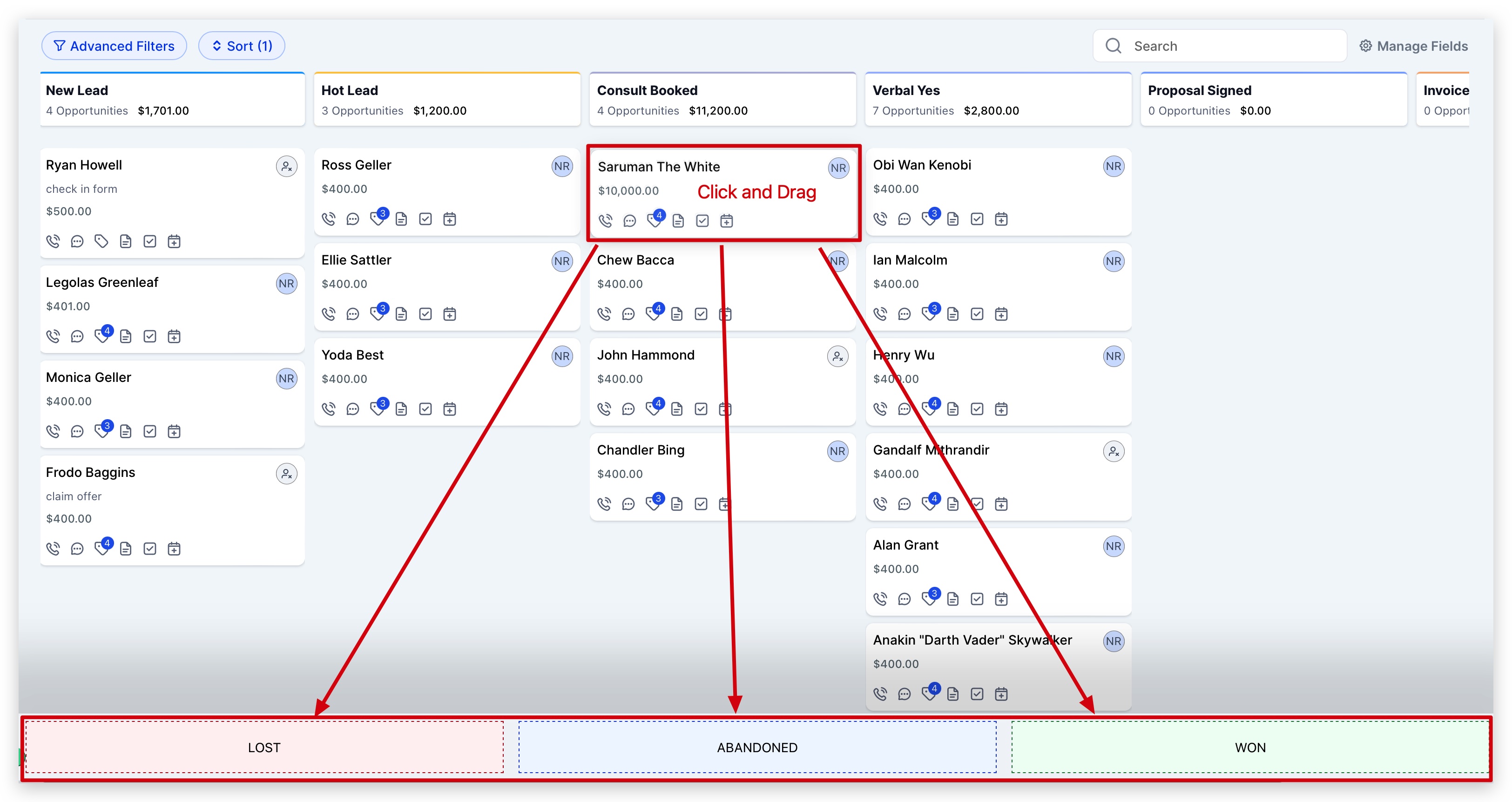
- Drag to New Status: Click and hold the opportunity card, then drag it to the status column where you want to move it. You'll see the status columns highlight as you drag. Drop the card on the correct status (Open, Won, Lost, or Abandoned), and the opportunity updates instantly.
Option 3: Update Status Using Automations
Set up automations to change opportunity statuses automatically based on family actions. This keeps your pipeline current without manual work.
- Navigate to Automations: Click "Automations" in your Enrollio sidebar menu.
- Create or Open an Automation: Either create a new automation or open an existing one that manages your enrollment opportunities.
-
Set Up Your Trigger: Choose what action should trigger the status update. Common triggers for enrollment opportunities include:
- Enrollment form submitted
- Contract signed
- Tour scheduled or completed
- Payment received
- Specific tag added to the family
- Days of inactivity
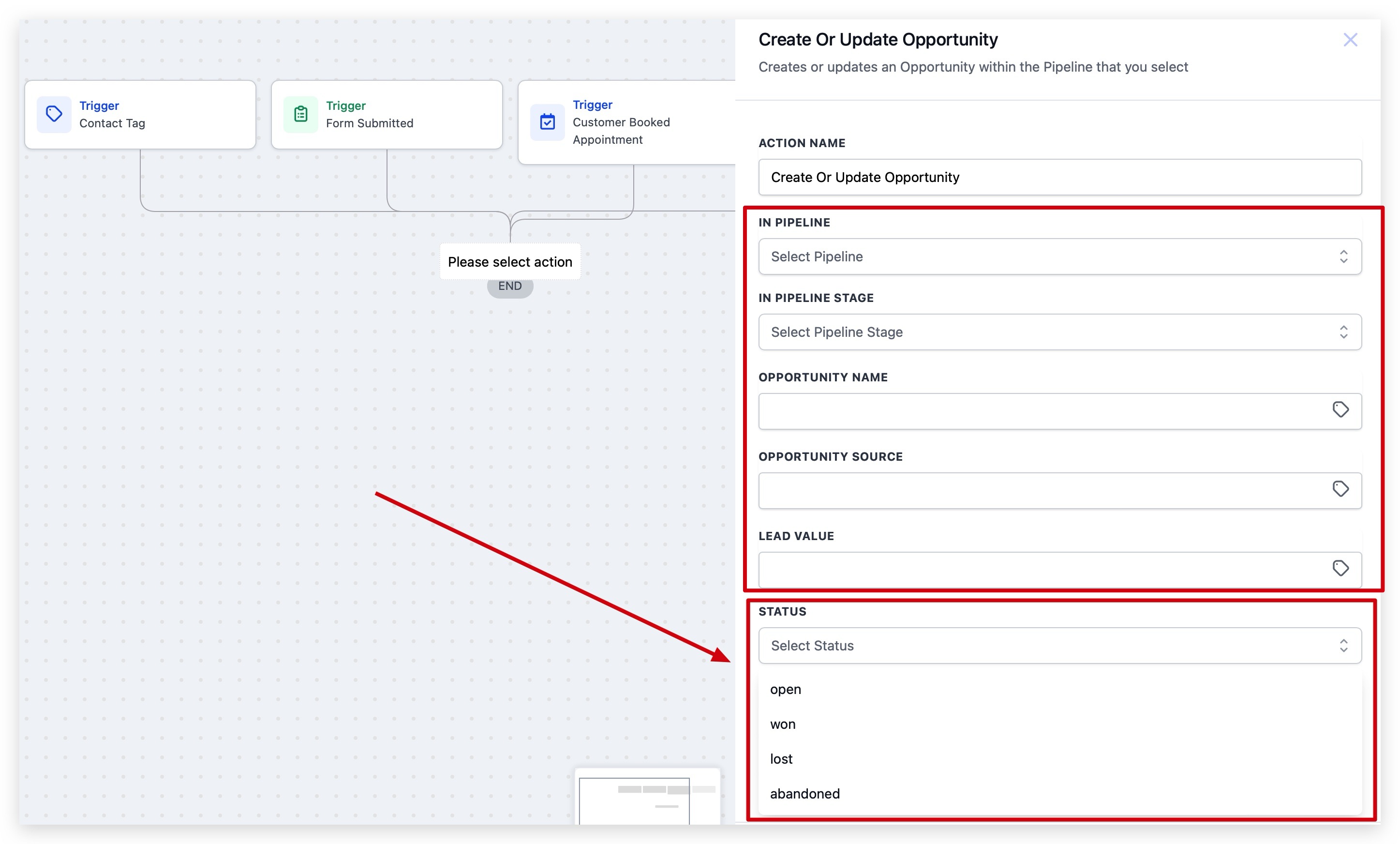
- Add the "Create/Update Opportunity" Action: After your trigger, add the "Create/Update Opportunity" action. Can't find it? Use the search bar and type "opportunity" to locate it quickly.
- Configure the Status Update: In the action settings, select your enrollment pipeline and pipeline stage. Then set the status you want to apply (Open, Won, Lost, or Abandoned). You can also update other opportunity details like name, source, or value while you're here.
Choosing the Right Method
Not sure which method to use? Here's when each works best:
- Use Option 1 (direct update) when you're already reviewing a family's details and want to update their status while you work.
- Use Option 2 (drag and drop) when you're doing a quick pipeline review and need to update multiple families' statuses at once.
- Use Option 3 (automations) for status changes that should happen automatically, like marking opportunities as Won when contracts are signed or Abandoned after long periods of inactivity.
Most childcare programs use all three methods depending on the situation. Automations handle routine status changes, while manual updates let you make decisions that require your judgment.