
How to Import HTML Email Templates and Campaigns
Already have email templates you love? You can bring them right into Enrollio — no need to rebuild from scratch.
Whether you're moving from another platform or want to use custom HTML templates, Enrollio's code editor makes it simple to import and manage all your email campaigns in one place.
What's Covered in This Article
- Importing HTML Email Templates
- Importing HTML Email Campaigns
How to Import HTML Email Templates
Templates are reusable email designs you can use across multiple campaigns. Here's how to import one:
- Go to Marketing Email Builder
- Click Create New Template
- Select Blank Template from the dropdown options
- In the popup window, choose Code Editor (not Design Editor)
- Paste your HTML code into the editor area
- You'll see a live preview of your template on the right
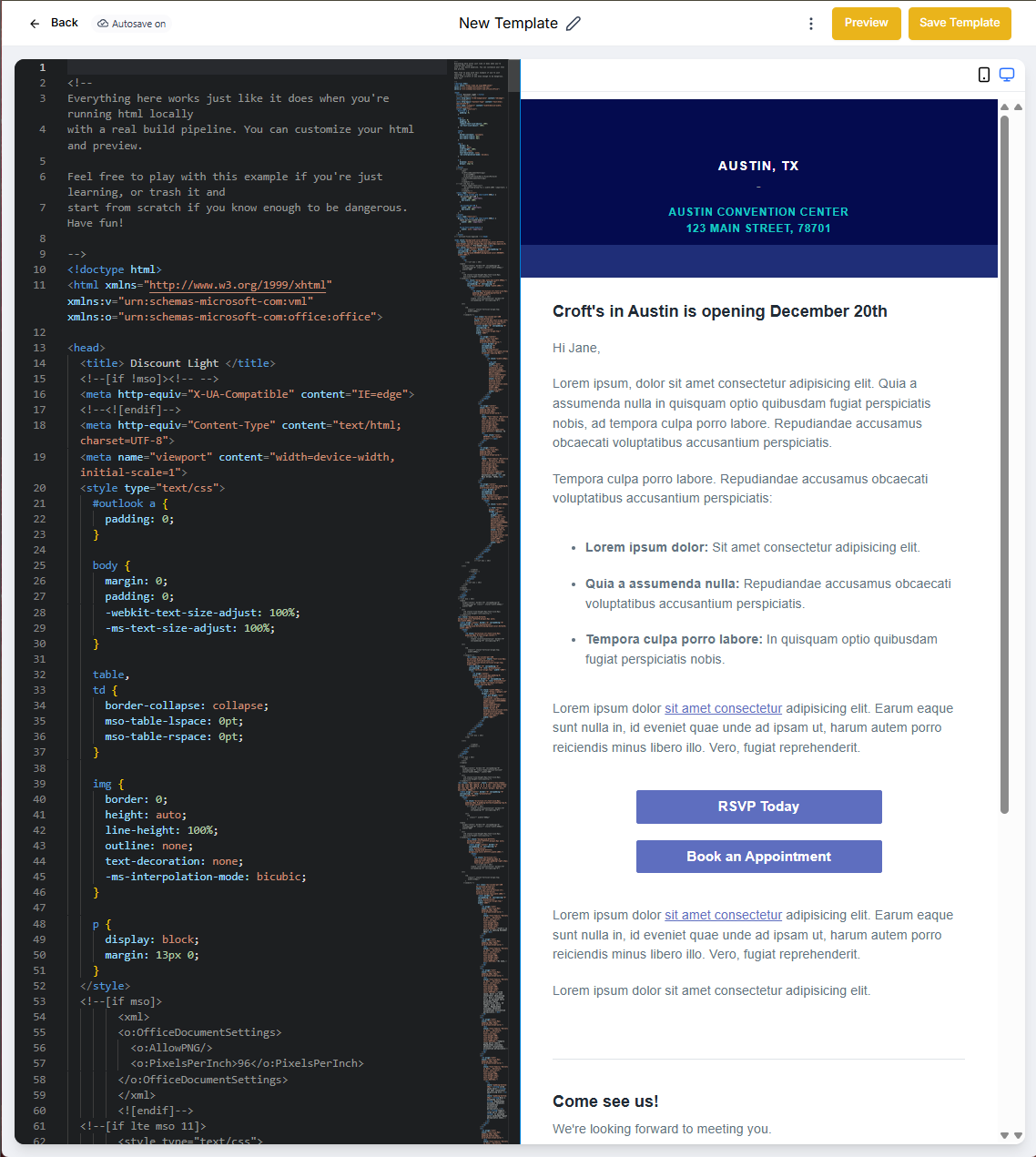
Pro Tip: Save time by creating templates for common emails like tour confirmations, waitlist updates, or enrollment reminders. You can reuse them whenever you need.
How to Import HTML Email Campaigns
Campaigns are one-time emails sent to specific groups of families. Here's how to import HTML for a campaign:
- Go to Marketing Email Builder
- Click Create Campaign
- Select Blank Campaign from the template options
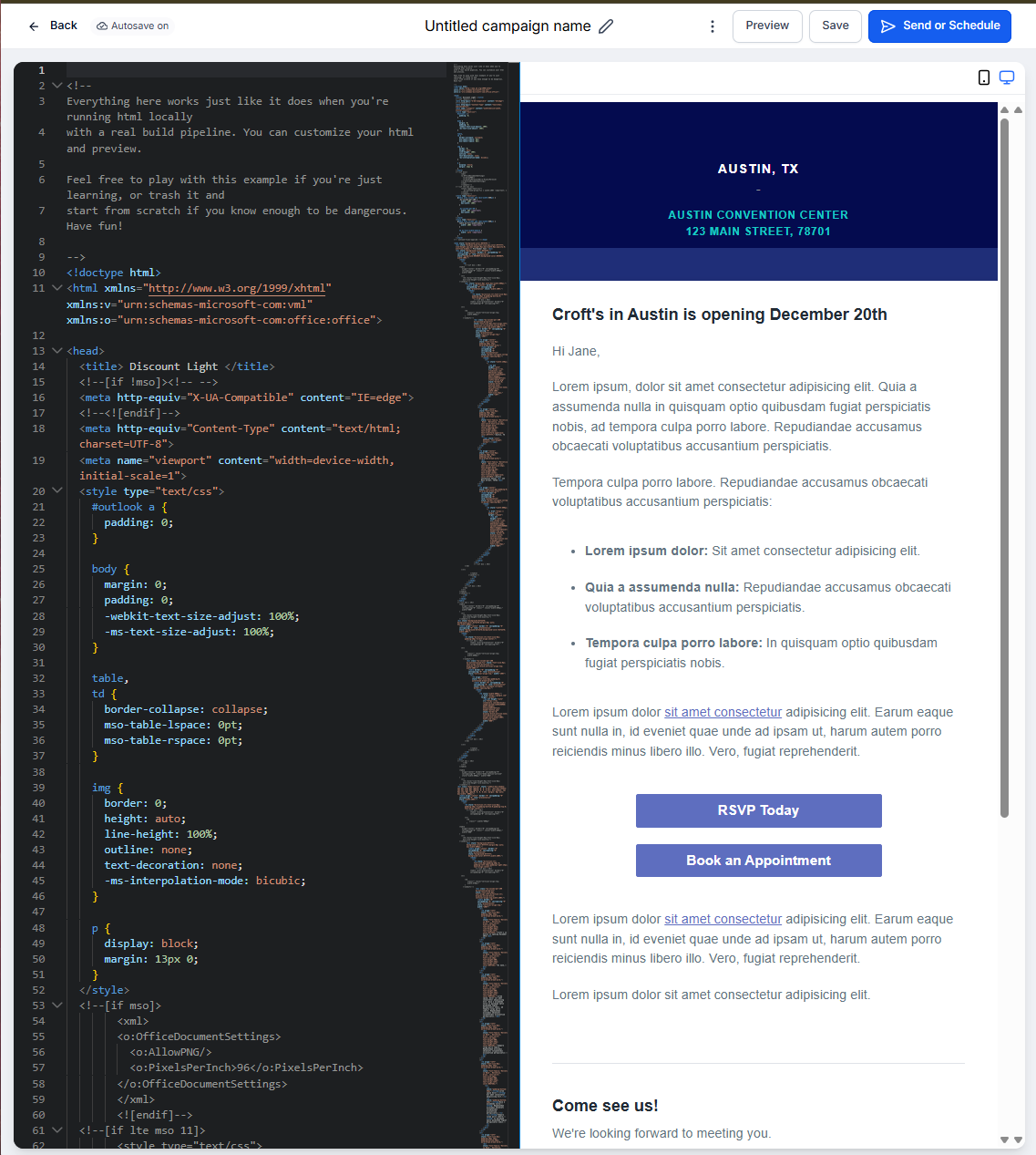
- In the popup window, choose Code Editor
- Paste your HTML code into the editor area
- Review the preview and continue with your campaign setup
What's the Difference?
Templates are saved designs you can reuse. Think of them as your go-to formats for regular communications with families.
Campaigns are actual emails you send. You can build them from templates or create them from scratch.
Related Articles
- Email Builder Overview
- How to Preview and Test Your Email Campaigns
- Email Templates vs Email Campaigns
- How to Import Email Templates from Mailchimp
- How to Import Email Templates from ActiveCampaign