
What is Email Conversion Tracking?
Email conversion tracking shows you when a parent opens your email and then takes action—like booking a tour, completing an enrollment form, or making a payment—within a specific time window.
This helps you see which email campaigns are actually driving results for your childcare business, so you can focus on what works.
How Email Conversion Tracking Works
Enrollio uses "last touched" logic to attribute conversions. This means the most recent email a parent opened or clicked gets credit for any action they take.
By default, the attribution window is set to 5 days. If a parent opens your email and enrolls within 5 days, that enrollment gets attributed to your email campaign.
You can adjust this window in your campaign settings to match how your families make decisions.
Example Scenario
Day 1: You send an email about your summer program. A parent opens it to view the details.
Day 4: The parent comes back and completes their enrollment.
Revenue from this enrollment gets attributed to your email campaign because it happened within the 5-day window.
However, if the parent enrolled 12 days later, the revenue would not be attributed to that original email.
How to View Email Campaign Conversions
- Go to Marketing → Emails → Campaigns
- Find your email campaign and click the three dots icon on the right
- Select Statistics
- Click Load more Statistics
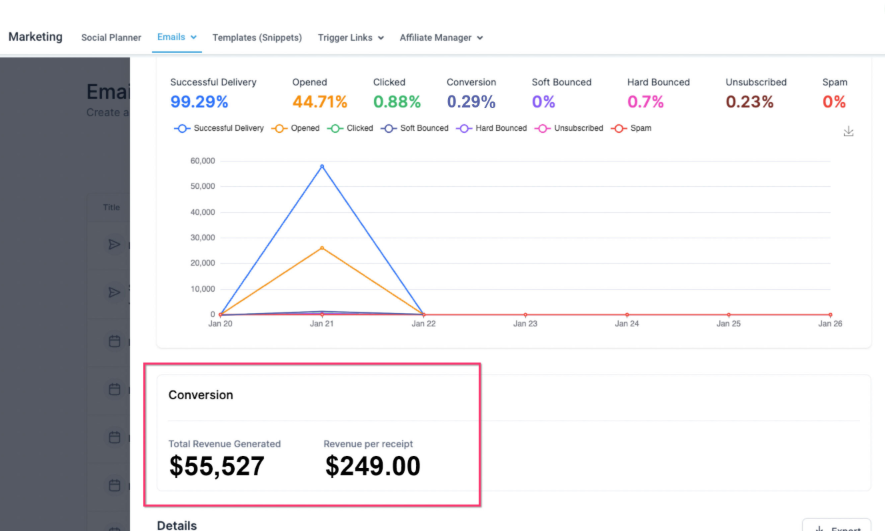
In the Conversion section, you'll see:
- Total Revenue Generated from this campaign
- Revenue per recipient who received the email
- A detailed breakdown in the Ordered tab showing which families made purchases and how much they spent
Customizing Your Attribution Settings
The attribution window is the timeframe when a family's action gets linked to your email campaign. You can customize this to match how your families typically make enrollment decisions.
Why 5 Days?
Research shows most people forget about emails after 5 days. The default 5-day window reflects current industry insights and gives you an accurate picture of your campaign performance.
But if your families tend to take longer to decide—like for expensive programs or waiting for new school years—you might want to extend this window.
How to Adjust the Attribution Window
- Go to Marketing → Emails → Campaigns
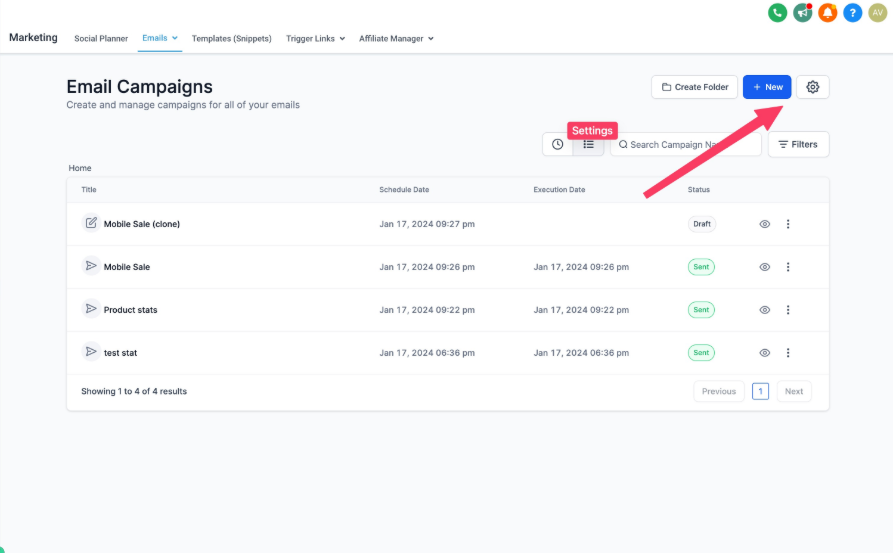
- Click the gear icon to access settings
- Adjust the attribution window value to your preferred number of days
Attribution To: Choosing What to Track
You can customize which types of campaigns get tracked for conversions:
All Campaigns (Default): Track all email campaigns for a complete overview of your email marketing performance.
Product Element Specific: Only attribute conversions to emails that specifically feature products or programs. This is useful if you send a mix of newsletters and promotional emails and want to isolate the performance of your sales-focused campaigns.
What Counts as a Conversion?
All payments processed through Enrollio will be considered for attribution. This includes:
- Enrollment deposits
- Tuition payments
- Program fees
- Supply fees
- Any other payments made through your payment forms
Making Data-Driven Decisions
Use conversion tracking to:
- Identify which email campaigns drive the most enrollments
- See which subject lines and content resonate with parents
- Understand the ROI of your email marketing efforts
- Optimize future campaigns based on what's actually working
With the flexibility to adjust both the duration and focus of your tracking, you can make informed decisions that improve your campaign performance over time.